Booking.com Supply Partners Onboarding Guide for the Good Journey Platform.
TABLE OF CONTENTS
- Partnership Requirement
- 1. Information Required
- 2. API Key Request
- 3. Mapping Car Types
- 4. Setup Car-Type Association
- 5. Add Drivers and Vehicles
- 6. Define Payout Plan for Drivers
Partnership Requirement
Before starting this onboarding checklist, you must already have:
- An active commercial contract with Booking.com
- A subscription to the Good Journey Platform
If you do not yet have a commercial contract with Booking.com, you may request more information here.
1. Information Required
Please provide your Good Journey account manager with the following:
Company name registered with Booking.com
Your Booking.com Account Manager’s name
Owner’s name & the primary email used to communicate with Booking.com for your commercial agreement
What currency does Booking.com pay you in?
2. API Key Request
Request your API key from your Booking.com account manager and include our email: deploy@goodjourney.io
3. Mapping Car Types
Inside the Good Journey Platform, you will define and sell your own internal car-types.
You must map Booking.com’s car-types to your internal fleet configuration.
Important Rule
One-to-one mapping
A single Booking.com car-type cannot map to multiple internal car-types.
Ensure each Booking.com category maps only to one matching vehicle class in your fleet.
This ensures clean sync, correct dispatching, and avoids pricing/vehicle mismatch errors.
Here is an example template:
You can make a copy of this document and fill in your own car-types that map to booking.com's car-type.
https://docs.google.com/spreadsheets/d/1rvfllwbaqBrYF4I6kJ2K5x-qPjYU4C1ns27HsX3qBm8/edit?gid=0#gid=0









Here is the improved and clearer version of the selected section:
4. Setup Car-Type Association
In some cases, you may want certain car-types to also receive jobs from other vehicle classes.
Example
You may want your People Carrier car-type to receive bookings for Standard, People Carrier, and Executive categories.
To configure this:
- Go to Settings → Car-Type
- Open/Edit the car-type you want to update
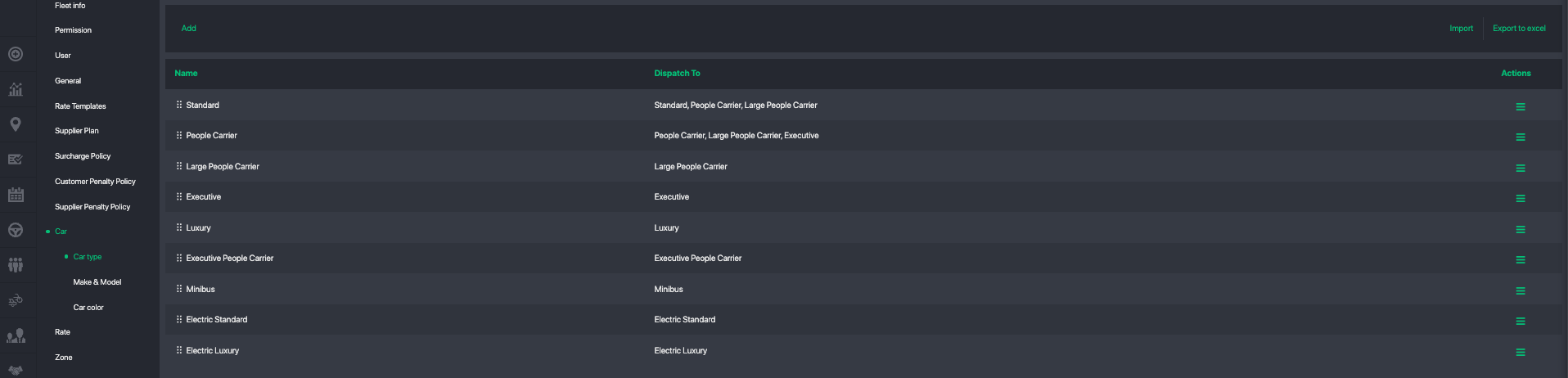
- Scroll to the Dispatch Association section
- Select which other internal vehicle classes are allowed to receive jobs from this car-type.
- Click Update Button to save changes
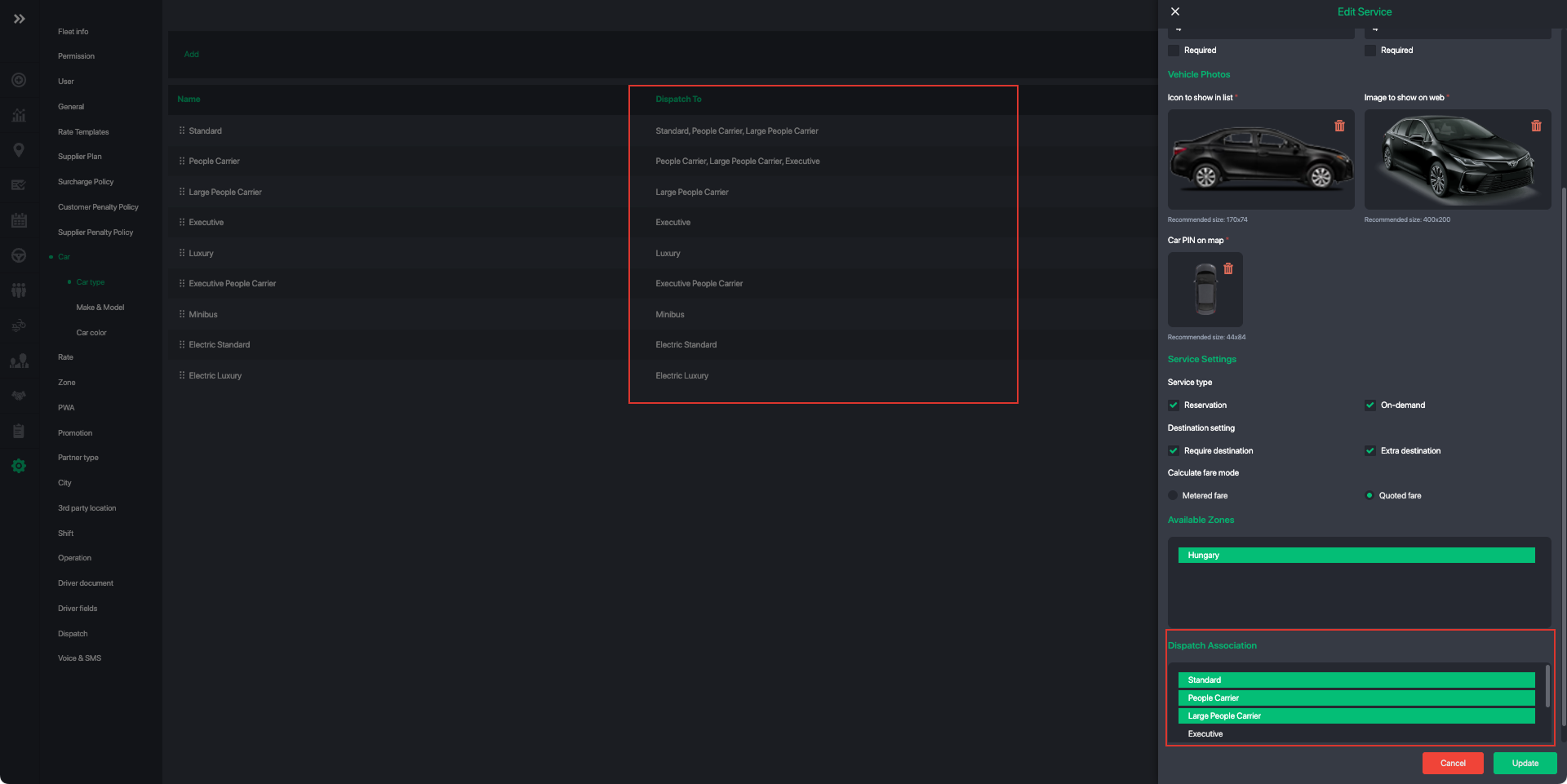
This ensures flexible dispatching while keeping your fleet configuration accurate.
5. Add Drivers and Vehicles
Before we sync all your orders from Booking.com into the Good Journey platform, please complete the following:
- Add all your drivers and vehicles into the system
- Link each vehicle to the correct driver
Some of your existing Booking.com bookings may already have assigned drivers.
To ensure smooth syncing, it is essential that all those drivers have profiles created on the Good Journey platform.
Now that everything is fully set up, please email the information to support@goodjourney.io or contact your Good Journey Account Manager for the next steps.
Next please checkout next steps and important notes for Booking.com API Integration.
Was this article helpful?
That’s Great!
Thank you for your feedback
Sorry! We couldn't be helpful
Thank you for your feedback
Feedback sent
We appreciate your effort and will try to fix the article