Video Walkthrough
Overview
Regular Rates let you charge customers based on distance, duration, or both. This guide walks you through each setting so you can configure your pricing accurately.
To access Regular Rates, navigate to Settings → Rates & Pricing.
Rate Naming Convention
Use clear, consistent names for each rate so they can be easily assigned to vehicle types, templates, or suppliers.
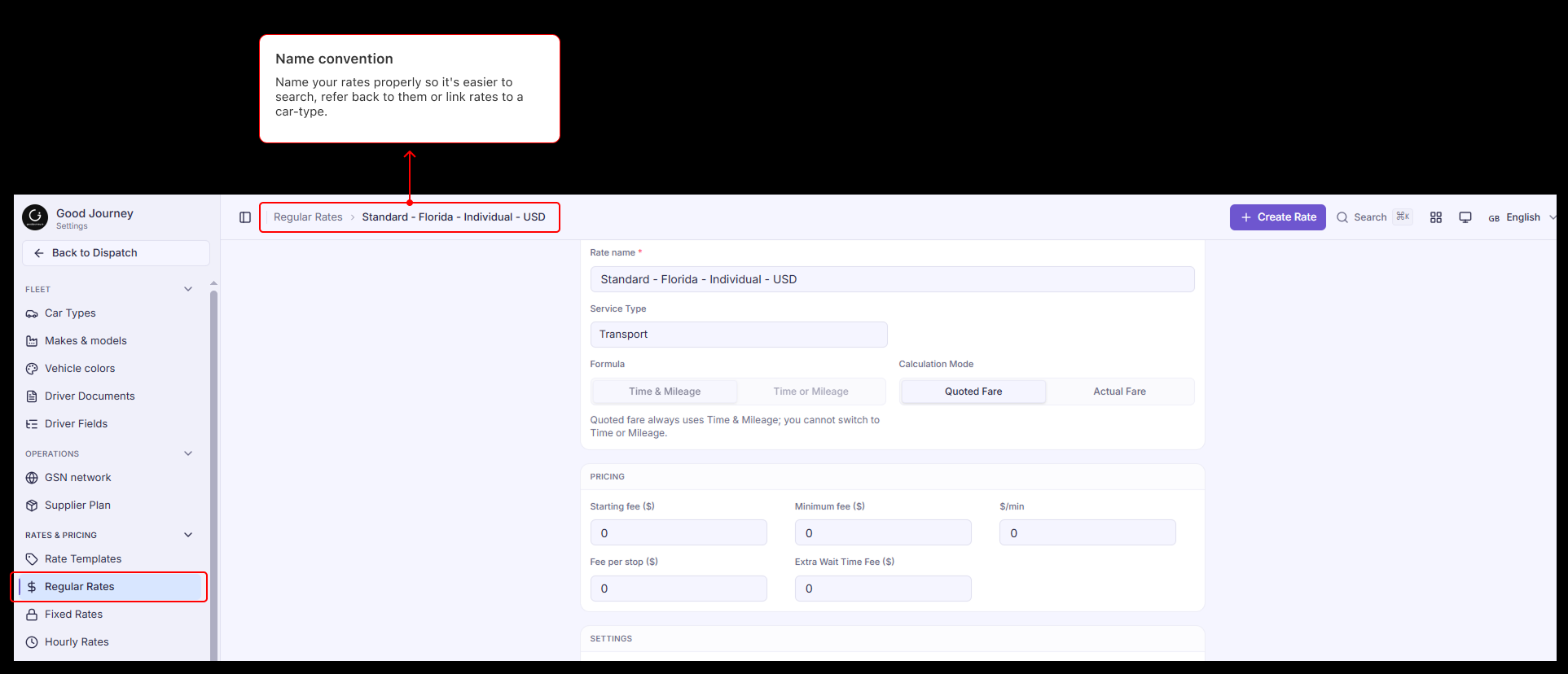
Best-practice format:
For customer-facing or corporate/public rates:
<Car-Type> – <Corporate/Public> – <Currency>
For driver payout rates:
<Car-Type> – <Pay-Out Name> – <Currency>
Examples:
Customer / Corporate Rates
- Business – Microsoft – USD
- Business Van – Public – EUR
- Economy – Booking.com – GBP
- Economy – HolidayTaxis – GBP
Driver Payout Rates
- Luxury SUV – Individual-Driver – USD
- Sedan – Core-Driver – AUD
This structure keeps your rate list organized and makes it easy to identify which rates belong to which vehicle, customer group, or supplier.
1. Currency
Each rate supports one currency. Choose the correct currency before setting up the rest of the rate. Skip this step if your system uses only one currency.
2. Calculation Mode
Choose how the fare will be calculated:
Quoted Fare
Charges based on the estimated distance and duration returned by the map provider. This mode is recommended for OTAs and bookings you need to charge the amount that was quoted.
Actual Fare
Charges based on the actual distance and time traveled.
- Customers see an estimate upfront, but final fare adjusts according to the real route.
- Note: Actual fare mode is not suitable for OTAs or API based bookings because there is no way to know or update the fare at the end of the trip.
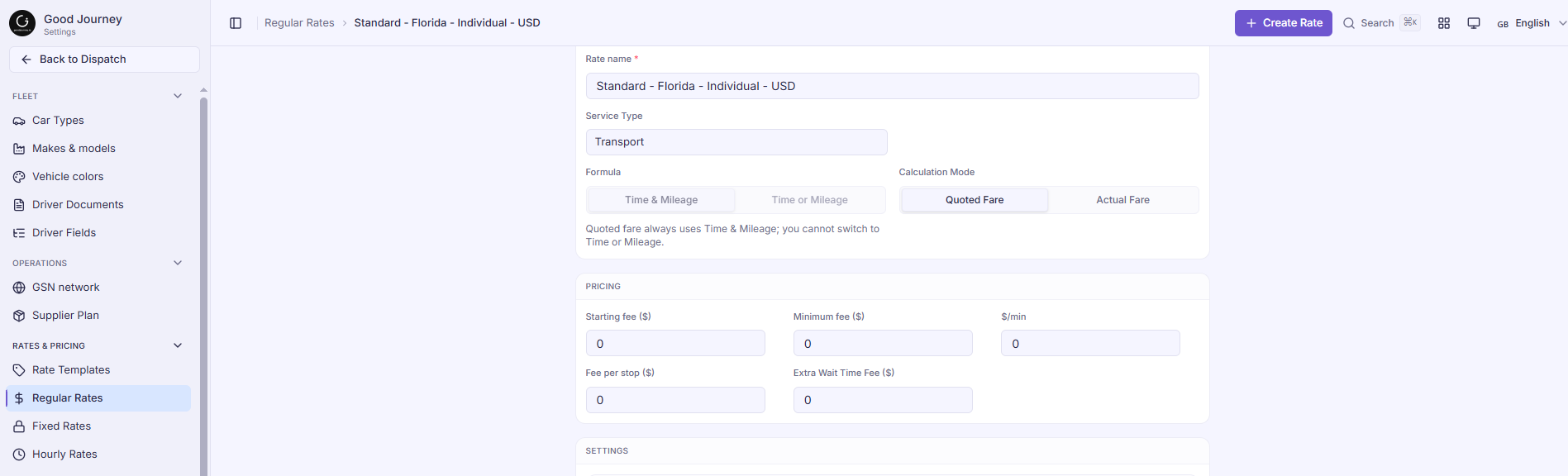
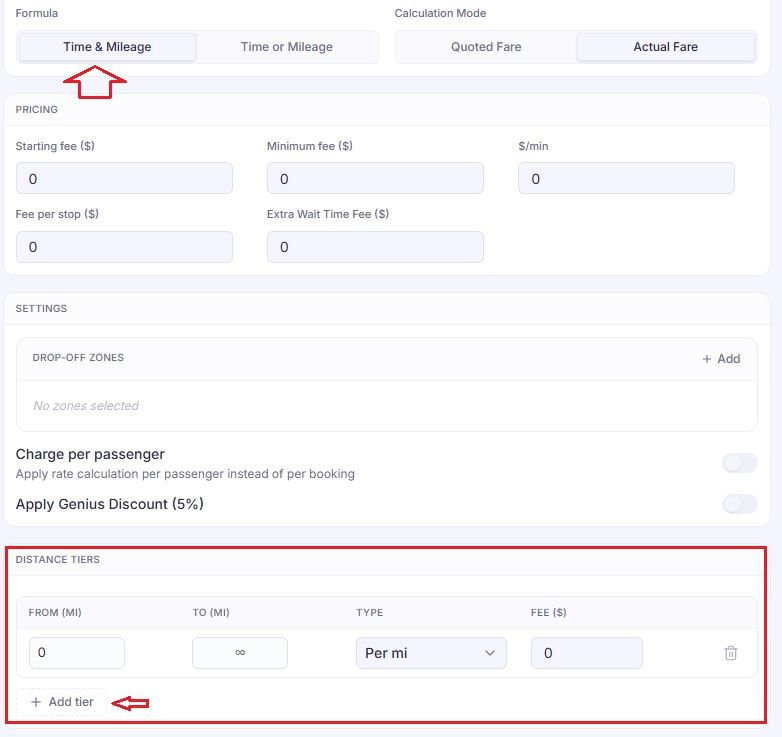
You can configure Actual Fare using:
Time & Mileage
Calculates the total fare using both time and distance.
Distance Tiers
Set different pricing for different distance intervals.
You can configure:
- Fee per km for each tier
- Flat fees for specific distance ranges
Useful for structuring short, medium, and long-distance pricing.
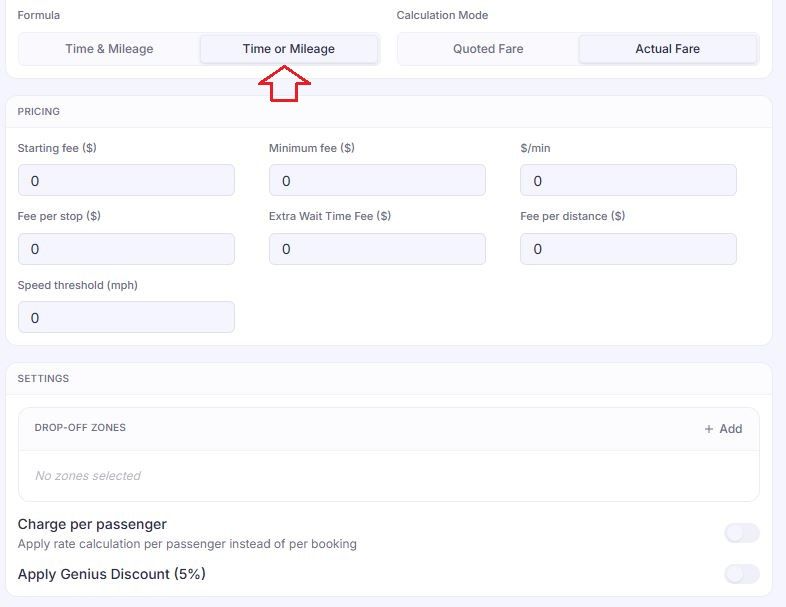
Time or Mileage
The system automatically switches between mileage or time based on the vehicle’s speed.
When the vehicle is moving above the configured speed threshold, the fare is calculated by mileage. When the speed drops below that threshold—such as in heavy traffic—the fare is calculated by time.
Normal speed → mileage
Below threshold / heavy traffic → time
3. Base Fees & Additional Charges
Configure what’s included in your fare:
- Starting Fee – base fare for every trip
- Minimum Fee – ensures a minimum charge regardless of distance
- Fare per Minute – cost for each minute of travel
- Extra Wait Time – charges after free wait time at pickup
- Additional Stop Fee – fees for extra stops between pickup and drop-off
- Drop-off Zones – restrict where customers can be dropped off
- Charge per Passenger – charges the fare per passenger instead of per vehicle
- Booking.com Genius Discount (5%) – signals Booking.com that you support Genius pricing, improving your ranking for their customers
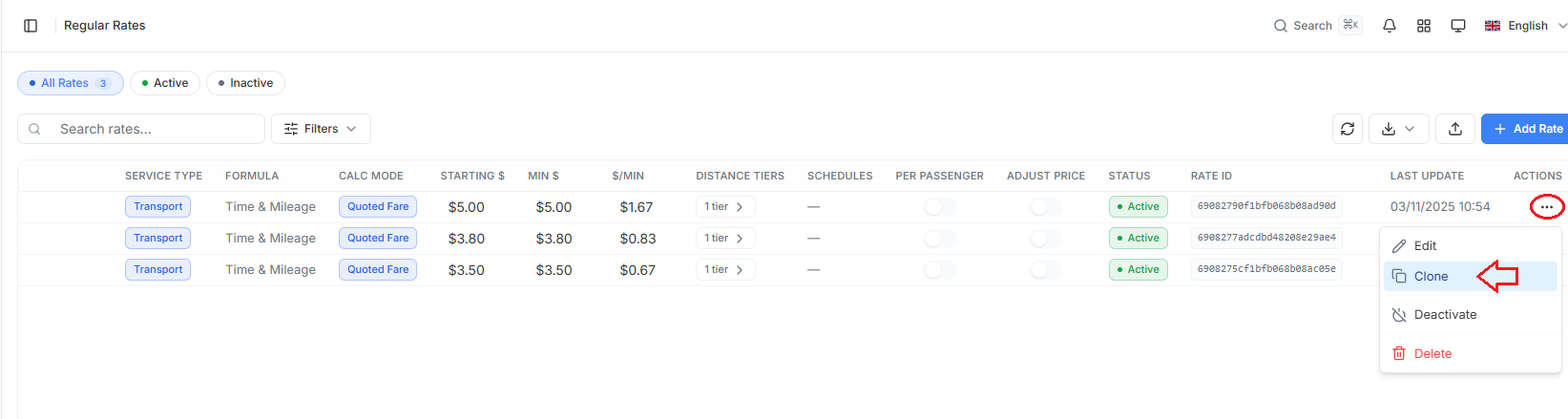
4. Clone rate
Duplicate an existing rate configuration and modify it as needed to speed up rate setup.
5. Import rate
Use this option to import multiple rates in bulk, allowing you to set up your rates more quickly and efficiently.
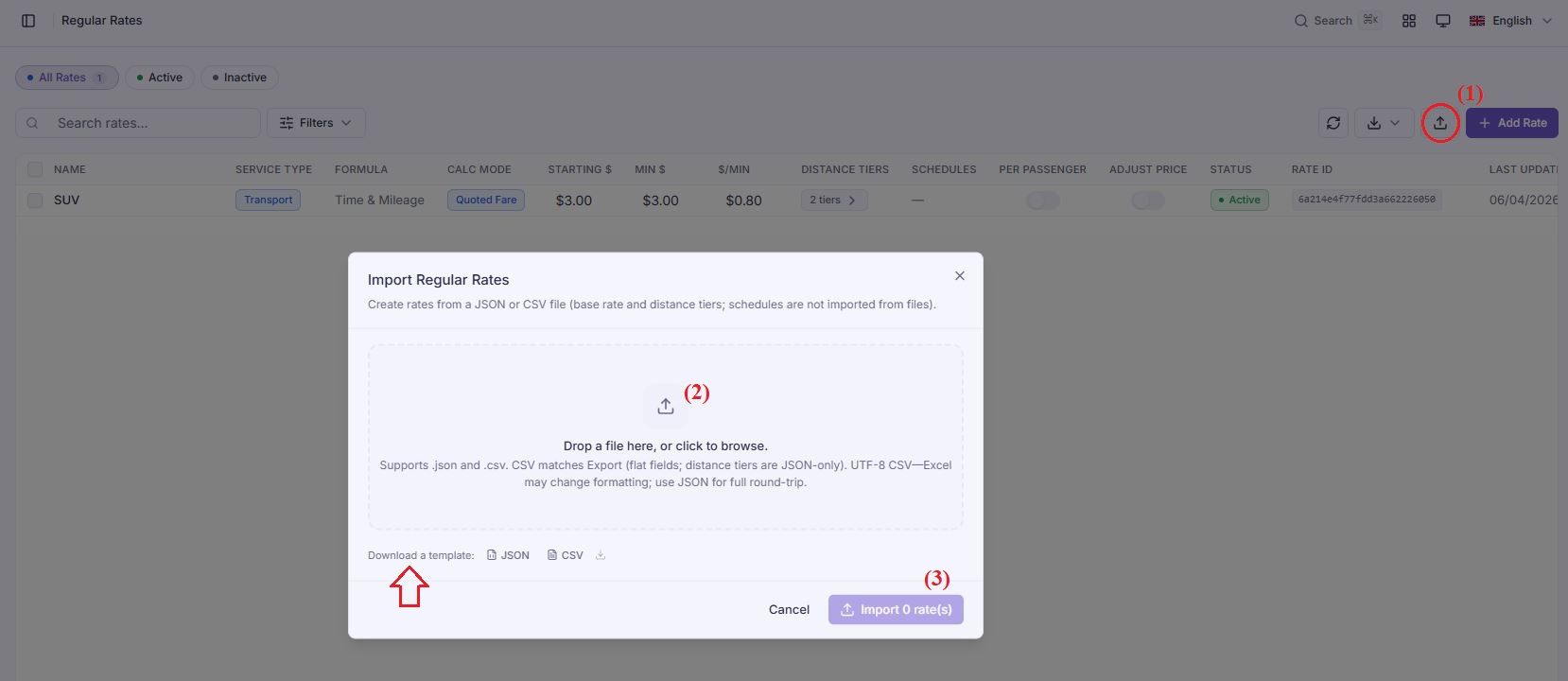
Note: Please download the template provided by the system and enter your data using the standard format before importing.
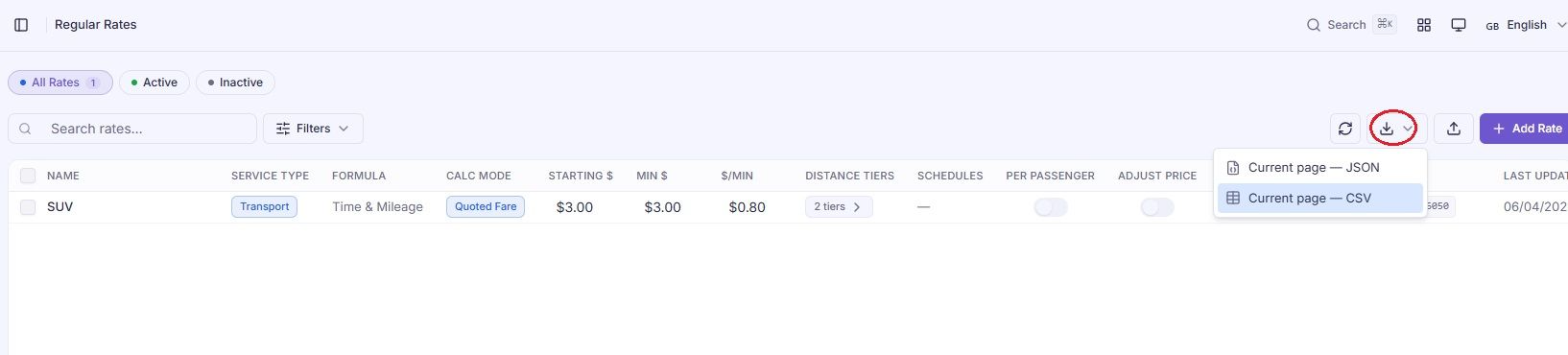
6. Export rate
Use this option to export your rates for easy review, verification, and record-keeping.
Summary
By combining currency, calculation mode, base fees, and distance tiers, you can design a flexible and accurate rate structure tailored for your transportation service.
Was this article helpful?
That’s Great!
Thank you for your feedback
Sorry! We couldn't be helpful
Thank you for your feedback
Feedback sent
We appreciate your effort and will try to fix the article