Video Tutorial
Overview
Hourly Rates allow you to charge customers based on the duration of the service. You can configure hourly bookings at Settings → Rates & Pricing.
Unlike other systems, Good Journey uses a flexible package-based structure for hourly services.
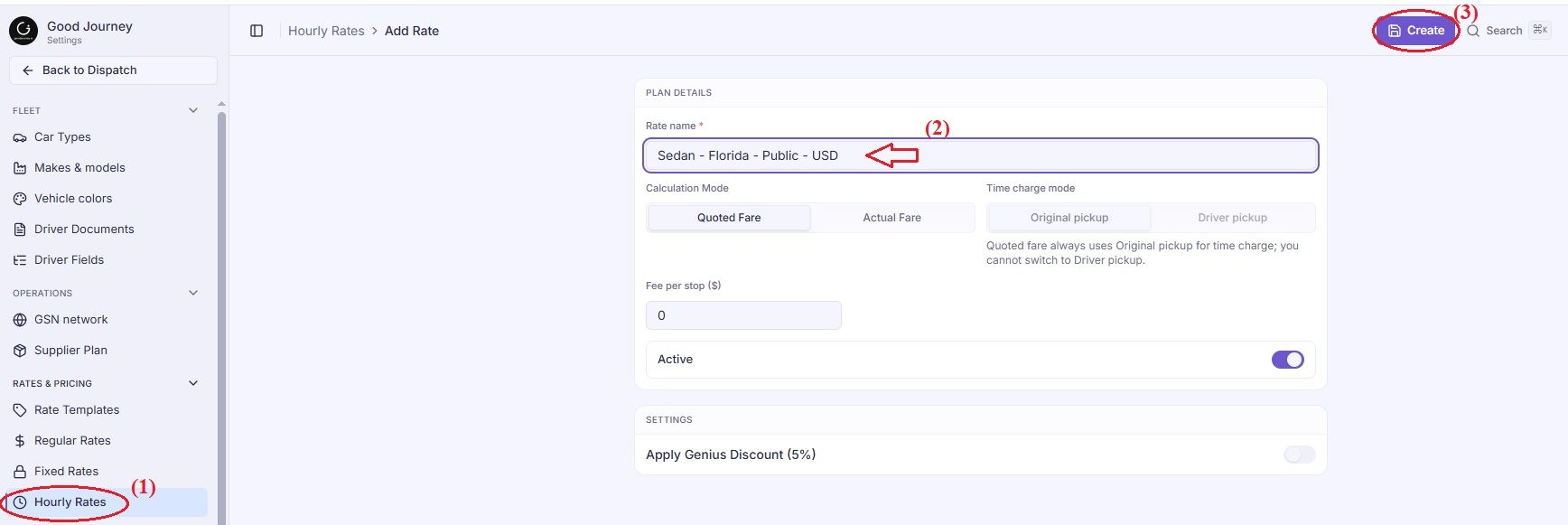
Best-practice format:
For customer-facing or corporate/public rates:
<Car-Type> – <Corporate/Public> – <Currency>
For supplier or driver payout rates:
<Car-Type> – <Pay-Out Name> – <Currency>
Examples:
Customer / Corporate Rates
- Business – Microsoft – USD
- Business Van – Public – EUR
- Economy – Booking.com – GBP
- Economy – HolidayTaxis – GBP
Driver Payout Rates
- Luxury SUV – Individual-Driver – USD
- Sedan – Core-Driver – AUD
This structure keeps your rate list organized and makes it easy to identify which rates belong to which vehicle, customer group, or supplier.
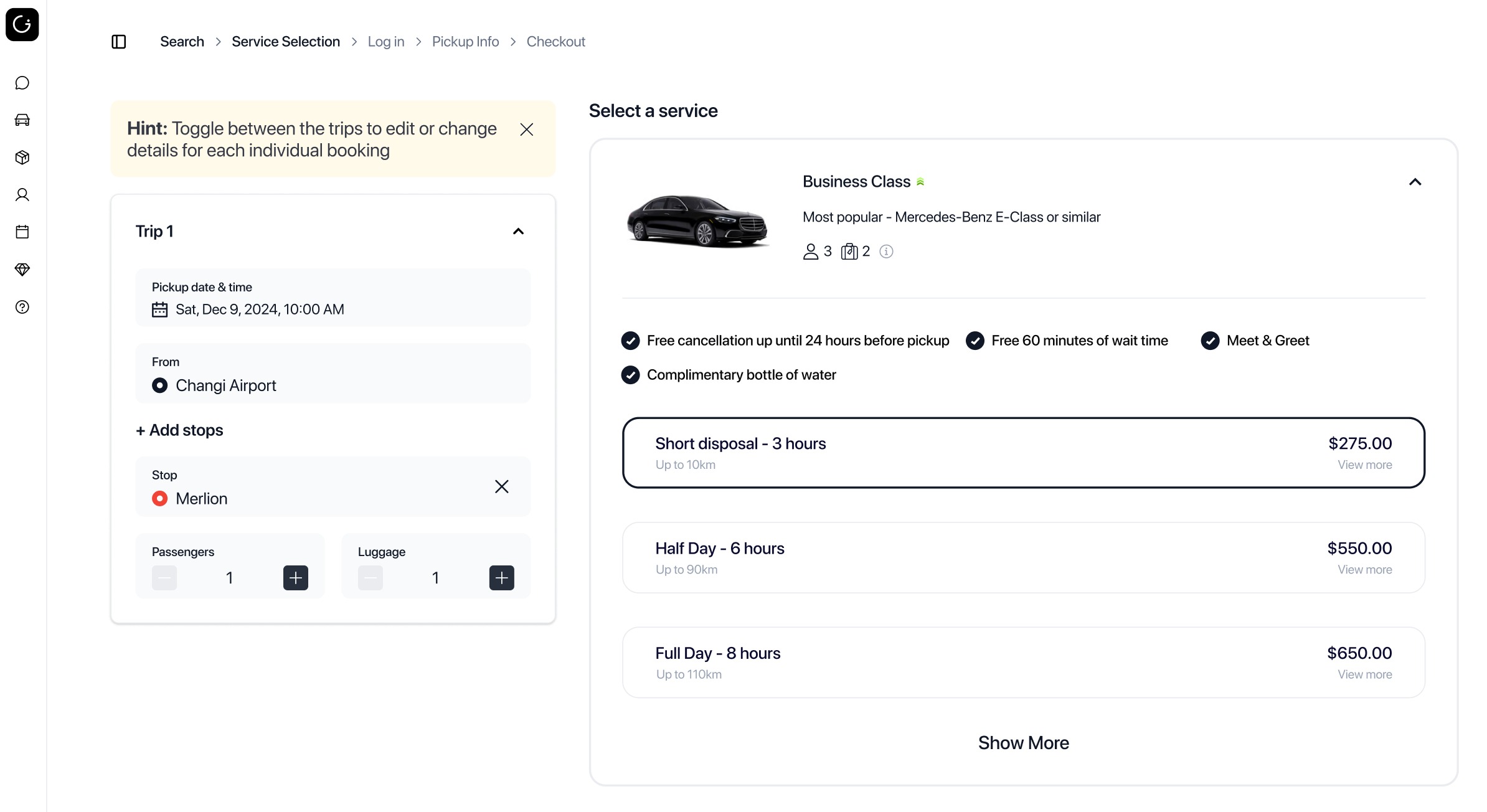
Hourly services are useful for disposal jobs or tour-style packages, and you can name each package however you prefer.
Examples of disposal service packages
- Short Disposal - 3 Hours
- Half Day - 6 Hours
- Full Day - 8 Hours
Examples of tour-style packages
- Day Tour of Singapore
- Golf Tour at Singapore Golf Club
- Other custom tour experiences
Here is an example of what it looks like when customers book directly on the web app:
Hourly service properties
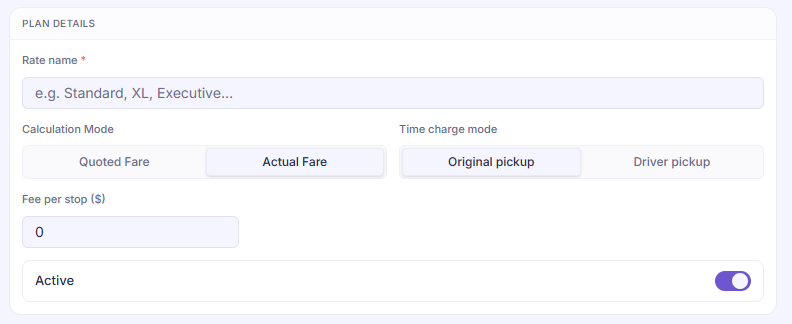
When setting up an hourly service, you can configure:
- Quoted Fare vs Actual Fare
Choose whether the system charges based on the estimated amount or recalculates the final amount based on actual usage. - Time Charge Mode
For actual fare mode you can setup the system to decide whether the hourly calculation starts from the original pickup or the driver pickup time. - Fee per stop(s)
Set how much to charge for extra stops along the way.
Adding multiple packages
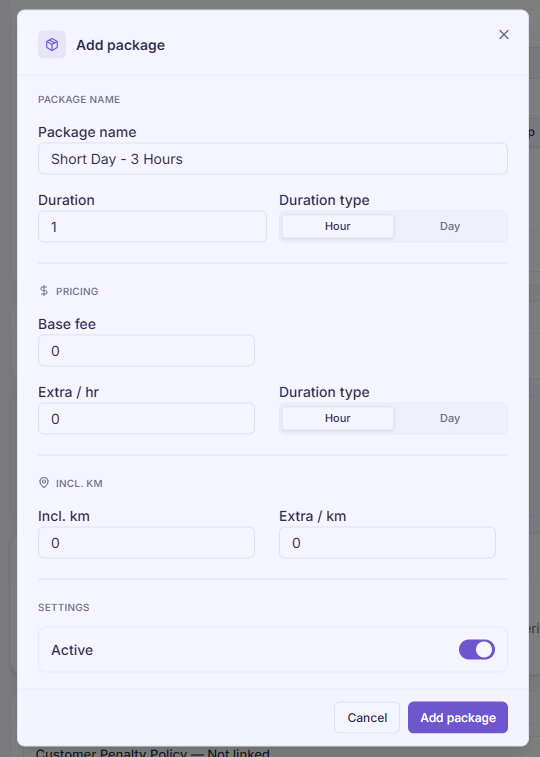
After creating an hourly rate, add one or more packages to define the pricing options available for this rate. Each hourly service can contain several packages.
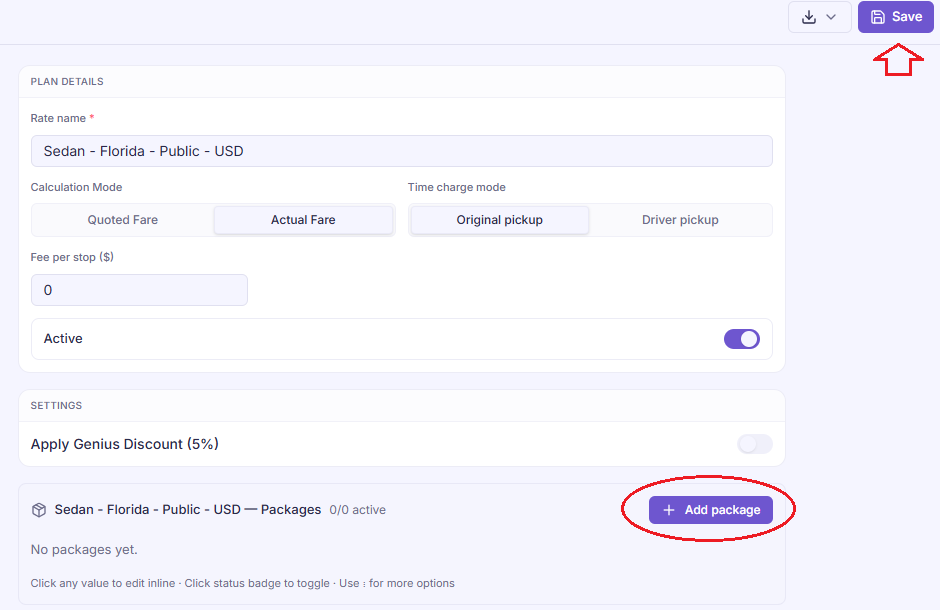
Within each package, you can define:
- Package name
- Package duration (e.g., 3 hours, 6 hours, 8 hours)
- Base fee
- Extra/ hr: Fee per Extra Duration (overtime rate)
- Incl. km (or mile): Distance Coverage included in the package
- Extra/ km: Fee per Extra Distance (if mileage exceeds the included distance)
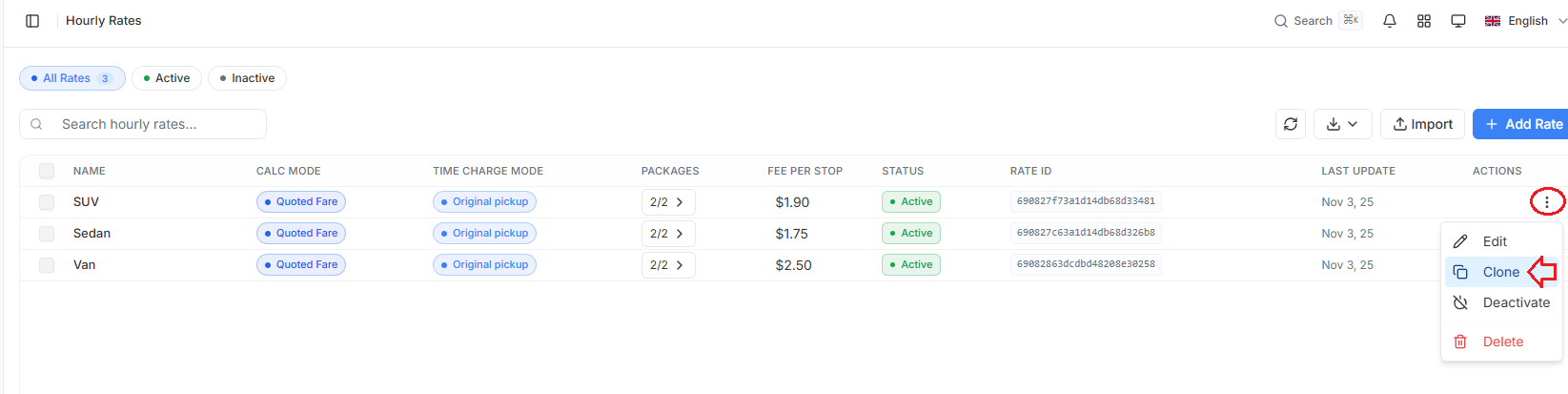
Clone rate
Duplicate an existing rate configuration and modify it as needed to speed up rate setup.
Import rate
Use this option to import multiple rates in bulk, allowing you to set up your rates more quickly and efficiently.
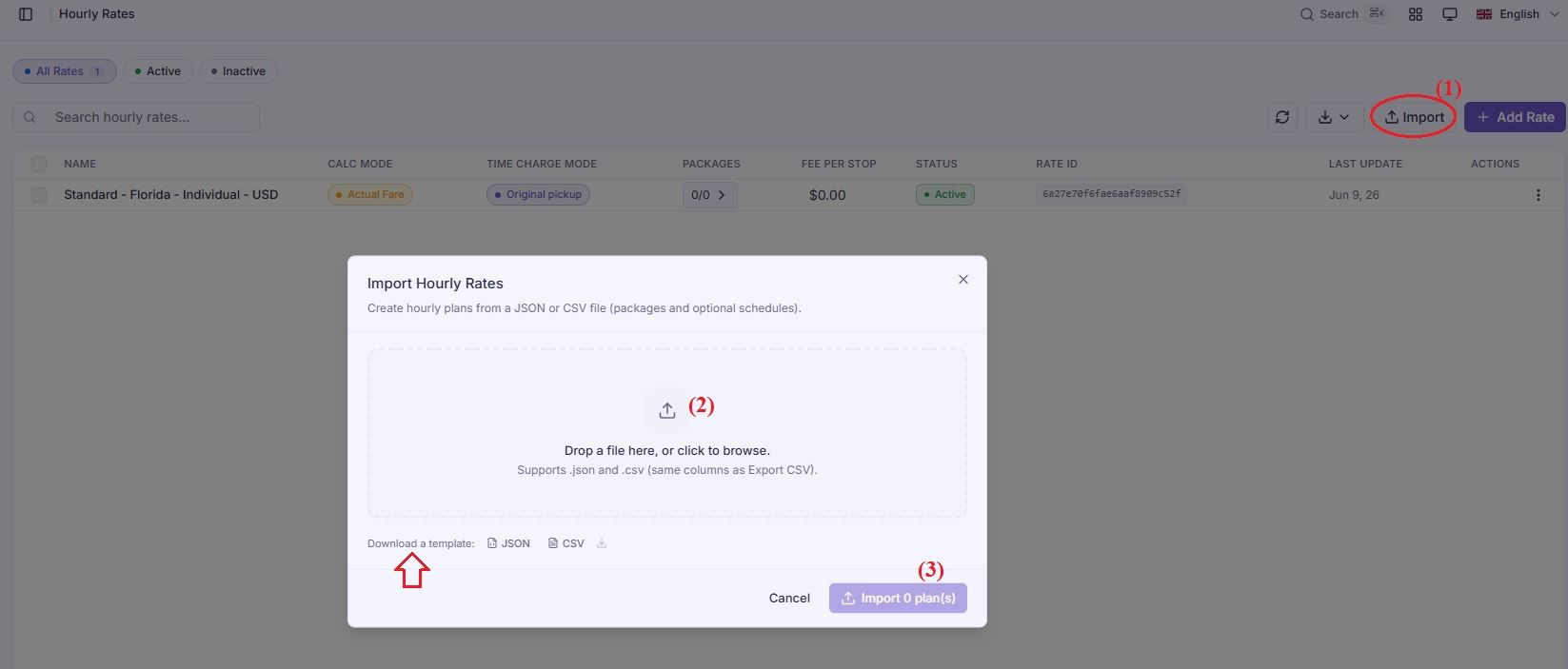
Note: Please download the template provided by the system and enter your data using the standard format before importing.
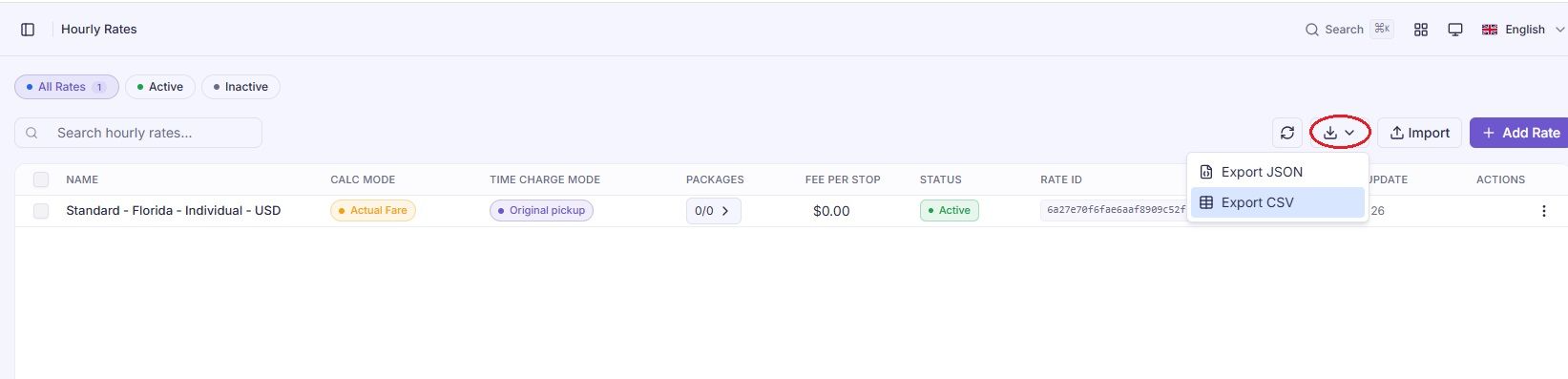
Export rate
Use this option to export your rates for easy review, verification, and record-keeping.
Was this article helpful?
That’s Great!
Thank you for your feedback
Sorry! We couldn't be helpful
Thank you for your feedback
Feedback sent
We appreciate your effort and will try to fix the article