Rate Templates allow you to define and manage different pricing structures for different customer groups, sales channels, and payout calculations.
Think of a Rate Template as a pricing table. Instead of using the same prices for every customer, you can create multiple pricing models based on your business requirements.
For example, you may create:
- A standard rate for public customers.
- A negotiated rate for a corporate client.
- A dedicated rate for an OTA partner.
- A payout rate used to calculate driver payments.
Each Rate Template can include multiple pricing methods, vehicle types, operation zones, and currencies.
Before You Start
Before creating a Rate Template:
- Ensure your operation zones and vehicle types have already been configured.
- Create the individual rate definitions (Regular, Flat Rate, Hourly, etc.) that will be assigned to the template.
- Decide which customer group or partner will use the template.
Common Use Cases
Rate Templates can be used for many pricing scenarios, including:
- Public website and Passenger App pricing.
- Corporate contract pricing.
- OTA partner pricing.
- Supplier pricing.
- Driver payout calculations.
This allows your fleet to maintain different pricing strategies without duplicating operational settings.
Naming Best Practices
A consistent naming convention makes pricing easier to manage.
Recommended examples:
| Template Type | Example |
|---|---|
| Public | Public Rate |
| Corporate | Corporate – Hilton Hotels |
| OTA | OTA – Booking.com |
| Driver Payout | Driver Payout Rate |
Include the customer name, partner name, or currency where appropriate to make templates easier to identify.
Create a Rate Template
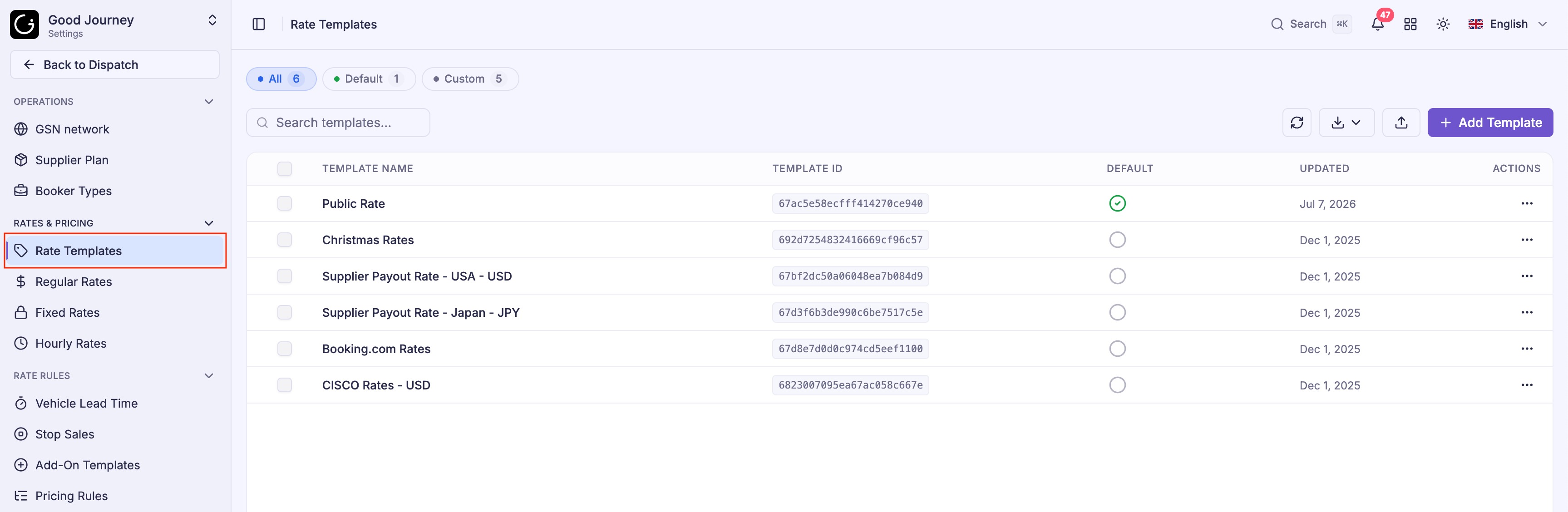
Step 1: Open Rate Templates
Navigate to Settings → Rate Templates
Step 2: Enter Template Information
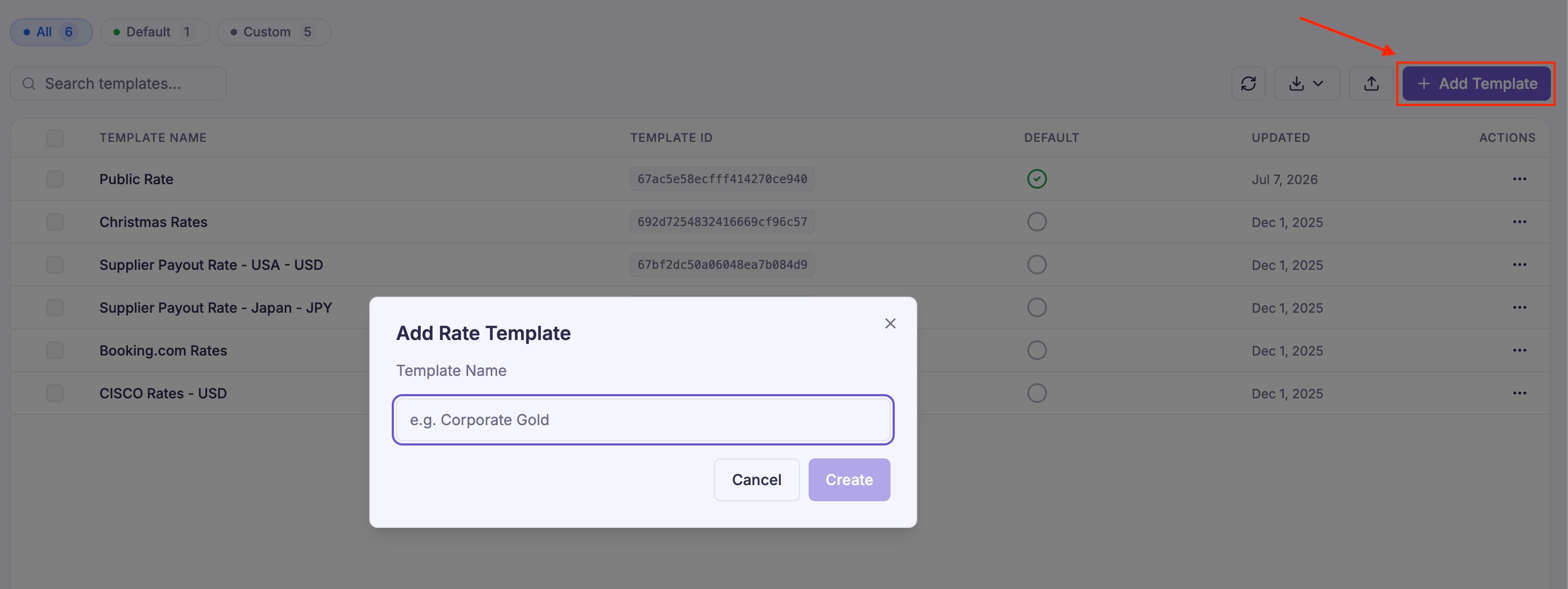
Click Add Template.
Enter a meaningful template name.
A clear naming convention makes templates easier to identify as your business grows.
Examples:
- Public Rate
- Corporate – Hilton Hotels
- Corporate – ABC Company (USD)
- OTA – Booking.com
- Driver Payout Rate
Step 3: Assign Rates
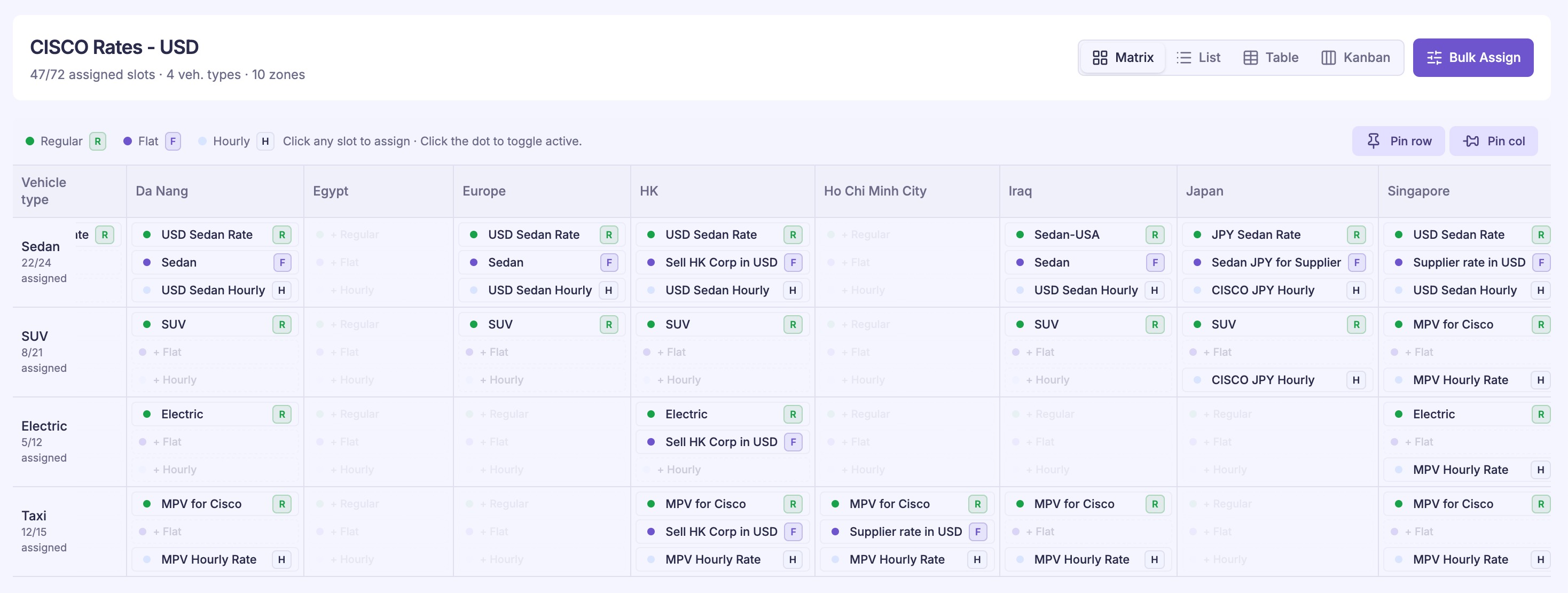
After creating the template, the system displays all available:
- Operation Zones
- Vehicle Types
For each combination, choose the appropriate pricing method:
- Regular Rate
- Flat Rate
- Hourly Rate
Then select the rate definition to apply.
Bulk Assign Rates
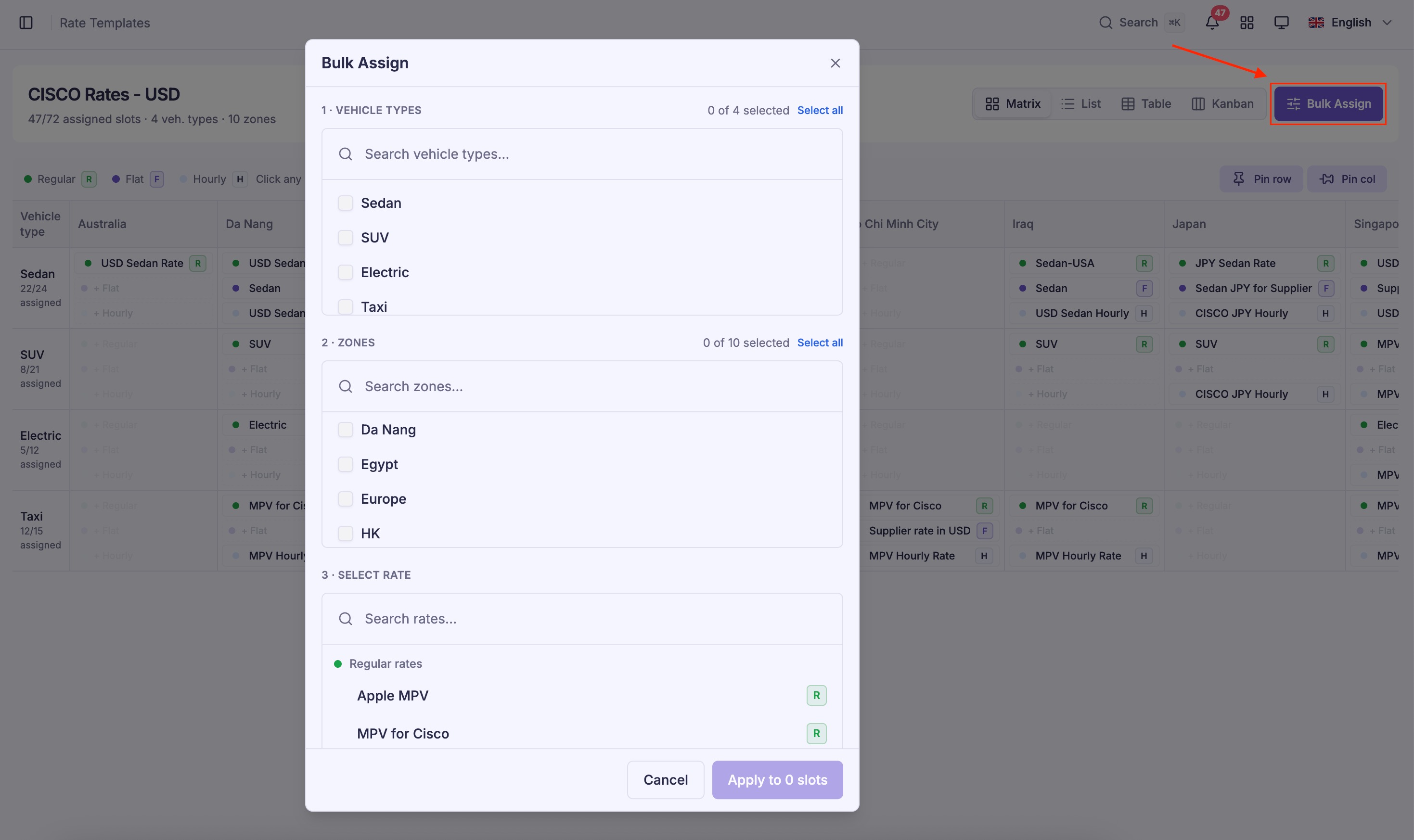
If multiple zones or vehicle types use the same pricing:
- Click Bulk Assign.
- Select the required zones and vehicle types.
- Choose the desired rate.
- Apply the assignment.
Bulk Assign helps configure large pricing structures much more quickly.
Set a Default Rate Template
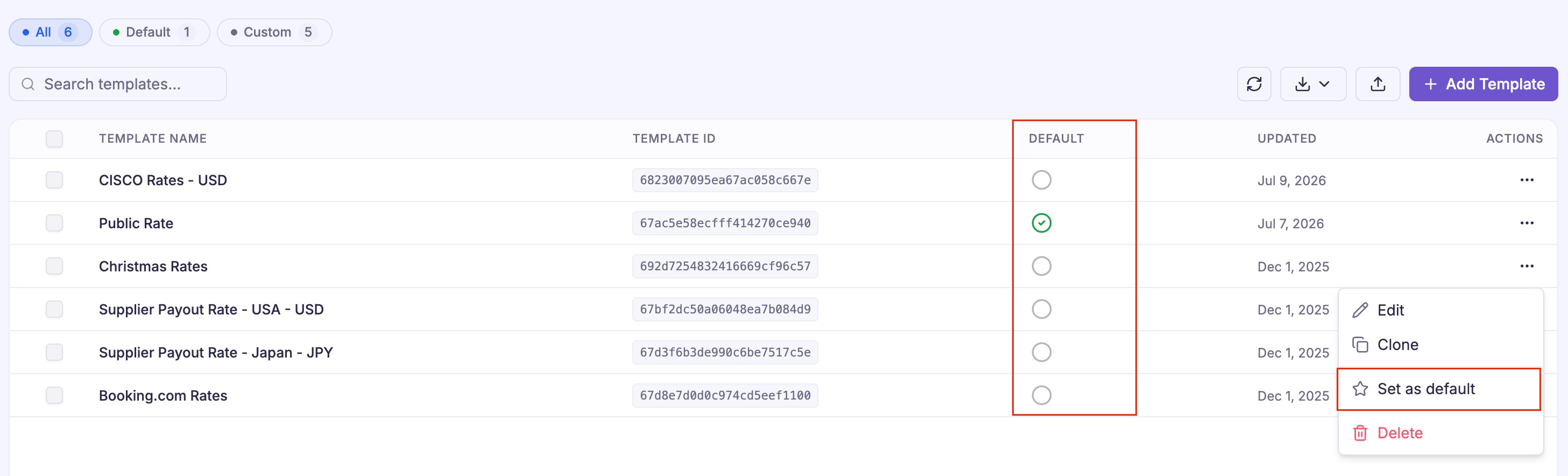
One Rate Template should be designated as the Default template.
The Default template is automatically used for customers booking directly through:
- Your website
- Passenger App
- Other direct booking channels
To set a template as the default:
- Select the Default radio button, or
- Choose Set as Default from the template actions menu.
Only one Default Rate Template can be active at a time.
Link a Rate Template to a Corporate or OTA
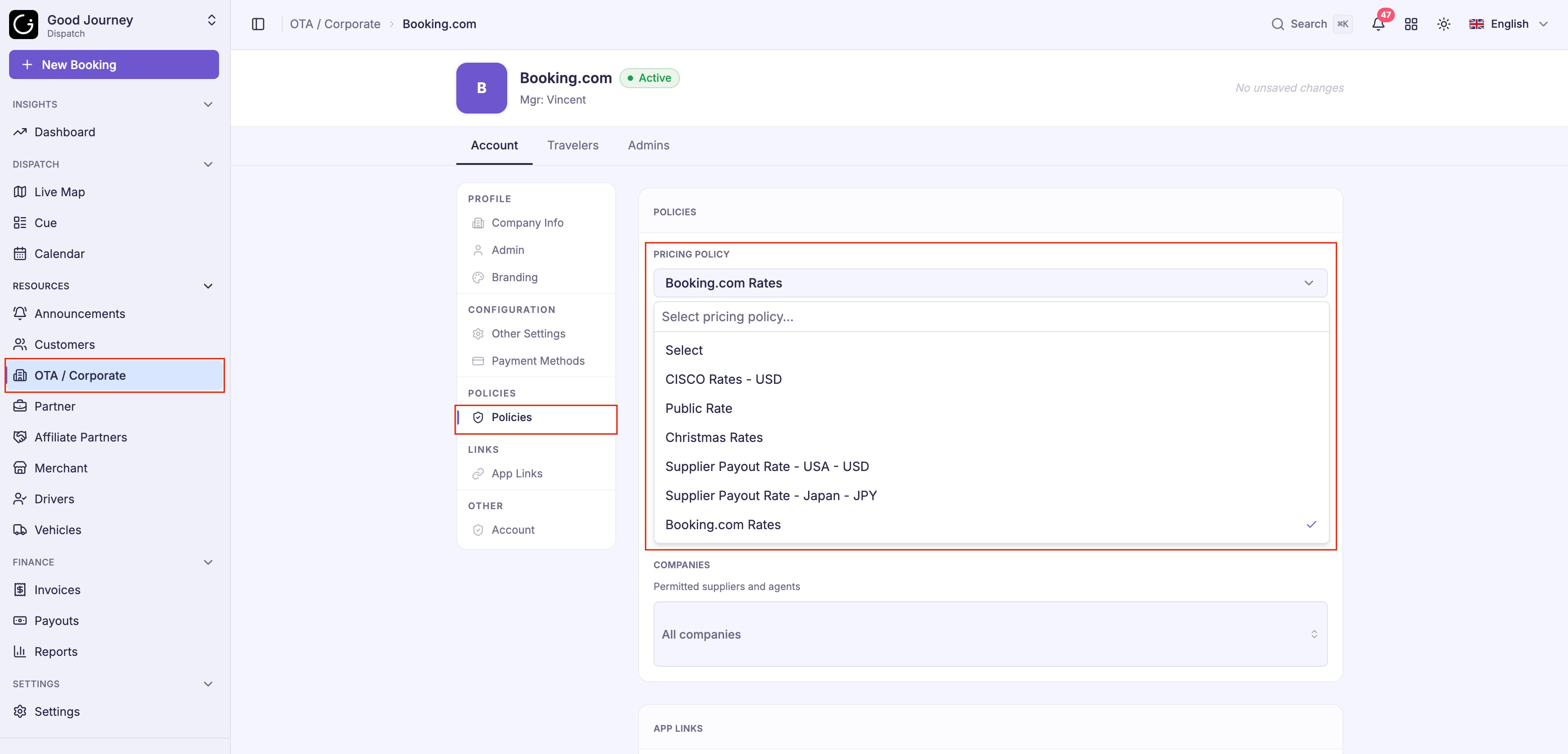
You can setup a different sell price to each of your corporate clients or OTA partners.
To assign a Rate Template:
- Navigate to OTA / Corporate.
- Select the Policies tab.
- Choose the appropriate Rate Template.
- Save your changes.
Future bookings for that customer will automatically use the assigned pricing.
Tip: If a corporate contract only offers Executive vehicles, configure rates only for those vehicle types. Vehicle types without assigned rates will not be available for bookings using that template.
Best Practices
To keep pricing organized:
- Create separate templates for each pricing strategy.
- Use descriptive template names.
- Configure only the vehicle types required by each customer or partner.
- Use Bulk Assign when multiple zones share the same pricing.
- Set one Default Rate Template for direct bookings.
- Assign dedicated templates to Corporate and OTA accounts instead of modifying the Default template.
Was this article helpful?
That’s Great!
Thank you for your feedback
Sorry! We couldn't be helpful
Thank you for your feedback
Feedback sent
We appreciate your effort and will try to fix the article