Video Tutorial - Preparing your Zones
Video Tutorial - Setup Fixed Rates
Update Fixed Route Prices in Bulk
Overview
Fixed Rate (or Flat Rate) allows you to charge customers a fixed fare between two areas, regardless of the actual distance or travel time.
This pricing model is ideal for airport transfers, intercity routes, and other journeys where a consistent fare is preferred.
You can create two types of Fixed Rates:
- Zone-to-Zone Rates – Charge a fixed fare between predefined zones.
- ZIP Code-to-ZIP Code Rates – Charge a fixed fare between specific postal or ZIP code areas.
To configure Flat Rates, navigate to:
Settings → Rates & Pricing → Fixed Rates
Rate Naming Convention
Use clear, consistent names for each rate so they can be easily assigned to vehicle types, templates, or suppliers.
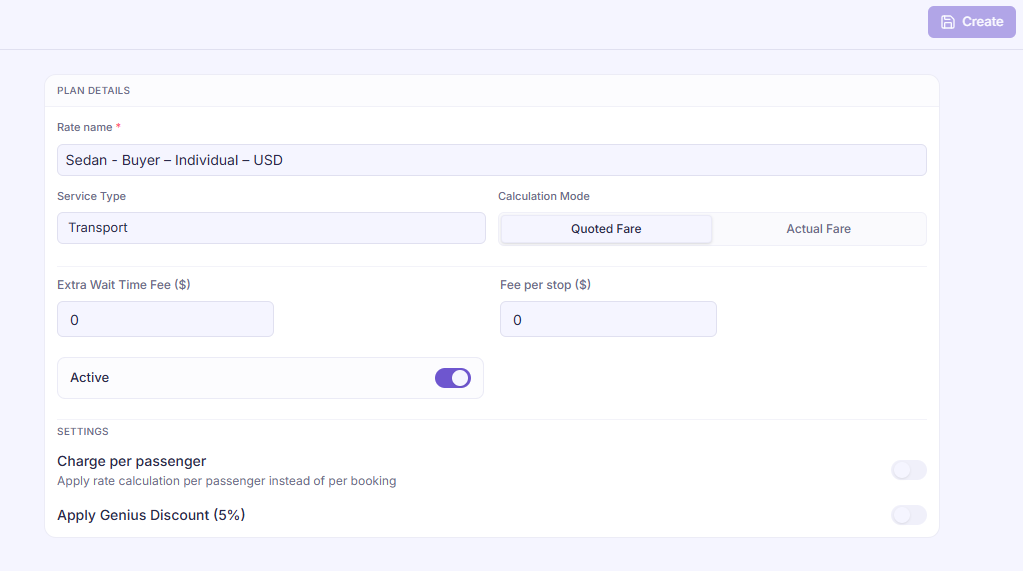
Best-practice format:
For customer-facing or corporate/public rates:
<Car-Type> – <Corporate/Public> – <Currency>
For driver payout rates:
<Car-Type> – <Payout Name> – <Currency>
Examples:
Customer / Corporate Rates
- Business – Microsoft – USD
- Business Van – Public – EUR
- Economy – Booking.com – GBP
- Economy – HolidayTaxis – GBP
Driver Payout Rates
- Luxury SUV – Individual-Driver – USD
- Sedan – Core-Driver – AUD
This structure keeps your rate list organized and makes it easy to identify which rates belong to which vehicle, customer group, or supplier.
1. Methods to Create Routes
Zone-to-Zone
Use this option when you want to charge a fixed price between two geographic areas.
You can draw or define zones by drawing polygons. If both pickup and drop-off locations fall within the defined zones, the fixed rate will apply.
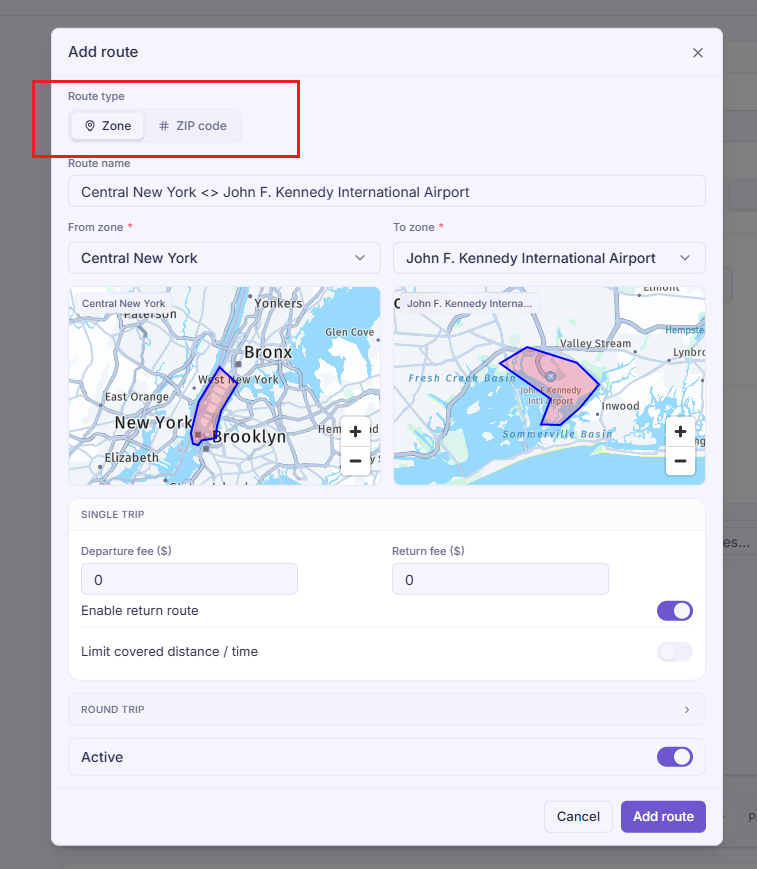
Notes: For zone to zone fixed pricing you must prepare all the zones before hand so you can retrieve the right area to apply fixed price between two routes.
Zipcode-to-Zipcode
Ideal for countries like the United Kingdom where postcodes are widely used.
You can configure fixed rates based on pickup and drop-off zipcodes instead of drawing zones. When a booking matches the configured ZIP code criteria, the system will automatically apply the fixed rate.
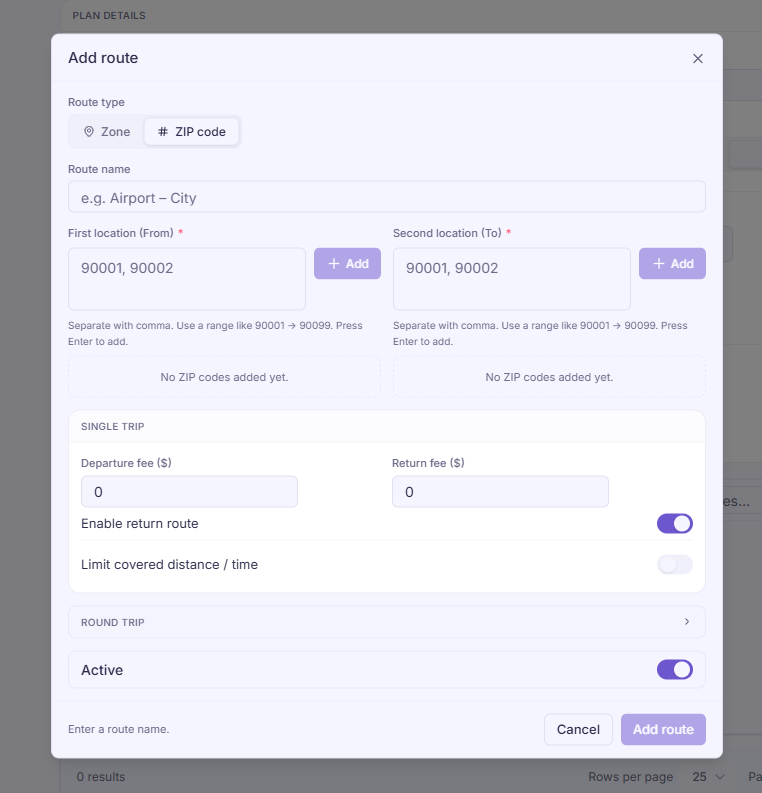
Notes:
- Separate multiple ZIP codes with a comma (,).
- Use a range to define consecutive ZIP codes (e.g., 90001 → 90099).
2. Preparing Your Zones
Before creating any flat rate routes, you must define the areas or zones you want to use.
Navigate to:
Settings → Location → Flat Rate Zone
- Create as many zones as needed.
- Keep in mind: zones cannot overlap.
- Make sure you name your zones properly so it's easier to refer to them when creating routes.
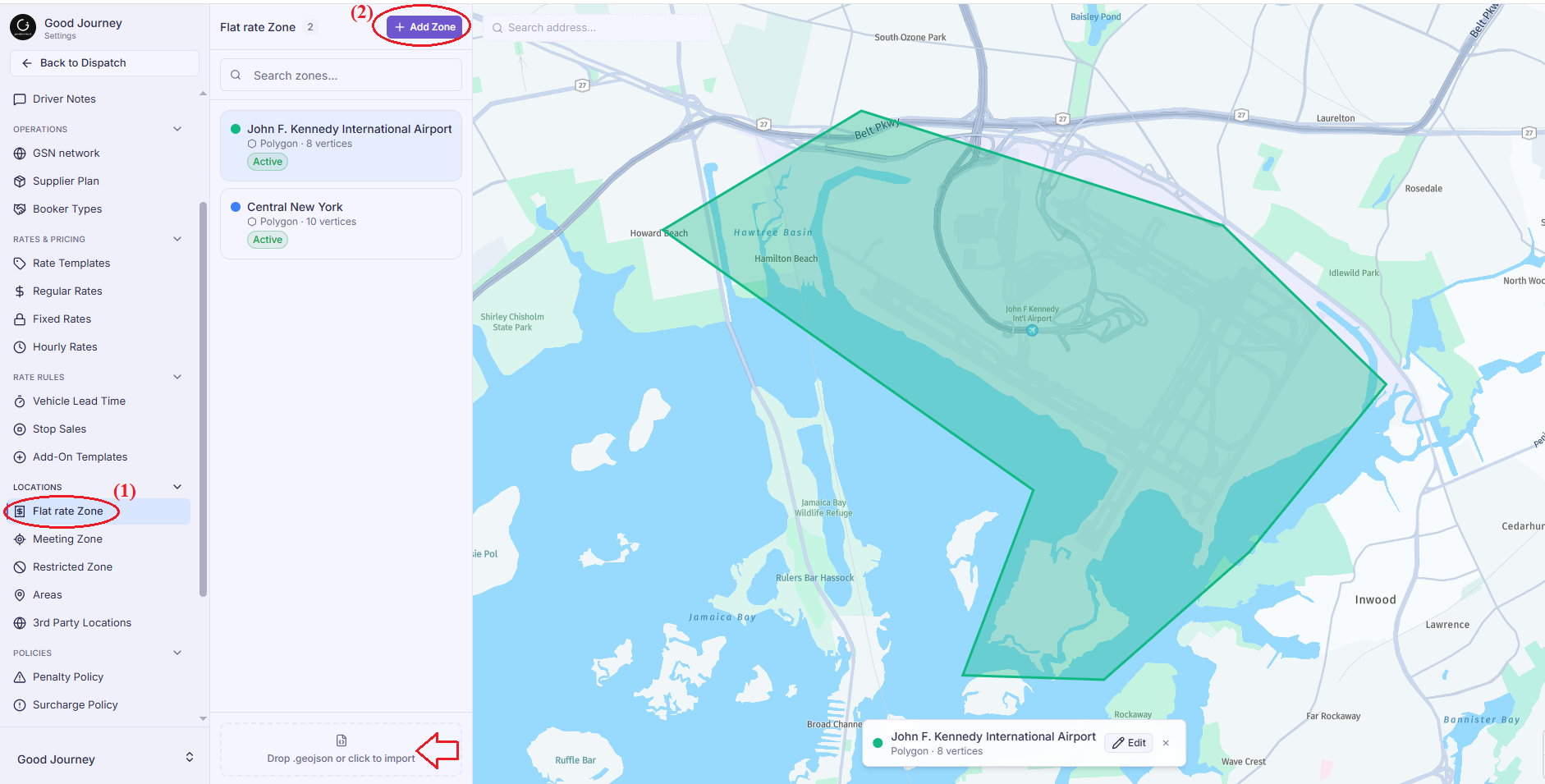
Tip: If you prefer not to manually draw zones, you can use geojson.io to quickly draw circular or polygon shapes.
Save zones as a GeoJSON file and upload it to import multiple zones at once, saving setup time
3. Creating a Flat Rate
Once your zones/areas are ready, you can create a new flat rate configuration.
A single flat rate can contain multiple fixed-price routes.
Many partners initially assume they need one flat rate per route.
However, you only need to:
- Create one flat rate per car type
- Add multiple fixed-price routes inside that flat rate
This makes management easier and keeps your rate structure organized.
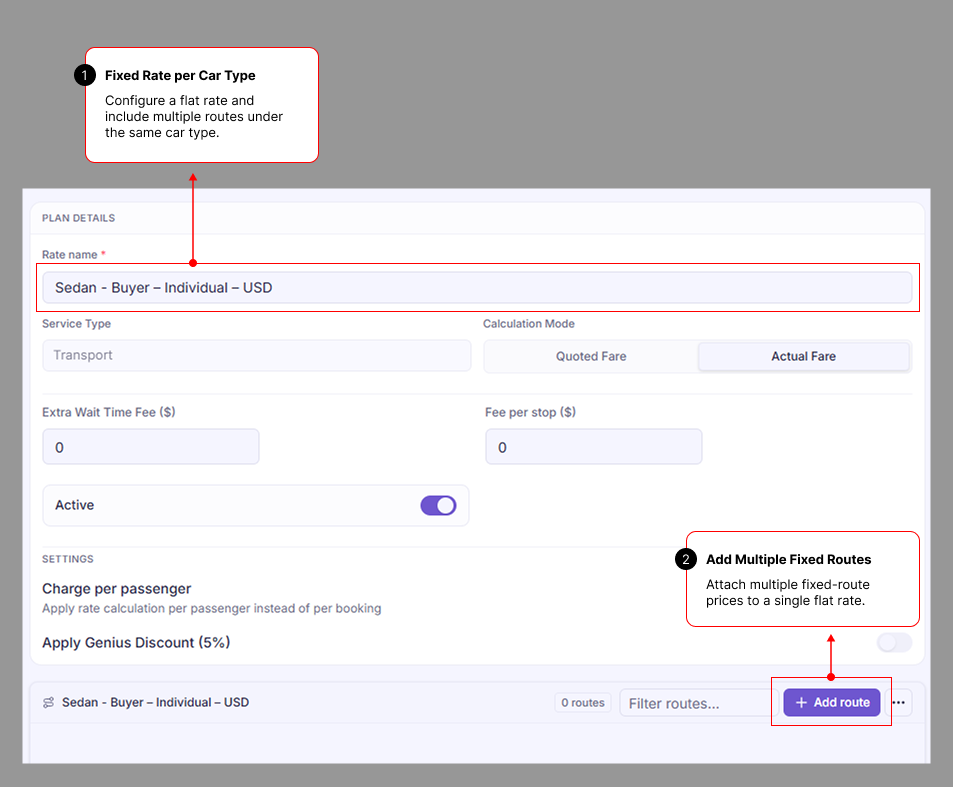
Define multiple routes in one flat rate:
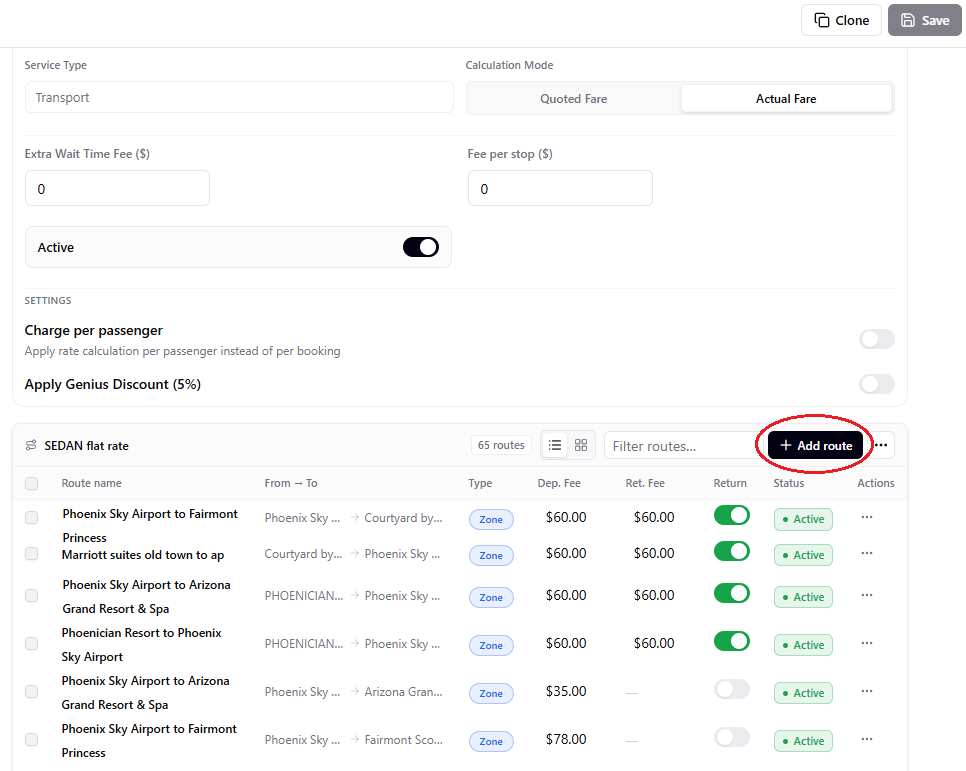
Calculation Mode
Choose how the fare will be calculated:
Quoted Fare
Charges based on the estimated distance and duration returned by the map provider. This mode is recommended for OTAs and bookings you need to charge the amount that was quoted.
Actual Fare
Charges based on the actual distance and time traveled.
- Customers see an estimate upfront, but final fare adjusts according to the real route.
4. Base Fees & Additional Charges
In addition to the fixed fare between routes, within the flat rate setup, you can configure additional fees.
- Extra Wait Time — charged after free waiting minutes at pickup
- Additional Stop Fee — fee for extra stops between pickup and drop-off
- Charge per Passenger — apply fare per passenger instead of per vehicle (This is useful for shuttle type bookings)
- Booking.com Genius Discount (5%) — activates support for Genius pricing, helping improve your ranking on Booking.com
5. Adding Routes
When adding a new route you have the option to select zone to zone or zip to zip fixed pricing.
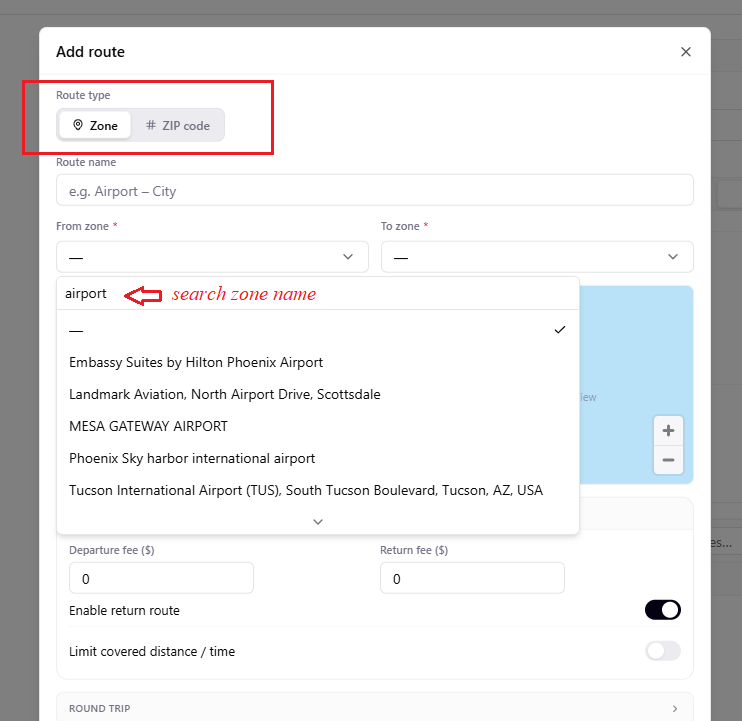
- Pickup zone/zipcode → Drop-off zone/zipcode
- Fixed fare for the route
- Optional reverse pricing for A → B and B → A
This allows complete control over directional pricing.
6. Others
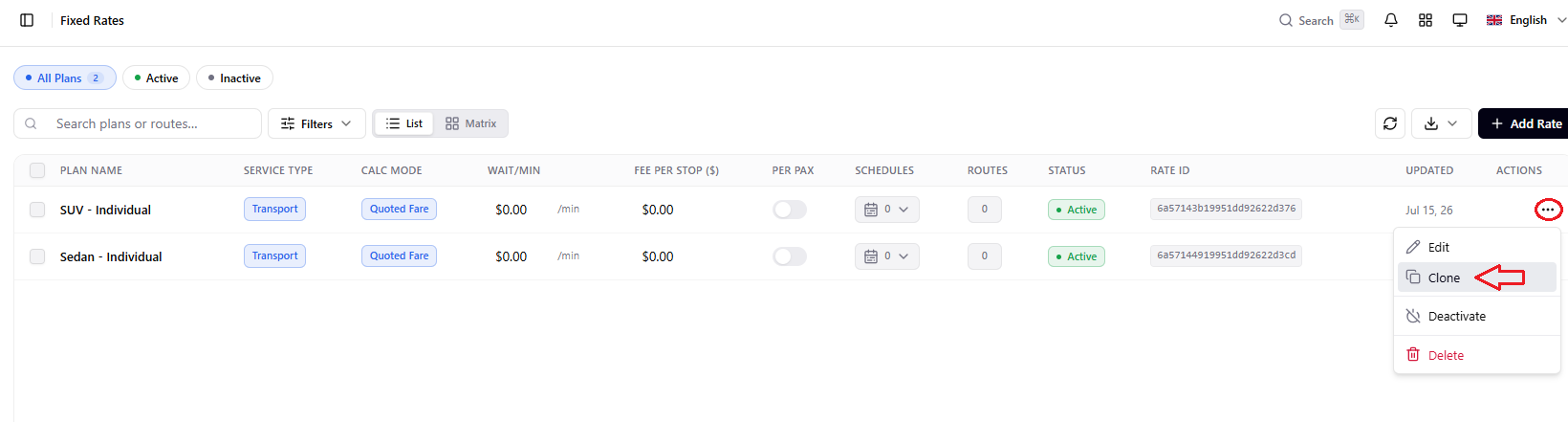
Clone rate
Duplicate an existing rate configuration and modify it as needed to speed up rate setup.
Import rate
Use this option to import multiple fixed rate routes in bulk, allowing you to set up your rates more quickly and efficiently.
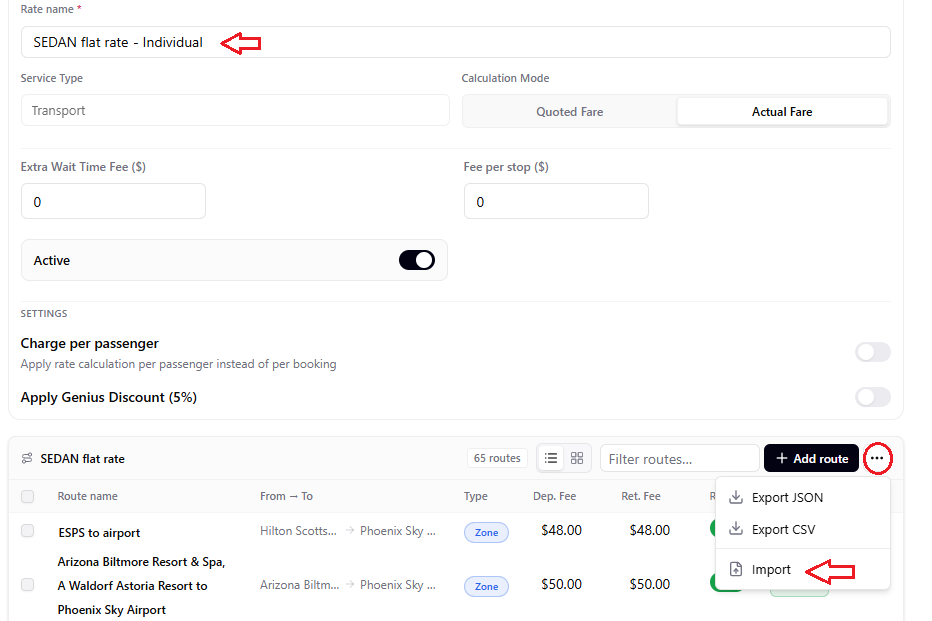
Note: Please export the template provided by the system and enter your data using the standard format before importing.
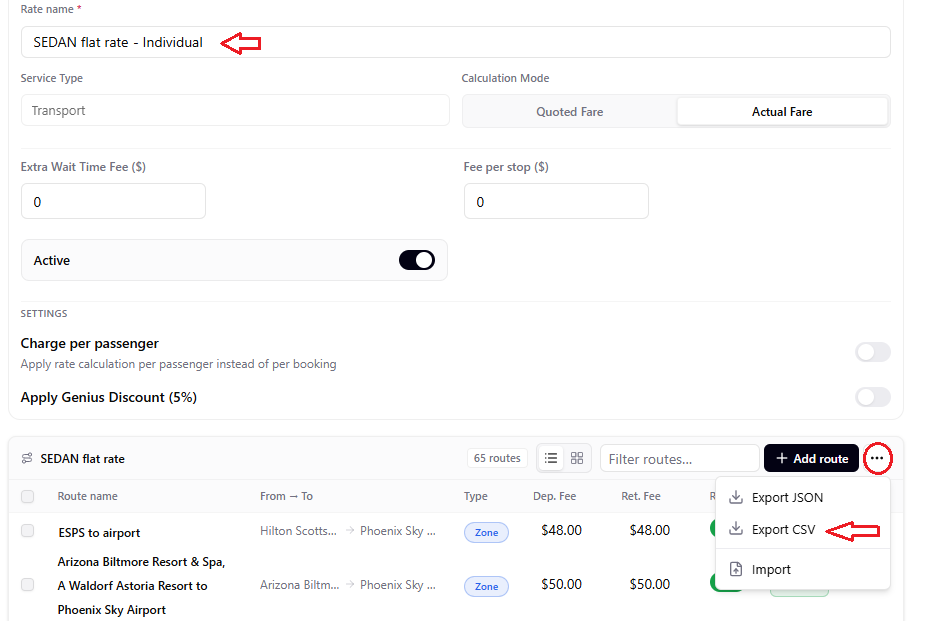
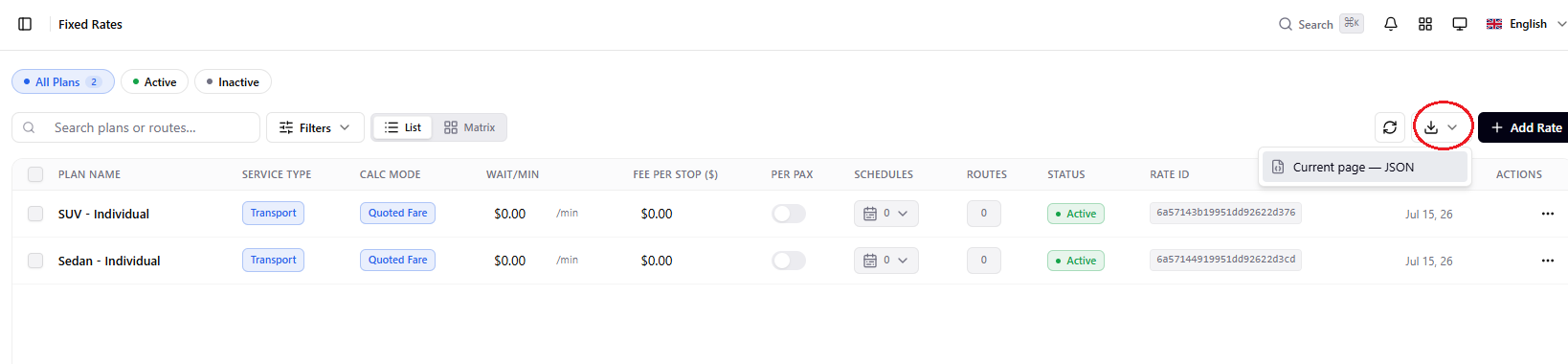
Export rate
Use this option to export all your fixed rates for easy review, verification, and record-keeping.
Was this article helpful?
That’s Great!
Thank you for your feedback
Sorry! We couldn't be helpful
Thank you for your feedback
Feedback sent
We appreciate your effort and will try to fix the article