Step 0: Define Your Meeting Zones
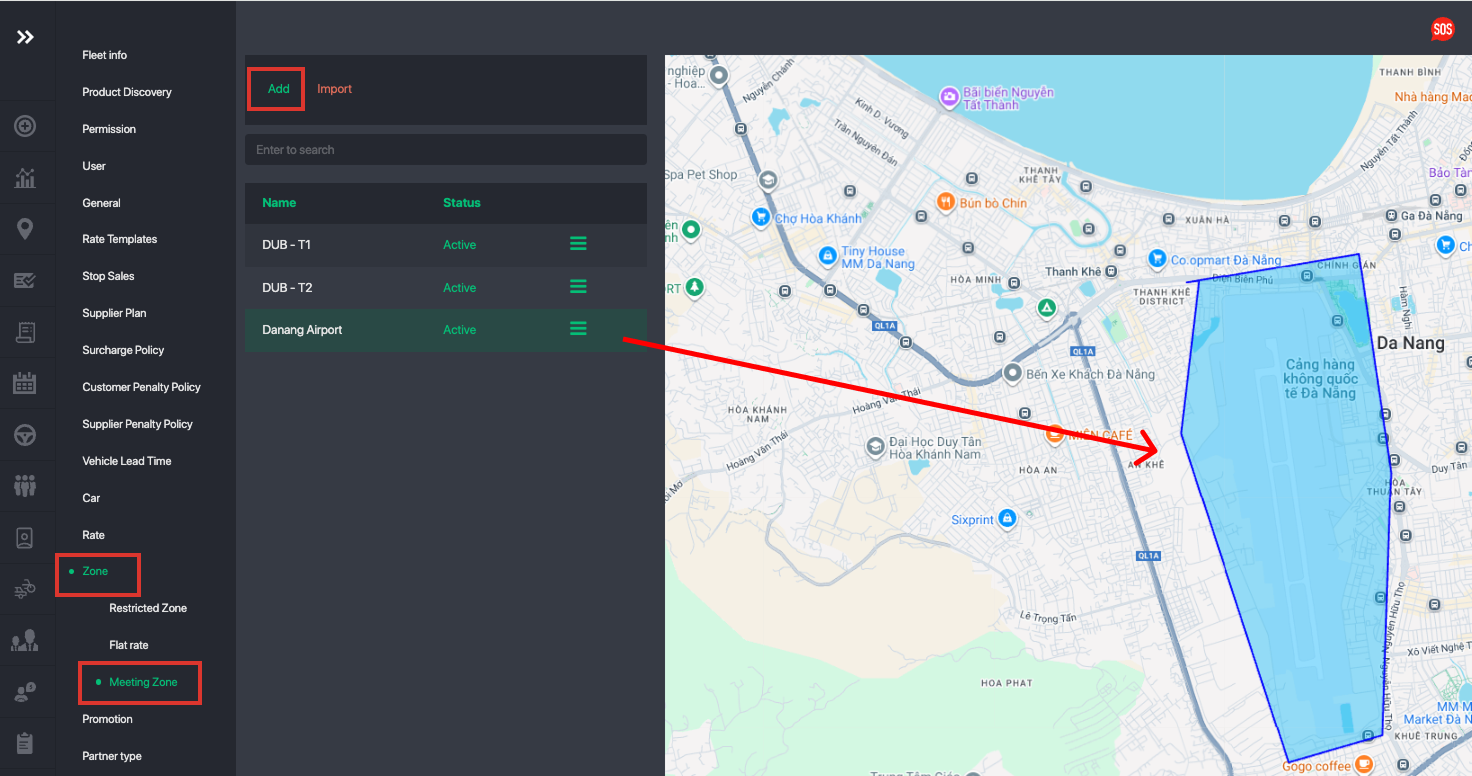
Define your Meeting Zones by drawing the geographic area where specific meeting instructions should apply. Meeting zones ensure passengers receive the correct pickup instructions based on their exact pickup location.
Go to Settings → Zone → Meeting Zone, then click Add.
Step 1: Navigate to 3rd Party Locations
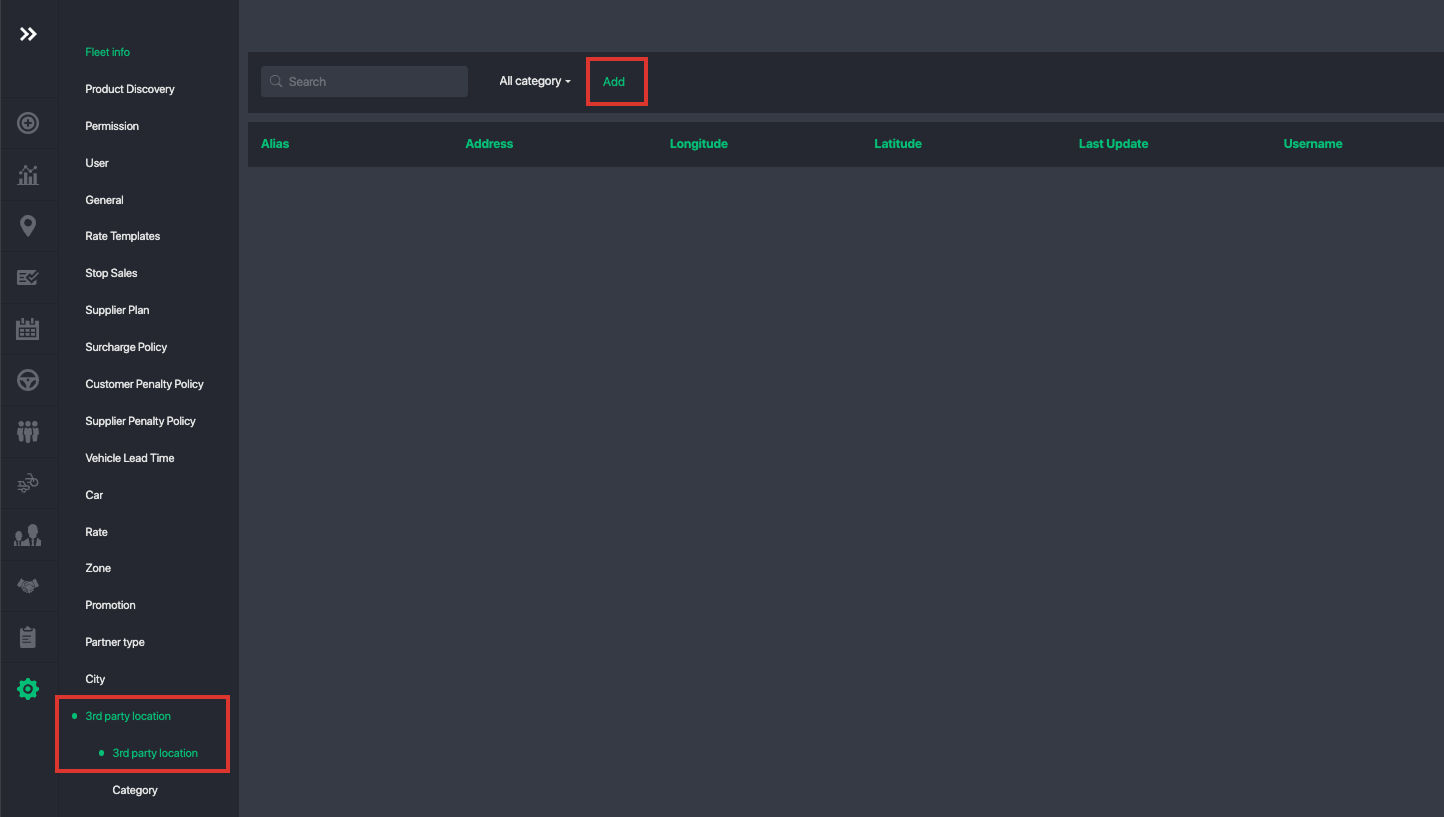
Go to Settings → 3rd Party Location, then click Add.
Step 2: Create a 3rd Party Location
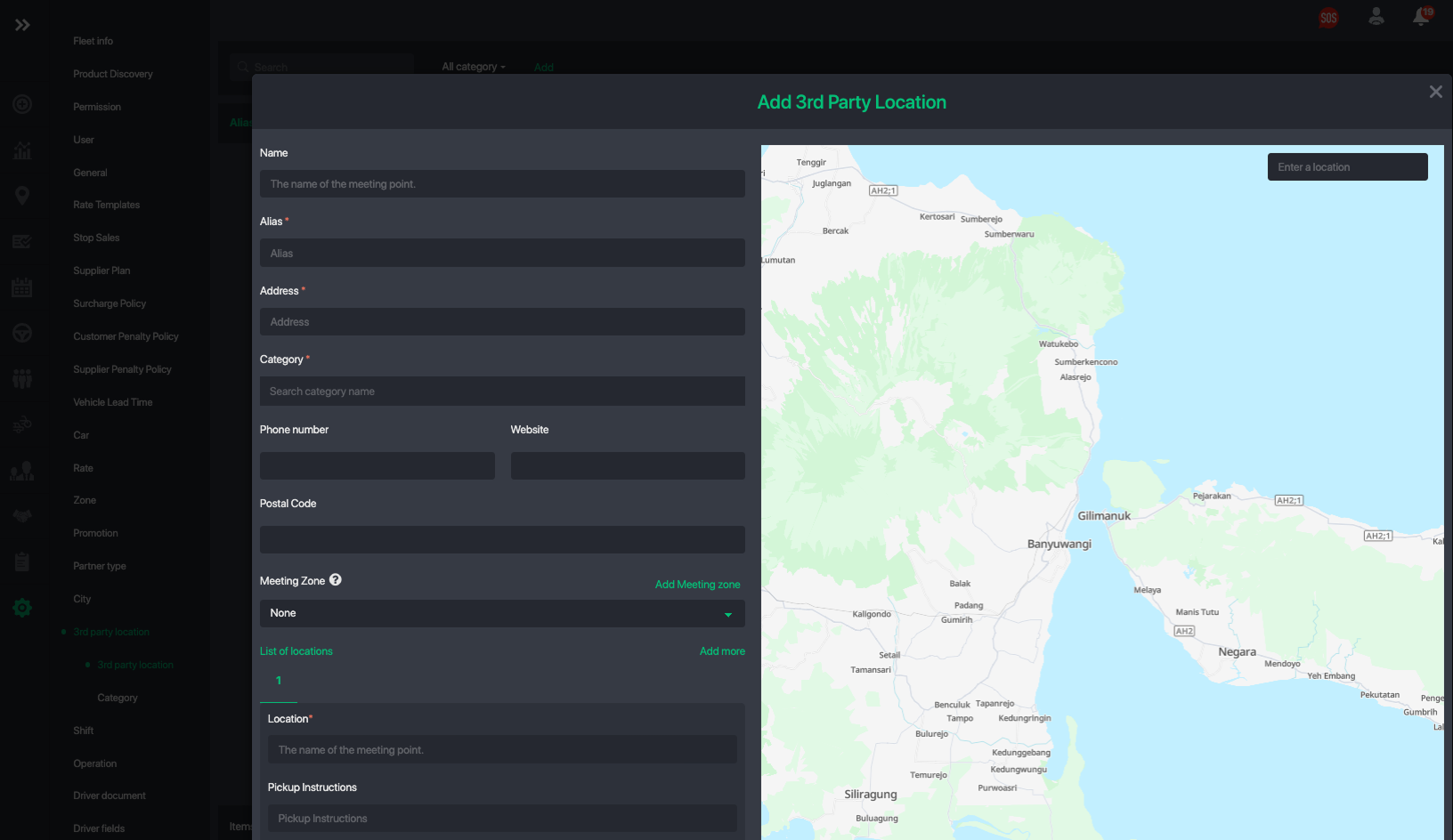
When creating a new 3rd party location, provide the following details:
- Name
The official name of the meeting point. - Alias
A short or alternative name. This is especially useful for search results shown to customers in the Passenger App or Web Booker. - Address
The full physical address of the location. Always provide complete and accurate address details. - Category
Classify the location to make it easier to manage and recognize (e.g. Airport, Cruise Port, Hotel, Restaurant, Shopping Mall). - Contact Details
Phone number, website, and postal code (if available). - Meeting Zone
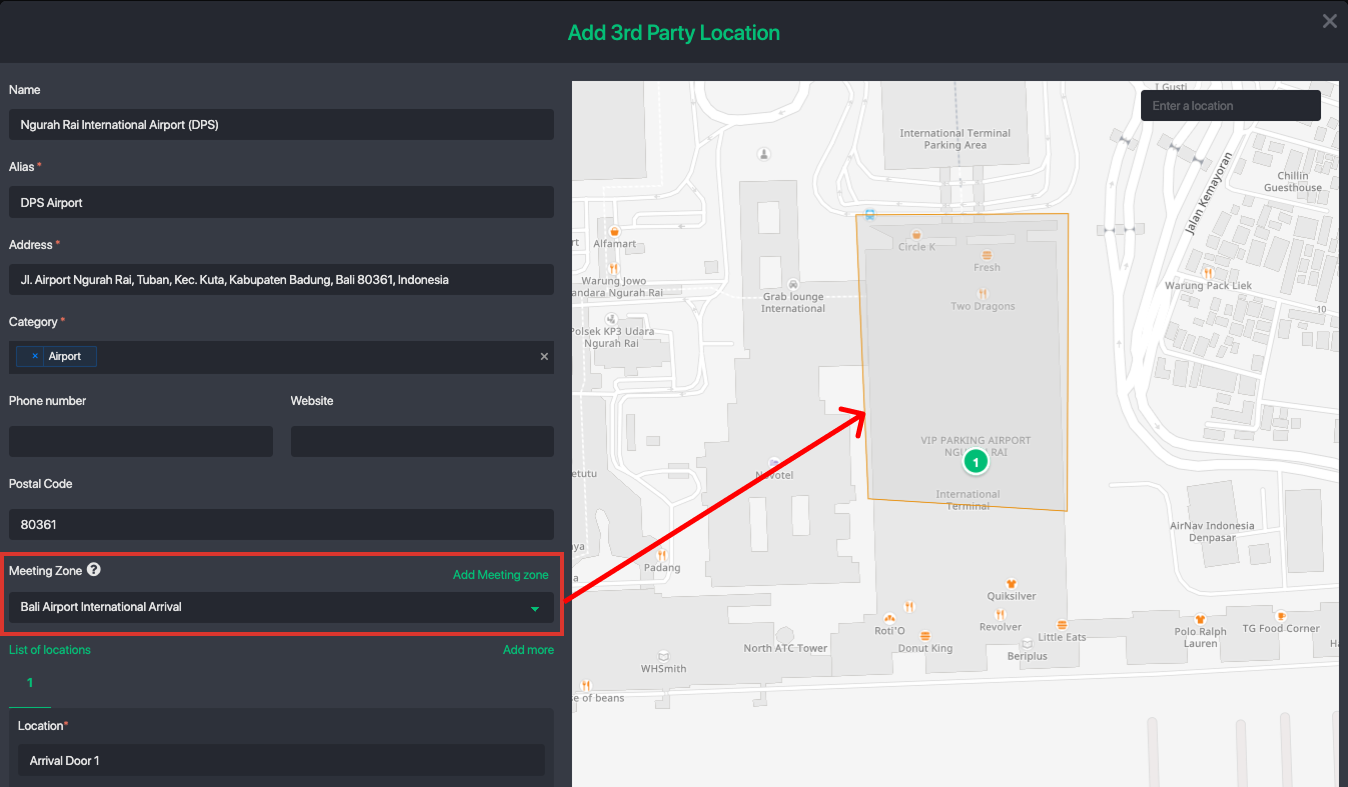
Assign the meeting zone so the system knows when to display these instructions. If a passenger’s pickup point falls within this zone, the corresponding meeting instructions will be shown automatically.
Step 3: Adding Meeting Locations
You can add multiple locations within a meeting zone.
- This is particularly useful for complex locations such as airports or cruise ports.
- For example, an airport may have multiple arrival terminals or exit doors.
- Each door can be set up as a separate location with its own instructions.
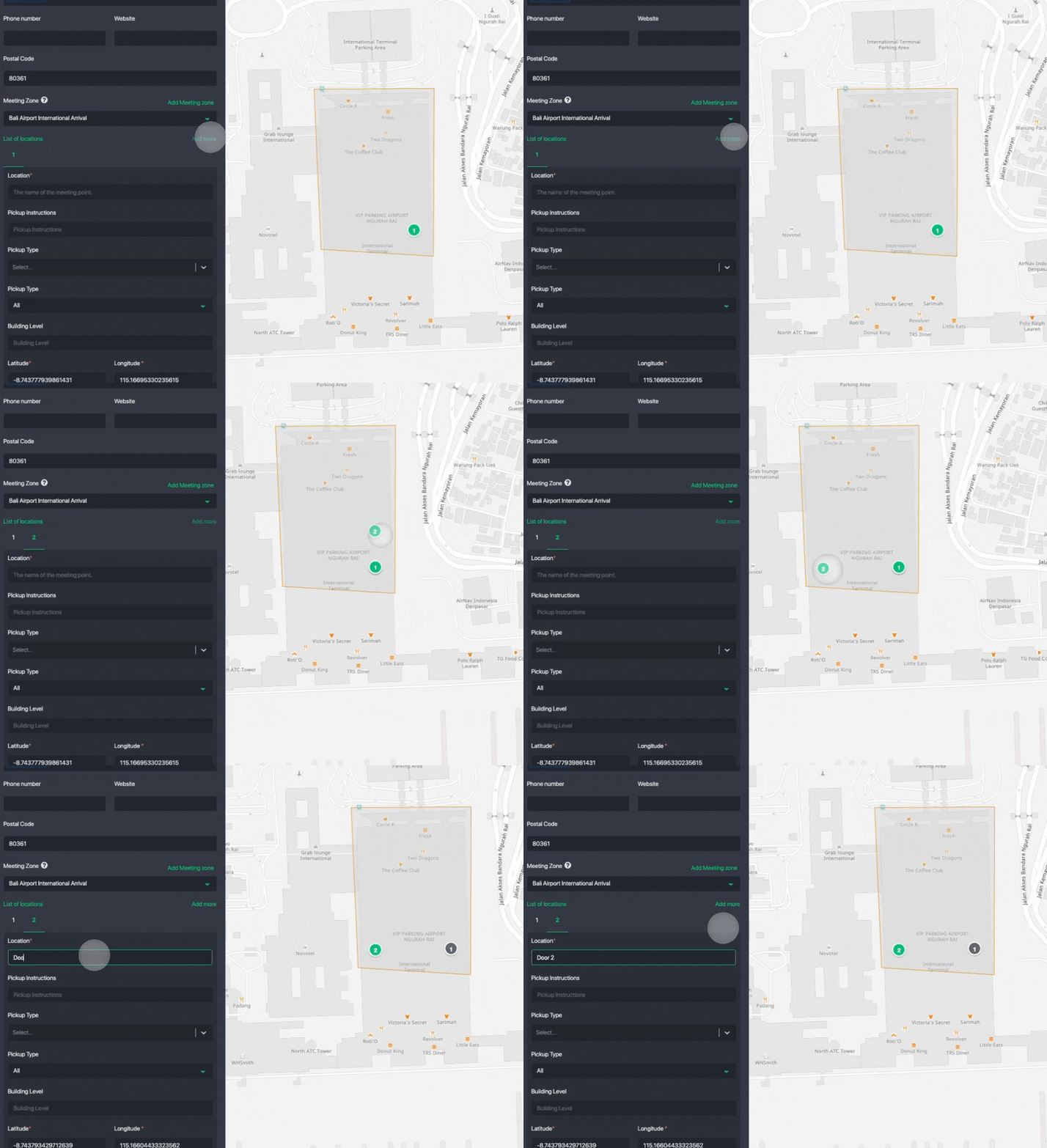
Step 4: Configure Pickup Instructions for Each Meeting Location
For each individual location, you can define:
- Location Name
A clear and recognizable name for the pickup spot. - Pickup Instructions
Step-by-step instructions that are easy for passengers to follow. (This should be in english)
- Pickup Type (Optional)
- Select one of the following:
MEET_AND_GREETDESKHOST
- Select one of the following:
Trip Segment- Select one of the following:
ALL, both pickup and drop-offPickup Only, instruction only apply for pickup.Drop-off Only, instruction only apply for drop off.
- Select one of the following:
- Building Level (Optional)
Specify the floor or level if applicable (e.g. Arrival Hall, Level 1, Basement). - Instruction Type
Each meeting location can display pickup instructions using one of the following methods:
Instruction URL (Internal Bookings Only)
Provide a website link containing detailed pickup instructions.
When passengers tap “Show Pickup Instructions”, the app will open this page automatically.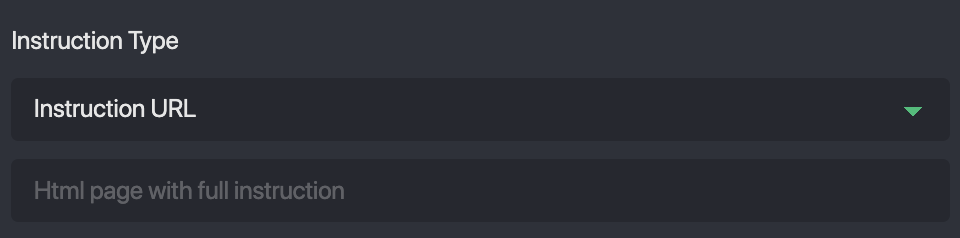
Instruction Image
Upload up to 3 images with optional descriptions to visually guide passengers.
These images will be shown in the Passenger App and in the customer tracking link.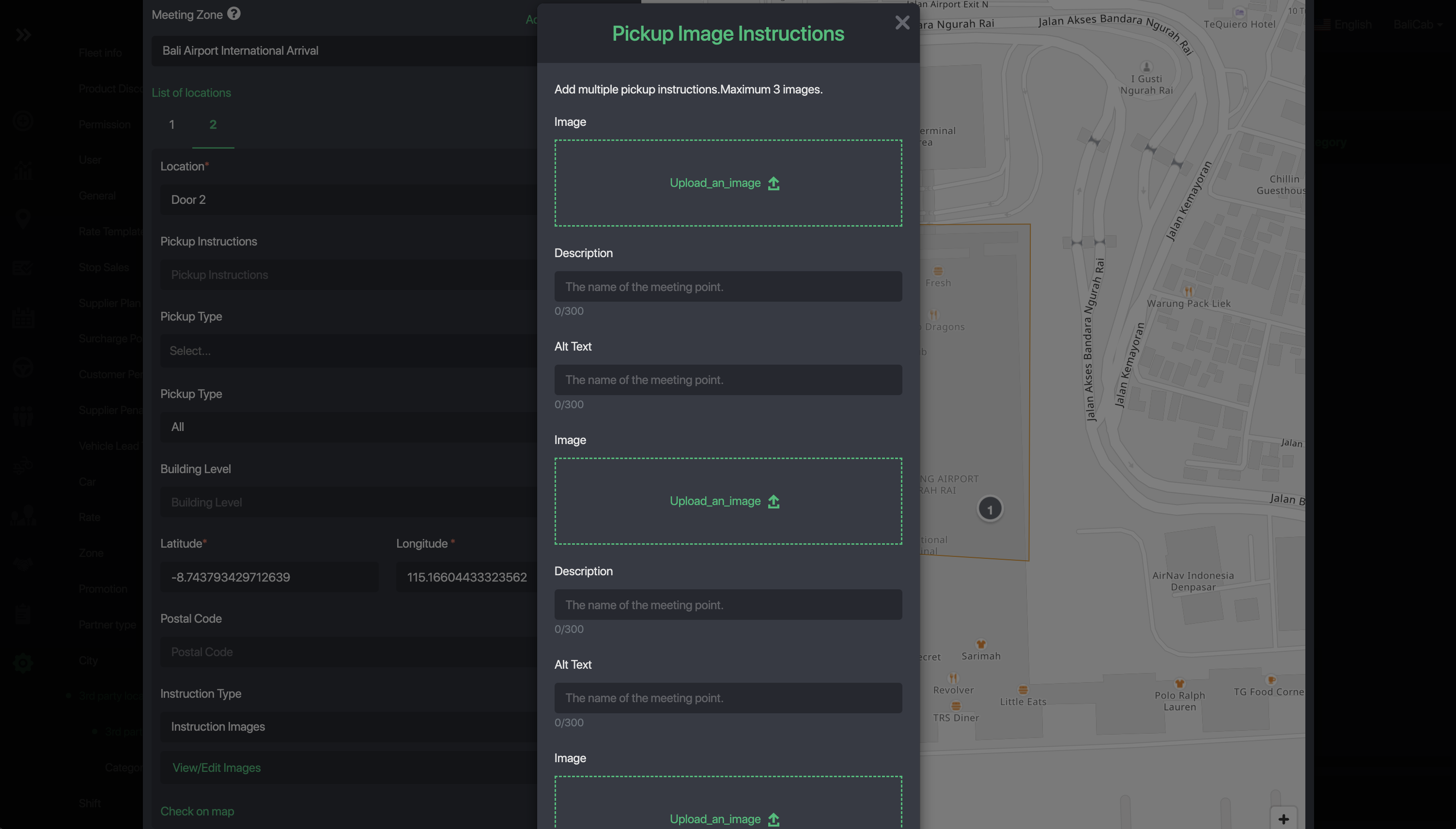
Booking.com Meeting Points
For all Booking.com supply partners, always select Instruction Image, as this is the only instruction format supported by the Booking.com API.
Booking.com Genius customers will be able to see the instructions clearly on the booking.com app. Be sure to add clear instructions and images! Here is a sample: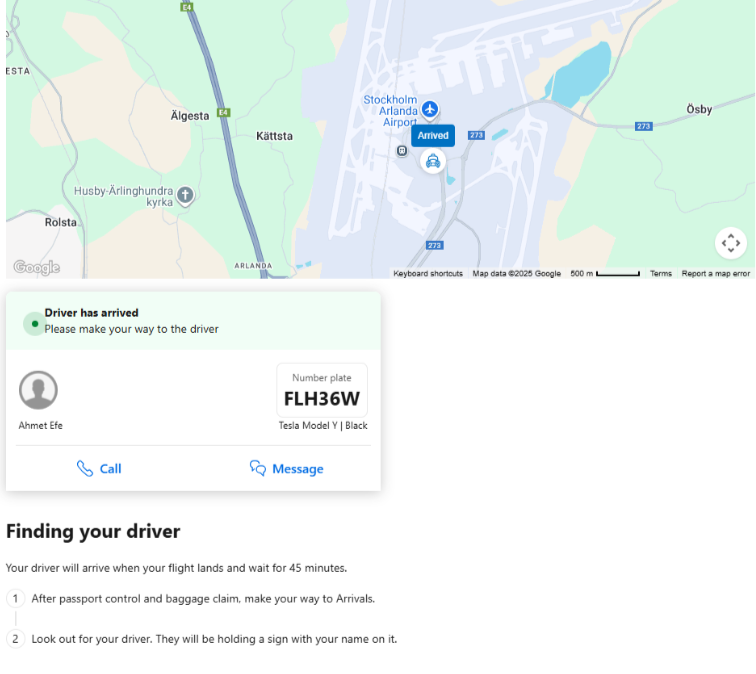
Step 5: Add Instruction Images
- Upload clear, high-quality images that visually guide passengers to the meeting point.
- Images should be descriptive, easy to understand, and match the written instructions.
- For best performance and loading speed, we recommend uploading images in .webp format.
Best Practices
- Keep instructions short, clear, and visual where possible.
- Use consistent naming for locations within the same venue.
- Always test bookings within the meeting zone to ensure instructions display correctly.
- Regularly review and update images and instructions if locations change.
This setup ensures passengers always know exactly where to meet, reducing confusion, delays, and unnecessary calls to drivers or support teams.
Notes: Managing Instruction Conflicts
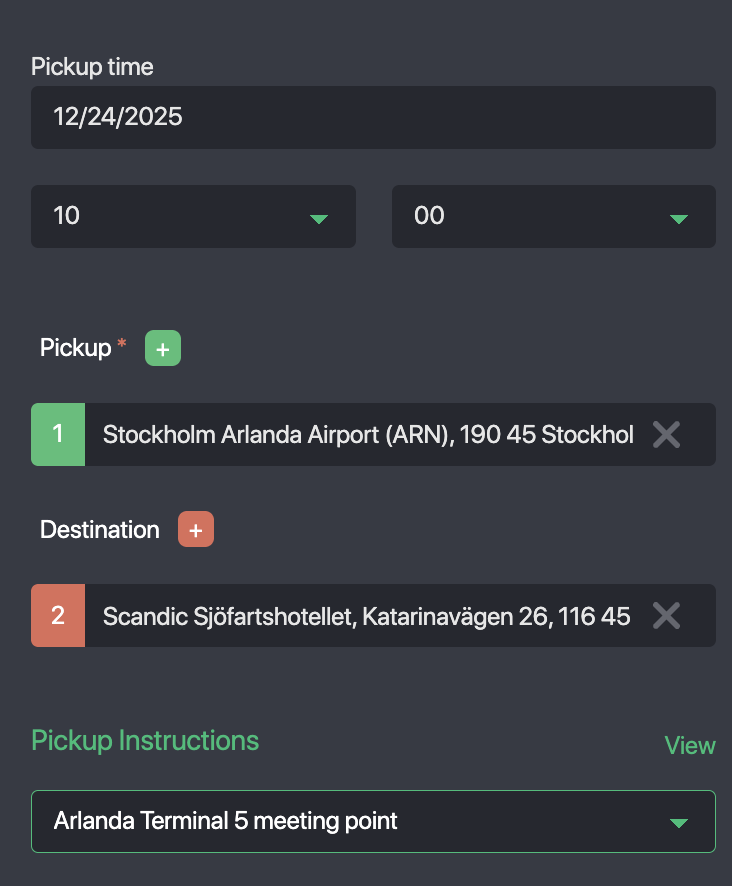
Sometimes if the system fails to assign the correct meeting instruction or there was a conflict then you can manually assign the correct meeting instruction. Just open the booking details and select the right meeting instruction to show to customers.
Was this article helpful?
That’s Great!
Thank you for your feedback
Sorry! We couldn't be helpful
Thank you for your feedback
Feedback sent
We appreciate your effort and will try to fix the article