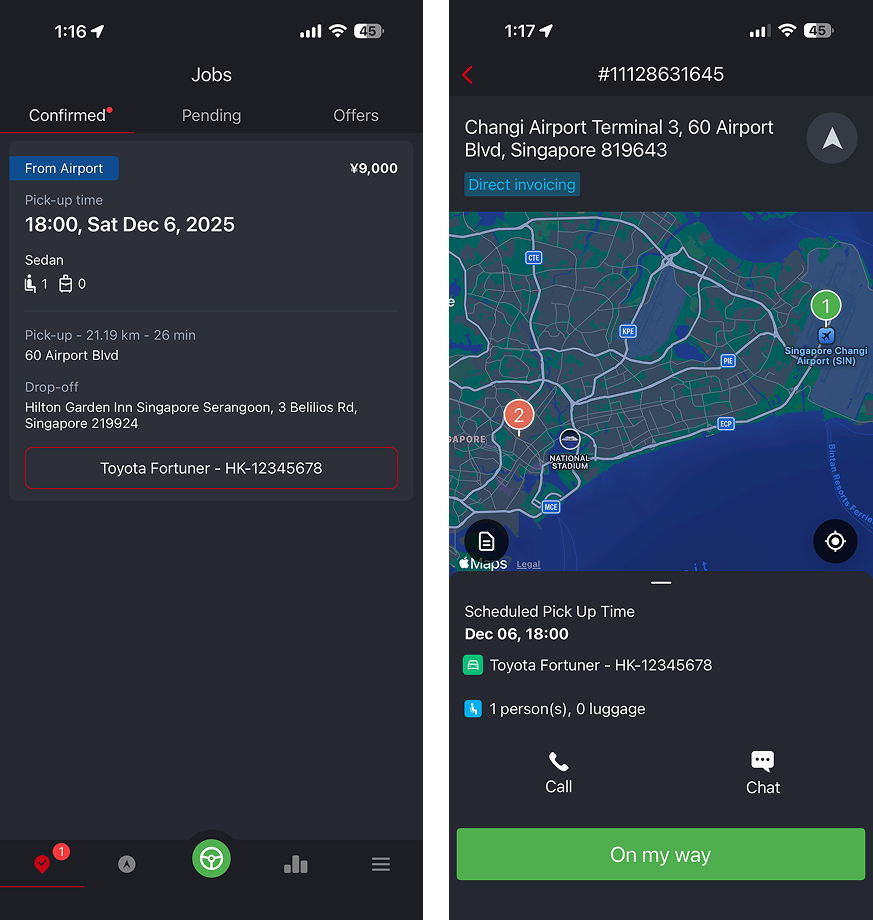
To view all upcoming jobs, go to the Confirmed tab. Jobs are sorted in ascending order, with the earliest reservation shown at the top.
View Job Details
Tap on any job to open the Booking Details page, where you can view:
- Pickup location
- Map view (your current location, pickup, and drop-off points)
- Payment method
- Scheduled pickup time
- Vehicle type and assigned vehicle
- Number of passengers and luggage
- Options to call or message the customer
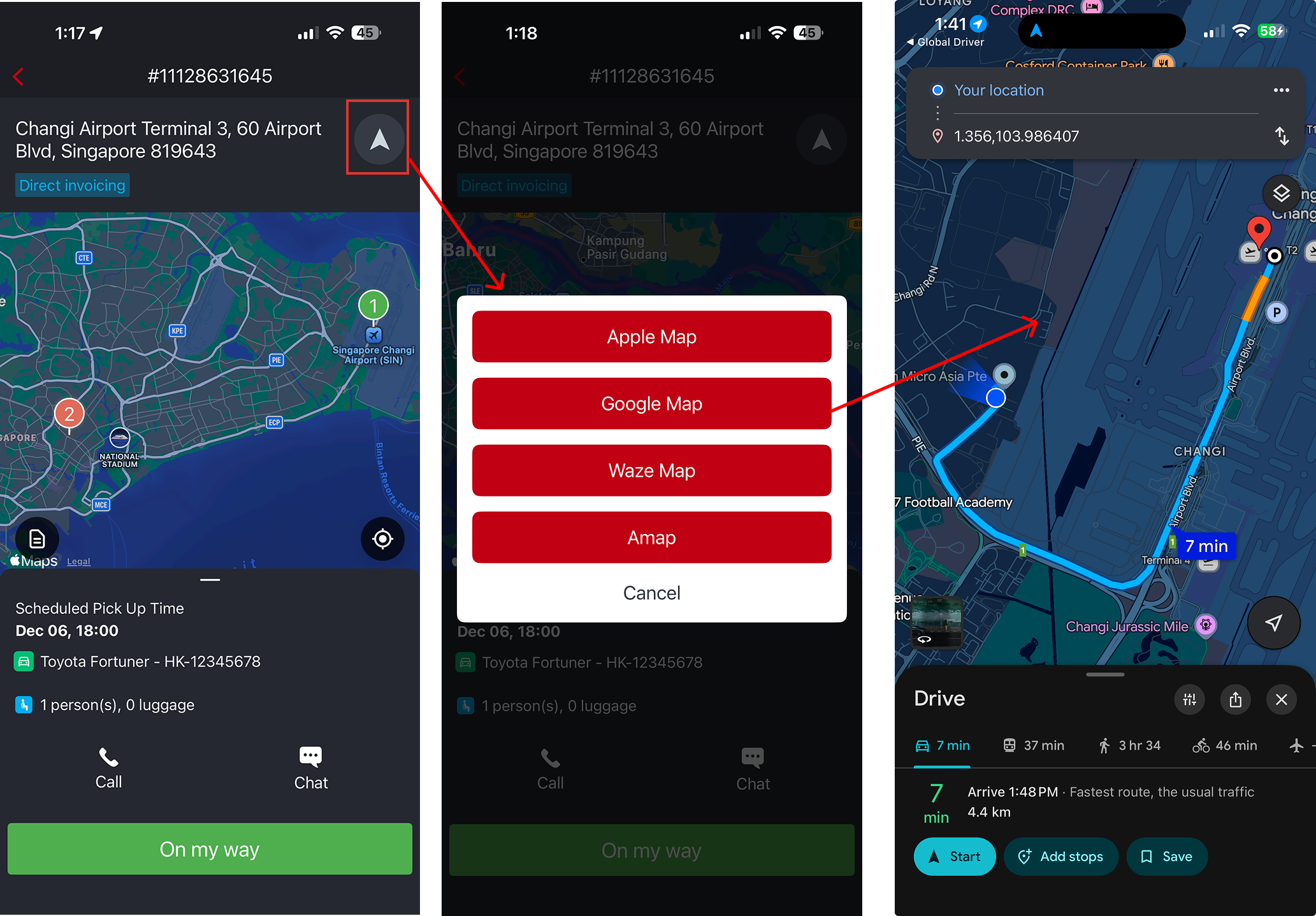
Tap the navigation icon to open your preferred map app for directions.
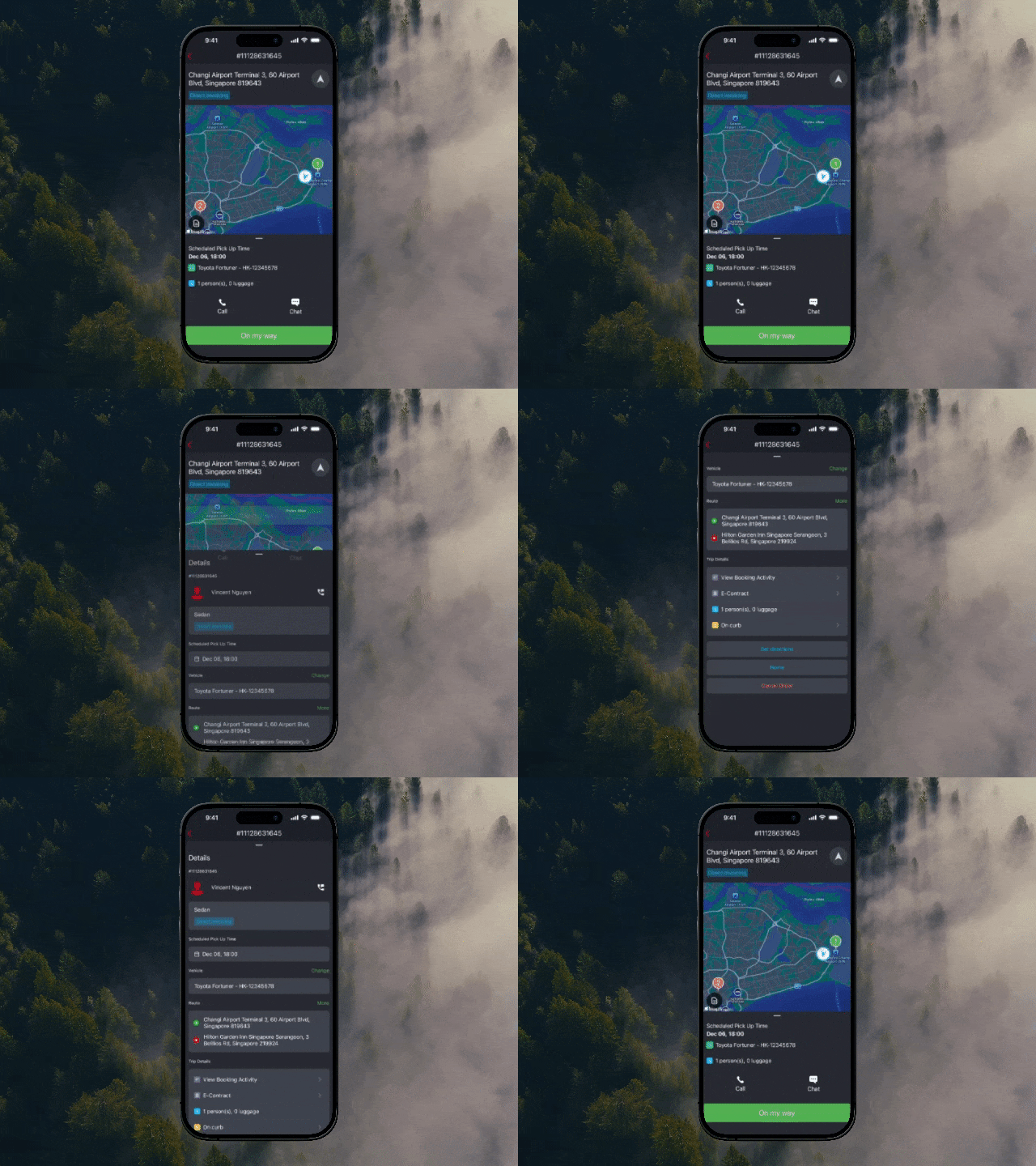
Swipe or scroll up on the booking card to see additional details, including:
- Booking number
- Customer name (with call/message shortcuts)
- Vehicle type and payment method
- Scheduled pickup time
- Assigned vehicle (you may switch vehicles if your fleet permissions allow)
- Route overview with an option to expand the full map
Trip Details may include:
- Booking activity (notes, important documents, tickets, itineraries)
- E-contract (digital confirmation sometimes required by authorities)
- Flight information
Additional actions from this screen:
- Get directions
- Return to home screen / exit job
- Cancel the order (if allowed — penalty fees may apply)
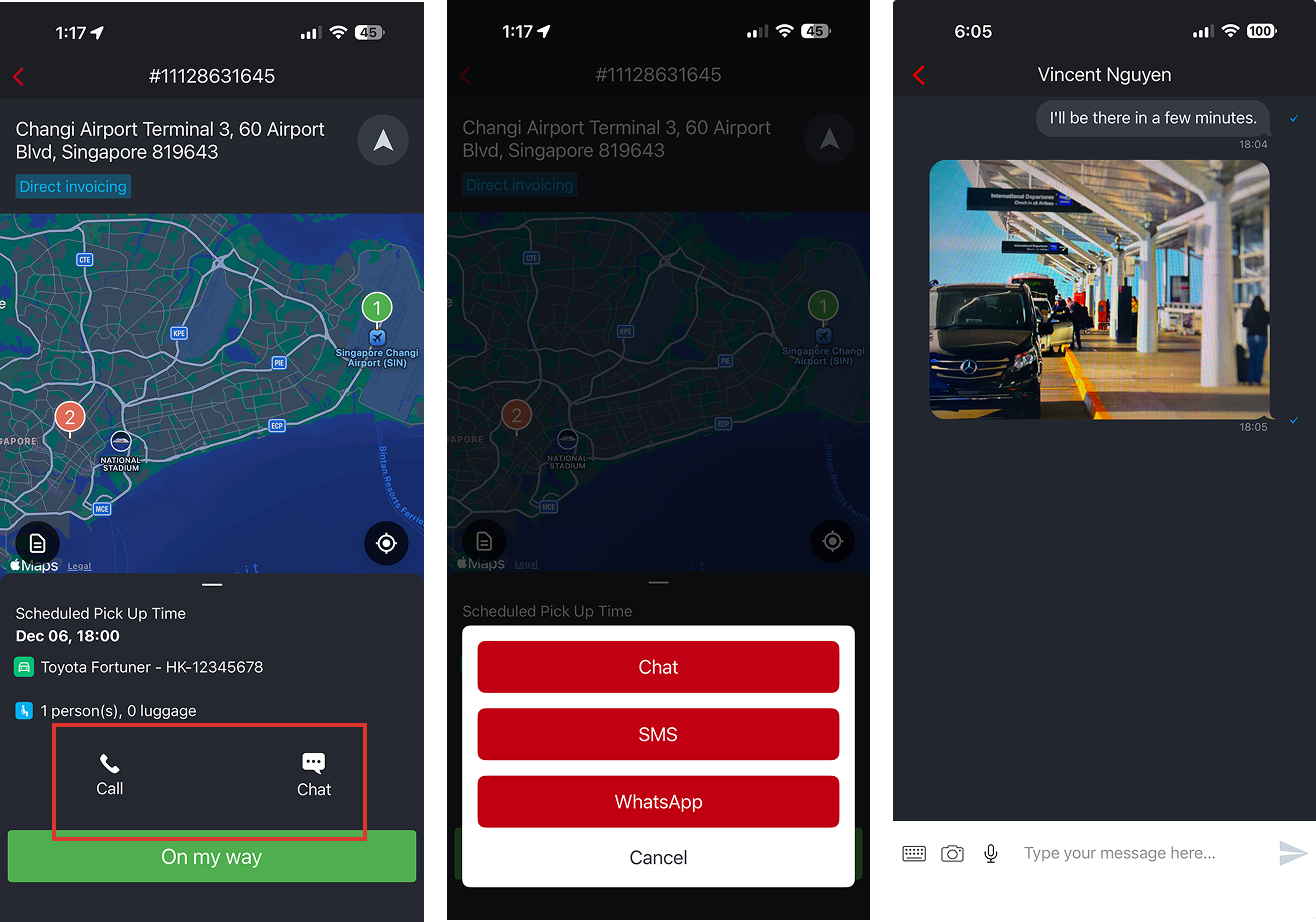
How to Communicate with the Customer
- If the customer booked through a 3rd-party platform: You can usually only contact them via phone call, WhatsApp, or SMS.
- If the customer booked through the GoodJourney app: You can chat with them directly using the in-app chat feature.
How to Performing the Job
- Swipe On My Way when you begin heading to the pickup.
- Swipe Arrived when you reach the pickup point.
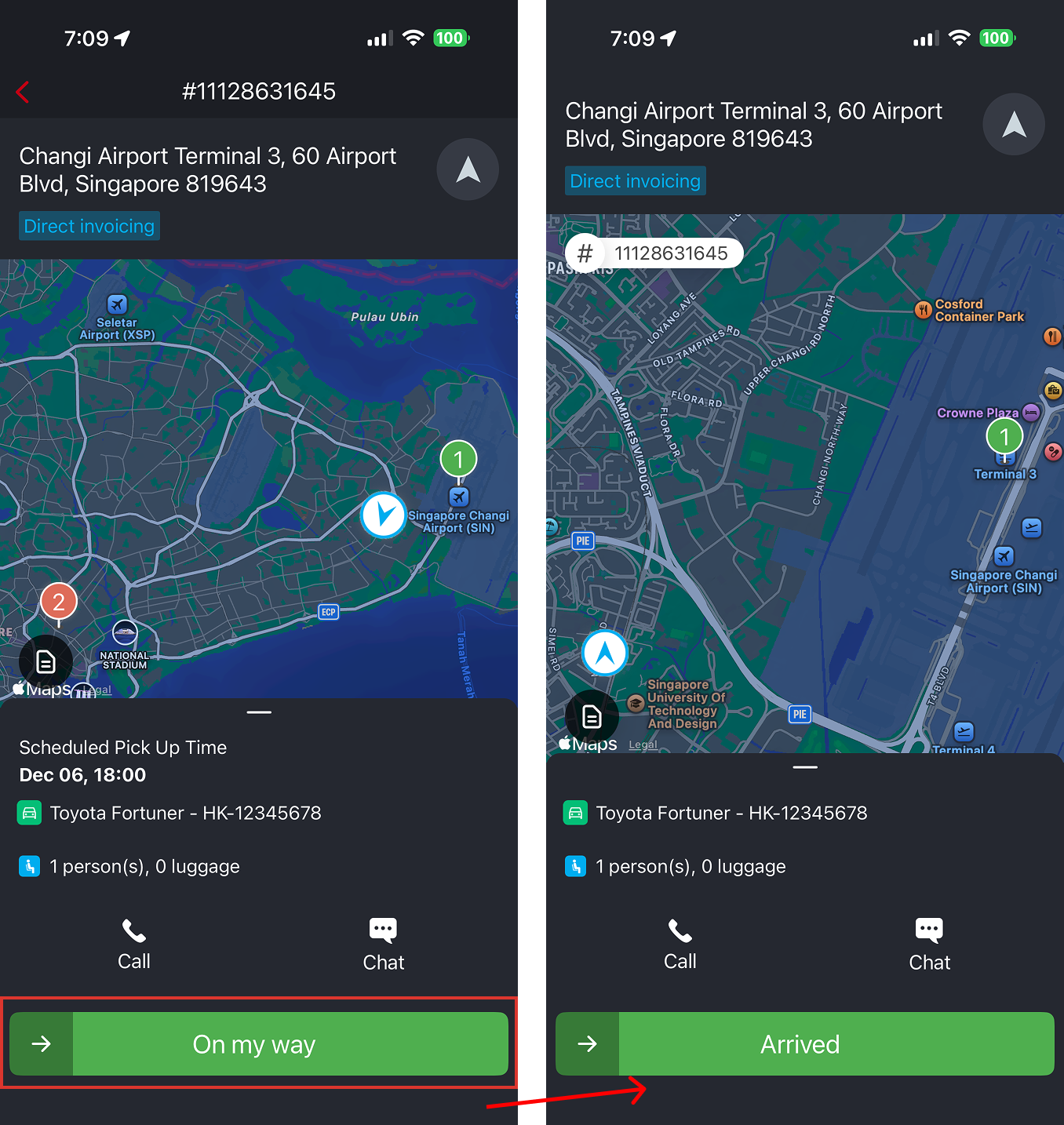
Once you arrived and waiting for customer you can call or message the passenger.
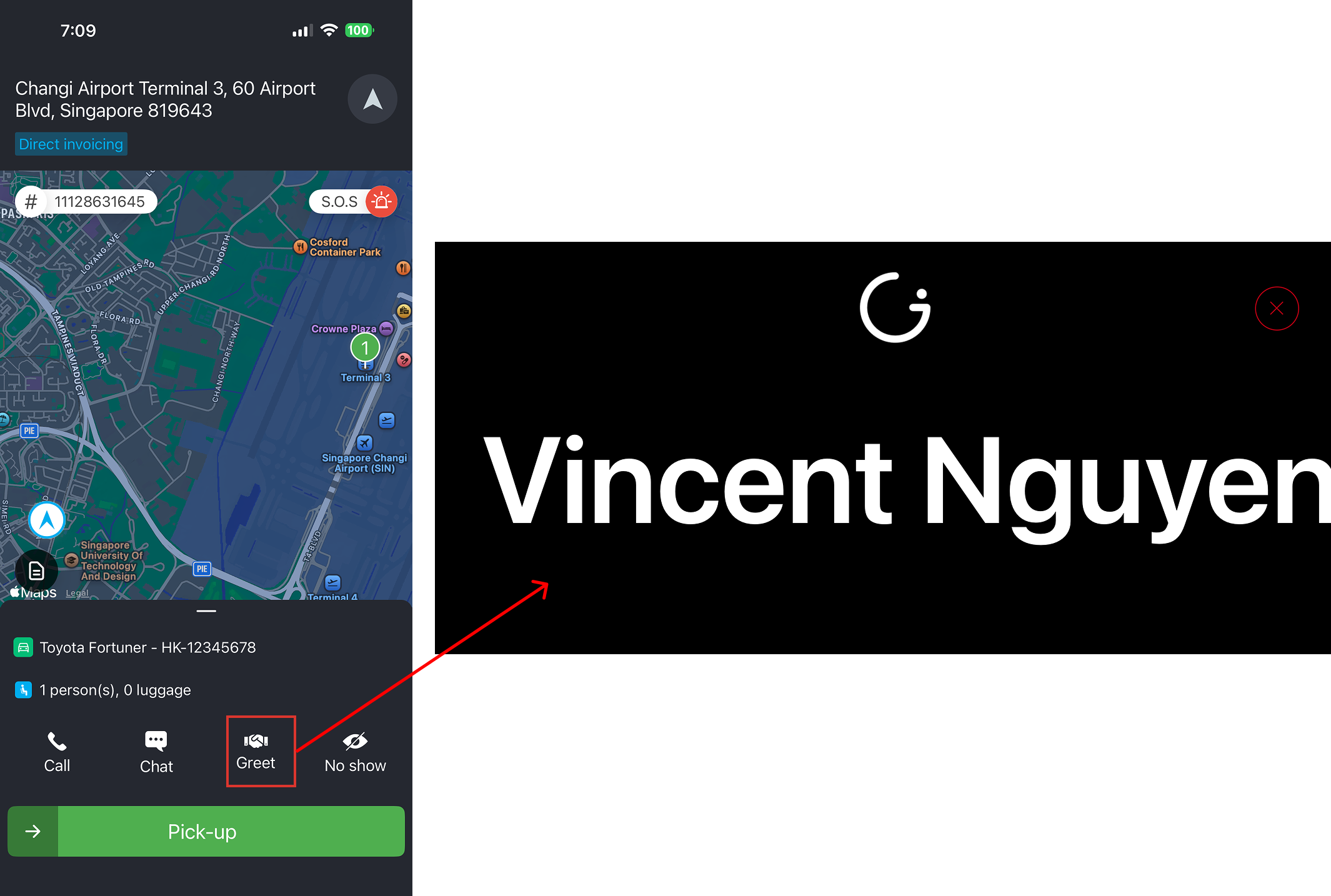
If it is an airport transfer there may be meet & greet. You can click the greet button to open the signage to show passenger name.
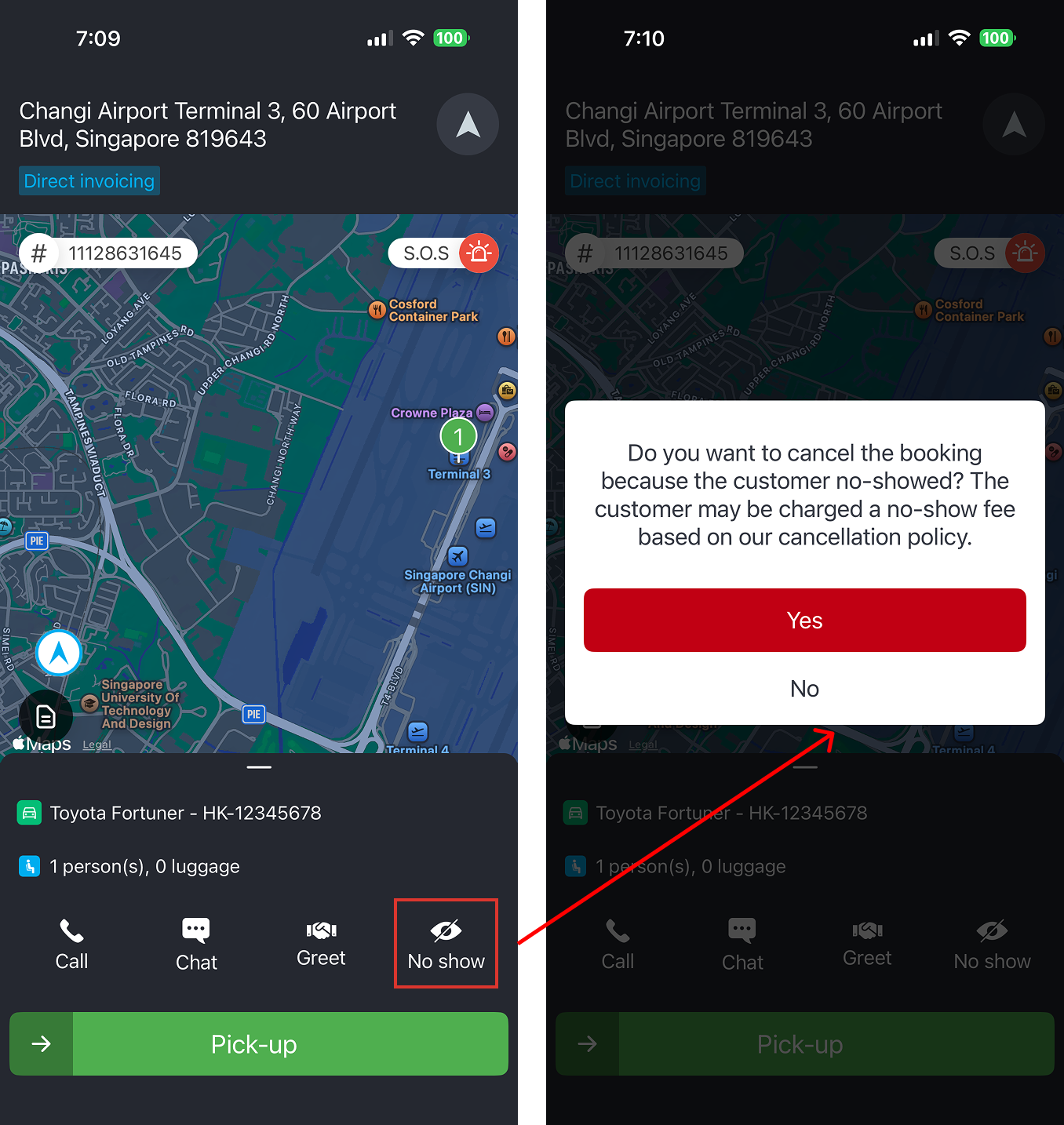
The customer may have a free waiting period before you can mark the job as a no-show — always verify carefully before taking this action, as no-show penalties may apply to the customer.
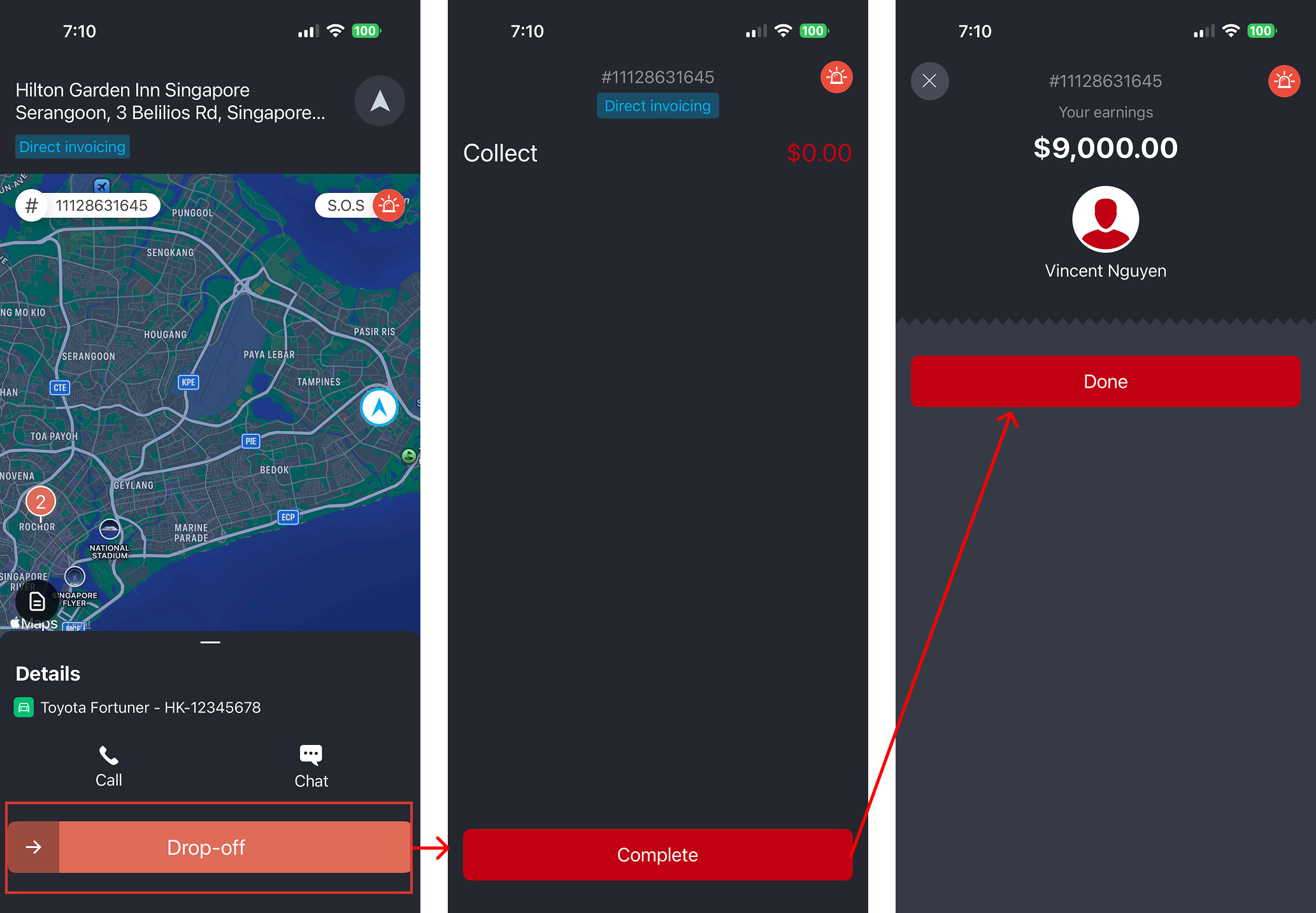
Swipe Pickup once the customer is onboard.
Swipe Drop Off when you arrive at the destination.
Finally, complete the booking to finish the job.
Issue with Job?
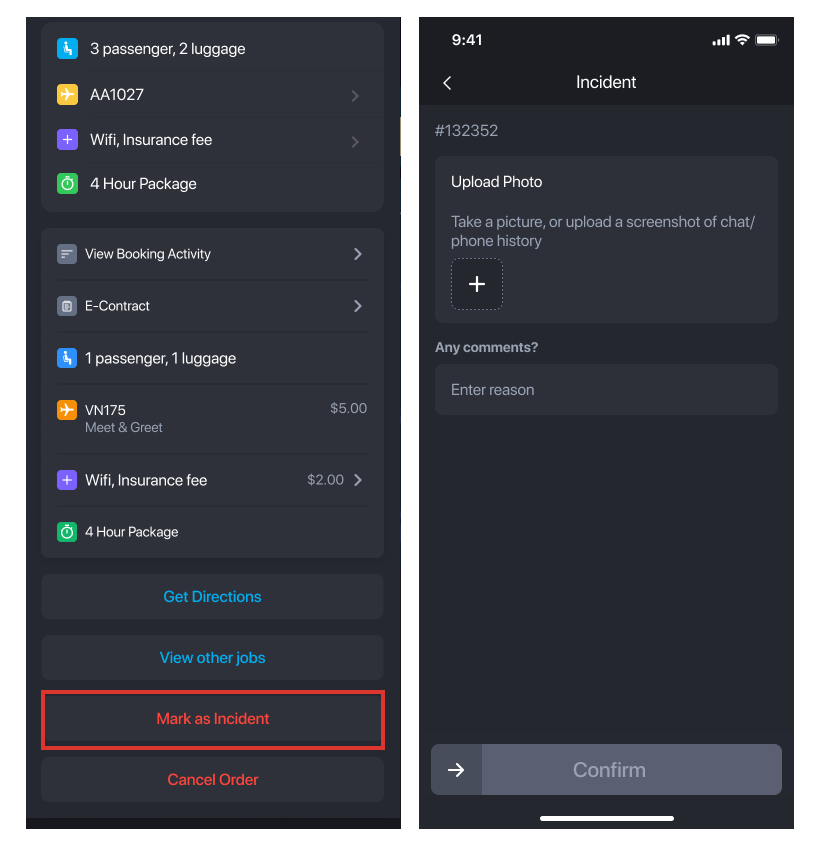
If there are any issues, use Incident to report them. Include comments and evidence to help us resolve disputes with customers.
1. Swipe up on your job card
2. Tap on Incident
3. Upload images and comments for evidence
Quick Best Practices
- Always swipe up to review full booking details carefully.
- Arrive 15–20 minutes before the scheduled pickup time.
- Listen for notifications in case the job changes.
- Track and verify flight information for airport pickups.
- Report issues or disputes immediately via the Incident option.
Was this article helpful?
That’s Great!
Thank you for your feedback
Sorry! We couldn't be helpful
Thank you for your feedback
Feedback sent
We appreciate your effort and will try to fix the article