With the standard booking widget described here, the booking process works as follows:
- Customer enters pickup location and destination
- Customer selects date and time
- Customer clicks Search
- Customer is redirected to the GoodJourney Booking Web App
- Customer views available vehicles and completes the booking
Advanced Embedded Experience
For a more seamless and branded experience, you can instead redirect customers to a dedicated page on your own website and embed the Booking Web App using an iframe. This allows the full booking flow to appear within your website, preserving your branding, maintaining design consistency, and ensuring customers remain on your domain throughout the entire booking process.
Let's take a look at how to setup the advance method.
Getting Started - Setting Up the Main Booking Widget
First you should install your booking widget on your webpage. Add the following code to your website's html <head> It should look something like this:
<script>
function initGJBookingForm() {
    window.GJBookingWidget.init({
      fleetToken: 'YOUR_FLEET_TOKEN', // 1
      mode: 'full', // 2
      redirectUrl: 'https://www.yourwebsite.com/booking', // 3
      openInNewTab: false, // 4
    });
  }

</script>

<script defer="defer" src="https://widget.local.goodjourney.io/js/widget.js">
</script>
Remember to replace YOUR_FLEET_TOKEN with your own token.
- fleetToken – Identifies your fleet and links the widget to your Good Journey Web Booking app. This ensures all searches and bookings are associated with the correct fleet account.
- mode – Controls the widget layout and appearance. Use
compactfor a smaller, space-efficient version, orfullfor the complete booking form experience. - pwaLink – Defines the destination page on your website where users are redirected after clicking Search. This should point to the page where your Booking Web App is embedded (for example:
https://www.yourwebsite.com/booking). - openInNewTab, if false will navigate to the page path /booking and display the booking details.
Next, add a container element within the <body> of your HTML where the booking widget will be rendered. This container defines the exact location on your webpage where the widget will appear.
<div id="gojo-widget-container">
     <!-- The widget will be embedded here -->
</div>
Your website should look something similar to this:
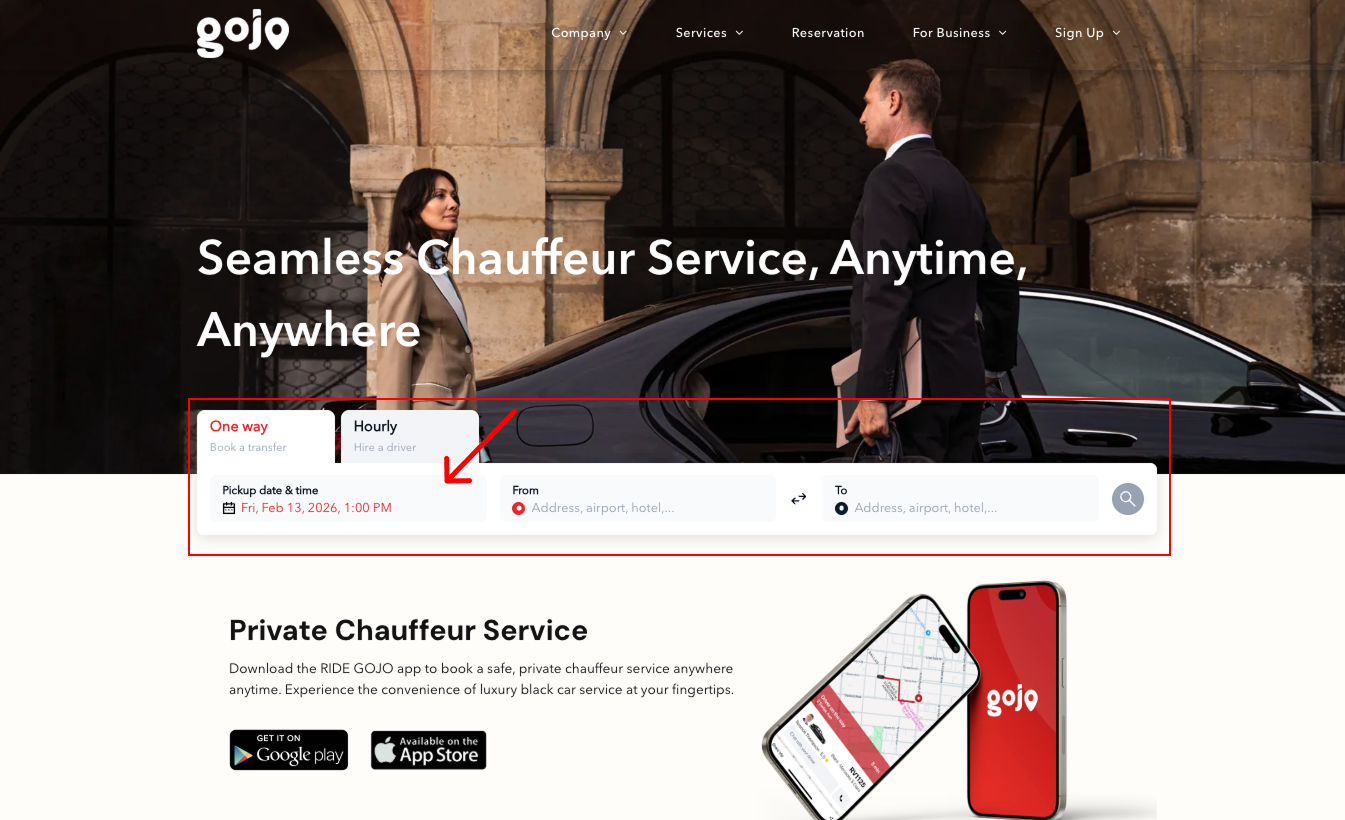
For more details on how to customize the booking widget please refer here.
Setup Your Embed iframe.
Next within your dedicated page, for example pwaLink is now set to https://www.yourwebsite.com/booking.
Add the following code in the <head> tag of that page:
<script>
  function initGJBookingForm() {
    window.GJBookingWidget.init({
      fleetToken: 'YOUR_FLEET_TOKEN', // 1
      renderPWAIframe: true // 2
    });
  }
</script>
<script defer="defer" src="https://widget.goodjourney.io/js/widget.js">
</script>
Remember to replace YOUR_FLEET_TOKEN with your own token.
1. fleetToken – Identifies your fleet and links the widget to your Good Journey Web Booking app.
2. renderPWAIframe – Set this to true. This instructs the widget to load and display the Booking Web App directly within a container on your current page using an iframe, instead of redirecting the user to the GoodJourney Booking Web App. This ensures the entire booking experience remains seamlessly embedded within your website.
Next within the body of the same page, add the container.
 <div data-container="gj-pwa-iframe" style="width: 100dvw; height: 100dvh">
    <!-- The iframe will be embedded here -->
</div>
gj-pwa-iframe is the container identifier used by the GoodJourney widget to locate where the Booking Web App iframe should be rendered. The widget automatically injects and displays the full booking interface within this container on your page.
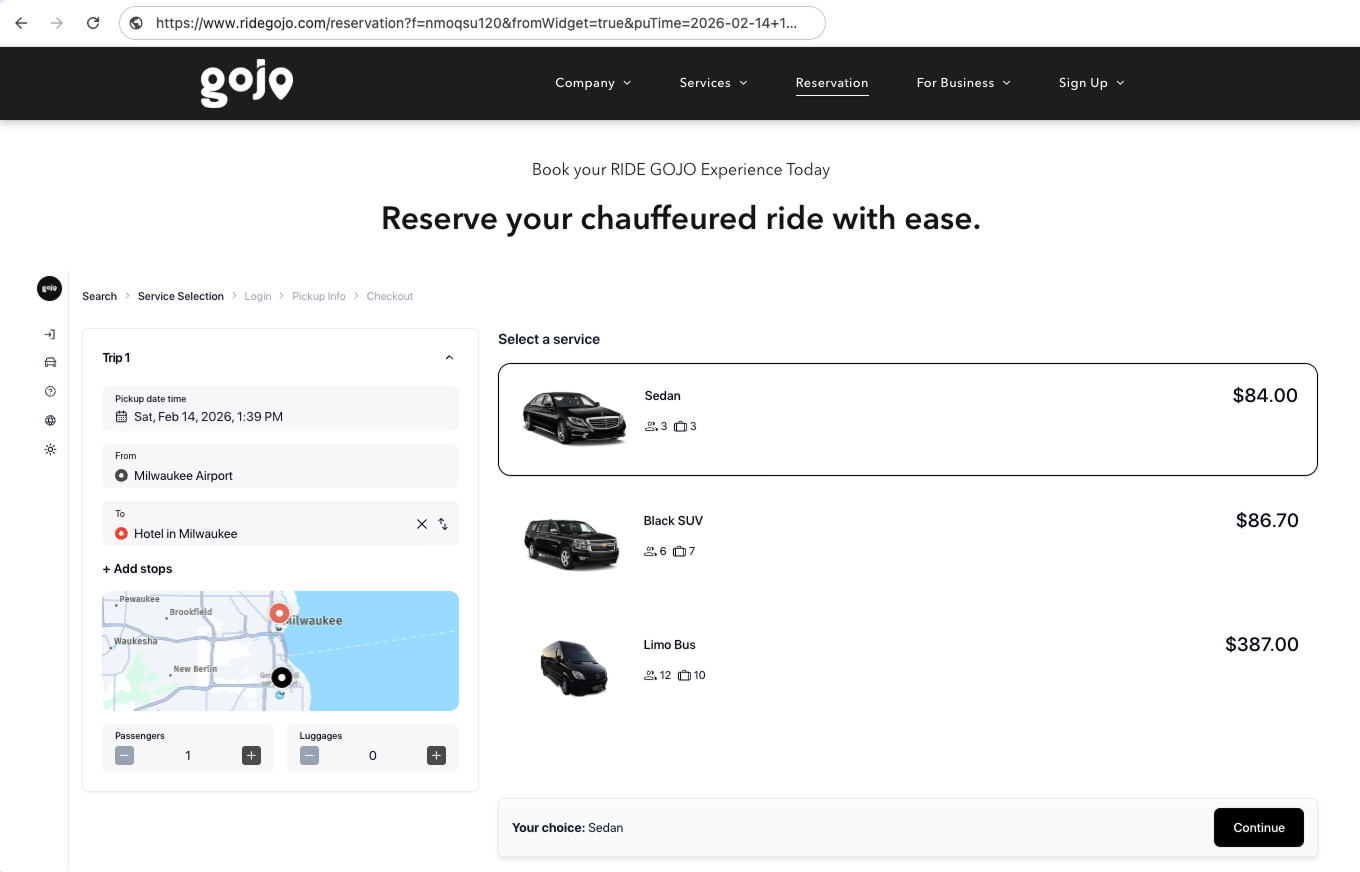
Once installed, you can test the embedded booking experience. When a customer enters their pickup location, destination, and date/time, then clicks Search, they will be redirected to your dedicated booking page (for example, /booking) where the Booking Web App is embedded. The vehicle selection screen will load directly within your website, allowing customers to continue the booking process seamlessly without leaving your domain, as shown below:
Was this article helpful?
That’s Great!
Thank you for your feedback
Sorry! We couldn't be helpful
Thank you for your feedback
Feedback sent
We appreciate your effort and will try to fix the article