The Good Journey Booking Widget Form is a versatile web application that seamlessly integrates with your website, enhancing user search and booking capabilities without compromising your site's aesthetics. It's lightweight, mobile-friendly, and customizable to match your brand's colors and theme.
Keep in mind that prior web development experience is recommended for installation.
Use Cases
There are several flexible ways to integrate and present your booking web app to your users, depending on your website design and user experience goals:
- Open via Button or Link
Add a “Book Now” button or link on your website that opens the booking web app in a new tab or same window. This is the simplest and most common approach. - Embed Directly with an iframe
Embed the booking web app directly within your website using an iframe. This allows users to search and complete their booking without leaving your site, providing a seamless, fully integrated experience. - Use the Booking Widget with Redirect
Install the booking widget on your homepage or landing page. When users enter their trip details and click Search, they are redirected to the booking web app to view vehicle options and complete their reservation. - Embed Mode - Redirect to a Custom Page on Your Website (Advanced)
For a more advanced integration, configure the widget to redirect users to a dedicated page on your own website. This page can display the booking results or details using your own layout, branding, or embedded iframe—creating a fully branded and controlled booking journey.
Installing the Booking Widget
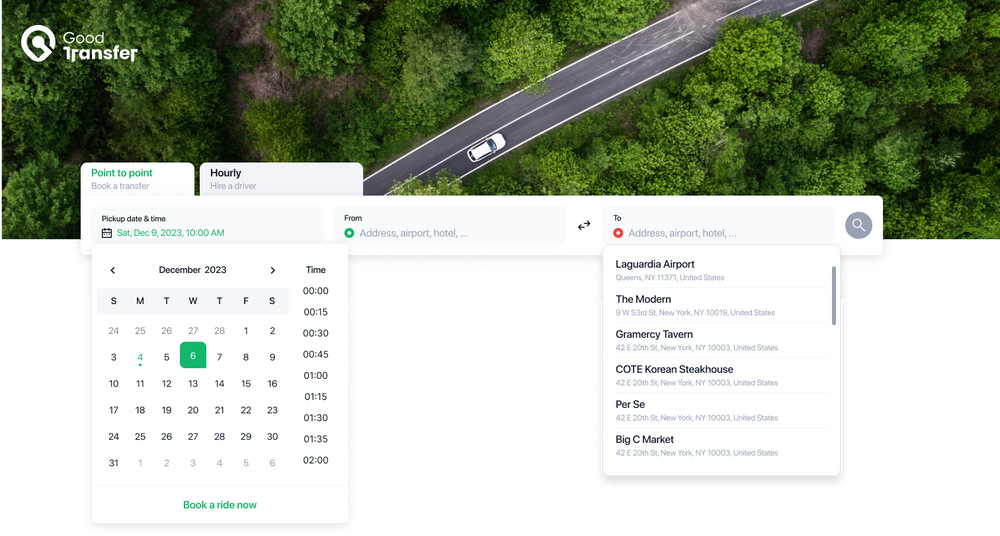
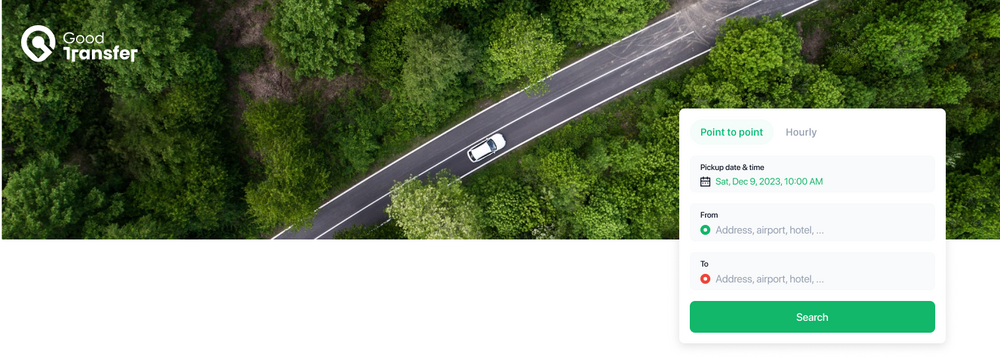
The widget form comes in two modes:
- Full mode
- Compact mode
Full Mode
Compact Mode
Getting Started — Locate Your Fleet Token
- Open the Command Center and navigate to Settings.
- Select Product Discovery.
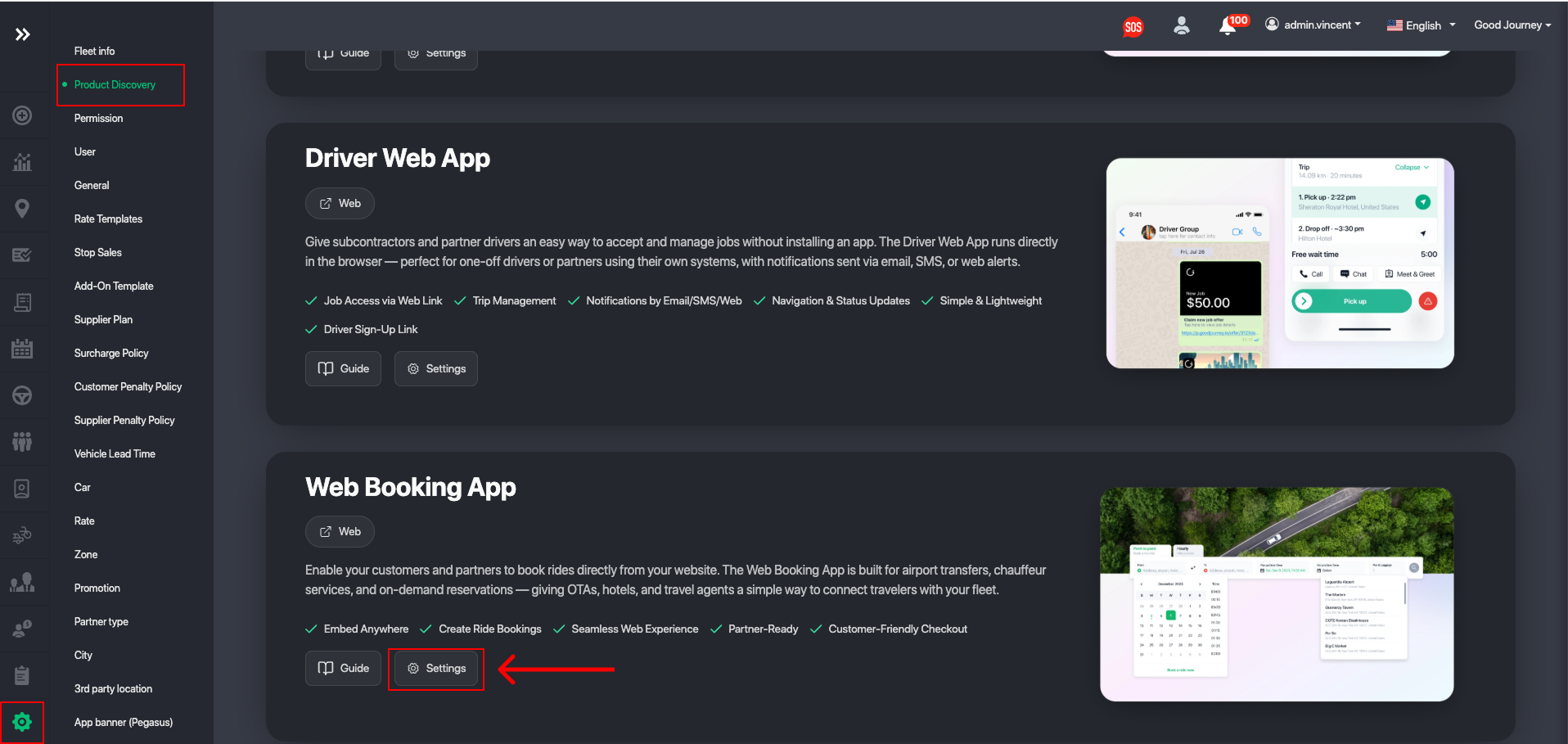
- Scroll down to the Booking Web App section.
- Click Settings.
- Copy your Booking Web App link.
- Your Fleet Token is the unique code at the end of this link.
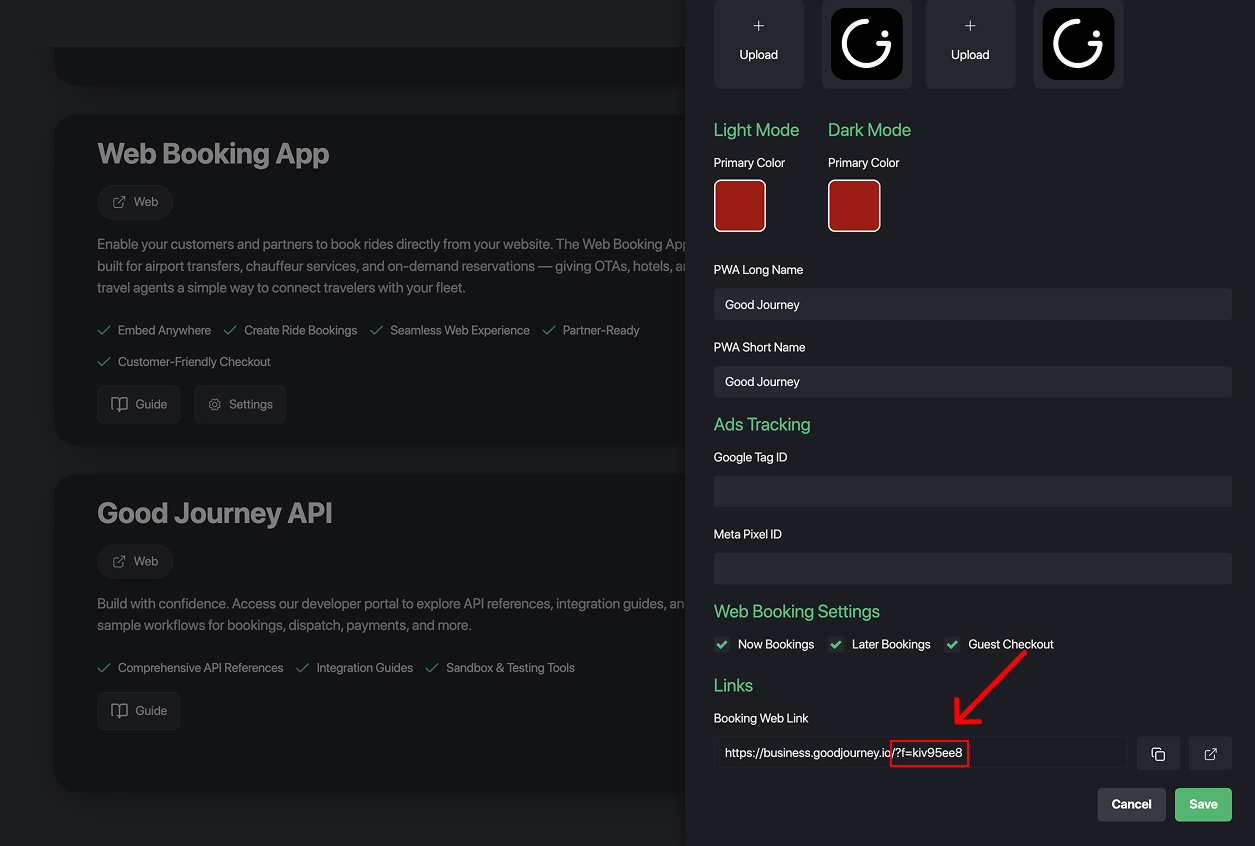
For example the fleet token in the screenshot above is kiv95ee8
1. Adding Head Script Tags
To integrate the widget, begin by adding the following code snippet within the <head> section of your HTML:
<script>
function initGJBookingForm() {
    window.GJBookingWidget.init({
        fleetToken: 'REPLACE_WITH_FLEET_TOKEN'
    });
}
</script>
<script defer="defer" src="https://widget.goodjourney.io/js/widget.js"></script>
Ensure that you replace REPLACE_WITH_FLEET_TOKEN with your own fleet token. This code initializes the booking form when your webpage loads.
2. Specify the Widget Placement
Next, decide where you want the widget to appear on your website. By default, it should be placed within a <div> with the ID gojo-widget-container. Example shown below:
<div id="gojo-widget-container">
  <!-- The widget will be embedded here -->
</div>
You can use a different ID if necessary, but keep in mind that this may require additional configuration. Please refer to the Configuration section for further details.
With these two simple steps, you'll have our widget form seamlessly integrated into your website.
Configuration
The widget requires some configuration to function properly. You can also customize certain settings to tailor the widget to your specific needs. Refer to the table below for details:
| Name | Type | Required | Default | Description |
| fleetToken | String | Yes | The fleetToken is obtained from command center > settings > Product Discovery > PWA | |
| mode | full or compact | No | full | The widget supports two view modes. full arranges components horizontally, while compact arranges them vertically. |
| root | String | No | gojo-widget-container | Use this key if you want to specify a different container ID instead of the default value. |
| partnerId | String | No | This key is used to collect commissions when the widget is embedded on a partner's website. | |
| corporateId | String | No | This key is used to link the booking to the corporate. (This recommended over partnerId) | |
| locale | String | No | en-US | A string with a BCP 47 language tag. |
| localizationData | JSON | No | JSON object with key-value pairs for supporting multiple languages. | |
| color | JSON | no | Customize the default theme of the widget. Refer to the Customization section for more details. | |
| rtl | Boolean | No | false | Support RLT mode |
| latitude | Number | No | The default latitude value applied when searching for an address. | |
| longitude | Number | No | The default longitude value applied when searching for an address. | |
| openInNewTab | Boolean | No | true | Controls whether open in the same tab or a new tab of the browser. |
| redirectUrl | String | No |
When a user enters trip details and clicks Search, the widget will redirect to this URL and automatically include all booking query parameters (such as pickup location, destination, date, time, passengers, etc.). If Examples Redirect to your GoodJourney Booking Web App: https://business.goodjourney.io/ Redirect to a custom booking page on your own website: https://www.yourwebsite.com/booking This allows you to fully control the booking experience while preserving all search data from the widget. | |
| renderPWAIframe | String | No | Renders the booking web app directly inside a specified iframe container on your website instead of redirecting users to a separate page or opening a new browser tab. This enables a fully embedded, seamless booking experience while maintaining your website’s layout, branding, and navigation. For instructions on how to do this view this guide. |
Ensure you configure these options to make the most out of the widget's functionality.
Initialization configuration example:
function initGJBookingForm() {
  window.GJBookingWidget.init({
    fleetToken: 'REPLACE_WITH_FLEET_TOKEN',
    root: 'gojo-widget-container',
      mode: 'full',
      corporateId: '5c91e25261223c0ff3fe53c0'
      locale: 'en-US',
      rtl: false,
      latitude: 1.358604,
      longitude: 103.9899436,
      localizationData: {
        bookingTypePointToPoint: 'Point to Point',
        bookingTypePointToPointDescription: 'Book a transfer',
        bookingTypeHourly: 'Hourly',
        bookingTypeHourlyDescription: 'Hire a driver',
        dateInputLabel: 'Pickup date & time',
        pickupInputLabel: 'From',
        destinationInputLabel: 'To',
        pickupPlaceholder: 'Address, airport, hotel, ...',
        destinationPlaceholder: 'Address, airport, hotel, ...',
        search: 'Search',
        hourlyPackageLabel: 'Ride Duration',
        hourlyPackagePlaceholder: 'Select package',
        higherFareNote: 'Fares are higher due to high demand',
        upToDistance: 'Up to {{value}}{{unit}}',
        xMinutes: '{{value}} min',
        now: 'Now',
        ok: 'Ok',
        clear: 'Clear',
        time: 'Time',
        pickupRequiredMessage: 'Please select a pick up address first.',
    }
  });
}
Theme Customization
The widget operates on the micro-frontend concept, utilizing web components and native DOM elements rather than being embedded within an iframe. This approach allows for seamless customization by incorporating custom CSS directly from the target website.
Moreover, you can make use of a set of CSS root variables to define the widget's theme. This flexibility enables support for light and dark modes or ensures that the widget adheres to your design system.
There are two ways to change the themes:
- Configure from GJBookingWidget.init()
- Override the color variables via CSS
Here are the default variables:
:root {
  --gj-color-primary: #12b76a;
    --gj-color-pickup-pin: #12b76a;
    --gj-color-drop-off-pin: #f04438;
    --gj-color-text: #101828;
    --gj-color-divide: #f2f4f7;
    /* Select options */
    --gj-color-item-title: #101828;
    --gj-color-item-hover: #f2f4f7;
    --gj-color-item-description: #98A2B3;
    /* tab bar */
    --gj-color-tab-bg: #f2f4f7;
    --gj-color-tab-title: #12b76a;
    --gj-color-tab-active-bg: #F79009;
    --gj-color-tab-compact-active-bg: #F79009;
    --gj-color-tab-active-title: #fff;
    /* container */
    --gj-widget-shadow: 0px 4px 16px 0px rgba(0, 0, 0, 0.12);
    --gj-color-widget-bg: #fff;
    /* form control */
    --gj-color-form-control-bg: #F79009;
    --gj-color-input: #113859;
    --gj-color-input-placeholder: #2E90FA;
    --gj-color-label: #09121f;
    /* buttons */
    --gj-color-button-disabled: #98a2b3;
    --gj-color-button-hover: red;
    --gj-color-button-bg: #000000;
    --gj-color-button: #fff;
    /* search buttons */
    --gj-color-search-button: #101828;
    --gj-color-search-button-bg: #FFEBAE;
    --gj-color-search-button-hover-bg: #0daa5f;
    /* date, times */
    --gj-color-date-selected: #F79009;
    --gj-color-date-selected-bg: blue;
}
Configure from GJBookingWidget.init()
Change theme example:
function initGJBookingForm() {
  window.GJBookingWidget.init({
    fleetToken: 'REPLACE_WITH_FLEET_TOKEN',
    root: 'gojo-widget-container',
    mode: 'full',
    color: {
    '--gj-color-primary': '#FF27C0'
    }
  );
}
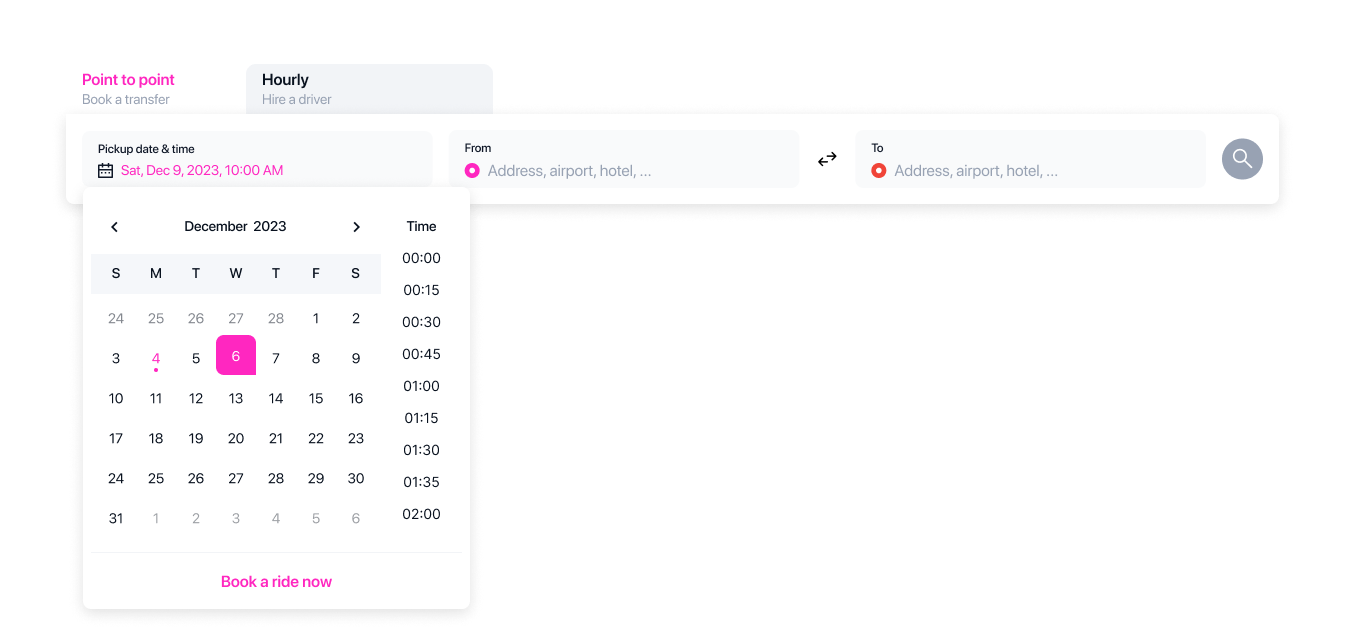
After changing the primary color theme, it should look something like this:
If you want to change certain parts of the components and color behavior, please check out the Theme Customization section.
Setup Dark Mode
To setup darkmode, you can add a new CSS to check user's device browser is set to dark mode and it will auto apply light or dark mode. Otherwise you can override or customize your CSS via the init.configure or override CSS. You can also add your own new CSS selector to our component to add the color directly.
For darkmode, only need to change variables by CSS:
@media (prefers-color-scheme: dark) {
  gojo-pwa-widget {
  --gj-color-primary: #fff;
  }
}
Important Notes
- Whitelist your domain
After installing the widget, please contact support@goodjourney.io to whitelist your domain. This step is required to enable address search functionality within the widget. - Ensure a default font is defined
Make sure your website specifies a default font for thebodyorhtmltag in your CSS. If no font is defined, the widget may display without proper typography on mobile devices.
Sample Code to test
Here is some sample code for you to play with the configurations. You can add in your own fleetToken, configure and test the colors before integrating with your own website:
Was this article helpful?
That’s Great!
Thank you for your feedback
Sorry! We couldn't be helpful
Thank you for your feedback
Feedback sent
We appreciate your effort and will try to fix the article