Once a booking has been created, you can manage every stage of the trip from the Command Center Dashboard.
Open the booking details to:
- Update trip or customer information
- Assign, unassign, or reassign drivers and vehicles
- Add internal notes or special instructions
- Adjust fares and driver/supplier payouts
- Review dispatch logs and booking history
- Complete, cancel, or close the booking
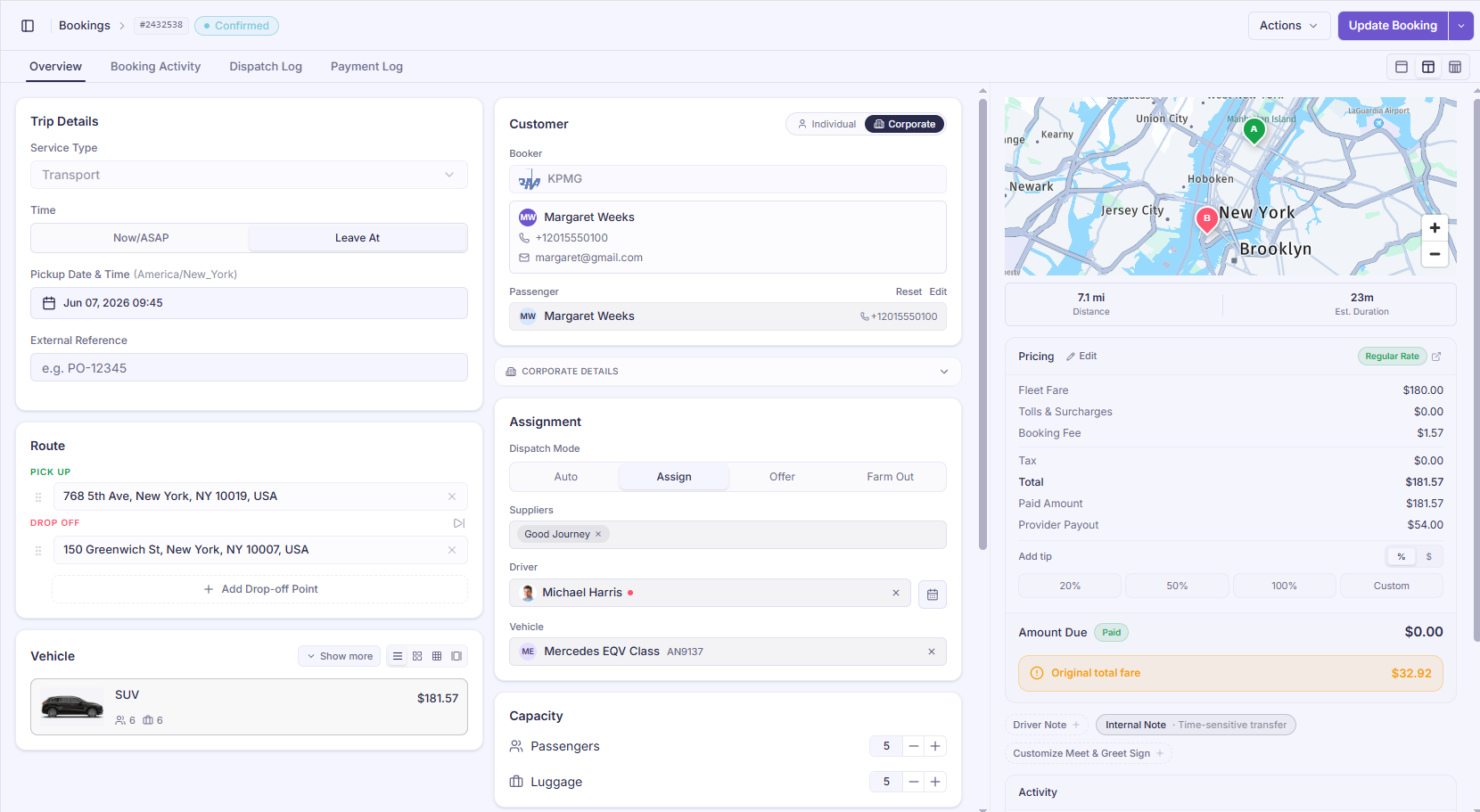
Update Booking
After making changes to any of the following sections:
- Trip Details
- Route
- Assignment
- Capacity & Services
- Pricing & Notes
Click Update Booking to save your changes.
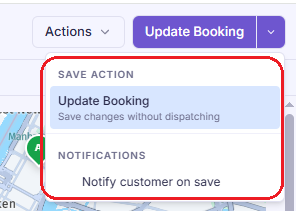
Booking Actions
The Actions menu provides additional tools for managing a booking.
General Actions
- Clone / Duplicate Booking – Quickly recreate a booking if mistakes were made, or rebook the same trip for a future date.
- Track Link: Generates shareable tracking links. Use these to send real-time status updates to passengers or external bookers.
- Driver Job Link: Generates job links. Use these to send job to drivers, especially for external/subcontracted drivers.
- View Invoice: Opens the direct billing statement for the corporate ride.
- Send Message: Allows dispatchers to send a quick SMS or system notification directly to the passenger or the driver.
- Meeting Sign: Opens a customizable digital or printable sign for airport/hotel "Meet & Greet" pickups.
- Copy Booking as Plain Text: Copies all trip details (route, times, names) to your clipboard for easy pasting into external chats or emails.
- Private / Public Toggle:
- Public: Broadcasts the job out to the wider driver marketplace and external driver networks (e.g., WhatsApp groups, partner channels).
- Private: Keeps the booking strictly restricted to your internal, in-house fleet.
- Cancel Booking (No Penalty) – Close the booking without applying any charges.
- Incident – Flag the booking as an incident and record a reason without applying penalties.
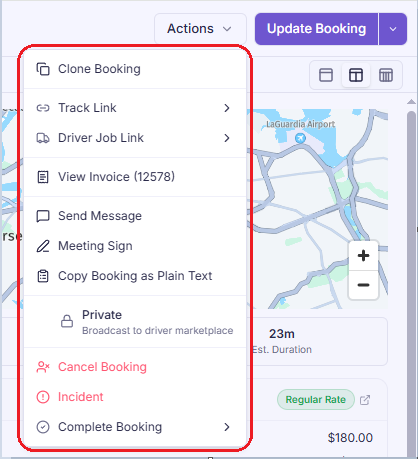
Complete Booking
Select Complete Booking when the trip has finished or needs to be closed. Depending on how the trip ended, choose one of the following completion actions.
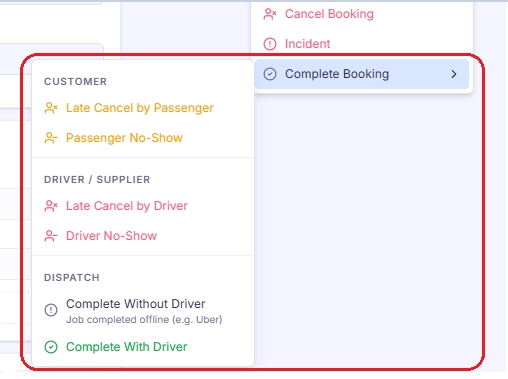
CUSTOMER:
- Late Cancel (Customer) – Mark the job as a late cancellation and apply a cancellation penalty if applicable.
- Passenger No-Show – Use when the passenger does not arrive at the pickup location.
DRIVER/SUPPLIER:
- Driver Late Cancel – Record when a driver cancels at the last minute and apply supplier/driver penalties.
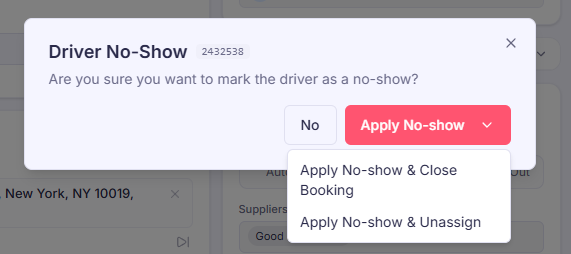
- Driver No-Show – Mark when the assigned driver does not arrive at the pickup point.
For both driver actions, you can either:
- Apply the penalty and unassign the driver so the booking can be reassigned, or
- Apply the penalty and close the booking.
DISPATCH:
These actions are useful when the assigned driver does not use the driver app, cannot update the trip, or when you allocate a 3rd-party provider (e.g., Uber or another external driver).
- Complete Without Driver – Close the trip without assigning it to any driver. Commonly used for 3rd-party, offline, or manually handled jobs. No payout will be issued to any driver or supplier.
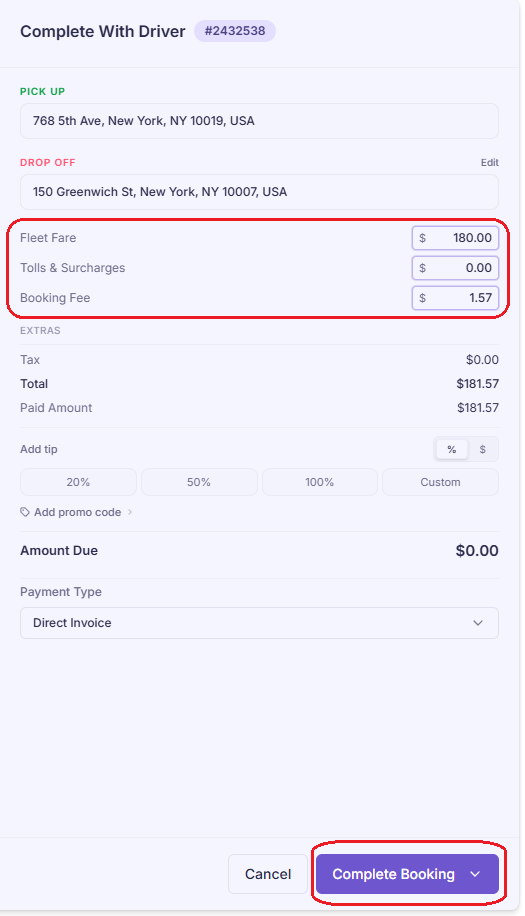
- Complete With Driver – Finalize the trip with the assigned driver and automatically update the driver or supplier payout and all financial records. Payout will be issued accordingly.
Before Completing a Booking
Before the booking is finalized, you'll be prompted to review any additional charges, including:
- Waiting time
- Extra stops
- Tolls
- Other additional fees
After confirmation, the system finalizes the booking and processes the payment.
If the customer's payment cannot be collected, select Pending Payment. The booking will be marked as having an outstanding balance, which will also appear on the customer's profile.
What's Next?
If you need to investigate booking issues or review trip activity, refer to the Dispatch & Payment Logs Guide.
Was this article helpful?
That’s Great!
Thank you for your feedback
Sorry! We couldn't be helpful
Thank you for your feedback
Feedback sent
We appreciate your effort and will try to fix the article