The Booking Queue is your primary workspace for dispatching, tracking, and managing all trips. It lets you oversee live jobs, upcoming reservations, critical alerts, partner offers, quotes, and completed bookings — all in one place.
Booking Tabs
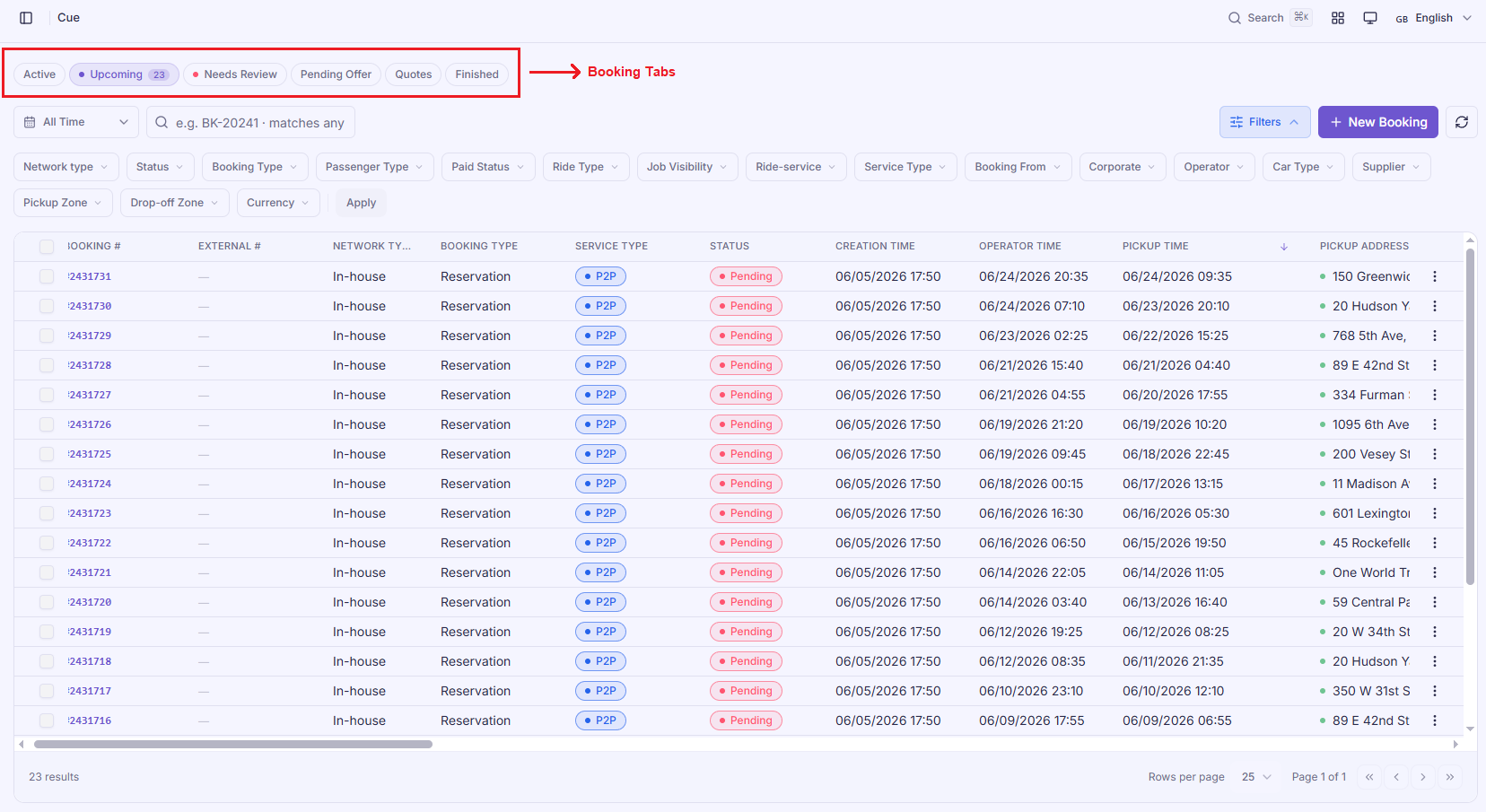
Use the status tabs to quickly organize bookings based on their operational stage:
- Active – View and monitor all trips currently in progress.
- Upcoming – Manage future reservations awaiting dispatch or pickup.
- Needs Review – Highlights bookings requiring immediate attention or manual intervention.
- Pending Offer – Track bookings farmed out through the GSN (Global Affiliate Network) or incoming OTA rides awaiting acceptance or confirmation.
- Quotes – Manage customer inquiries and price estimates that have not yet been converted into bookings.
- Finished – Access historical records of completed, cancelled, or closed bookings.
Core Tools in the Booking Queue
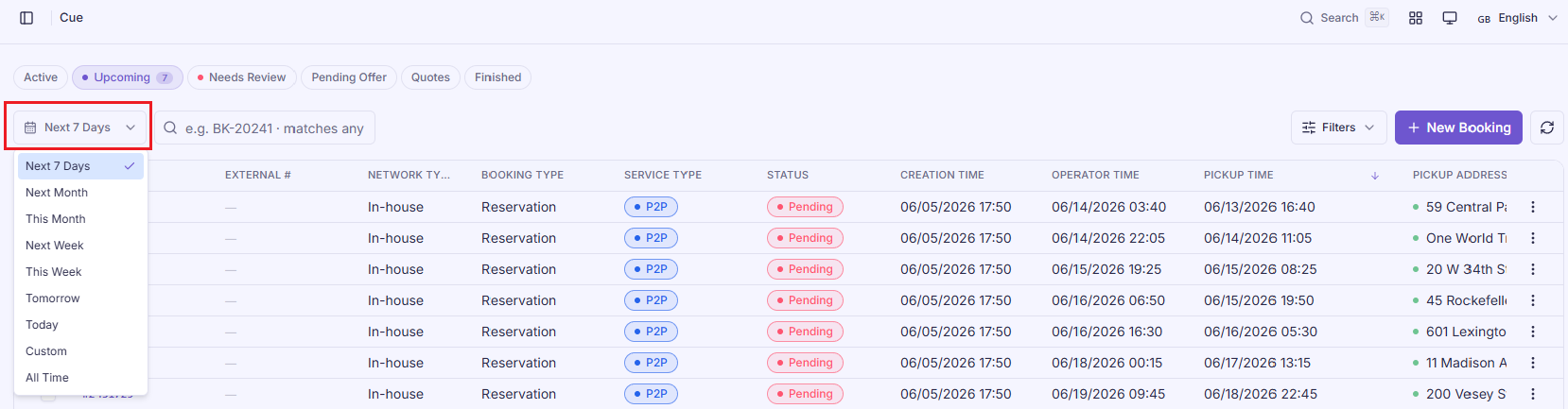
1. Date Filter
- Filter bookings by specific dates or a date range.
- Great for daily operations or pulling historical data.
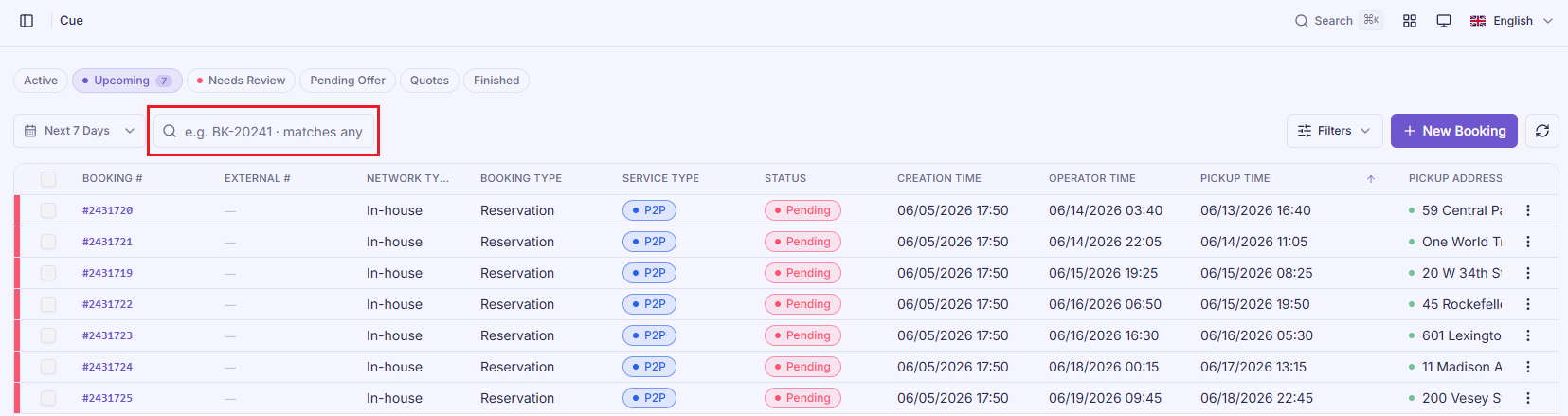
2. Quick Search
- Type to search across multiple fields instantly:
- Booking ID
- Passenger name
- Pickup address
- Driver / Vehicle
- …and more.
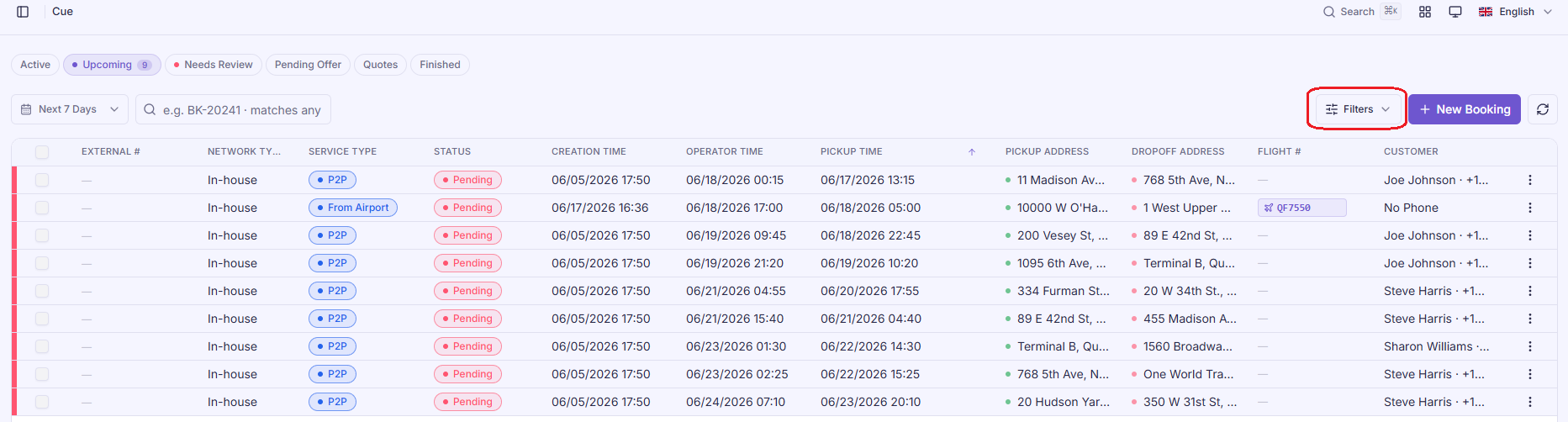
3. Custom Filter Shortcuts
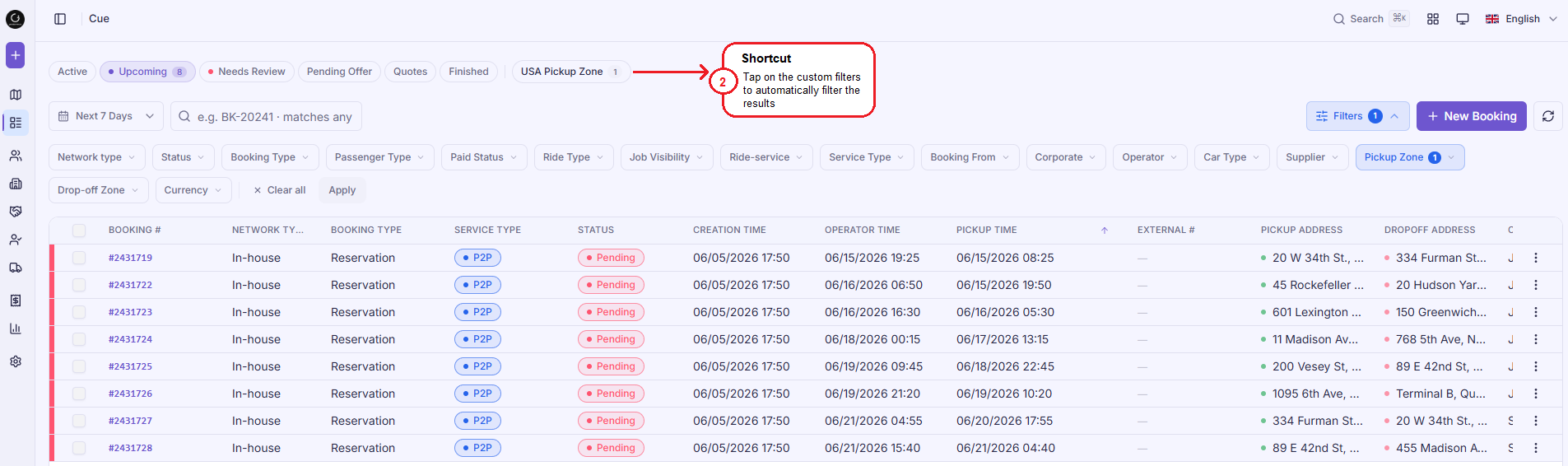
- Click the Filters button to narrow down bookings by specific vehicle types, assigned drivers, corporate clients, or affiliate partners.
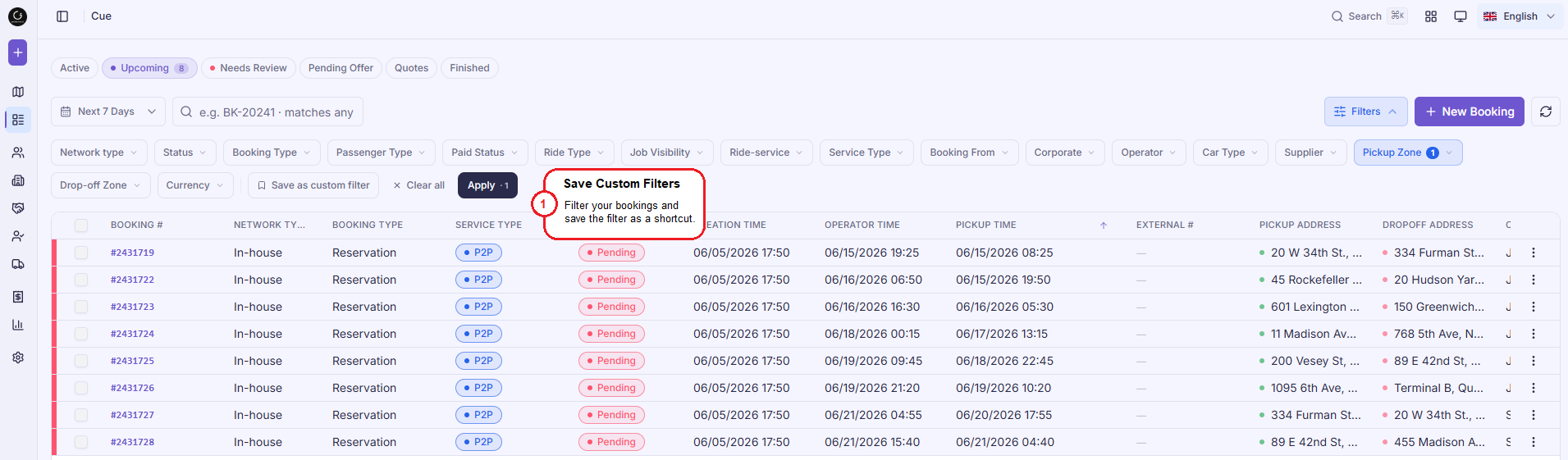
- Create your own Save as custom filter for quick access:
- Example: “Today’s Airport Pickups”, “VIP Only”, “Unassigned Jobs”
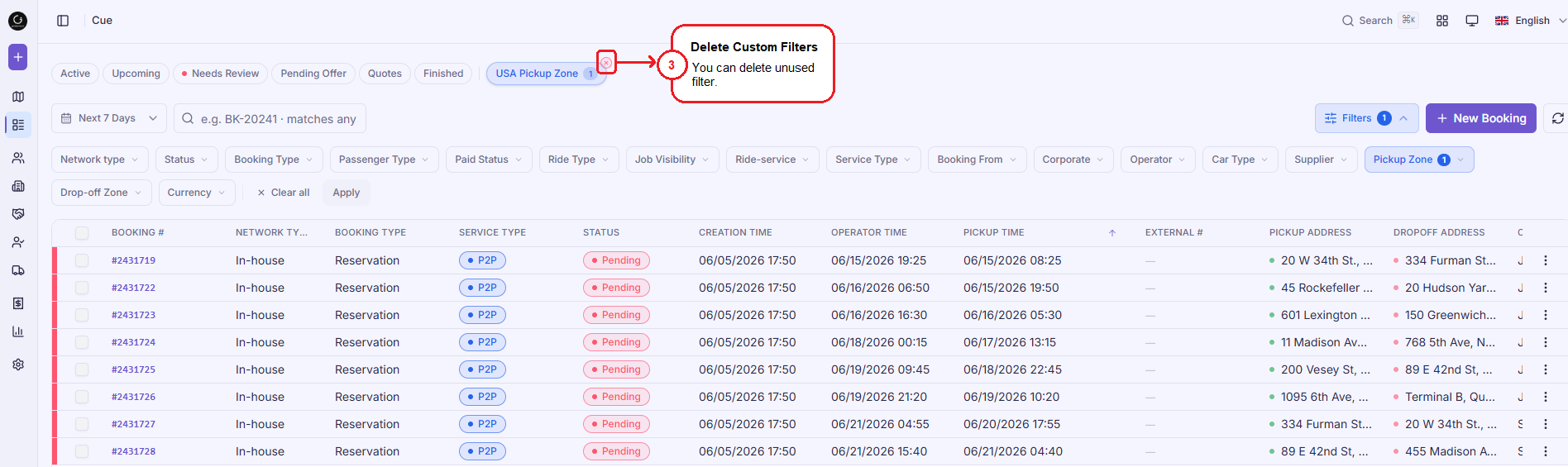
- Click X to delete any saved filters you no longer need.
4. Create New Booking
If you need to manually enter a trip while monitoring the queue:
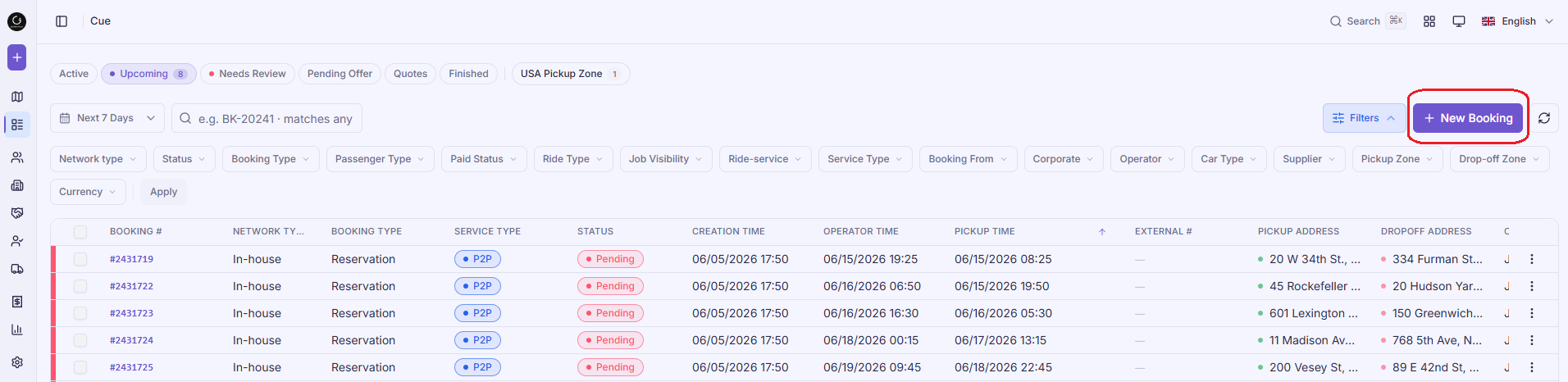
- Click the purple + New Booking button
- Complete the required fields (Trip details, Route, Vehicle, Customer and Payment).
- Save to automatically place the trip into the appropriate Cue category (usually Upcoming).
5. Sorting
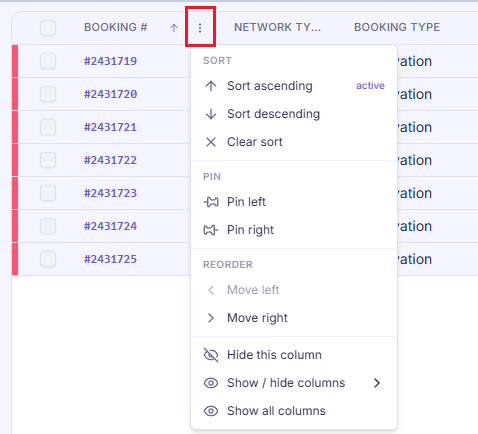
- Clicking a column header (or the ⋮ icon) opens a dropdown configuration menu to customize your workspace layout:
- Sort:
- Sort ascending: Arranges data lowest to highest (e.g., earliest Pickup Time first)
- Sort descending: Arranges data highest to lowest (e.g., newest Creation Time first)
- Clear sort: Resets the column to default system ordering.
- Pin:
- Pin left/Pin right: Anchors critical columns (like Booking # or Status) to the edge of your screen so they remain visible while scrolling horizontally.
- Reorder:
- Move left/Move right: Rearranges column positions to group related information together.
- Hide this column: Temporarily removes the field from your view to clear up screen space.
- Show/hide columns: Opens a side checklist (Booking #, Service type, Status, etc) to toggle specific system fields on or off.
- Show all columns: Instantly restores all hidden grid columns back to your screen.
- Sort:
6. Table Customization
Reorder Columns
- Hover on a column header and drag the handle to reorder columns.
Resize Columns
- Drag the resize indicator to adjust column width.
(Video Insert)
7. Flight Tracking
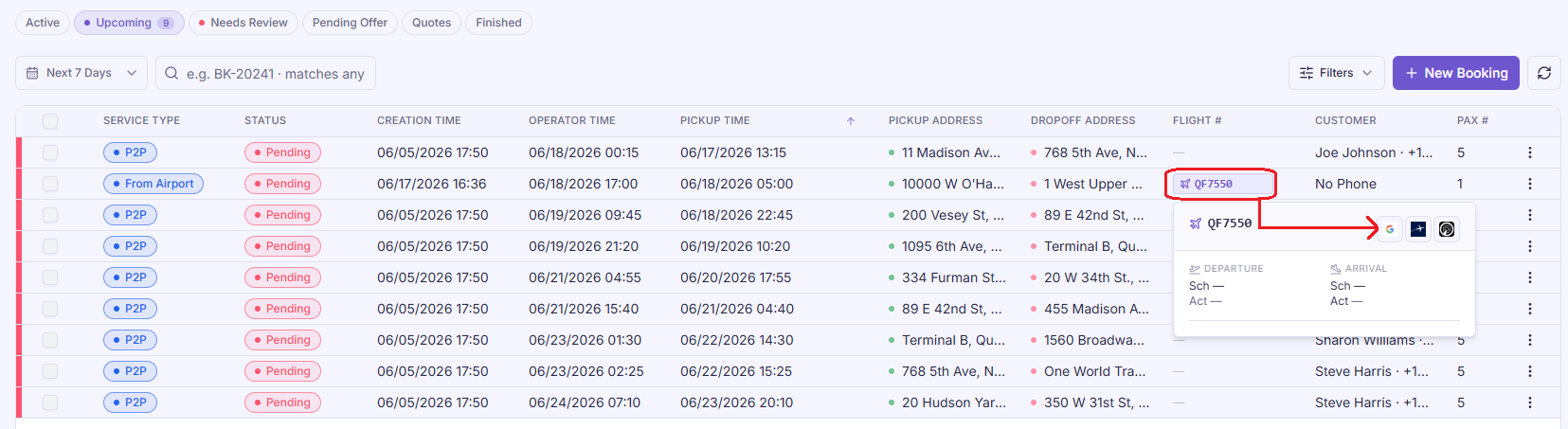
- Subscribe to our real-time flight tracking add-on service to automatically sync flight delays.
- Or simply click on the flight number inside any booking to instantly view flight status.
8. Multi-Select Bookings
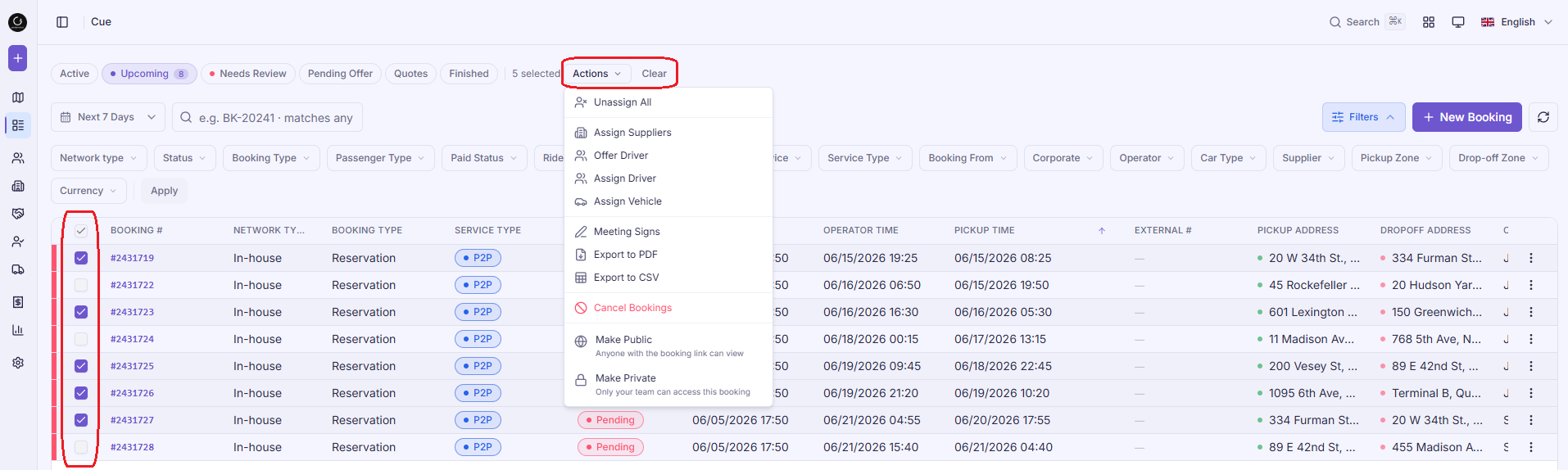
- Hold the Shift key while clicking checkboxes to quickly select a continuous range of multiple bookings at once to streamline high-volume operations.
- Select Actions to execute the following operations in bulk:
Assignment & Dispatch Controls
- Unassign All: Strips out all currently assigned drivers, vehicles, and suppliers from the selected bookings, instantly returning them to an unallocated state.
- Assign Suppliers: Batch-routes the selected jobs to a specific supplier.
- Offer Driver: Broadcasts the selected trips as open requests to eligible drivers, allowing them to manually review and accept the job via their mobile app.
- Assign Driver: Directly force-assigns a specific chauffeur to all highlighted bookings simultaneously.
- Assign Vehicle: Updates or overrides the fleet vehicle allocation across all selected jobs at once.
Operations & Manifests
- Meeting Signs: Instantly compiles a batch file of digital passenger greeting signs (paging boards) for airport arrivals or VIP meet-and-greets, ready to print or share.
Data Export
- Export to PDF / Export to CSV: Downloads the complete operational manifests, routing timelines, and payload details of your selected rows for external auditing, billing, or client reporting.
Status & Link Control
- Cancel Bookings: Permanently cancels all selected trips at the same time.
- Make Public: Generates shareable tracking links for the selected rides, allowing anyone to view live trip status without needing a system login.
- Make Private: Restricts visibility exclusively to your team.
9. Advanced Features
- Click Booking Actions Menu (⋮) to manage rides instantly.
- Select an Action:
| Action | What it Does |
| View Booking | Opens the complete ride details page. |
| Clone Booking | Duplicates the trip for easy return/recurring setups. |
| Track Link | Copy and send live sharing links for customers. |
| Charge Customer | Processes the payment immediately. |
| Send Message | Quickly texts or emails the passenger. |
| Meeting Sign | Creates a printable greeting sign for airport pickups. |
| Copy Plain Text | Copies an unformatted itinerary summary to your clipboard. |
| Private / Public Toggle: | Private: Keeps the booking strictly restricted to your internal, in-house fleet. Public: Broadcasts the job out to the wider driver marketplace and external driver networks (e.g., WhatsApp groups, partner channels). |
| Cancel Booking | Instantly cancels the ride. |
| Complete Booking | Manually closes out the ride. |
? Quick Tips for Dispatchers
- Keep an eye on the numbers: The blue pill indicators (like the 0 on Active) give you an instant snapshot of your fleet's current load without needing to click into the tab.
- Refresh Option: If you suspect your data is lagging, click the Sync/Refresh icon (?) next to the + New Booking button to pull the latest updates instantly.
Was this article helpful?
That’s Great!
Thank you for your feedback
Sorry! We couldn't be helpful
Thank you for your feedback
Feedback sent
We appreciate your effort and will try to fix the article