There are several ways to assign drivers and vehicles in the Command Center. Below is a clear, organized guide operators can follow.
1. Assigning from the Booking Queue
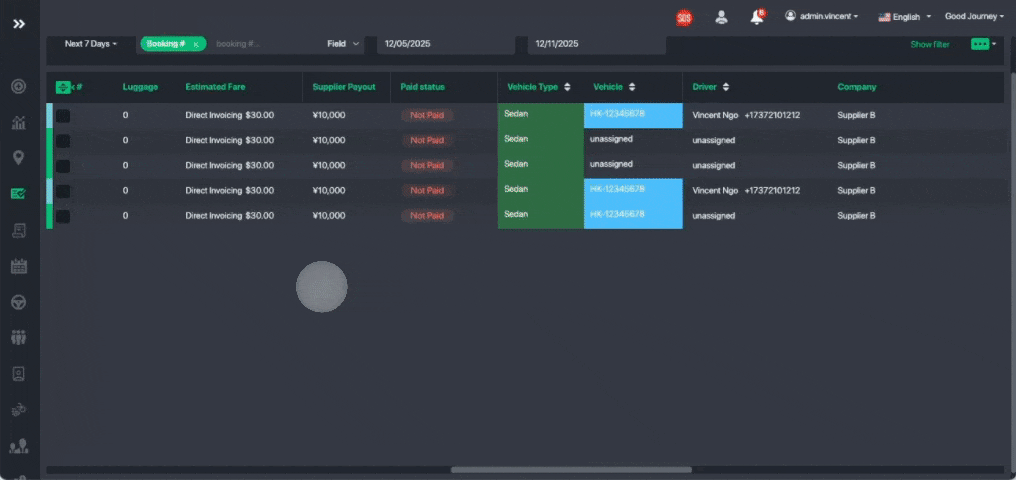
Single Assignment
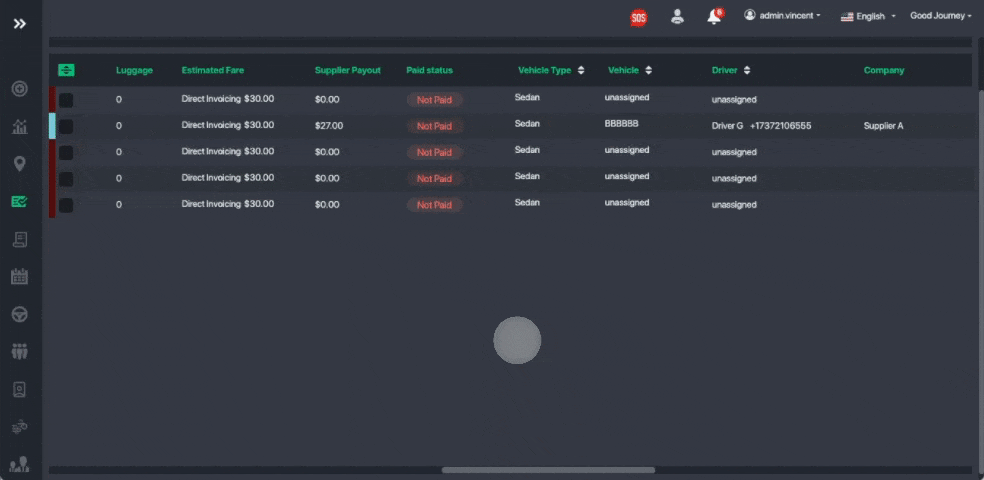
- Go to the Driver or Vehicle column.
- Click Unassigned to choose and assign a driver or vehicle.
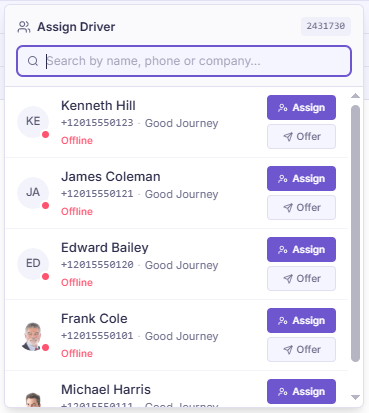
Assign Actions:
- Assign Job: Immediately assigns the job to the driver without requiring their confirmation.
- Offer Job: Sends the job to the driver so they can accept or reject it.
Tips
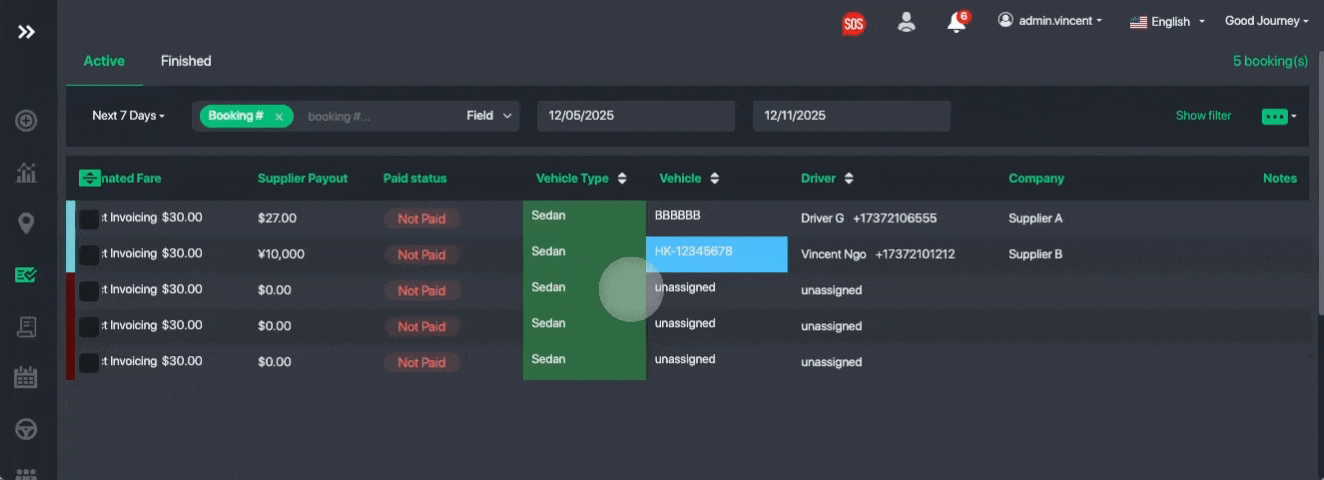
- Sort the Driver/Vehicle column to quickly see which bookings are assigned or unassigned.
- Add color codes for each vehicle type to help operators identify booking categories at a glance. View how to setup color codes here.
2. Multi-Select Booking Assignment
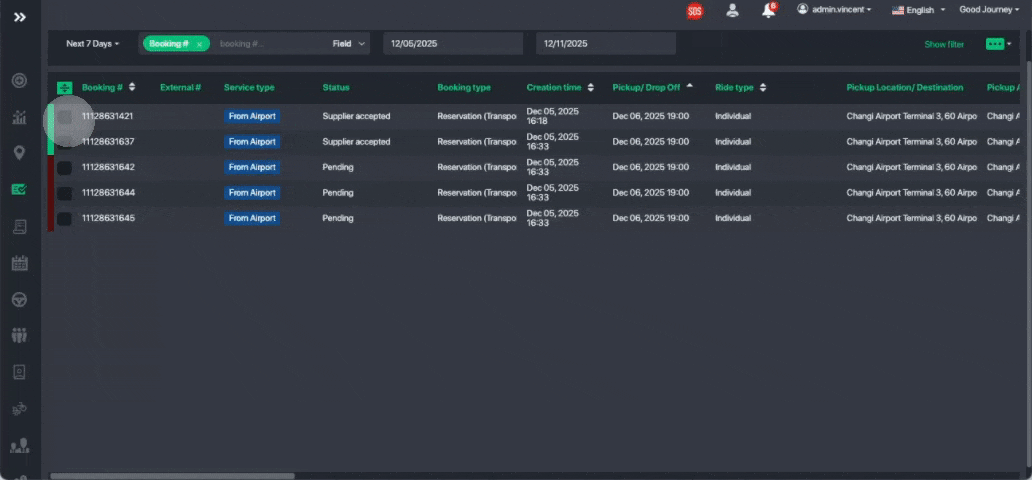
When assigning multiple bookings to one driver:
- Select the checkboxes beside each booking.
- Use Shift + Click to select a range.
- Assign the selected bookings all at once.
3. Assigning from Booking Details
You can also assign directly inside the booking.
How it works
- Open the booking details.
- Select the driver or vehicle.
- Click Update Booking
Extra Features
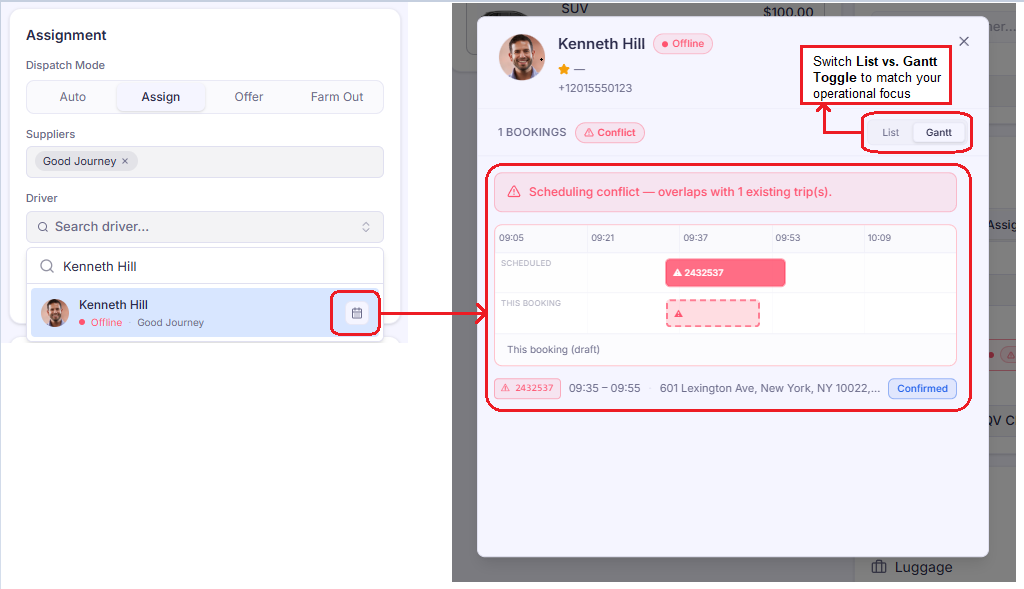
- Driver availability and calendar are shown when assigning.
- The system detects overlapping bookings and alerts you before confirming an assignment.
? Pro Tip: List vs. Gantt Toggle
Switch the driver calendar view to match your operational focus:
- List View: Best for quickly searching bookings, reviewing data, and editing trip details.
- Gantt View: A visual timeline layout. Best for tracking vehicle schedules, spotting gaps, and preventing overlapping trips.
This workflow gives operators a fast, efficient way to manage daily assignments.
Was this article helpful?
That’s Great!
Thank you for your feedback
Sorry! We couldn't be helpful
Thank you for your feedback
Feedback sent
We appreciate your effort and will try to fix the article