On the Good Journey platform, you can define and manage your own vehicle makes, models, images, and colors.
This ensures passengers clearly recognize the exact vehicle assigned to their ride and helps drivers correctly register their vehicles during sign-up.
Proper vehicle configuration improves transparency, reduces confusion at pickup, and maintains consistent data across your fleet.
Step 1: Manage Vehicle Makes & Models
Navigate to:
Settings → Car → Make & Model
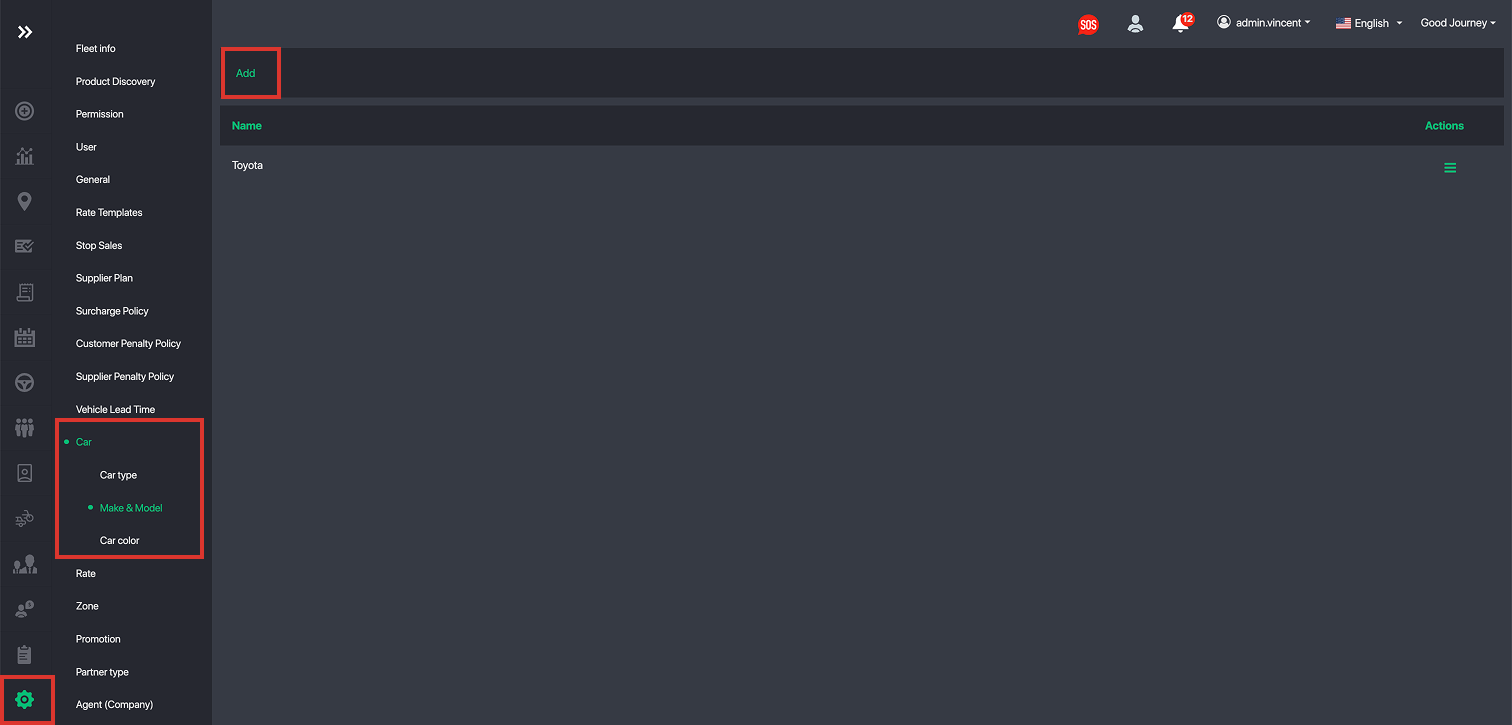
From here, you can:
Add new vehicle makes (e.g. Toyota, Mercedes-Benz, Audi)
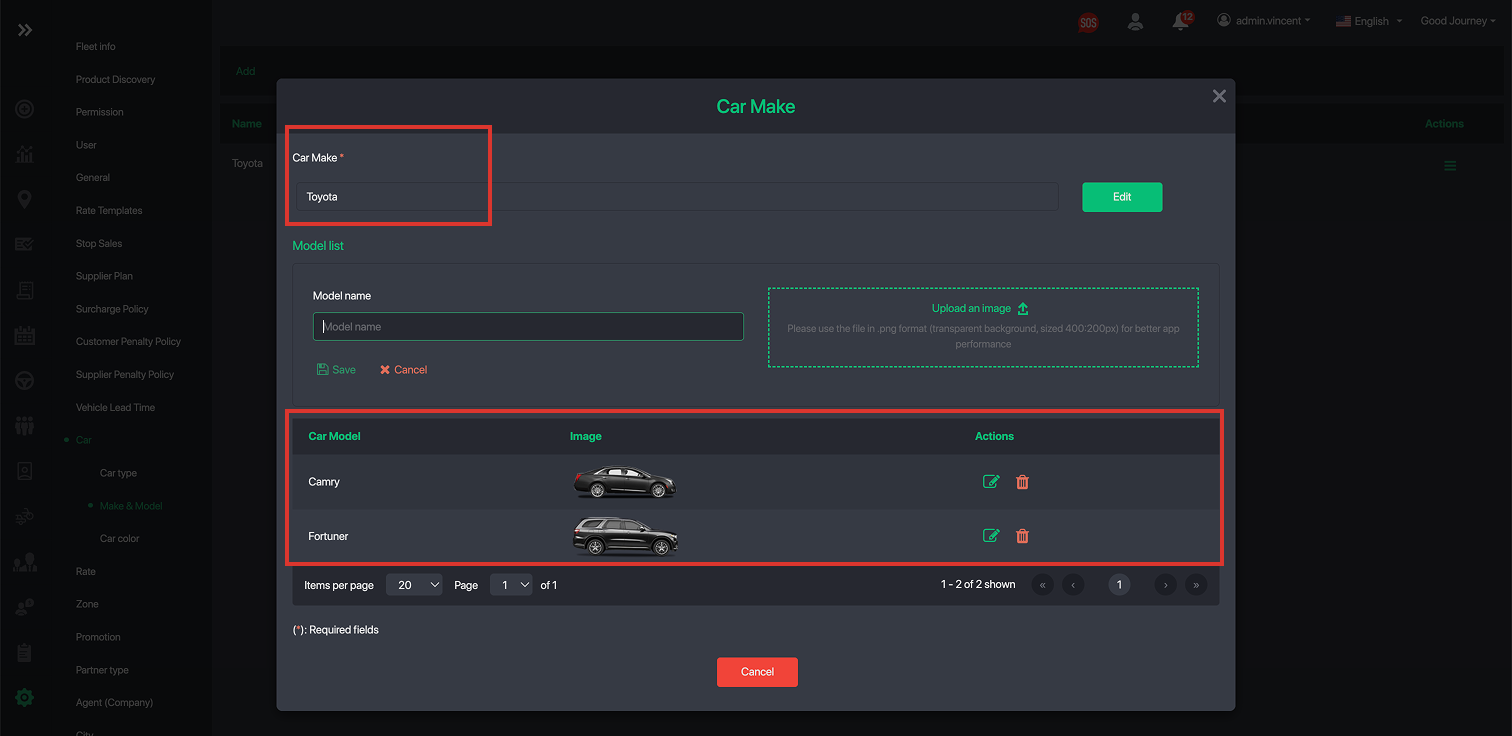
Create and manage vehicle models under each make
Upload images for each vehicle model
This setup is also used during driver onboarding, so drivers can accurately select their vehicle make and model when signing up.
Example:
Create a vehicle make: Toyota
Under Toyota, add models such as Camry, Corolla, Alphard
Upload images specific to each model to improve vehicle recognition
Step 2: Define Supported Vehicle Colors
Once your vehicle makes and models are configured, you should define the available vehicle colors.
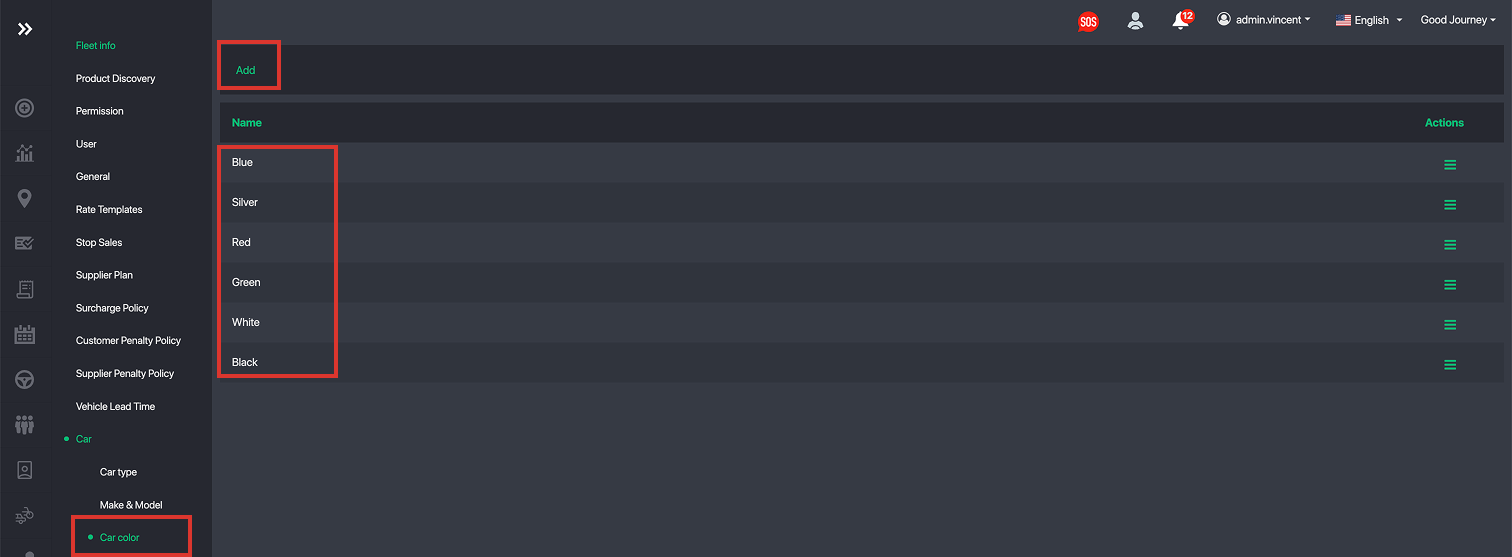
Navigate to:
Settings → Car → Car Color
Here, you can add and manage the list of supported vehicle colors (e.g. Black, White, Silver).
These colors are shown to customers during trip tracking and booking confirmation.
Restricting Vehicle Makes & Models (Optional)
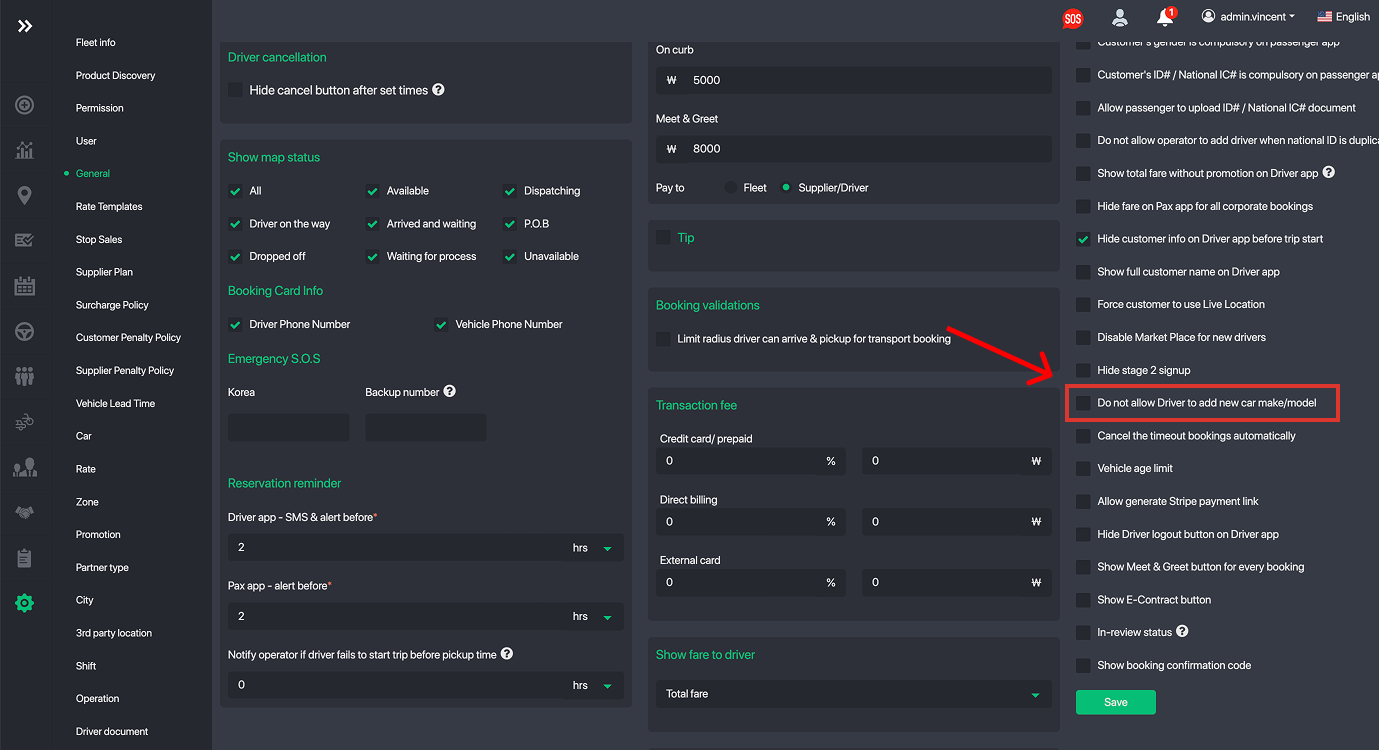
For premium operations or controlled supplier networks—such as high-end chauffeur services or global supplier platforms—you may want to restrict which vehicle makes and models drivers can register.
You can enable a setting that:
Prevents drivers from adding their own vehicle makes or models
Limits registration to only approved vehicles (e.g. Mercedes, Audi)
This is highly recommended if you:
Operate a luxury or executive fleet
Want to maintain strict vehicle standards
Wish to prevent random or unsupported vehicles from being added to your database
Best Practices
Define all supported vehicle makes and models before onboarding drivers
Upload clear, accurate vehicle images for better customer experience
Restrict vehicle options if you operate a premium or tightly controlled fleet
Keep vehicle colors standardized for consistency across the platform
If you need help setting up your vehicle catalog or have questions about best practices for your operation, please contact the Good Journey support team.
Was this article helpful?
That’s Great!
Thank you for your feedback
Sorry! We couldn't be helpful
Thank you for your feedback
Feedback sent
We appreciate your effort and will try to fix the article