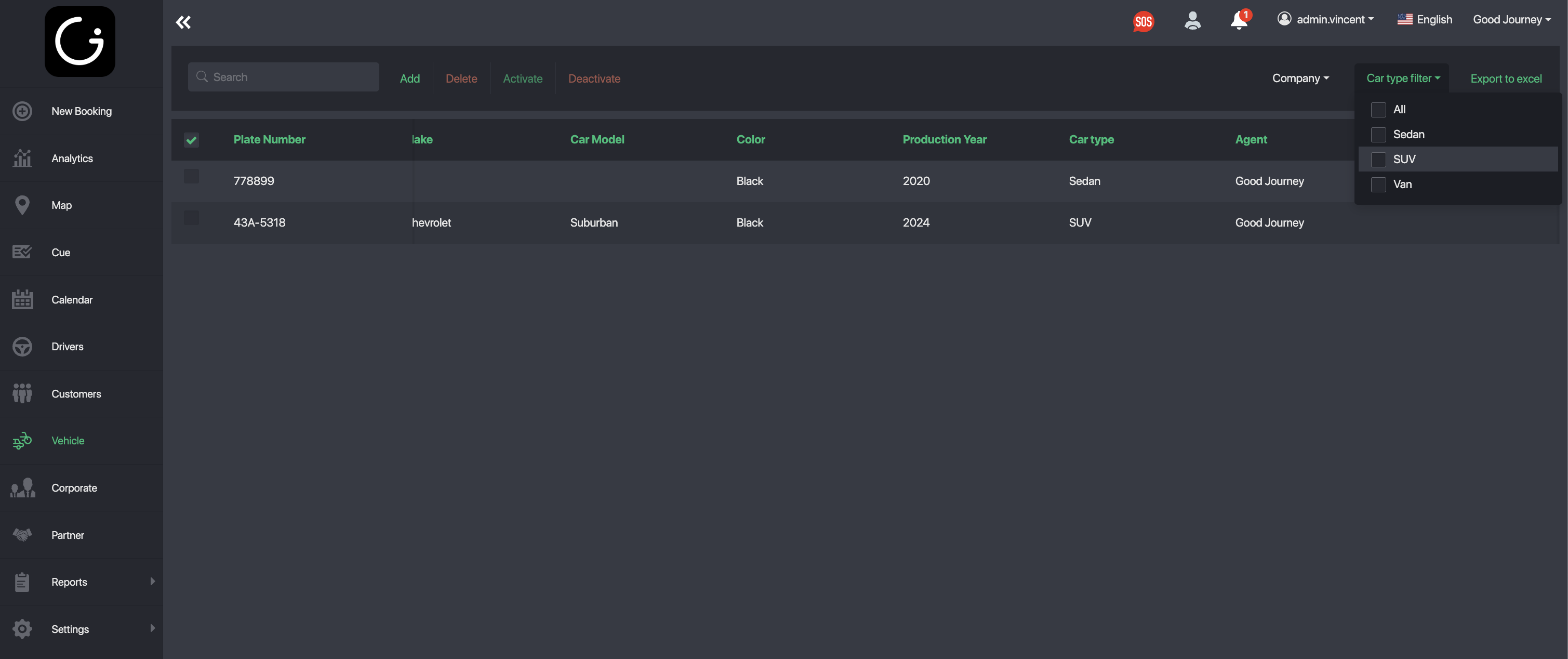
Vehicle Management a place to manage all your vehicles. From the left side bar menu, navigate to the vehicle management section. Here you can:
- Filter vehicles by company or car type.
- Export the full vehicle list when needed.
- Search for any vehicle to quickly edit or manage its details.
- Multi-select vehicles to activate, deactivate, or delete them in bulk.
- Add new vehicles
Adding Vehicles
Vehicle Information
- Plate Number (Required): The official license plate number of the vehicle.
- Car Type (Required): The service category the vehicle belongs to. This is important for booking and dispatch matching.
- Company (Required): The company or supplier that owns or operates the vehicle.
- Make: Vehicle manufacturer.
- Model: Vehicle model.
- Production Year: Year the vehicle was manufactured.
- Color: Vehicle color.
- Color Code: Used to display a color tag for the vehicle in the booking list.
- Max Passengers / Max Luggages: Defines seating and luggage capacity
Additional Vehicle Information
- Owner Name: Name of the vehicle owner.
- VIN: Vehicle Identification Number.
- Case Number: Internal or regulatory case file reference if applicable.
- Phone Number: Contact number of the owner or operator.
- License Expiry: Expiration date of the vehicle’s operating license.
- Hardware Meter: Meter or hardware ID associated with the vehicle (if applicable).
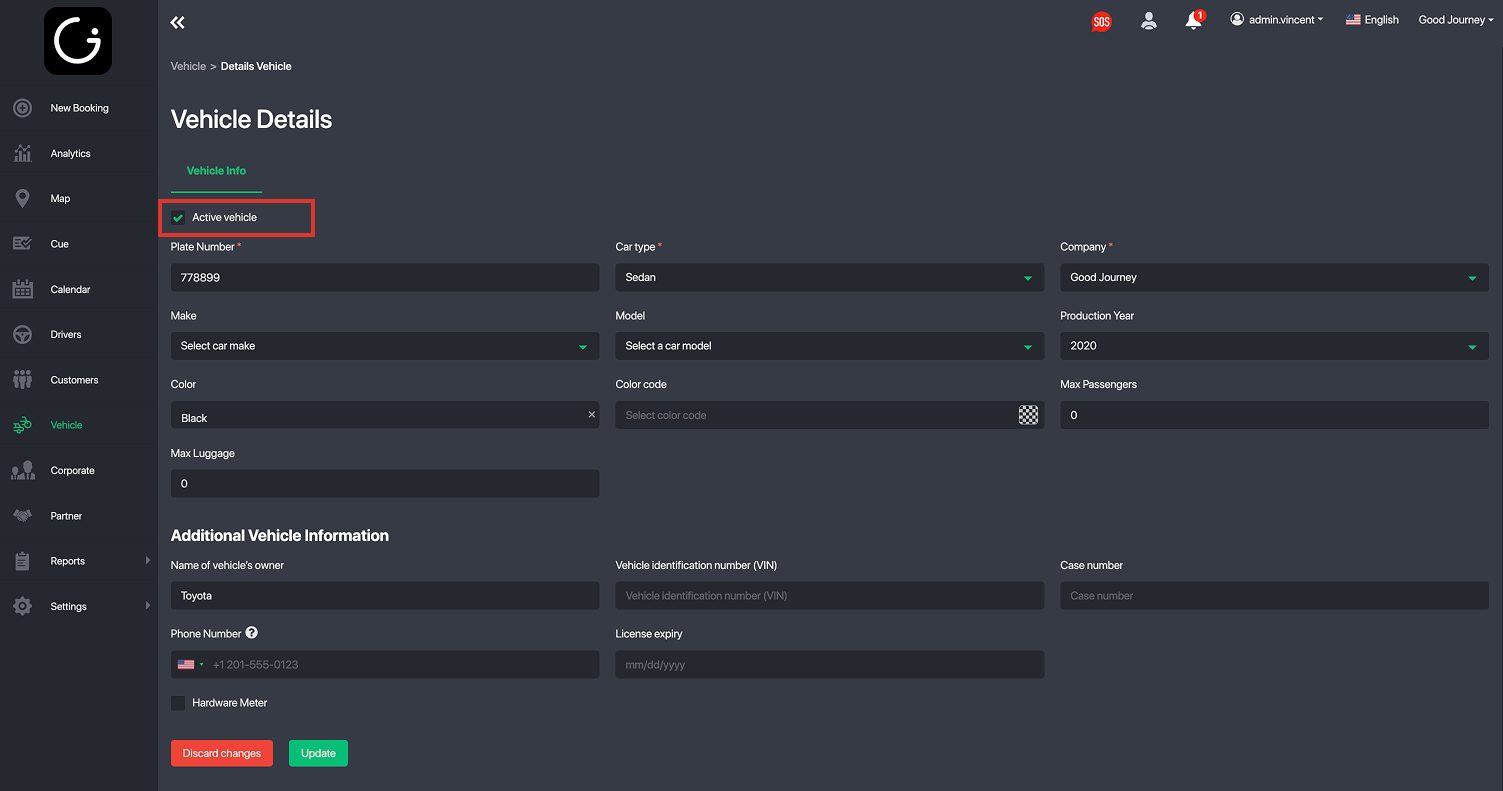
Make sure you remember to activate vehicle.
Things to take note:
- Vehicles cannot be deleted if they are currently assigned to an active booking.
- You may deactivate a vehicle instead, which removes it from dispatch matching until reactivated.
- Remember to active your vehicles.
Linking Vehicles to Drivers
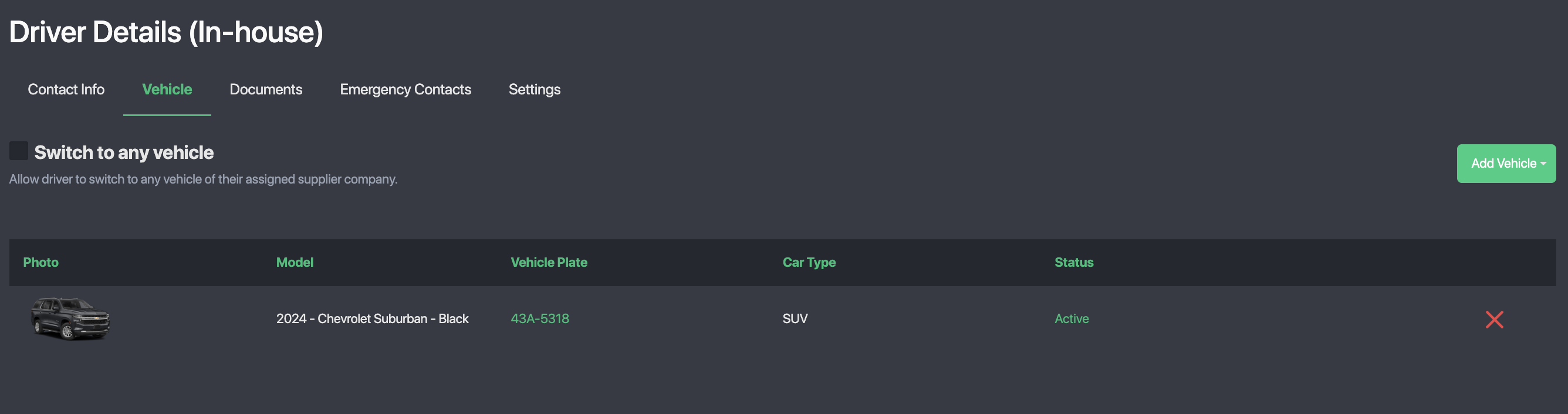
To link a vehicle to a driver you can navigate to the driver's profile under the Vehicle tab, you can choose to link specific vehicles to a driver.
Was this article helpful?
That’s Great!
Thank you for your feedback
Sorry! We couldn't be helpful
Thank you for your feedback
Feedback sent
We appreciate your effort and will try to fix the article