Queueing Dispatching
This module allows you to create and configure zone areas where drivers can check in to a waiting area and receive dispatched jobs in a queue (“First-in, First-out”)
1. Configuration of Queue area
It supports creating separate zone areas for driver check-in and passenger pick-up. This setting is designed to accommodate most airports, where designated areas are assigned for pick-up and drivers need to park in different locations.
Step 1 - Navigate to Command Center/ Queuing Area & click to “Add”
Step 2 - Fill in all the information
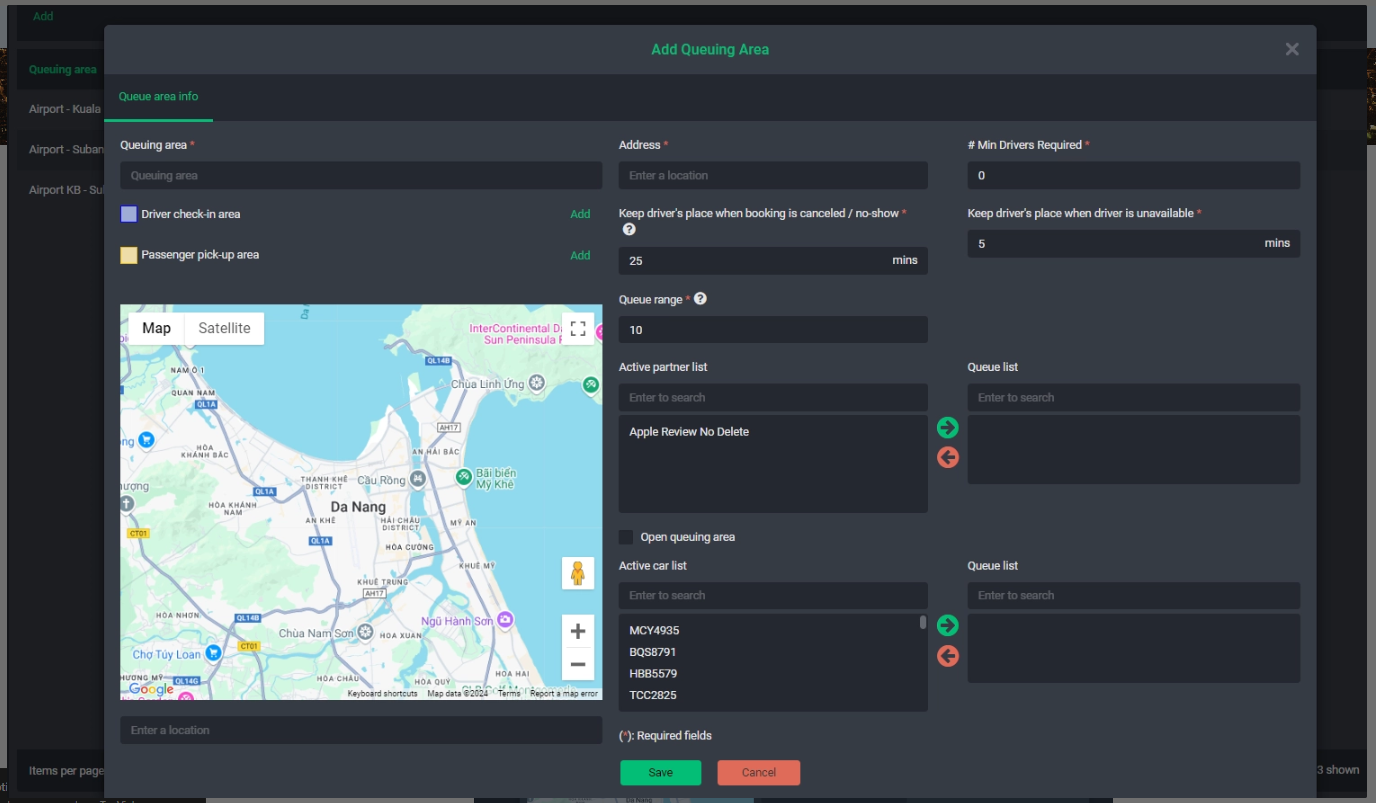
Queuing area details:
- Queuing area: Name for a queuing area
- Address: Location address of the queuing area (ensure to select from Google’s suggestions)
- Min drivers required: Minimum number of drivers required for an alert. If you input 20, the system will notify the dispatcher if there are fewer than 20 check-in drivers in the queue.
- Active Partner list: List of active Partner accounts (who help to create booking for the customer and earn your commission) to assign for a queue (skip it if no Partner)
- Active car list: List of active cars to assign for a queue
- Open queuing area option: Enabling this option allows all drivers to "check-in." If disabled, only assigned drivers can do so. This setting lets you control who can check in the queue
Step 3 - Define driver check-in area
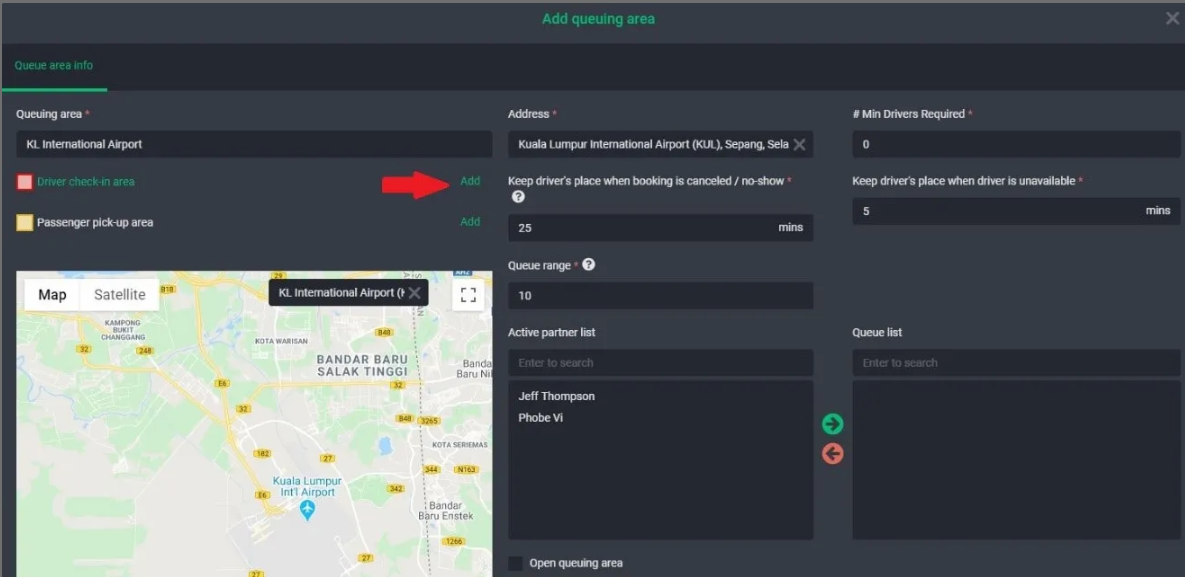
- Click “Add” to draw a check-in area for drivers
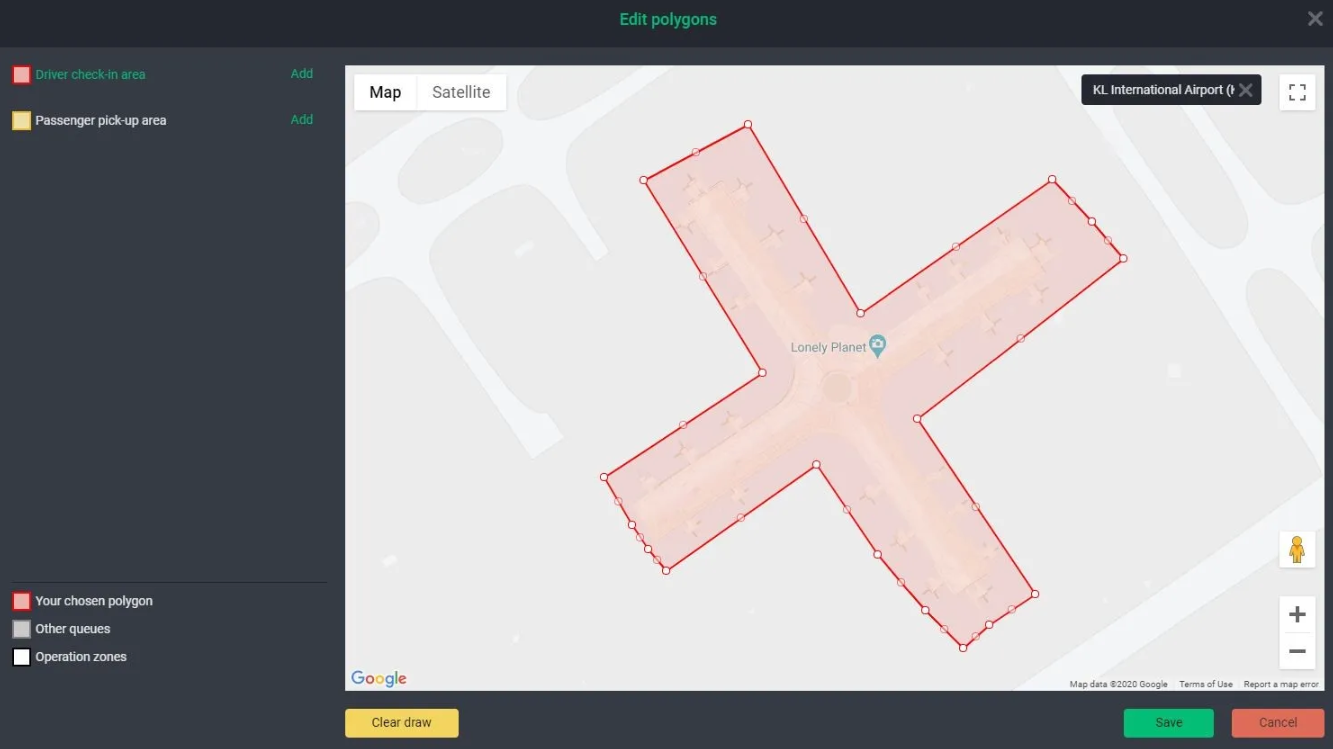
- Draw the area by clicking on the map to place red dots, then drag to enlarge the area as needed. A valid zone requires at least three dots to form a closed shape.
- Then click “Save”
Step 4 - Define pick-up area
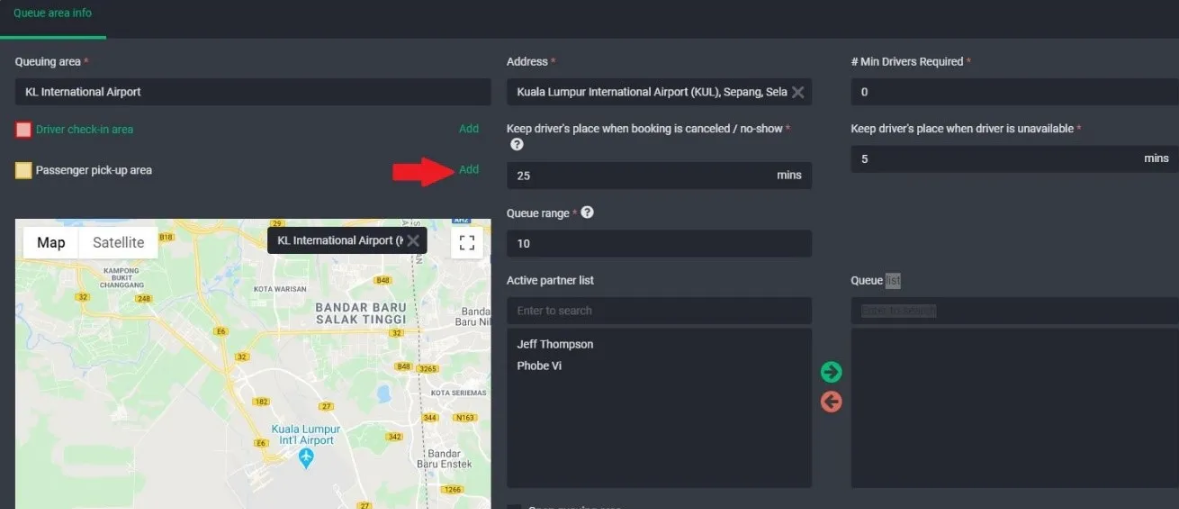
Click “Add” to draw a check-in area for drivers
Click on the map to place red dots, then drag to enlarge the area as needed. A valid zone is created by connecting at least three dots.
Then click “Save”
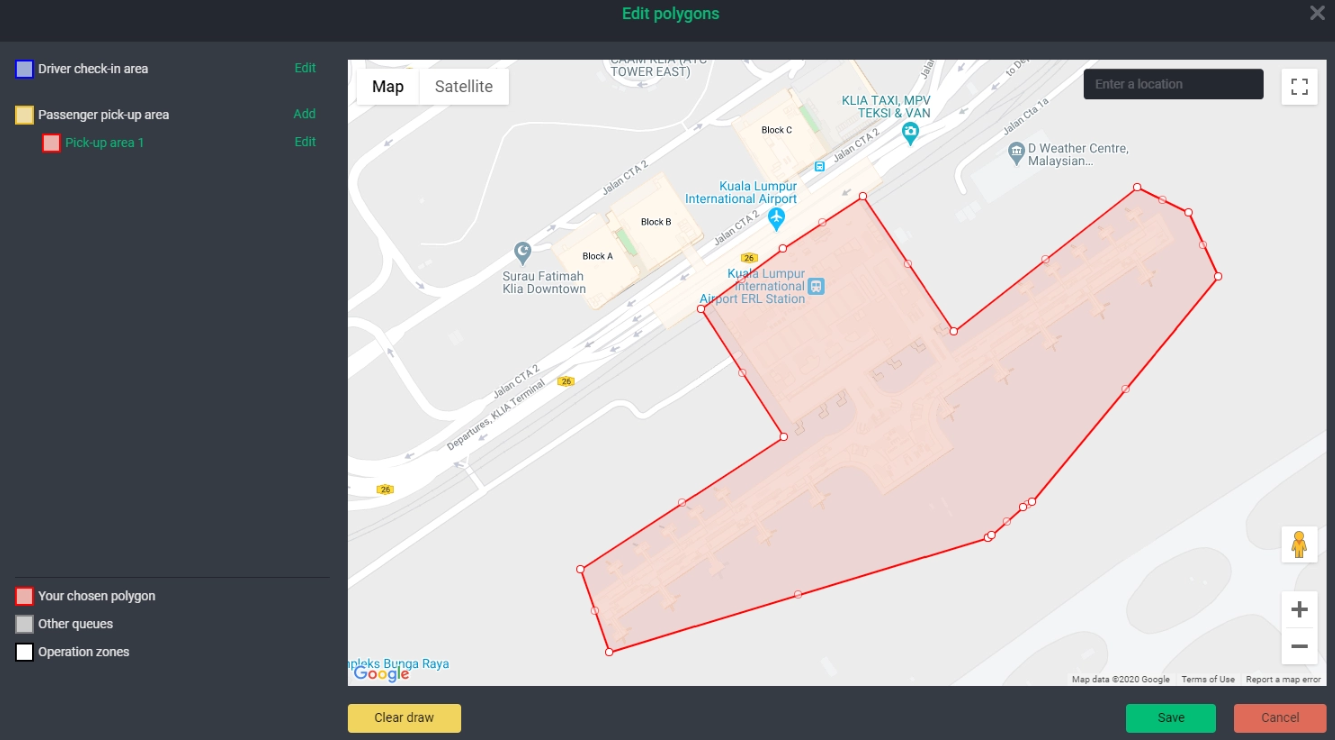
*Notes:
- It allows to create multiple pick-up areas, with a maximum of 20 pick-up areas per queuing area
- Only one check-in areas for driver is allowed per queuing area
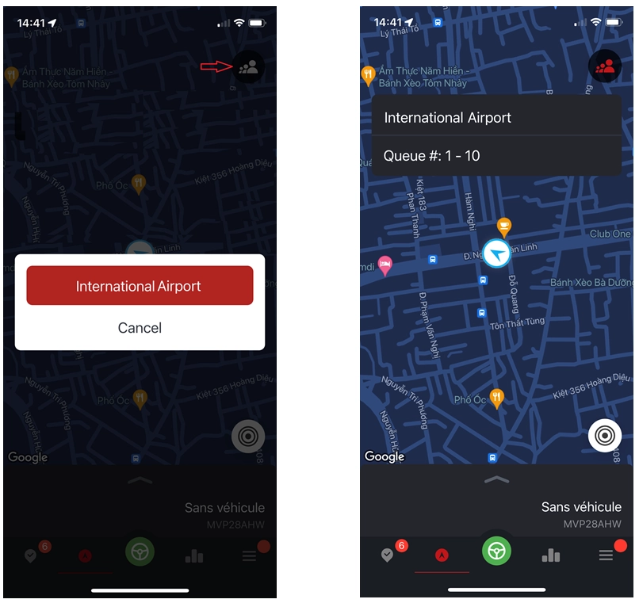
2. Drivers check-in for queuing
On the driver app,
- Simply tap on the check-in icon
- Select a queue to join
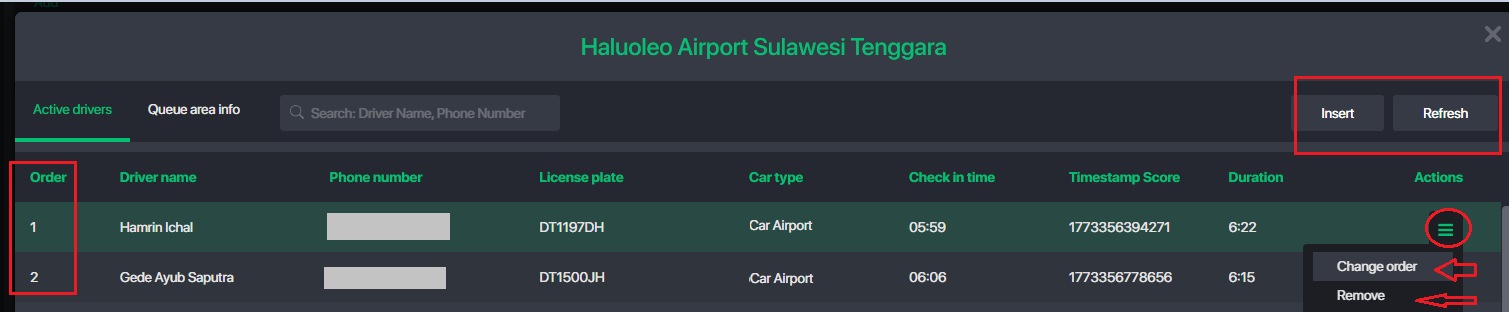
3. Operator manages the driver queuing
- From Command Center/ Queuing Area
- Click a specific queuing area to view the checked-in driver list
Was this article helpful?
That’s Great!
Thank you for your feedback
Sorry! We couldn't be helpful
Thank you for your feedback
Feedback sent
We appreciate your effort and will try to fix the article