Can’t assign a driver or vehicle to a booking? Most likely, the vehicle type you’re trying to assign doesn’t match the car-type selected by the customer.
Don’t worry — this is exactly what Dispatch Association is designed to solve.
In this guide, you’ll learn how to configure car-type dispatch associations in the Good Journey platform so compatible vehicle categories can receive the same booking. Follow the steps below or watch the quick video walkthrough.
Dispatch association allows you to control which drivers can receive jobs based on car-type compatibility.
This is useful when you want drivers with different but compatible vehicle categories to receive the same job request.
For example, a booking requested as Standard can also be dispatched to drivers with Standard SUV or Premium vehicles, helping you increase acceptance rates and optimize fleet coverage.
1. To do this first navigate to Settings > Car > Car Type:
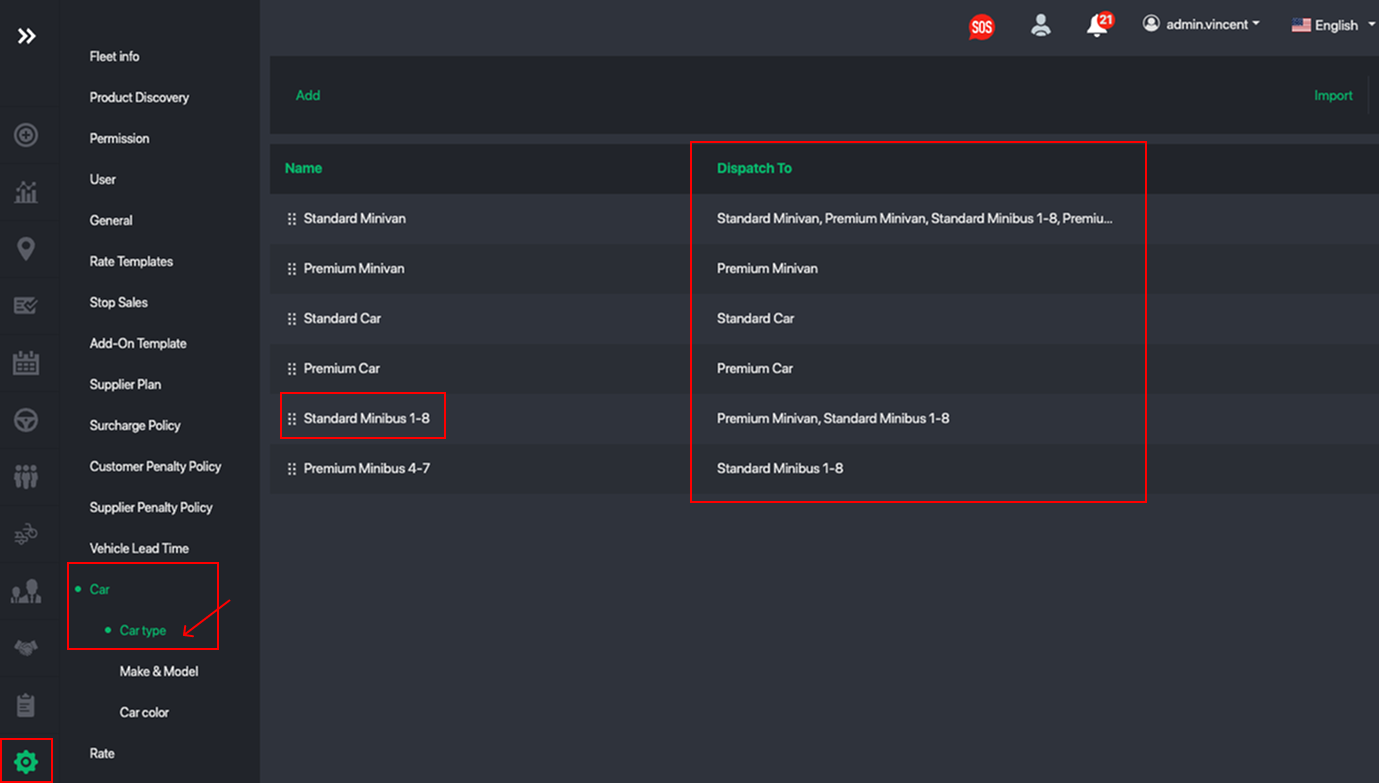
2. Select a car-type you want to update the association for. Let say for car-type Premium Minibus 1-8
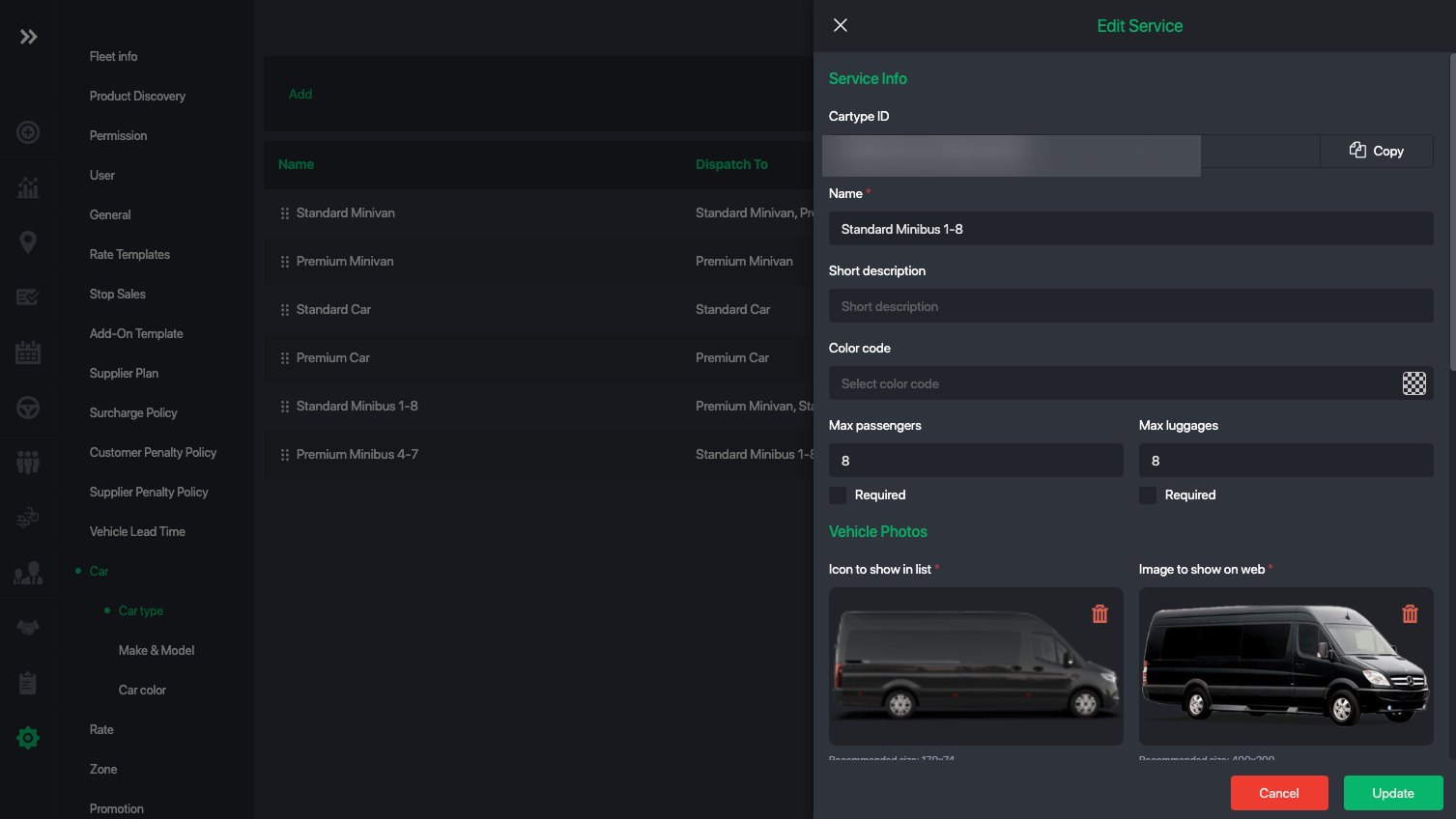
3. Next scroll all the way down to car association
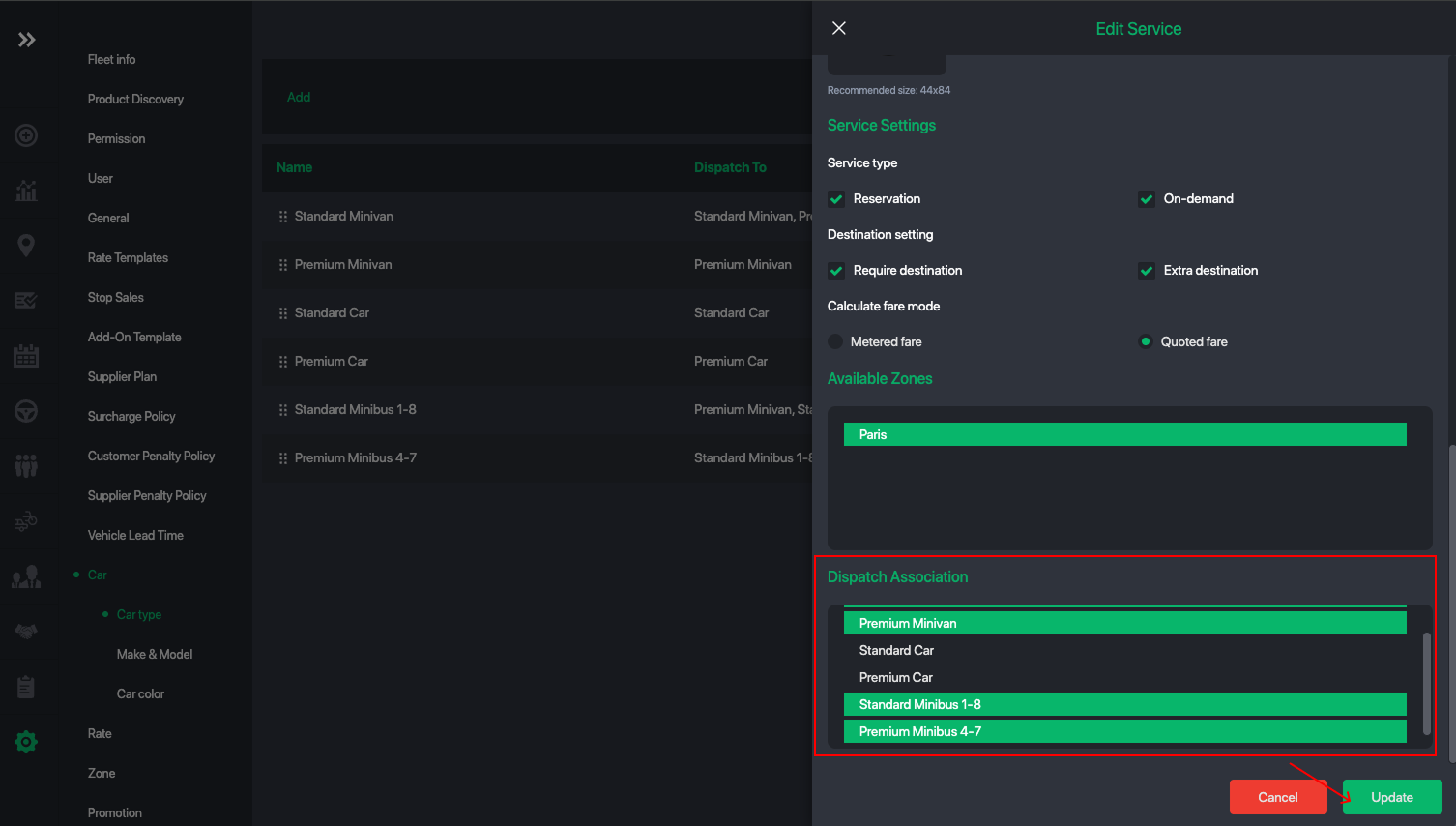
You can hold shift to multi-select which car-types can receive job of type Standard Minibus 1-8. For example in addition to Standard Minibus 1-8, drivers or vehicle of type Premium Minivan can also receive this type of job.
Once done tap on Update
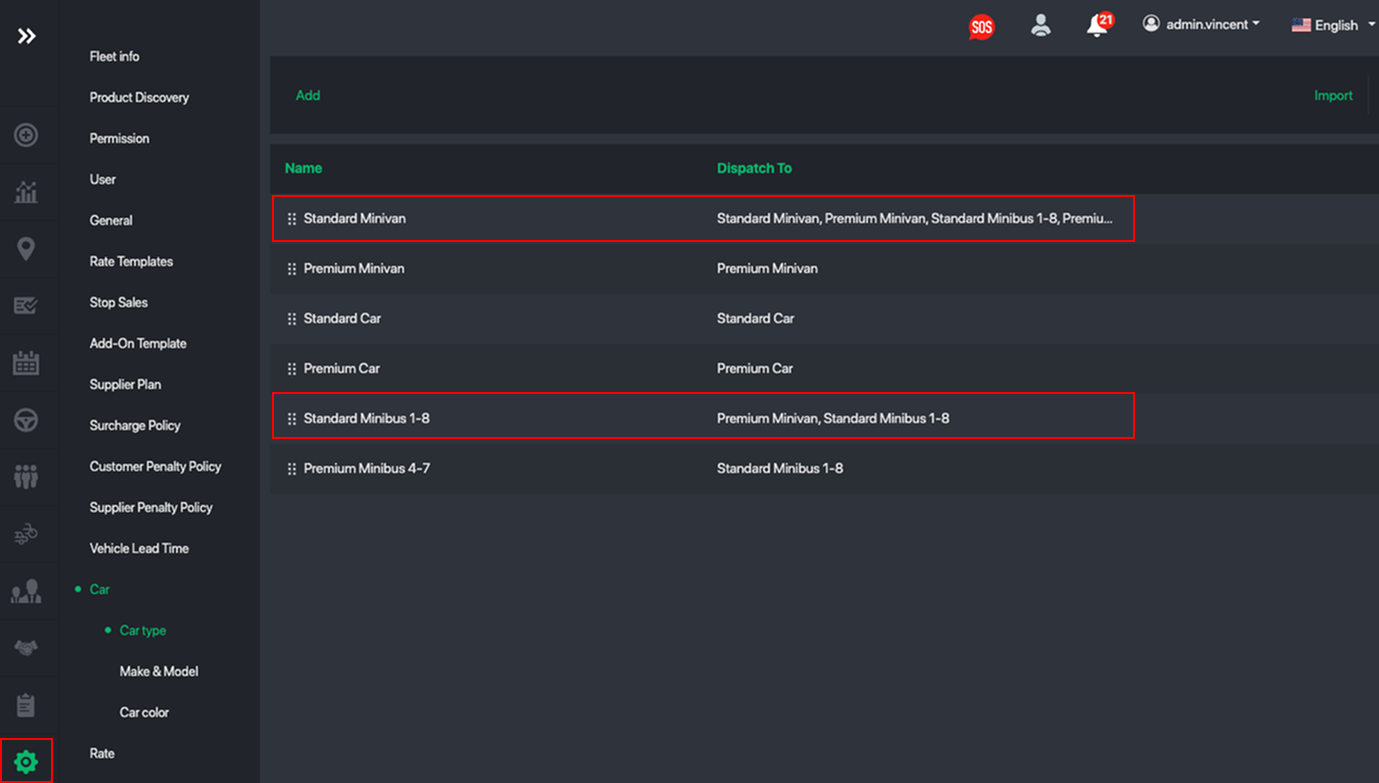
You will notice the Dispatch to column is now updated with the list of car types can receive the specific jobs.
Was this article helpful?
That’s Great!
Thank you for your feedback
Sorry! We couldn't be helpful
Thank you for your feedback
Feedback sent
We appreciate your effort and will try to fix the article