This guide explains how to create users and configure permissions in the Command Center Dashboard to ensure the right level of access for each team member.
1. Create Permission
- Log in to the Command Center Dashboard using an administrator account.
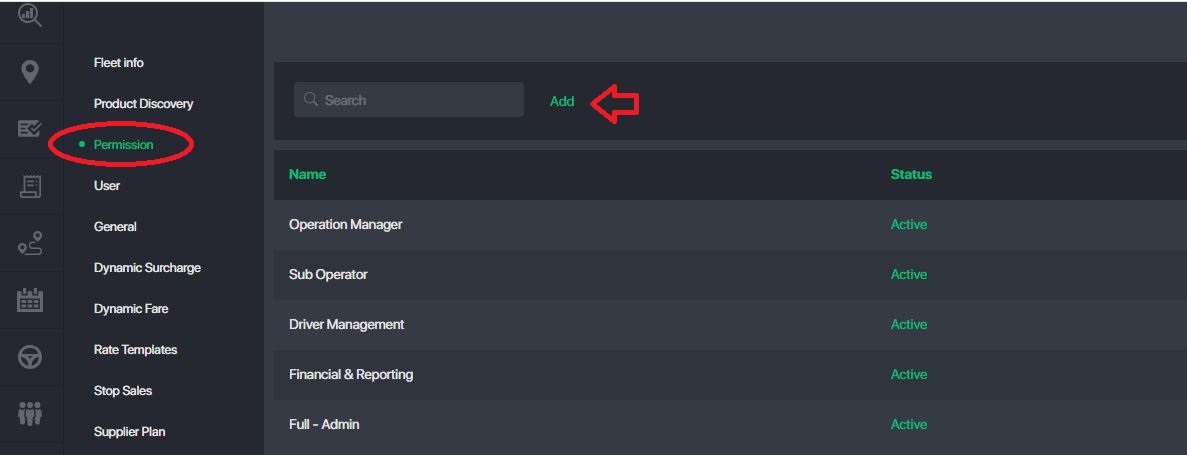
- From the left-hand menu, navigate to Settings → Permission.
- Click Add
- Tick the checkboxes to apply permissions for each item/module.
- Ensure the permission status is set to Active.
- Click Save to apply the permission.
Important:
- Only Active permissions can be assigned to users.
- Please ensure the permission is clearly and correctly named for easy identification.
2. Create User & Assign Permission
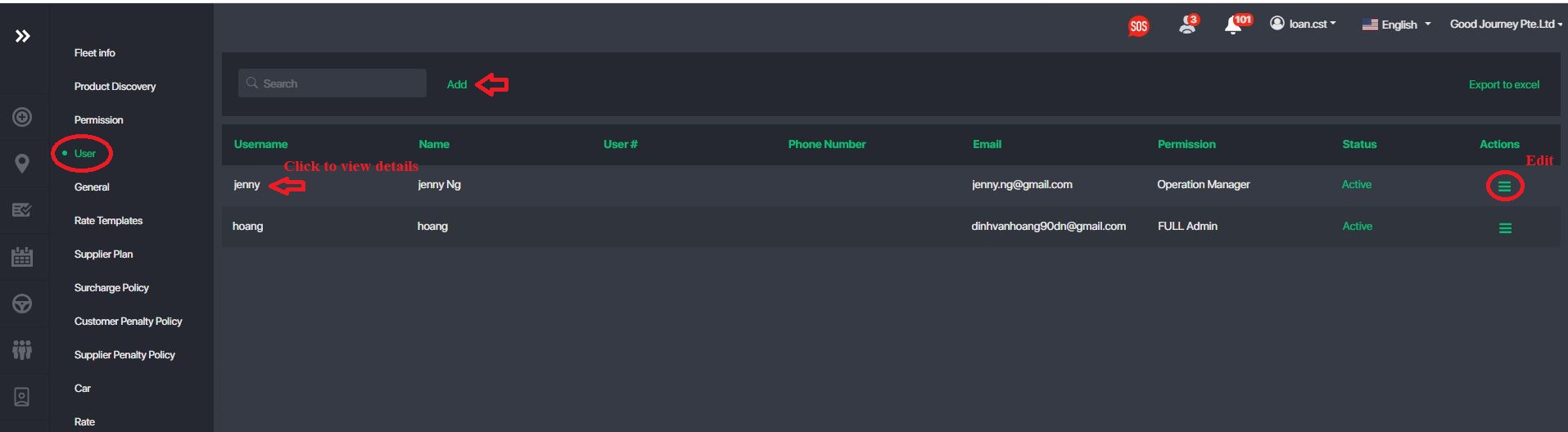
- Go to Settings → Users.
- Click Add.
- Fill in the required user information: Username, name, email, phone
- Assign the appropriate Permission to the user.
- Ensure the user status is set to Active.
- Click Save to create the user.
Notes: Once completed, the system will automatically send the login credentials to the user’s registered email address.
3. Edit, Deactivating, or Resetting a User Password
Edit User Information
Go to Users.
Click the Action item for the user you want to update.
Modify details or change their assigned role.
Click Save.
Reset User Password
Go to Users.
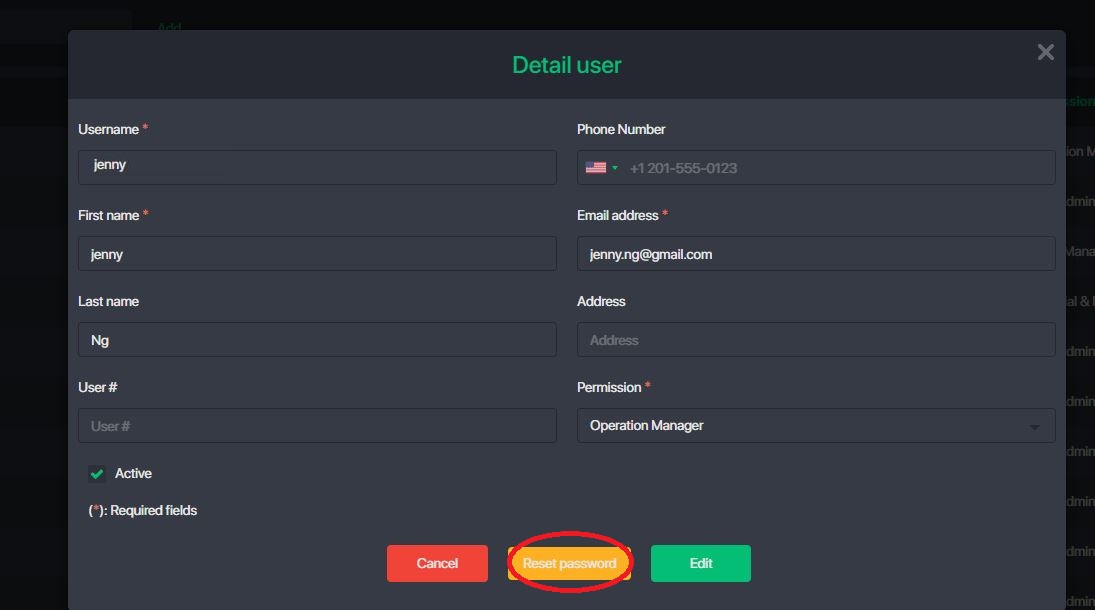
Click the username to view user details.
Click Reset Password.
A new password will be automatically sent to the user’s registered email address.
Deactivate User
- Go to Users.
- Click the Action item for the user you want to deactivate
- Deactivate the user
Note: Deactivated users will no longer be able to log in
Was this article helpful?
That’s Great!
Thank you for your feedback
Sorry! We couldn't be helpful
Thank you for your feedback
Feedback sent
We appreciate your effort and will try to fix the article