⭐️ This is an advance add-on.
Overview
Use this module when your fleet pays drivers directly. It supports two payout options:
- Auto Payouts via Stripe Connect – automated transfers once drivers complete Stripe Connect onboarding.
- Manual Payouts – for fleets that prefer to process payouts themselves.
If you need to pay external suppliers instead of drivers, please refer to the external supplier payout guide. The flow is similar but tailored for supplier settlements.
Payout User Type
We support payouts to three types of users:
- Supplier – Transportation companies that manage their own drivers and vehicles. You pay the fleet owner directly.
- Driver – Individual drivers you work with directly. You pay the driver based on their completed jobs and wallet balance.
Paying out to each user type follows the same workflow. Simply switch between the payout user tabs to manage payments for different stakeholders.
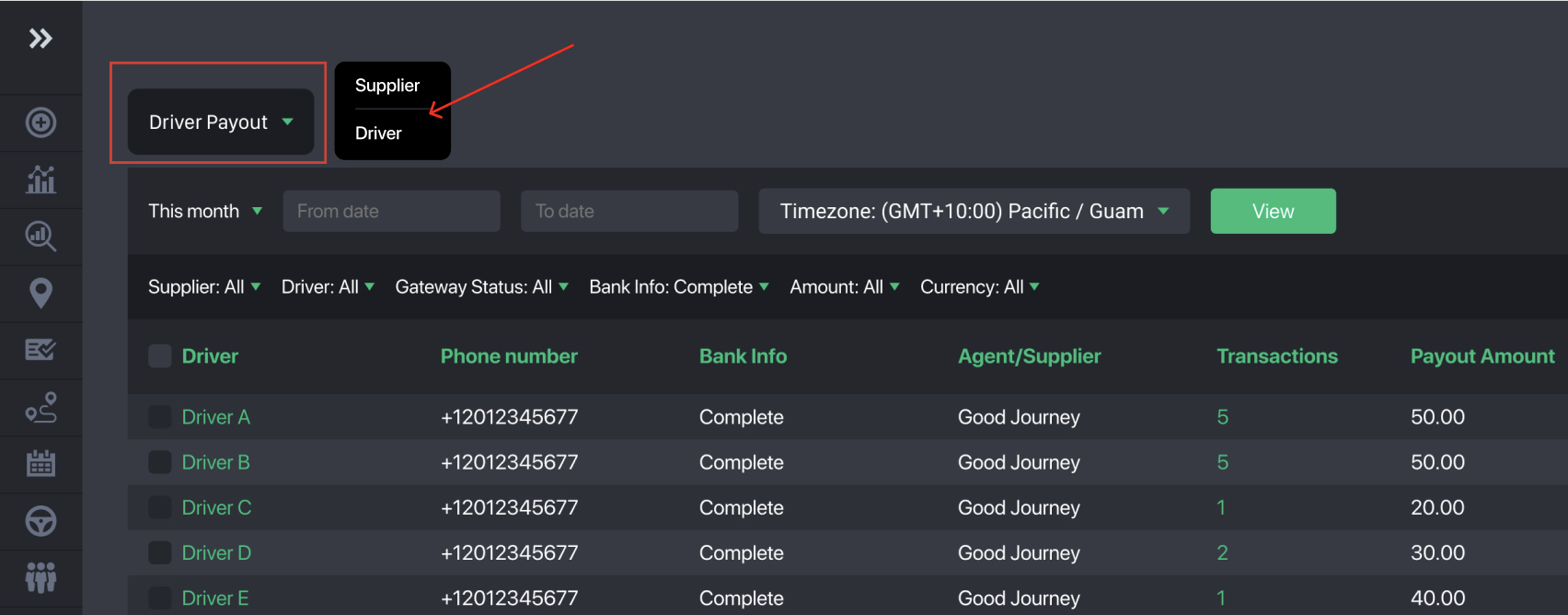
Payout Modes
Stripe Payout
Automatically processes payouts through Stripe. Drivers must register for a Stripe Connect account to receive funds.
One disclaimer to note regarding stripe connect:
- US and UK companies can process global payouts.
- Other countries can only pay out to local bank accounts in the same country/currency.
- Ensure your Stripe balance has enough funds to avoid payout errors.
More info: https://docs.stripe.com/global-payouts
Manual Payout
Handles payouts manually. When a manual payout is created, the system automatically updates the driver’s cash wallet balance.
Drivers are required to enter their bank information to ensure smooth exporting of payout history for bank submission. Fleet operators can also manually add the bank info in the driver's profile via the command center dashboard.
Supplier/Driver Payout Management
Within the Command Center sidebar, click Payout to access the full driver payout dashboard. From here you can:
- Filter all driver transactions by a preset or custom date range
- Change the payout timezone
- Filter drivers by supplier
- Search for a specific driver
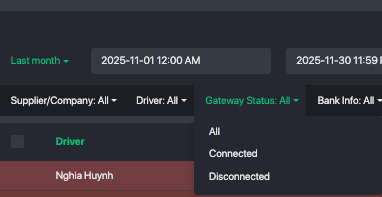
- Filter by payout mode: Stripe Connect or Manual
- Filter drivers with complete bank information (for Manual payouts). Stripe drivers will not show bank info since this is handled directly on Stripe
- Filter transactions by positive or negative balance to quickly see whether drivers are owed money or owe the fleet
- Filter by payout currency
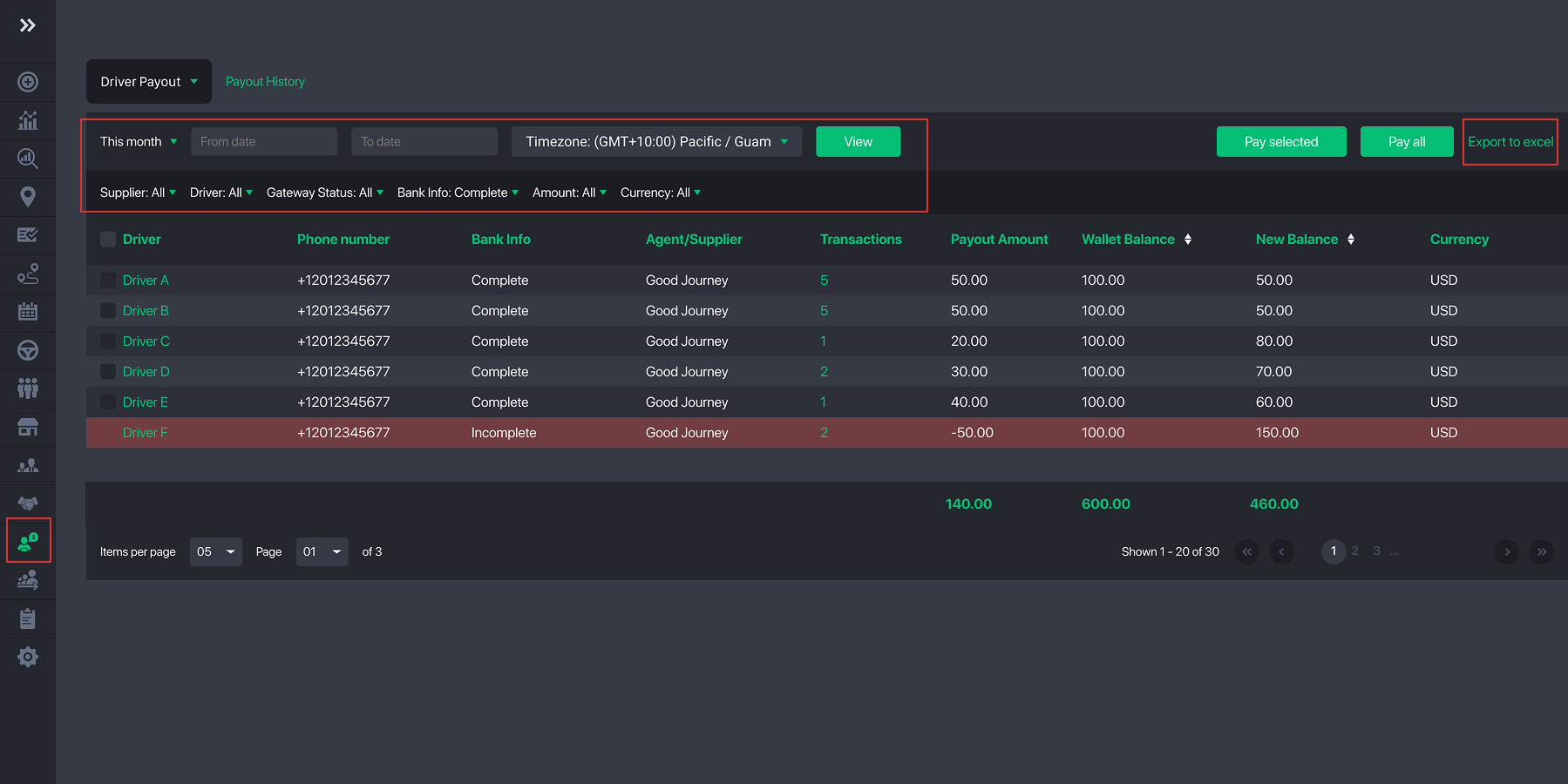
Actions you can take:
- Multi-select all drivers or choose specific drivers to process payouts.
- Choose the appropriate payout type: Pay Manually or Pay via Stripe, based on each driver’s payout setup
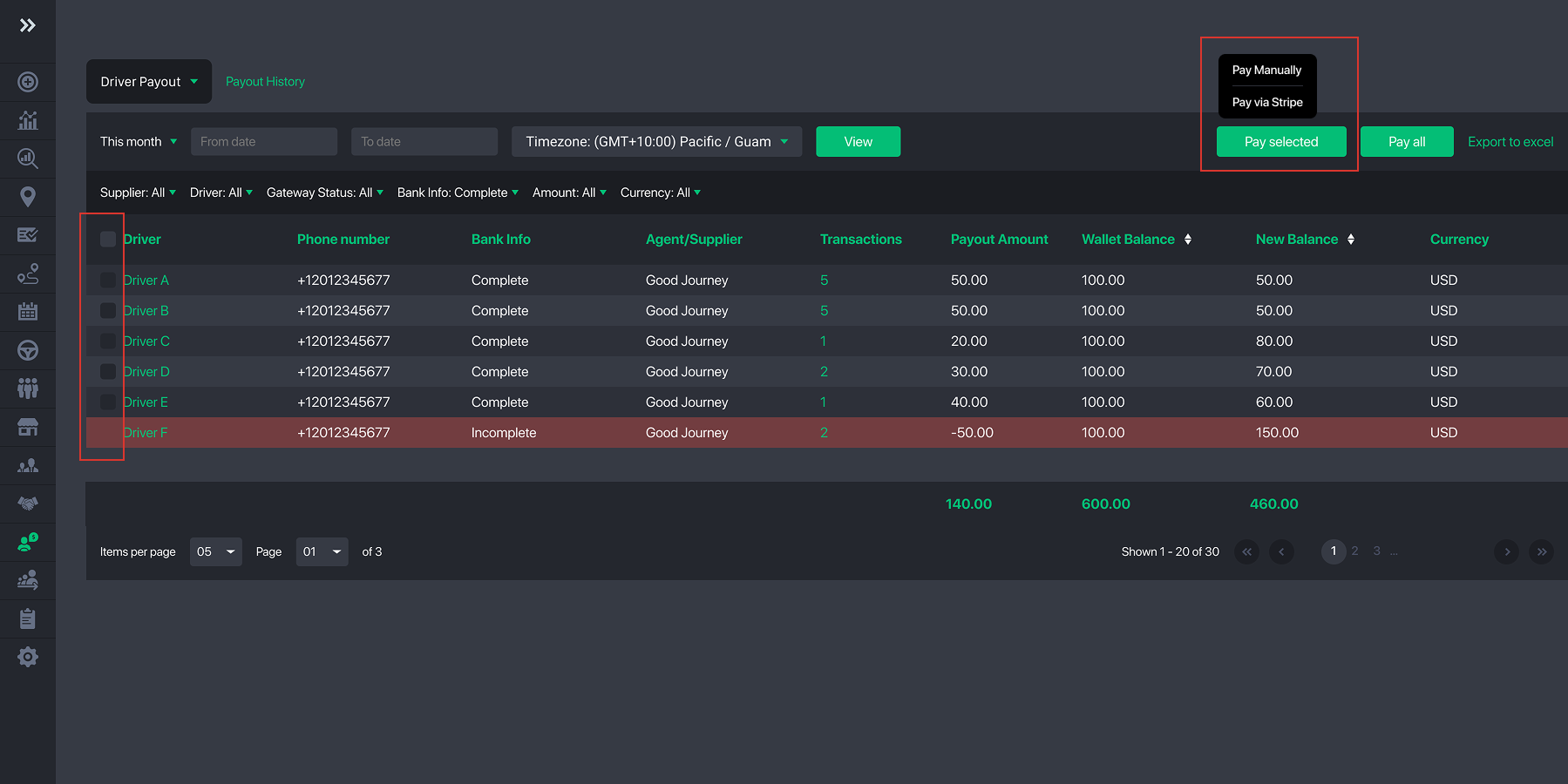
For the most efficient workflow, we recommend:
- Filter for all drivers connected to Stripe, then click Pay via Stripe
- Then filter for all manual-mode drivers and complete their payouts manually, which will automatically update their wallet balances
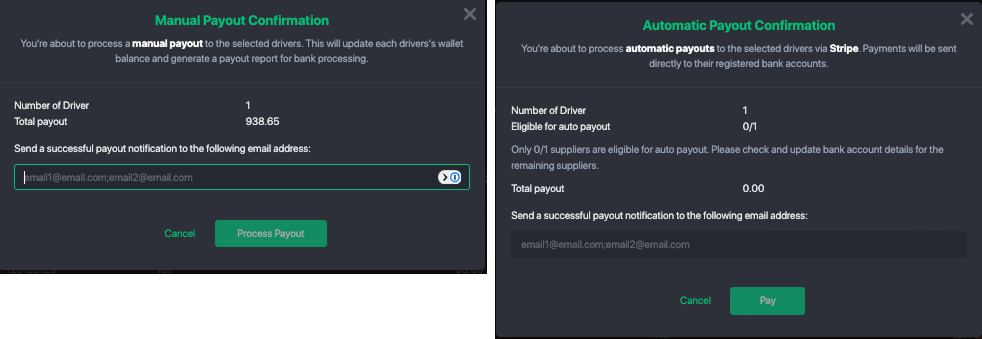
When you click Pay, a confirmation dialog will appear showing the total payout amount and number of drivers selected. You can also choose to send yourself an email once the payout is successfully completed.
What to do with Payout Issues?
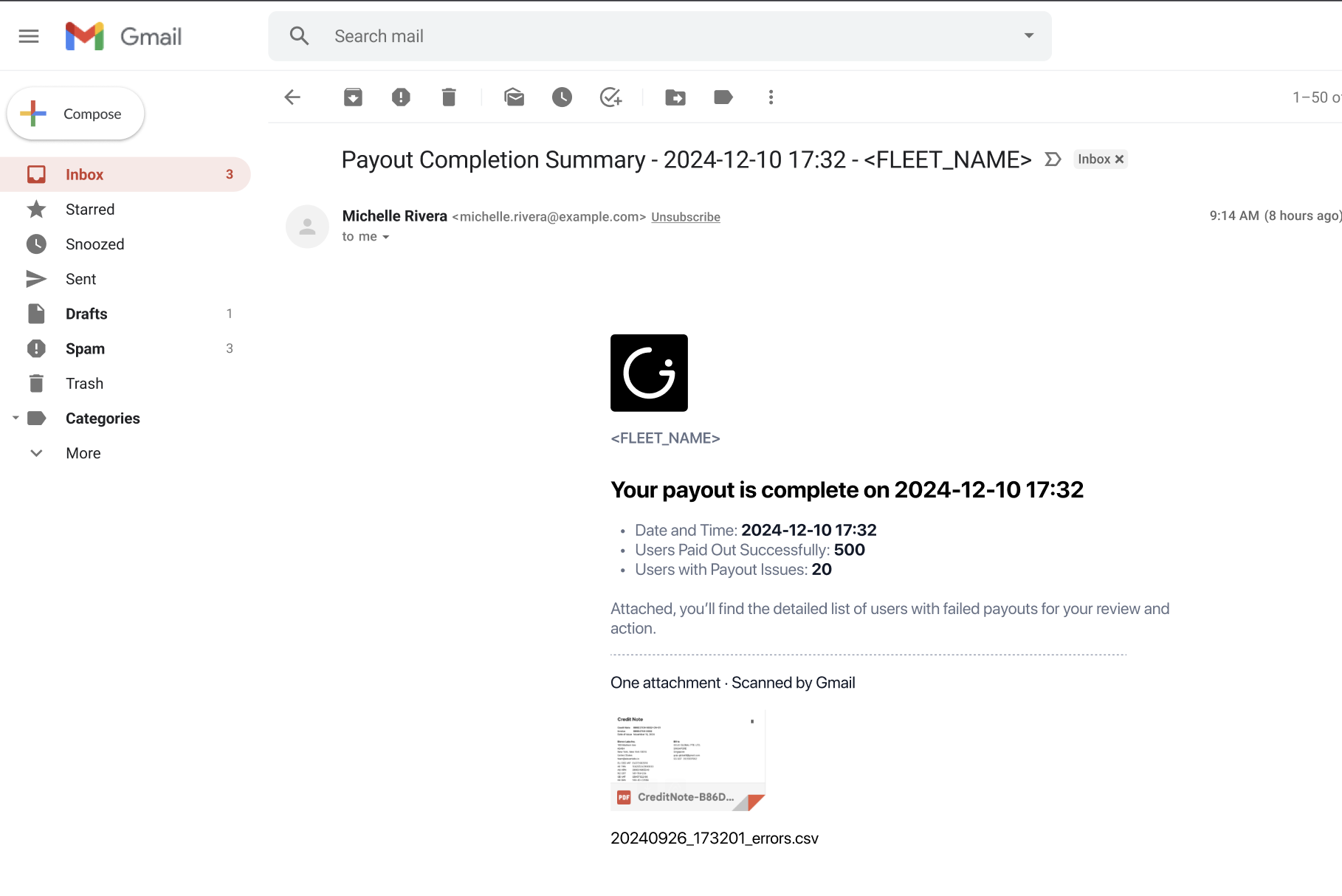
After processing, you will receive an email summarizing both successful and failed payouts.
If any payouts fail, you can download the error report to review the issue and make the necessary adjustments before retrying.
Driver Payment History
After a payout is processed, the system automatically logs the transaction and timestamp in the driver’s payout history. You can access this section to review all payout statements for each driver and filter them by date range.
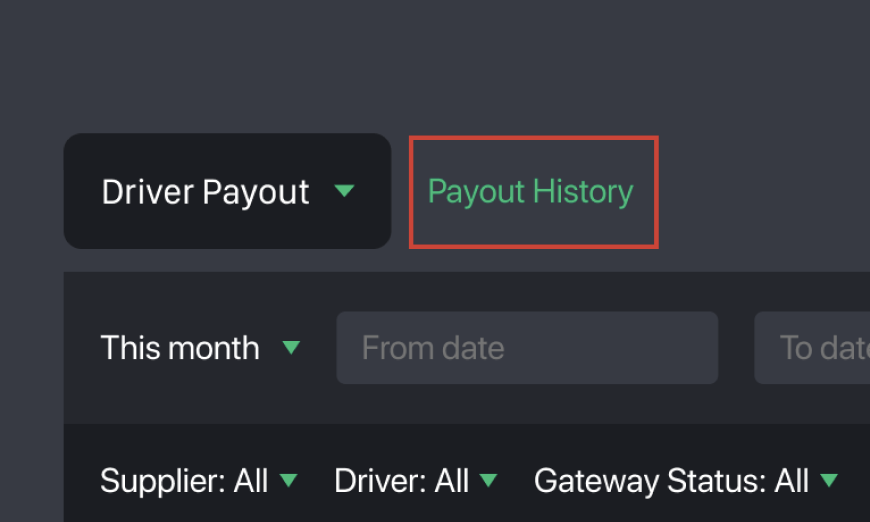
For manual payouts, this section is especially useful — you can export a payout file that includes each driver’s bank details and submit it directly to your bank for bulk processing. This eliminates the need to send individual transfers and significantly reduces administrative workload.

From the driver payout history, you can also resend payout statements or view them online whenever needed.
What do drivers see?
Notifications & Statements
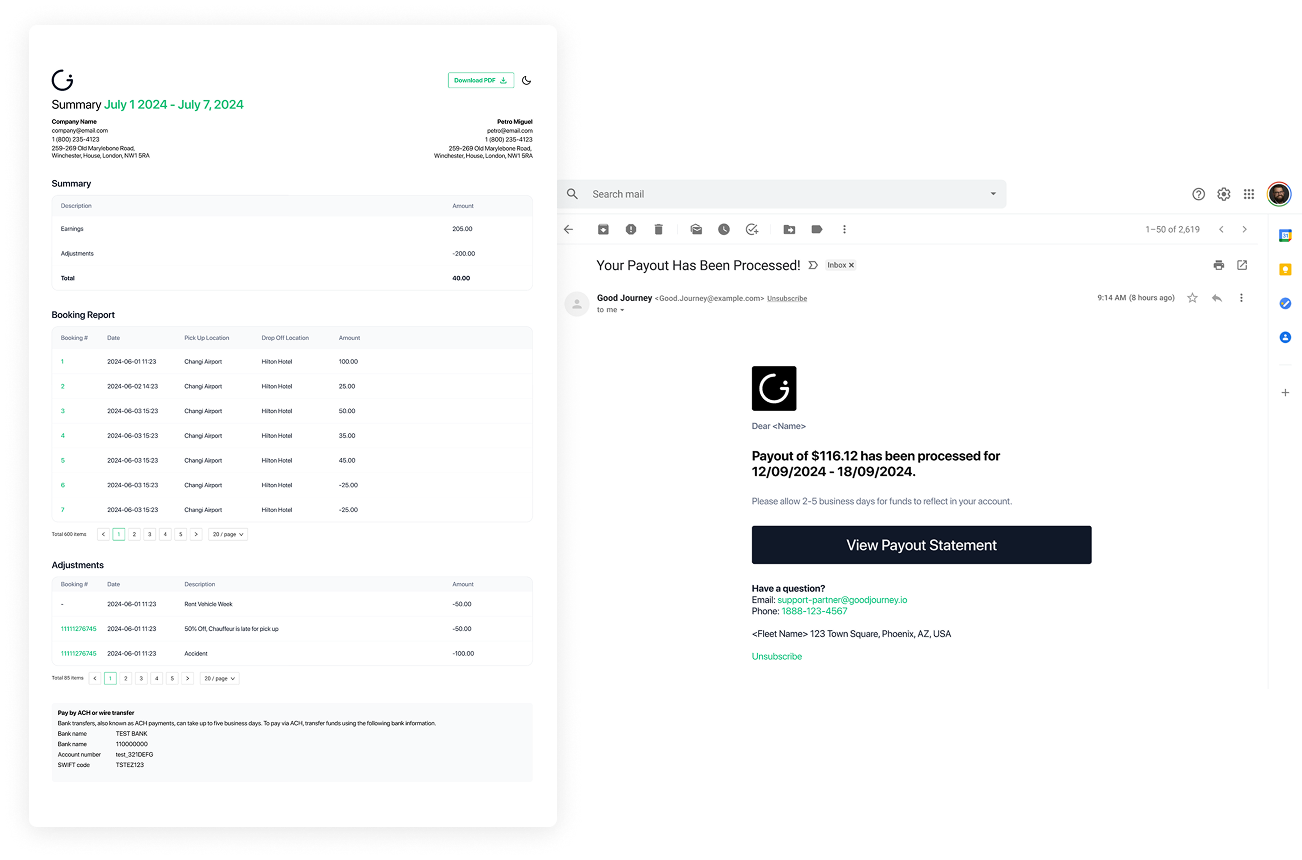
- Receive Driver App inbox notification
- Email Payout Summary
- Viewable or Downloadable PDF payout statement showing breakdown.
Was this article helpful?
That’s Great!
Thank you for your feedback
Sorry! We couldn't be helpful
Thank you for your feedback
Feedback sent
We appreciate your effort and will try to fix the article