Define an Add-On Template to group and manage additional services or extras that can be charged to either customers or drivers.
How to Create and Manage an Add-On Template
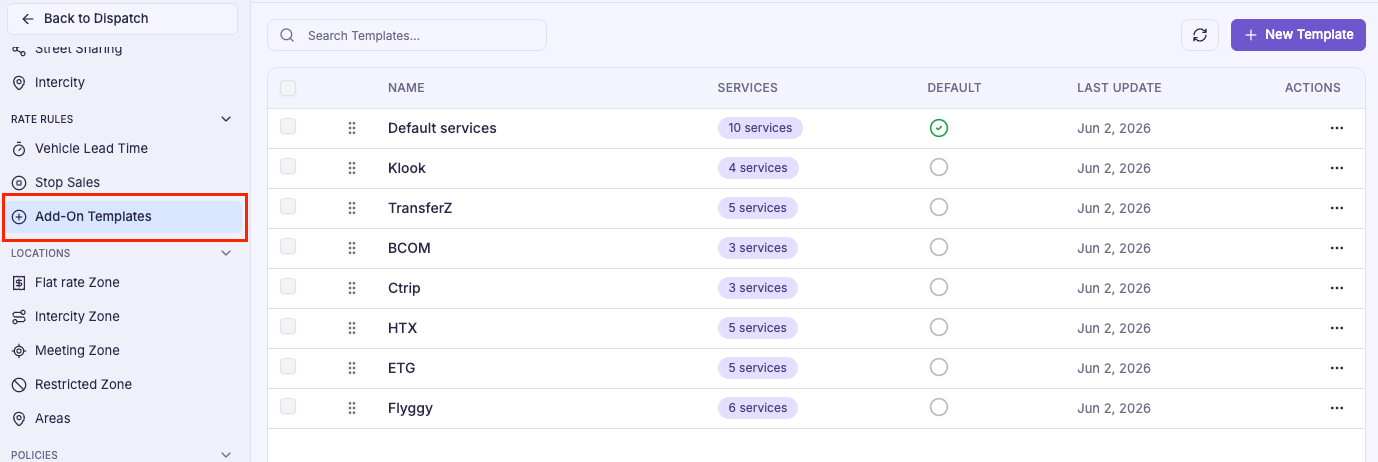
A template acts as a reusable container for multiple add-ons, making it easy to apply, maintain, and standardize extra charges across different services, customers, or operational scenarios.
Drag to sort the templates as your expected order. Also make sure to set a template as Default. Doing so will automatically apply this list of add-ons to all public and direct customer bookings.
Apply Add-On Services to a Specific Corporate Account
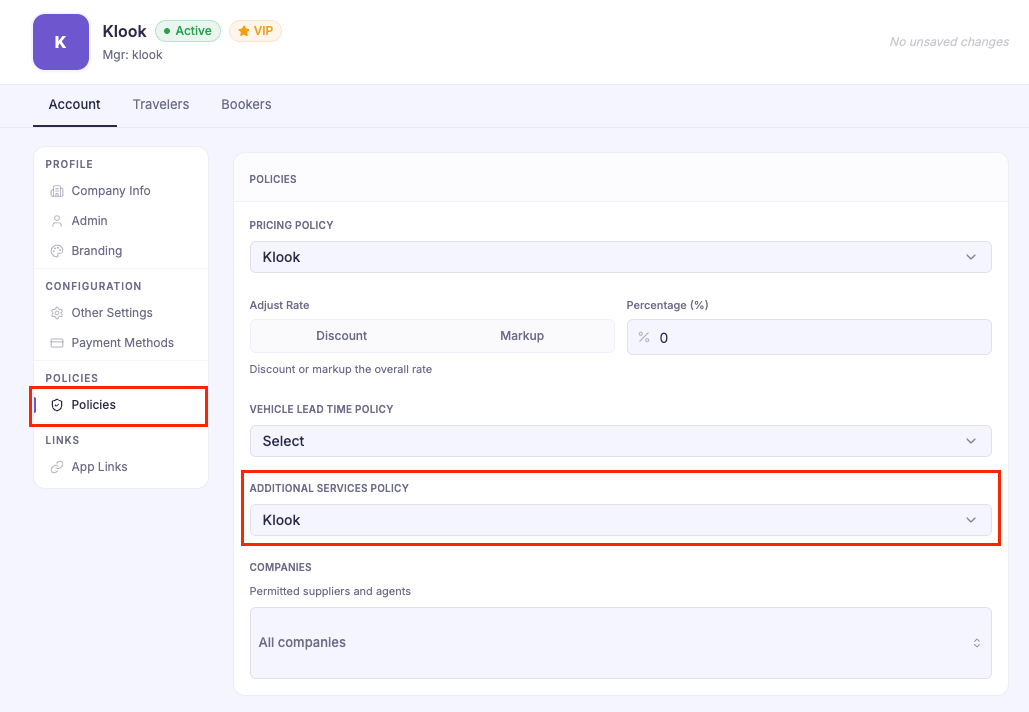
You can create multiple add-on templates to support different pricing and service requirements. This is especially useful when offering customized add-ons or extra services for specific corporate or company accounts. Each corporate profile can be linked to its own add-on template, allowing you to tailor available services, pricing, and rules per client while keeping configurations clean and reusable.
Creating Add-on or Extra Services
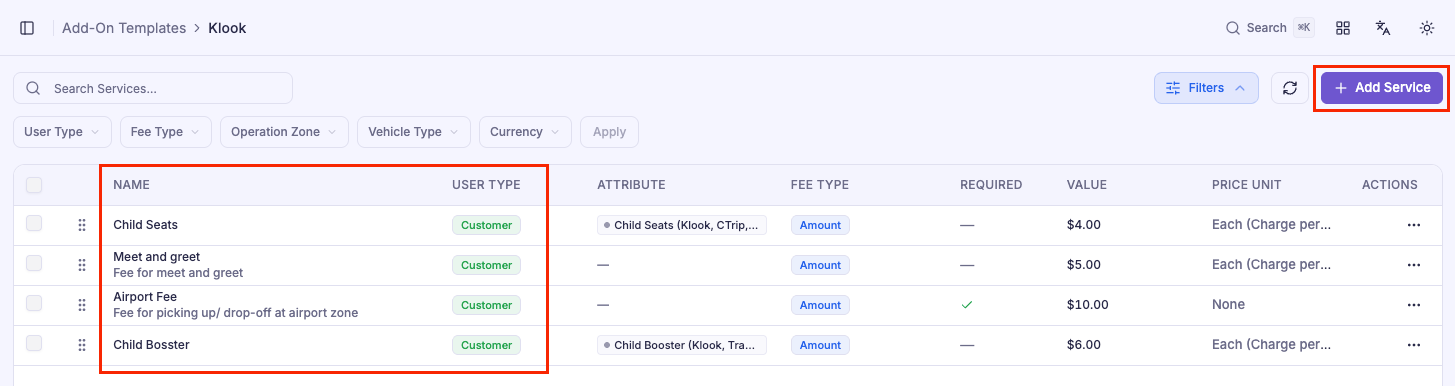
Within a single add-on template, you can define and manage multiple add-ons or extra fees that can be applied to either customers or drivers, allowing flexible and consistent charging across different services and scenarios.
Tap the Add Service button to add a new add-on
Step 1: Basic Information
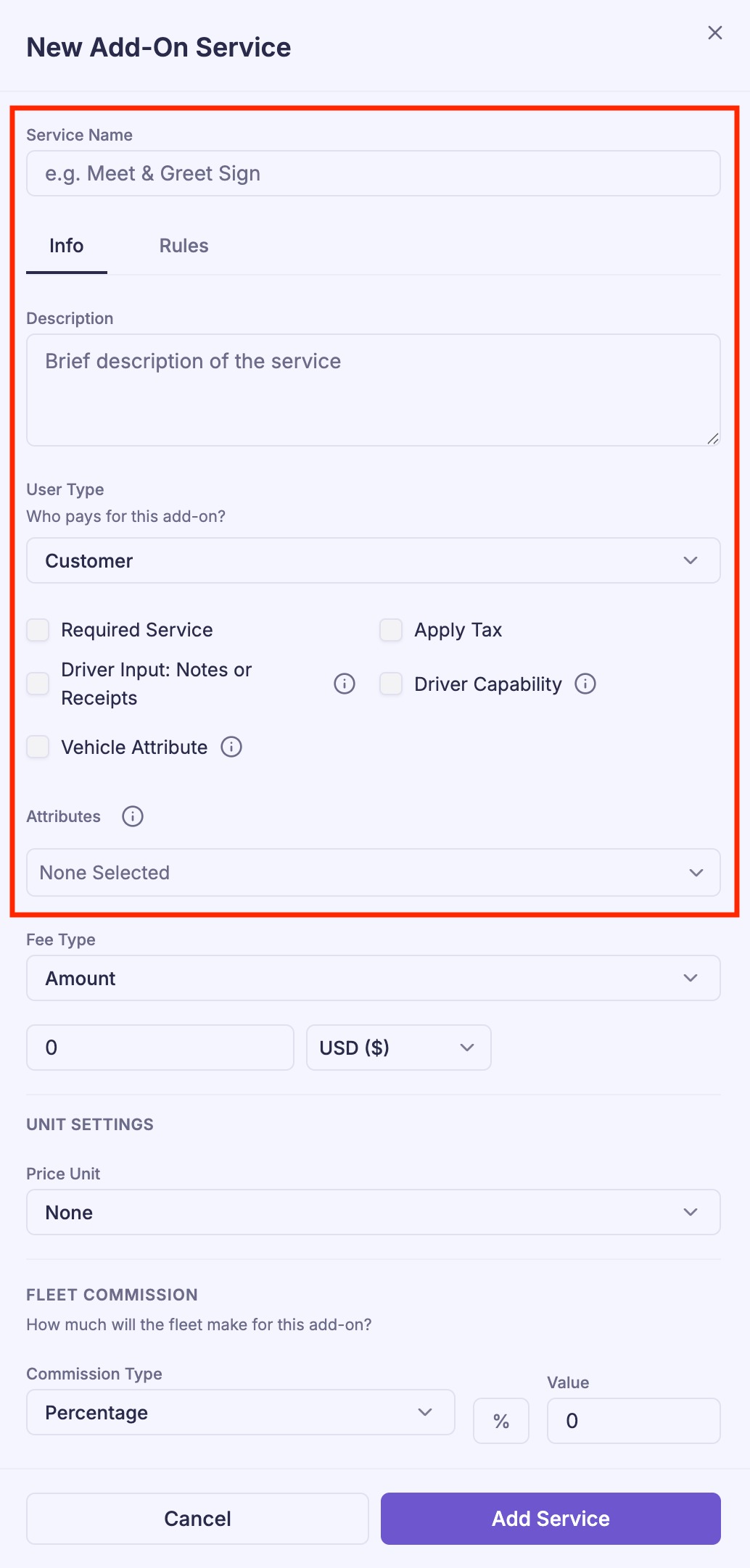
Start by creating a new Additional Service.
Service Name Enter a clear, customer- or driver-facing name (e.g. Meet & Greet, Child Seat, Airport Toll Fee).
Description Add a short description to clarify when or why this add-on applies.
User Type (Who Pays?) Select whether this add-on is charged to:
Customer (e.g. child seat, water on board, ribbon on car), or
Required Service Enable this if the add-on must always be applied when conditions are met.
Apply Tax Enable if this add-on should be included in tax calculations.
Itemize (Not Supported Yet) Enable if you want this add-on to appear as a separate line item on invoices or receipts.
Driver Input: Notes or Receipts Enable if the driver must add add notes, or upload a receipts after the closing out their trip.
Driver Capability / Vehicle Attribute Enable this option when an add-on requires specific driver capabilities or vehicle features to be fulfilled correctly. These attributes are used by the system to match bookings with eligible drivers or vehicles (for example, ensuring a child seat add-on is only assigned to vehicles that actually have a child seat available).
Attributes Link your add-on to Good Journey’s global attribute list so it can be correctly mapped to OTAs and booking partners (e.g. Booking.com, Klook, Transferz), even if they use different names or keys for the same service. This ensures your add-on is sent and understood correctly across third-party systems
Step 2: Fee & Commission Settings
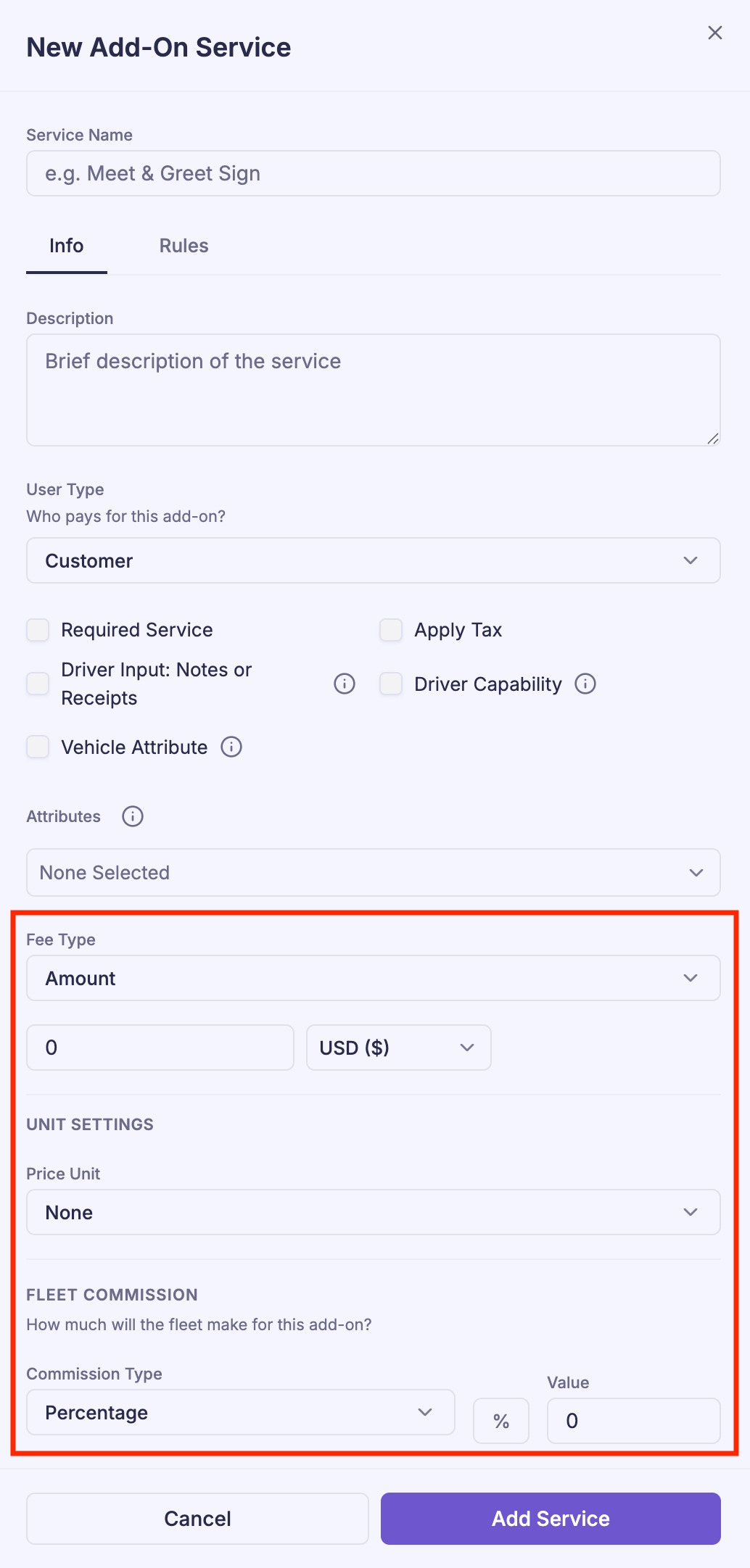
Fee Type Select how the add-on fee is calculated. There are four options:
Amount — A predefined flat fee.
Percentage of Subtotal — Calculated as a percentage of the trip subtotal (before tax and other add-ons).
Percentage of Total — Calculated as a percentage of the final trip total.
Custom (Driver Input) — The driver enters the amount at trip close-out. The fleet can define a maximum allowed amount to control and cap what the driver can input.
Amount & Currency Define the amount and currency for this add-on. If the add-on currency differs from the booking’s base currency, the system will automatically apply the current FX rate to convert the amount into the booking currency for calculation.
Unit Settings There are 5 unit options that define how the add-on fee is applied:
Each Time (Charge per Ride) — Charged once per trip or ride, regardless of quantity or passengers.
Each (Charge per Quantity) — Charged based on quantity selected (e.g. 10 bottles of water × $2 each).
Per Person (Charge per Person) — Charged based on the total passenger count for the booking.
Per Day (Charge per Day) — Intended for multi-day trips where the fee applies per day. (Not supported yet; planned for future releases.)
None — No unit logic is applied.
Fleet Commission Define how much the fleet earns from this add-on (percentage or fixed value).
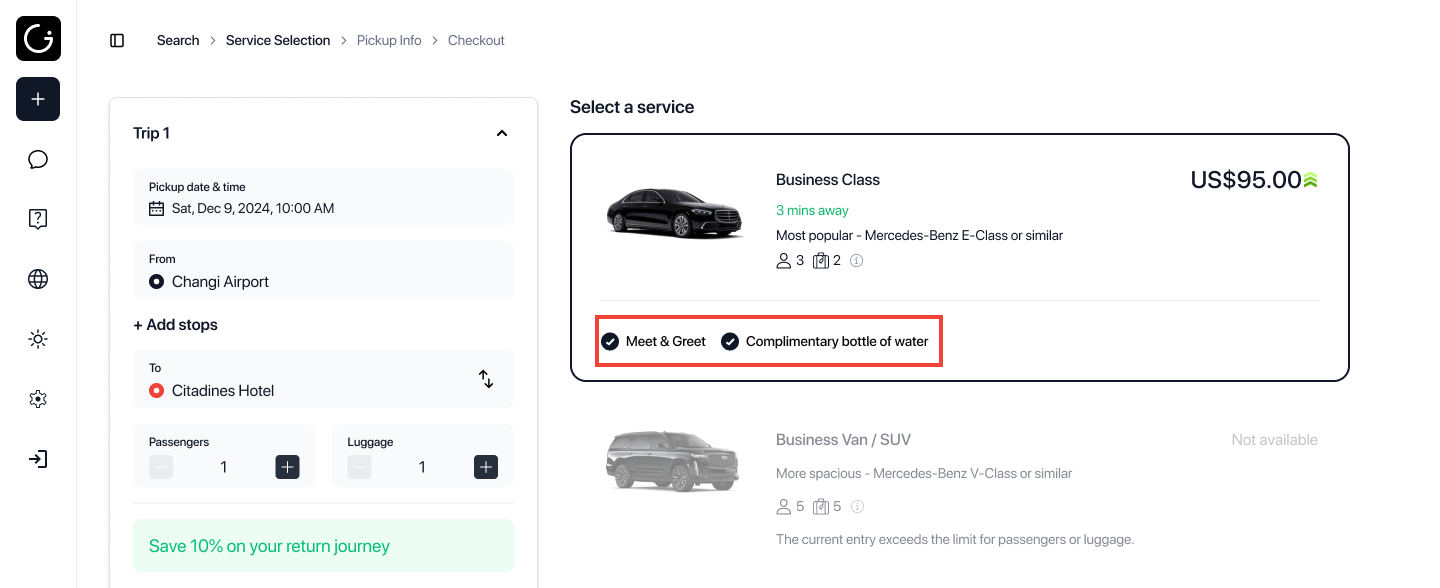
Pro Tip If you want to display a list of included features alongside the vehicle type selection, create add-ons that are marked as Required and set their fee to 0. This allows you to clearly communicate what’s included in each vehicle or service without affecting the total price.
Step 3: Rules & Conditions
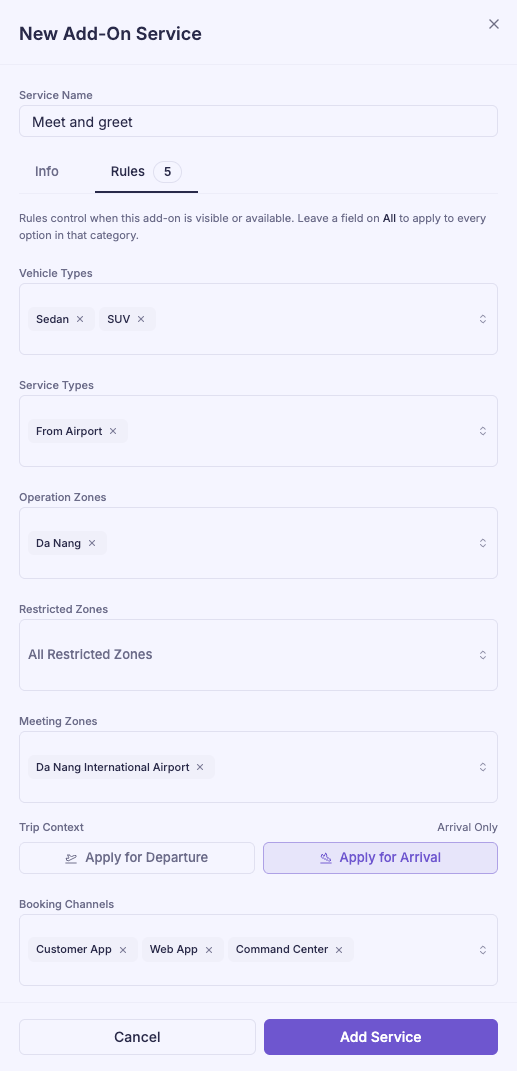
Switch to the Rules tab to control when and where this add-on is available or applied.
Rules allow you to precisely target or restrict an add-on based on operational, service, or booking context, including:
Vehicle Type Apply the add-on only to specific vehicle categories (e.g. Sedan, Van, Business Class).
Service Type Control availability by service type such as Airport Transfer, Hourly, or Point-to-Point.
Operation Zone Apply the add-on only within selected operational zones where your fleet operates.
Restricted Zone Apply the add-on only to specific zones.
Meeting Zone Limit the add-on to certain pickup or meeting locations (e.g. Airport, Hotel, City Center).
Trip Context Specify whether the add-on applies to Arrivals or Departures (for example, airport or cruise port pickups only).
Booking Channel Control visibility based on where the booking originates (e.g. direct website, corporate portal, OTA).
By combining these rules, the same add-on can behave differently depending on vehicle type, trip context, location, or booking source—giving you full control over when it appears and how it is applied.
Step 4: Save & Activate
Once all details and rules are configured:
Review your settings carefully
Click Add Service to activate the add-on
The add-on will now be applied automatically based on the rules you defined.
Was this article helpful?
That’s Great!
Thank you for your feedback
Sorry! We couldn't be helpful
Thank you for your feedback
Feedback sent
We appreciate your effort and will try to fix the article