Quotation Booking allows you to create a quote before confirming a booking.
Think of a quote as a draft booking. Instead of creating a confirmed reservation immediately, you can send a quotation to the customer for review. The customer can review the itinerary and pricing, make changes (when permitted), and confirm the booking once they are ready.
This feature is particularly useful for premium transportation services such as:
- Weddings
- Corporate events
- Tours
- Hourly chauffeur services
- Custom transportation requests
Quotation Booking gives fleets greater flexibility when negotiating pricing while allowing customers to review and approve the trip before it becomes a confirmed booking.
Before You Start
Quotation Booking is recommended when:
- Pricing requires customer approval before confirmation.
- The itinerary may change before the booking is finalized.
- The service requires custom or premium pricing.
- Customers need time to review the quotation before making payment.
Access Quotes
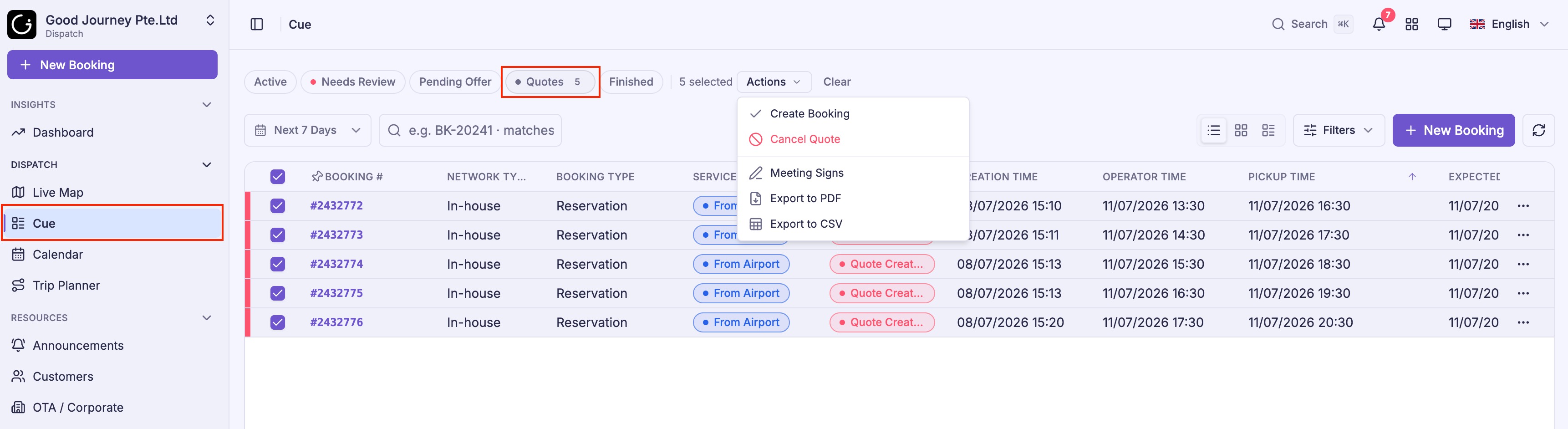
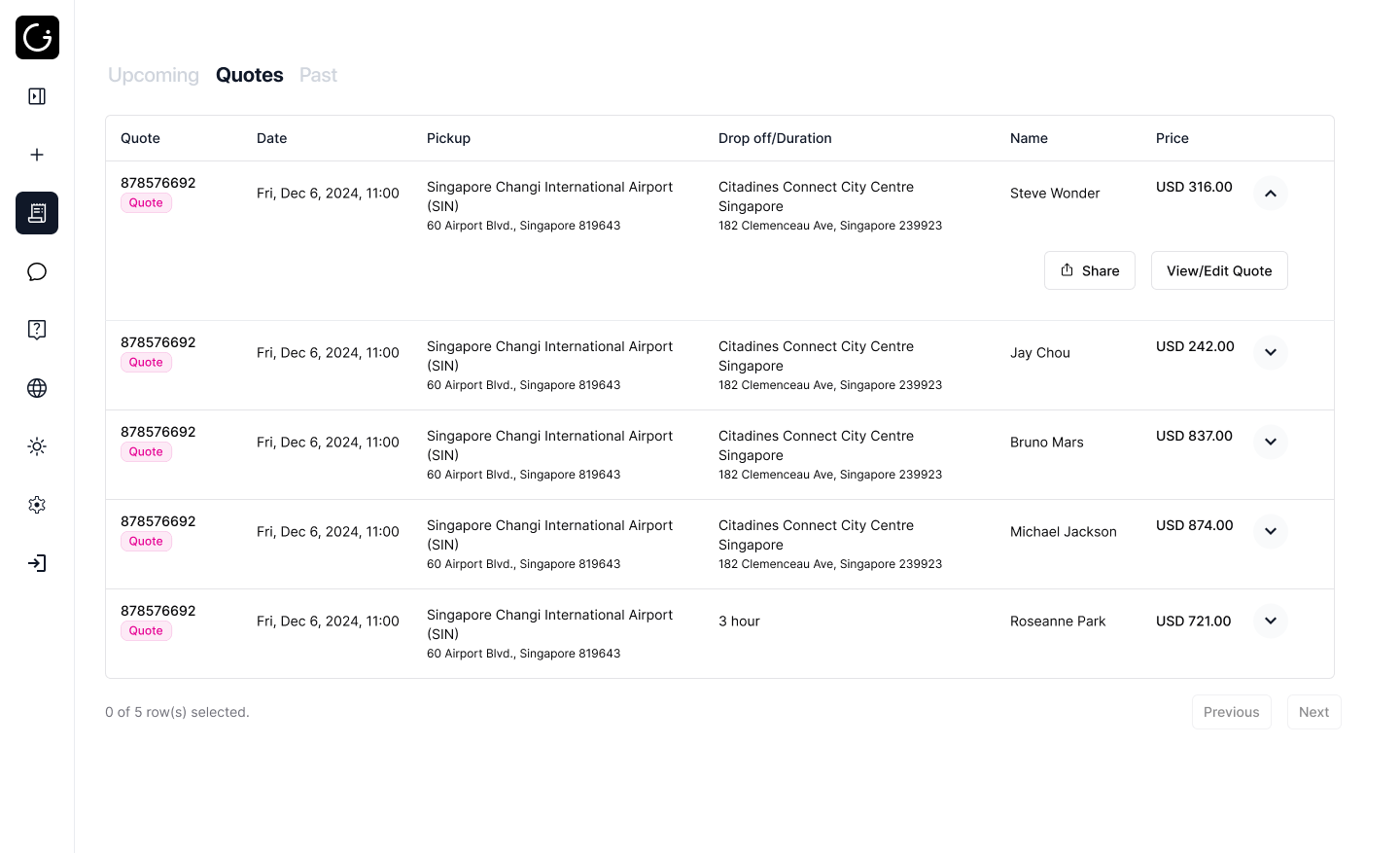
Navigate to Cue → Quotes tab provides a centralized place to manage all quotation requests.
From this page you can:
- View all quotes.
- Filter quotes by status.
- Convert approved quotes into bookings.
- Cancel multiple quotes.
- Track quote activity.
Quote Status
Each quotation progresses through one of the following statuses.
| Status | Description |
|---|---|
| Created | The quotation has been created and sent to the customer. |
| Updated | The customer has modified the quotation details. |
These statuses help operators quickly identify quotations that require attention.
Create a Quote
Step 1: Create a New Booking
Click New Booking.
Step 2: Enter Booking Details
Complete the booking information, including:
- Customer details
- Pickup and destination
- Date and time
- Vehicle requirements
- Pricing
- Additional services
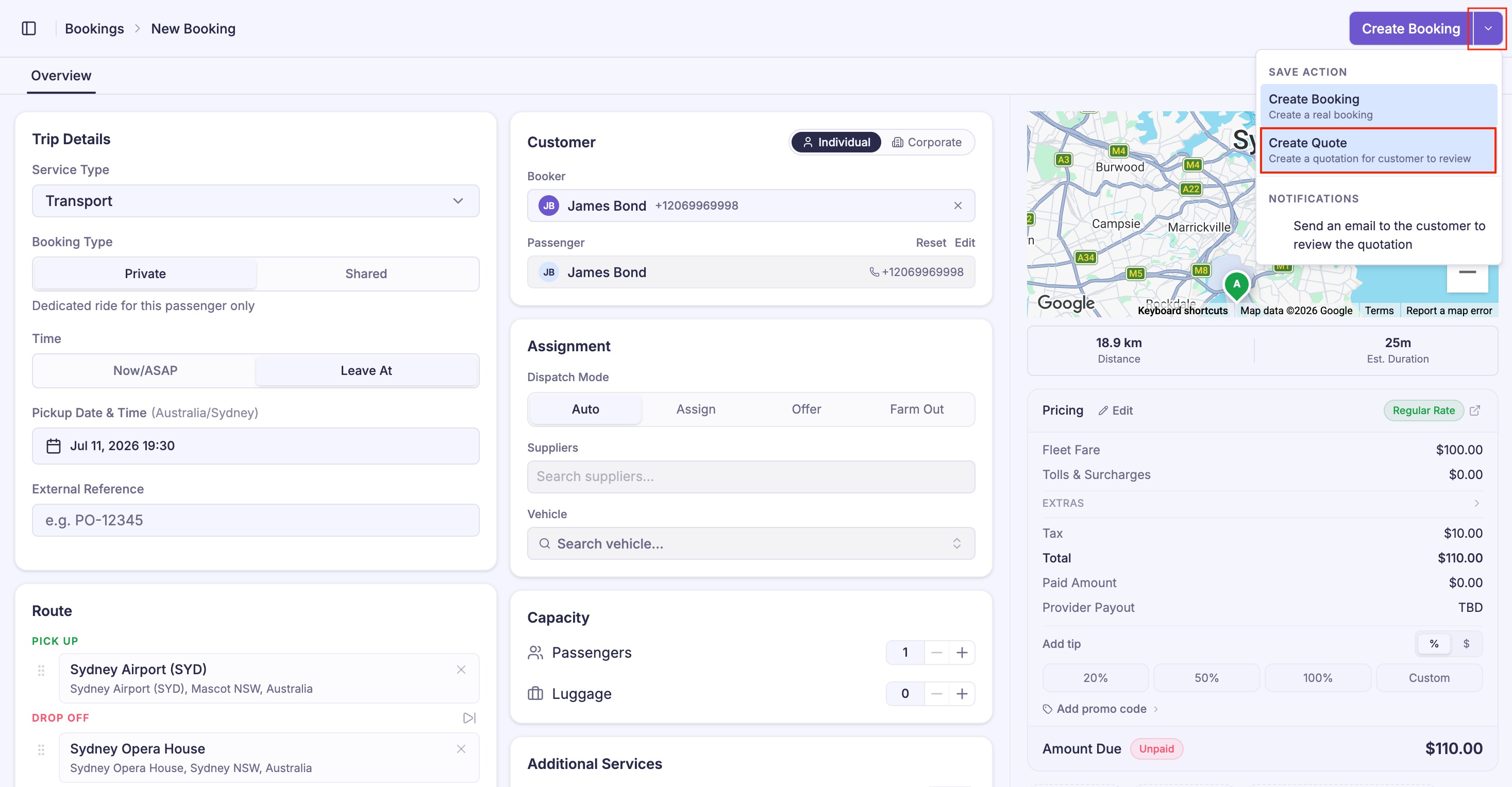
Step 3: Create a Quote
From the action menu in the upper-right corner, select Create Quote.
Click Create Quote to save the booking as a quotation instead of a confirmed booking.
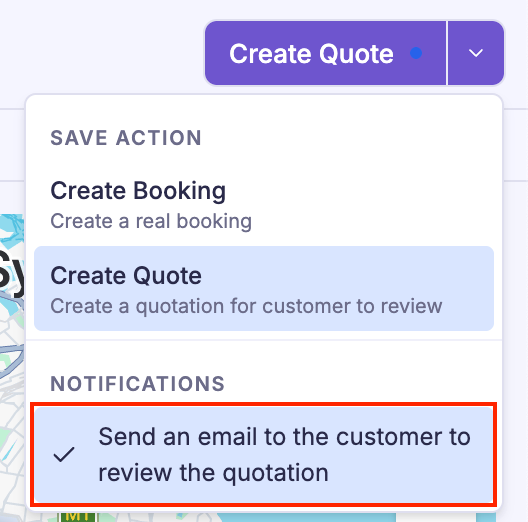
Step 4: Send the Quote
Optionally enable Send email to customer before creating the quote.
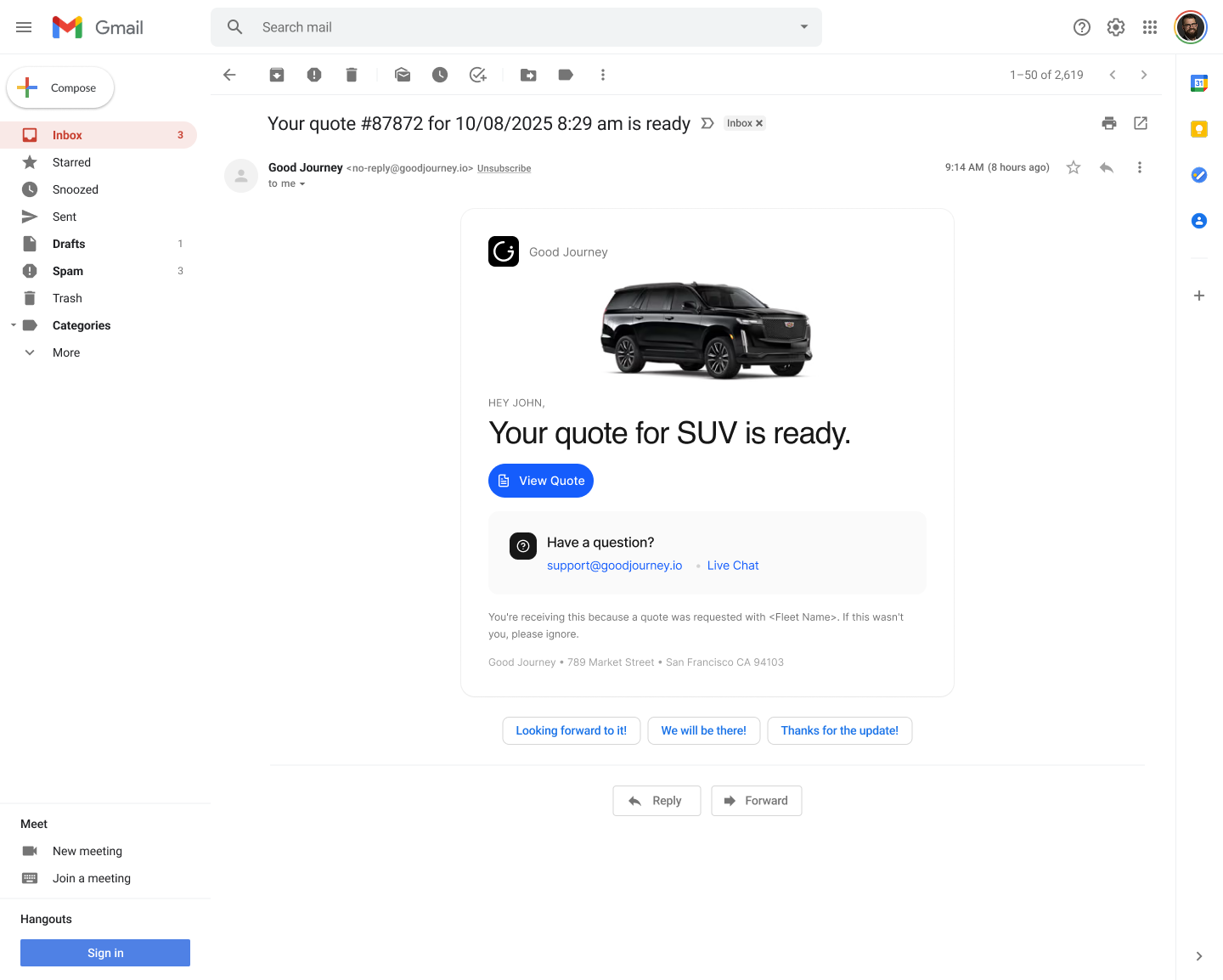
Quote Email
Once sent, the customer will receive a quote request email with a secure link to view the quote. Customer can click the view the quote.
Customer Experience
Customers can access the quotation using the link provided in the email.
The available actions depend on the customer's account type.
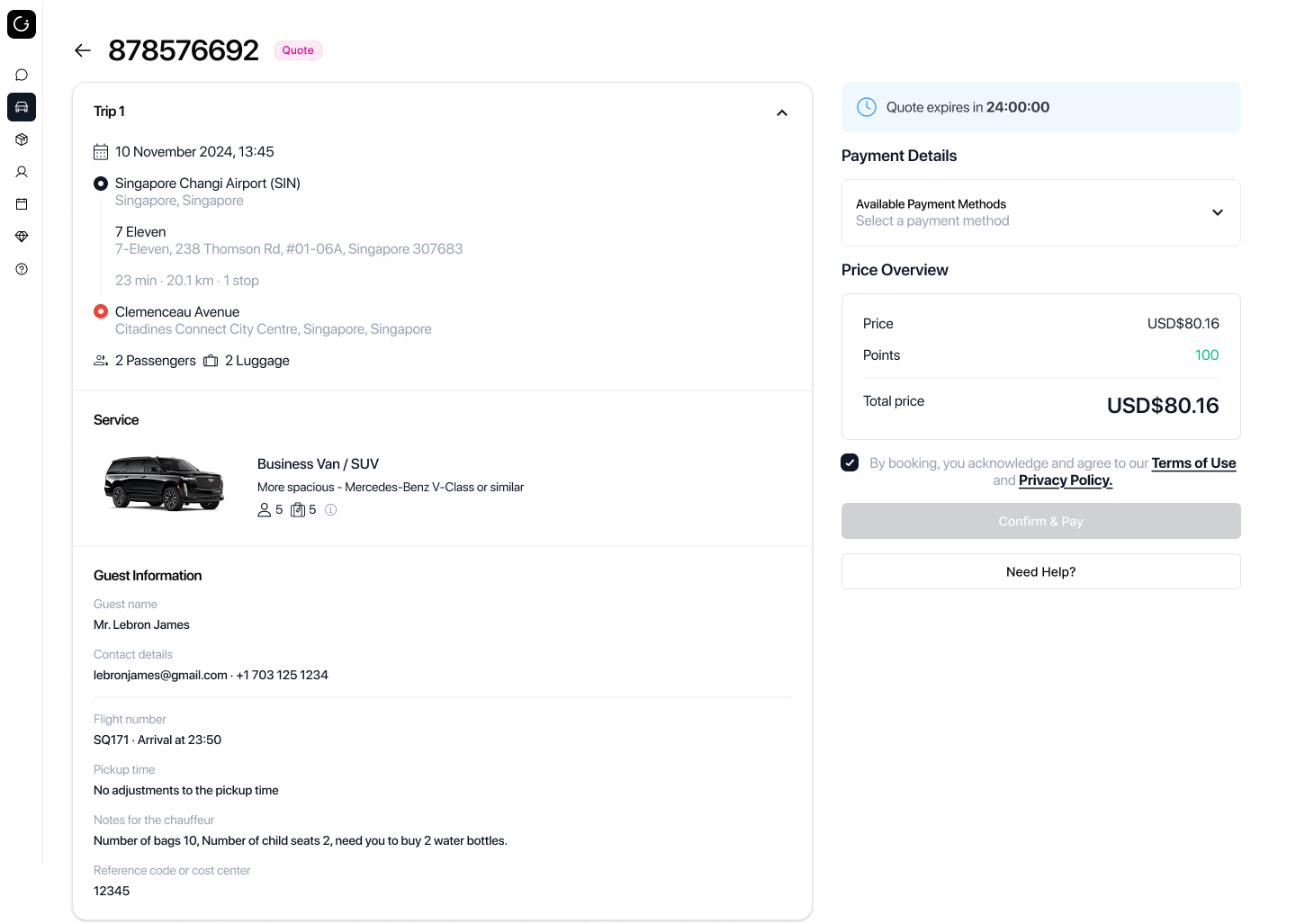
Guest Customers
Guest customers can:
- View the quotation.
- Confirm the quotation.
- Complete payment.
Guest customers cannot edit booking details because the quotation is not associated with an account.
Registered Customers
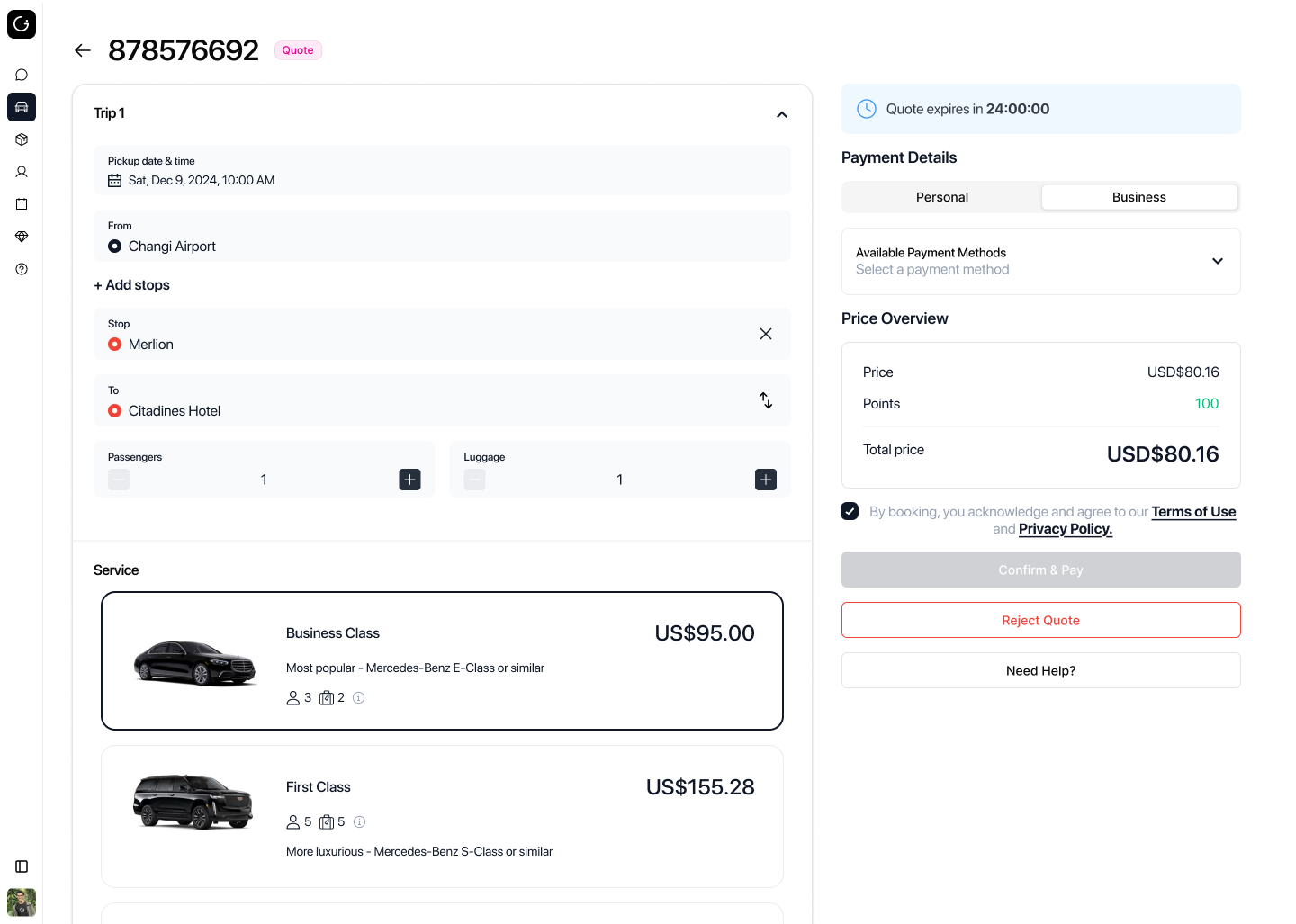
Registered customers can sign in to:
- View their quotations.
- Edit eligible booking details.
- Review updated pricing.
- Confirm and pay for the booking.
All quotation requests are available from the customer's booking list after login.
⚠️ Important:
If a quote includes custom pricing, customers cannot modify the booking details.
Quote Expiration
Quotation requests automatically expire 24 hours after they are created.
If neither the customer nor the operator takes action within this period, the quotation is automatically cancelled.
Track Quote Activity
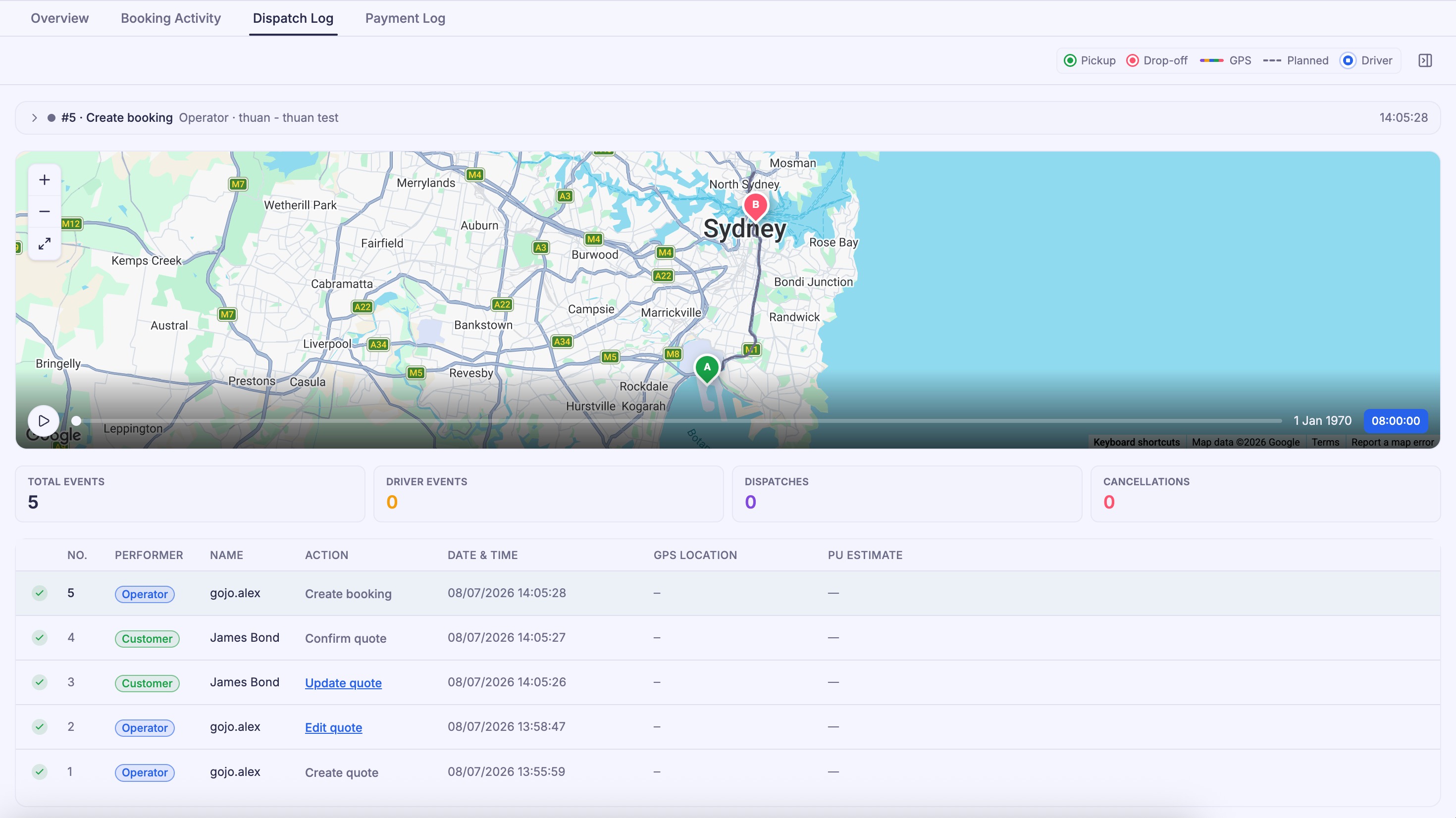
Operators can review the complete history of each quotation, including:
- Who created the quotation.
- Who updated it.
- When changes were made.
This activity history provides a clear audit trail throughout the quotation process.
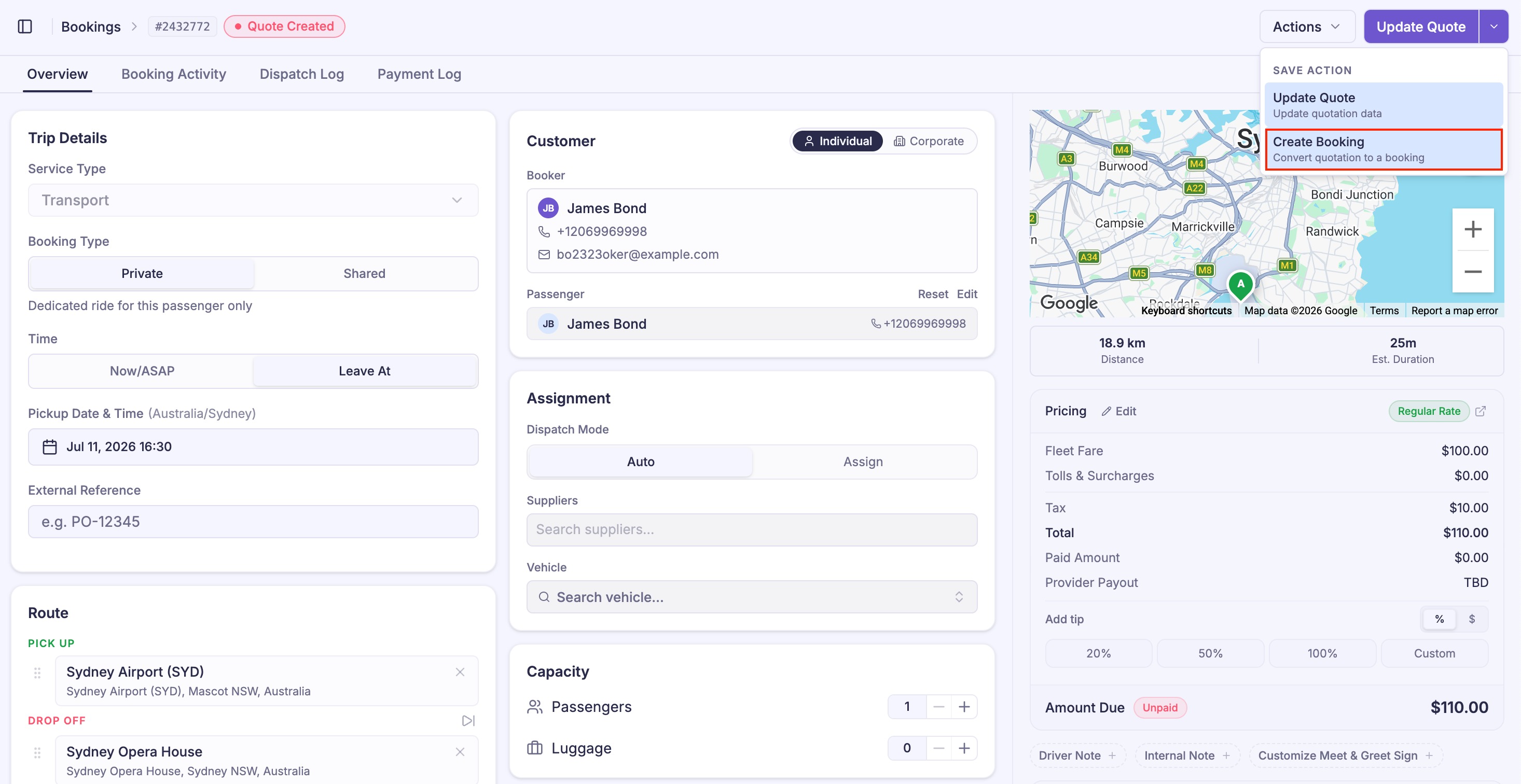
Convert a Quote to a Booking
Once the customer approves the quotation:
- Open the quotation.
- Select Create Booking from the action menu.
- Click Create Booking.
The quotation is converted into a standard booking and continues through the normal booking workflow.
Additional Actions
Operators can also:
- Resend the quotation email.
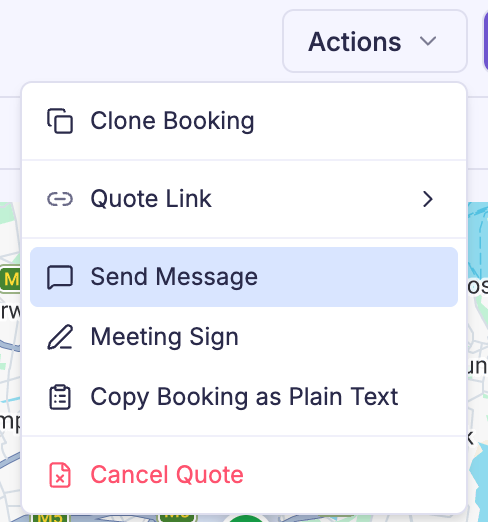
- Copy the quotation link.
- Share the quotation link with customers.
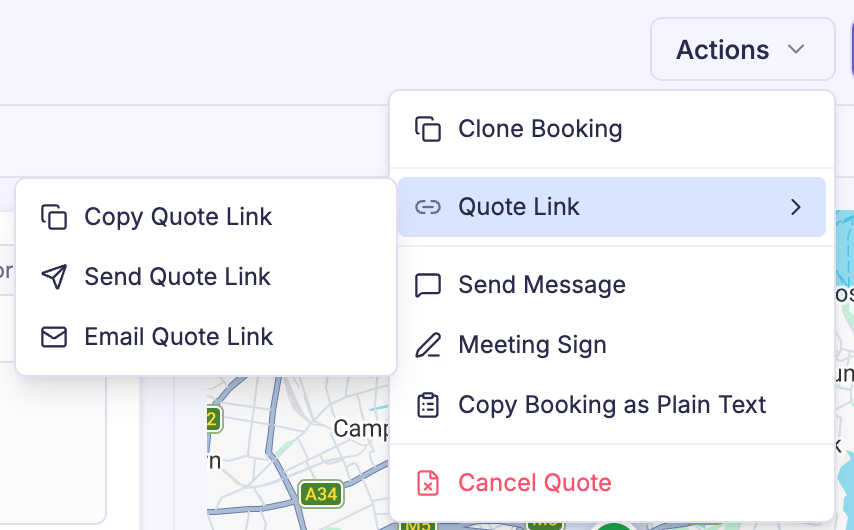
- Cancel one or multiple quotations.
Enable Customer Self-Service Quotes (Optional)
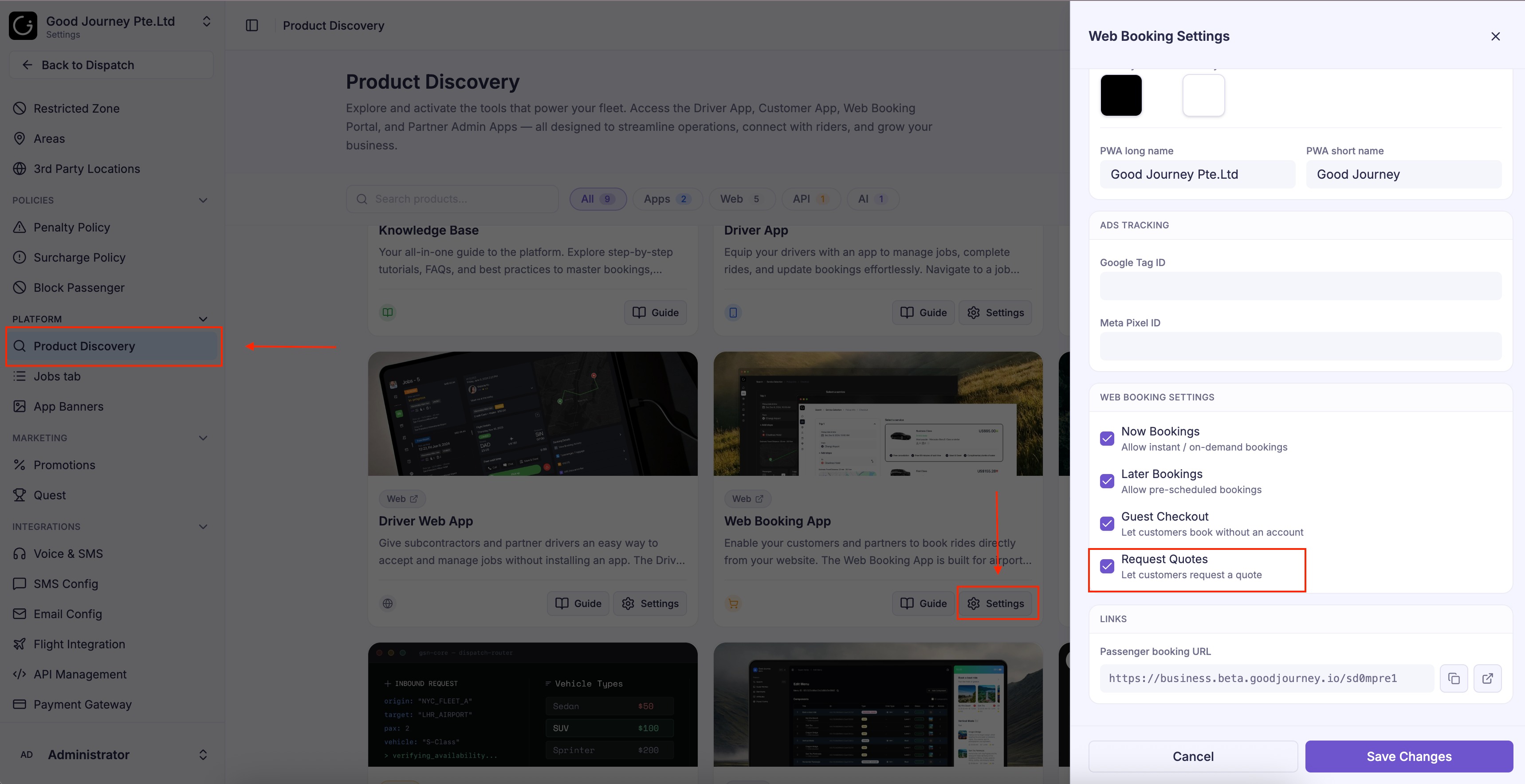
You can allow customers to create quotations directly from the Web Booking App.
Navigate to:
- Setting → Product Discovery → Web Booking App → Settings
- Enable the Request Quotes option.
When enabled, customers can submit quotation requests online, which appear automatically in the Quotes tab for operator review.
Best Practices
To improve the quotation experience:
- Use quotations for bookings that require pricing approval or itinerary discussion.
- Provide clear pricing and service details before sending the quote.
- Send quotation emails immediately after creation to avoid delays.
- Review updated quotations promptly when customers make changes.
- Convert approved quotations into bookings as soon as they are confirmed.
- Monitor quotation expiration to prevent missed business opportunities.
Was this article helpful?
That’s Great!
Thank you for your feedback
Sorry! We couldn't be helpful
Thank you for your feedback
Feedback sent
We appreciate your effort and will try to fix the article