A Surcharge Policy allows you to automatically apply additional fees to bookings based on specific dates, times, booking conditions, or travel distance.
Instead of manually adjusting prices, you can define surcharge rules that are automatically applied when a booking matches the configured criteria.
How Surcharge Policies Work
When calculating a booking price, the system checks whether the booking matches any configured surcharge rules.
A surcharge may be applied based on:
- Booking type
- Pickup date
- Pickup time
- Day of the week
- Operation zone
- Booking lead time
- Travel distance
If the booking satisfies the configured conditions, the surcharge is automatically added to the fare.
Common Use Cases
Surcharge Policies are commonly used for:
- Peak-hour pricing
- Weekend surcharges
- Public holiday pricing
- Christmas and New Year pricing
- Airport surcharges
- Event pricing
- Last-minute booking fees
- Long-distance surcharges
A single Surcharge Policy can contain multiple surcharge rules, giving you flexibility to handle different business scenarios.
Before You Start
Before creating a Surcharge Policy:
- Determine when the surcharge should apply.
- Decide how the surcharge should be calculated.
- Create the Rate that will use the surcharge policy.
Create a Surcharge Policy
Navigate to Settings → Surcharge Policy
Click Add template.
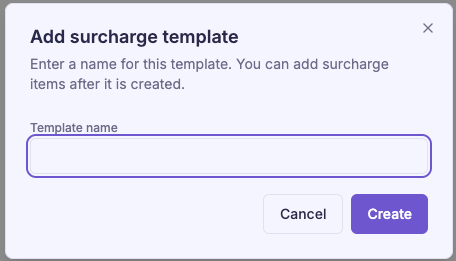
A surcharge template can contain one or more surcharge rules. Each rule defines when a surcharge applies (such as specific dates, times, booking conditions, or operation zones) and how the surcharge is calculated.
Click Add Item to create a new surcharge rule within the policy.
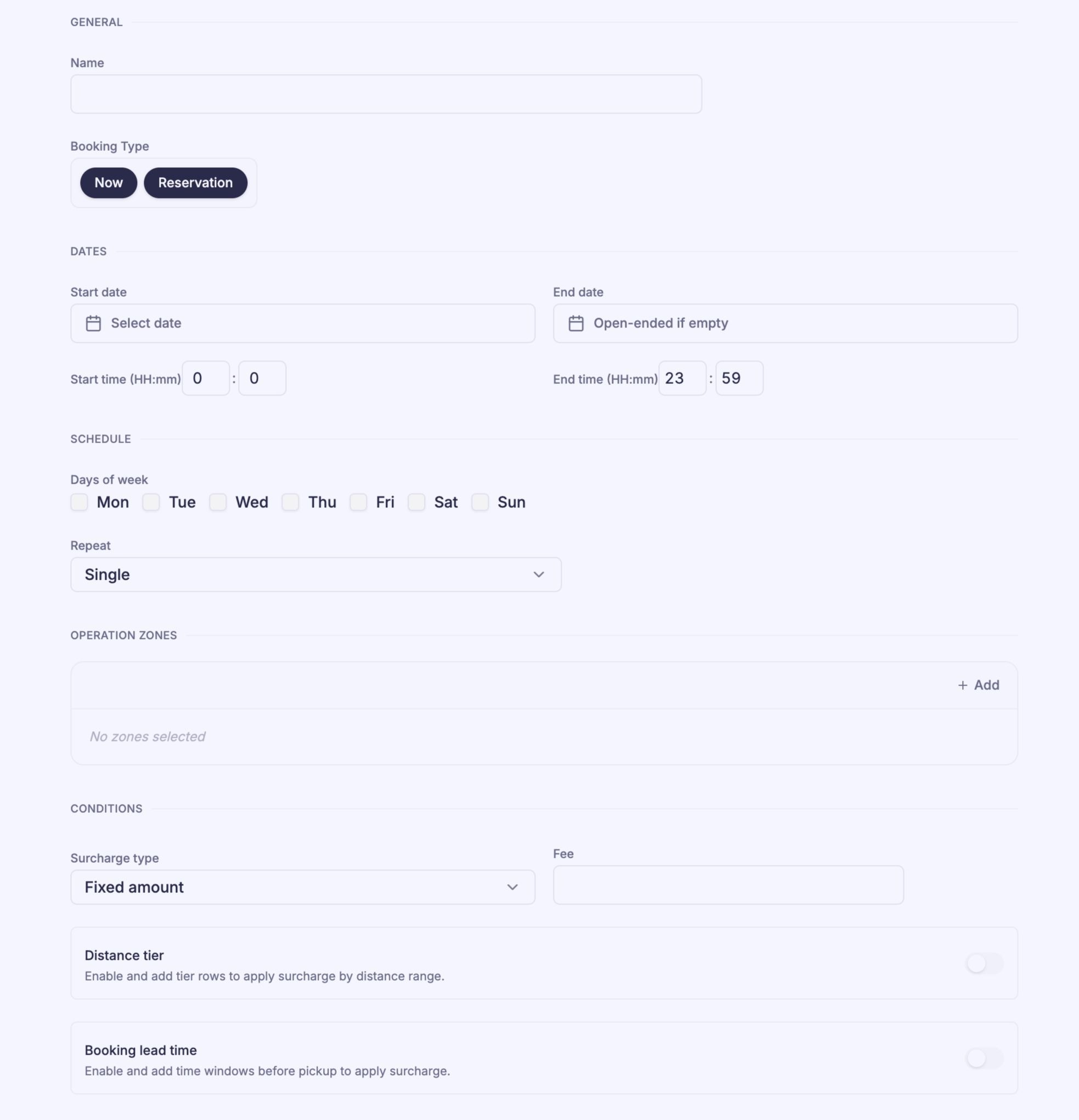
Step 1: Enter General Information
Provide:
- Policy Name
- Booking Type
- Reservation
- On-Demand
- Both
Step 2: Configure the Effective Period
Define when the surcharge should be active.
Configure:
- Start Date (Required)
- End Date (Optional)
- Start Time
- End Time
If no End Date is specified, the surcharge remains active until it is removed or updated.
Step 3: Configure the Schedule
Specify how often the surcharge should occur.
Available options include:
- Single Day
- Weekly
- Yearly
You can also select the days of the week on which the surcharge applies.
This is useful for recurring pricing such as:
- Weekend surcharges
- Weekly peak-hour pricing
- Annual holiday pricing
Step 4: Select Operation Zones
Choose the operation zones where the surcharge should apply.
Only bookings within the selected zones will use this surcharge rule.
Step 5: Configure the Surcharge
Choose how the surcharge is calculated.
Available calculation methods include:
Fixed Amount or Percentage of Base Fare
Add a fixed fee to the booking or calculate the surcharge as a percentage of the booking's base fare.
Example:
- Airport surcharge: $10
- Holiday surcharge: 15%
Distance-Based Surcharge
Configure different surcharge amounts based on travel distance.
This allows longer trips to receive different surcharge values than shorter trips.
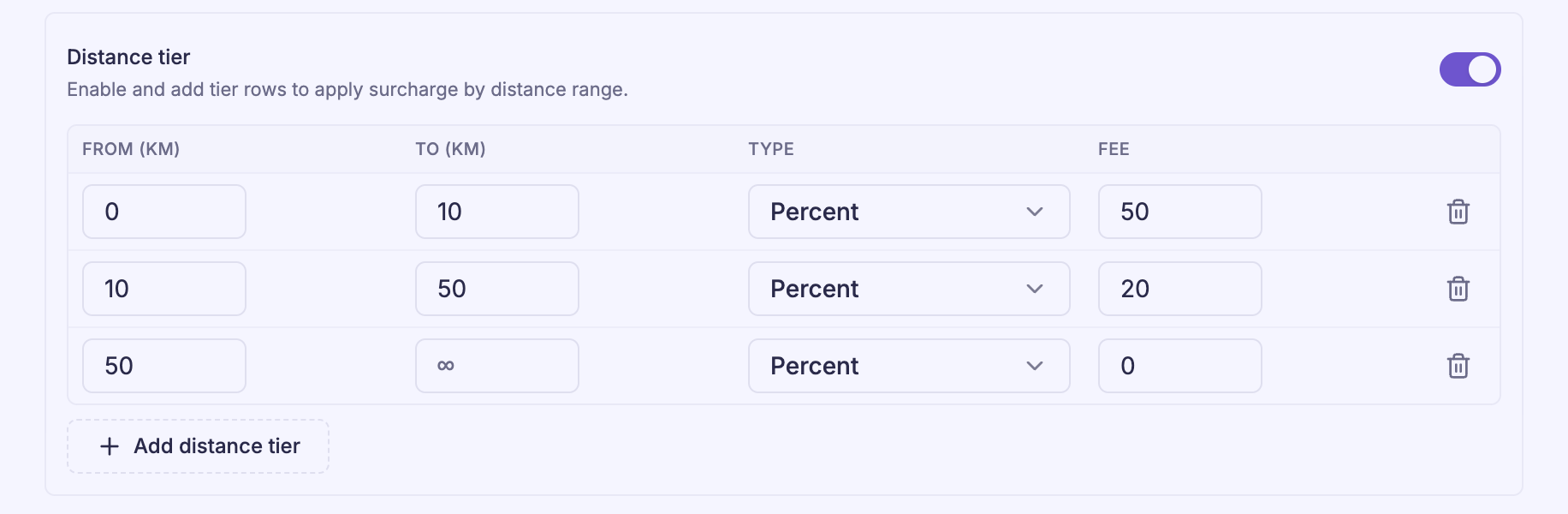
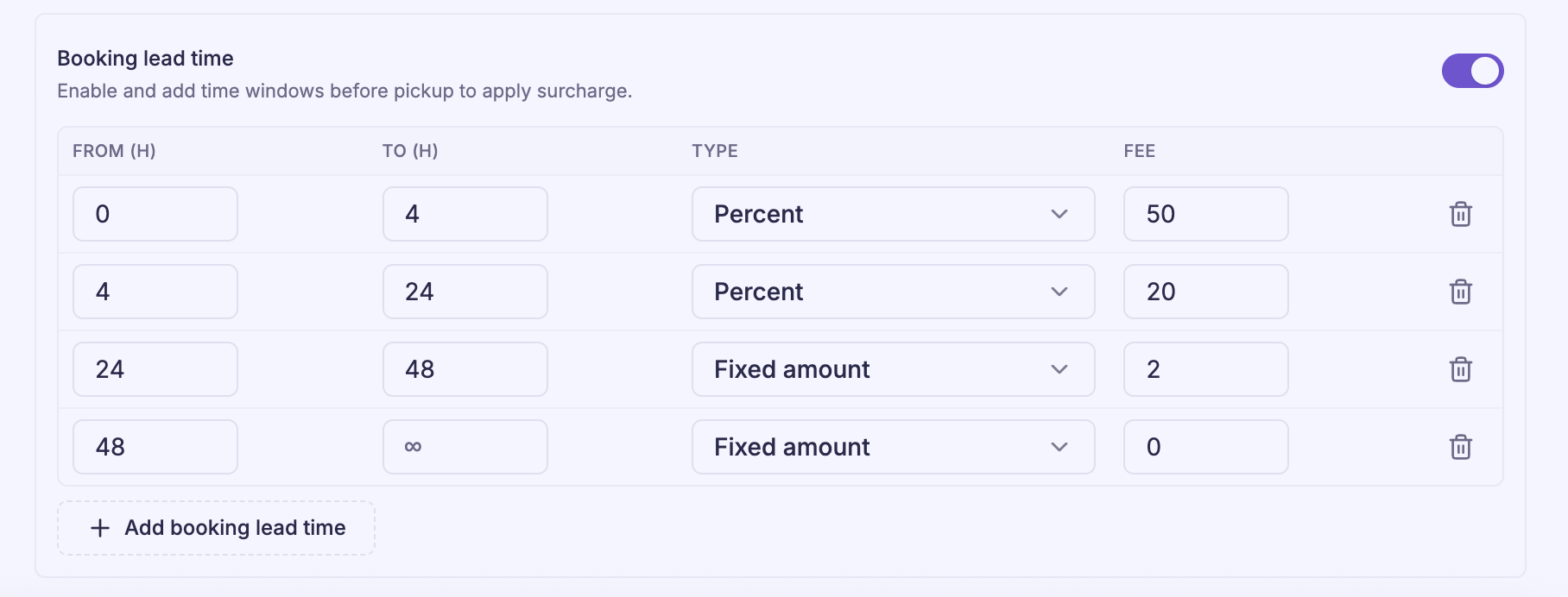
Step 6: Configure Booking Lead Time (Optional)
You can also apply additional charges based on how far in advance the booking is made.
For example:
- Booking made within 4 hours → higher surcharge
- Booking made 24–48 hours in advance → standard pricing
This feature is useful for last-minute booking premiums.
Link a Surcharge Policy to a Rate
After creating a policy, it must be linked to a Rate before it can be used.
To link a policy:
- Open the desired Rate.
- Navigate to the Surcharge tab.
- Click Link.
- Select the Surcharge Policy.
- Save your changes.
The linked surcharge rules are displayed as a preview within the Rate for easy review.
Within the Rate, you can:
- View all linked surcharge rules.
- Open an individual rule to review its configuration.
- Remove the policy by clicking Unlink.
Once unlinked, the surcharge is no longer applied to bookings using that Rate.
Best Practices
To keep surcharge management simple and consistent:
- Create separate policies for different business scenarios.
- Use recurring schedules for seasonal or annual events.
- Apply distance-based surcharges only when longer trips require additional costs.
- Keep surcharge names descriptive and easy to identify.
- Link surcharge policies only to the Rates that require them.
- Review active surcharge schedules before holidays and major events.
Tip: Use Special Rate Schedules when you want to replace the normal fare during a specific period. Use Surcharge Policies when you want to add an extra fee on top of the existing fare.
Was this article helpful?
That’s Great!
Thank you for your feedback
Sorry! We couldn't be helpful
Thank you for your feedback
Feedback sent
We appreciate your effort and will try to fix the article