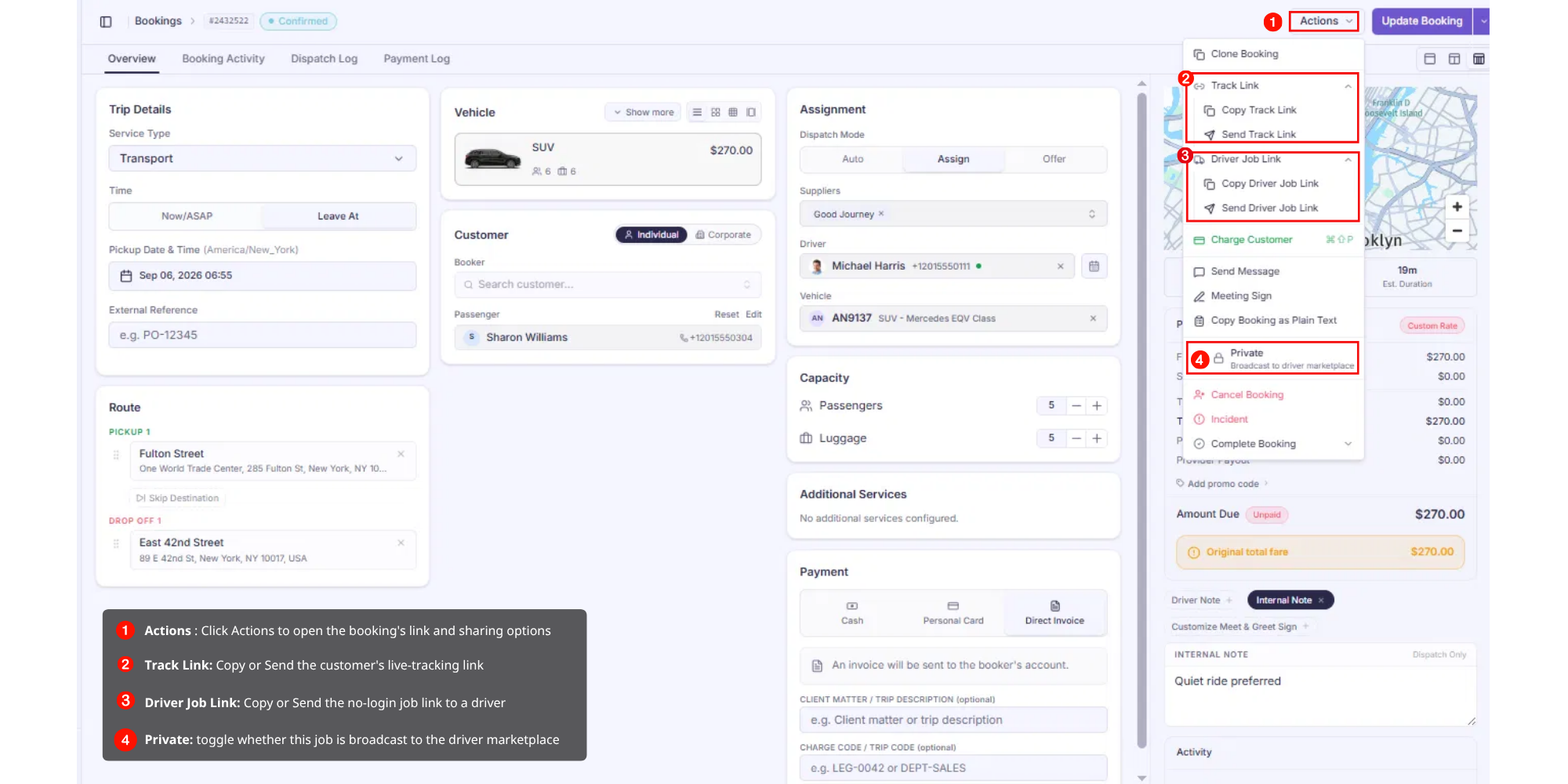
Inside the Actions menu, Track Link and Driver Job Link each expand into two options:
| Menu item | Options |
|---|---|
| Track Link | Copy Track Link · Send Track Link |
| Driver Job Link | Copy Driver Job Link · Send Driver Job Link |
| Private | Toggle — controls whether the job is broadcast to the driver marketplace |
Use Copy when you want to paste the link somewhere yourself (email, your own SMS tool, a messaging app). Use Send to have the system deliver it directly — for example, texting the assigned driver automatically.
Customer Track Link
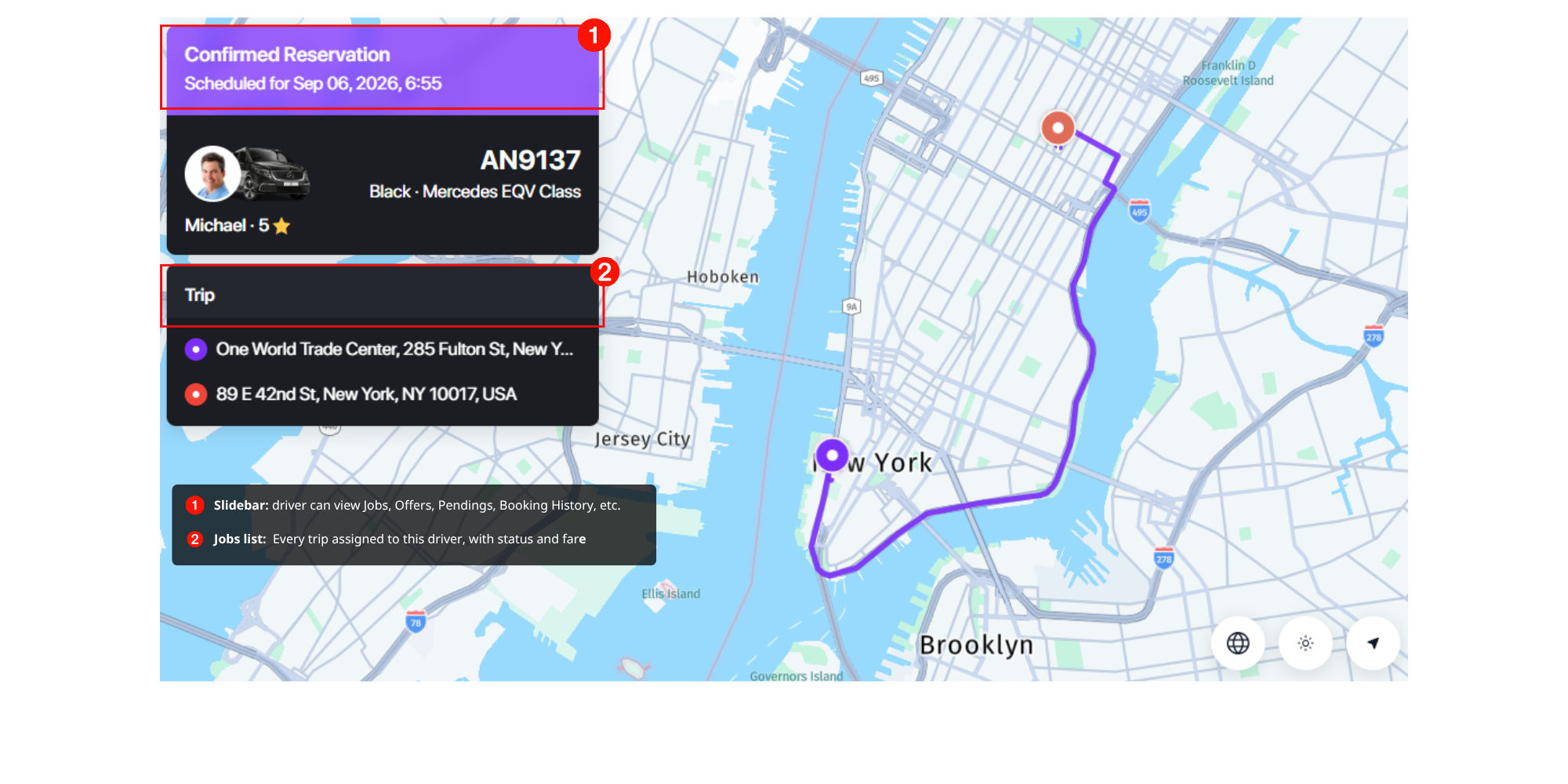
What it does: Lets the customer follow their driver live on a map and reach them directly, without needing an account or app.
What the customer sees when they open it:
The page updates automatically as the booking progresses through two states:
- Before a driver is assigned — shows a Pending banner with the scheduled time and a note that "A driver will be assigned soon," plus the planned route (pickup and drop-off) on the map.
- Once a driver is assigned/confirmed — switches to a live view showing the driver's current location and route, driver name and rating, vehicle details (plate number, car model), and Call/Chat buttons to reach the driver directly.
How to share it: Use Copy Track Link from the Actions menu to grab the link yourself, or Send Track Link to have it delivered automatically (e.g. via SMS or booking confirmation). It works as a simple web page — no login required.
Driver Job Link
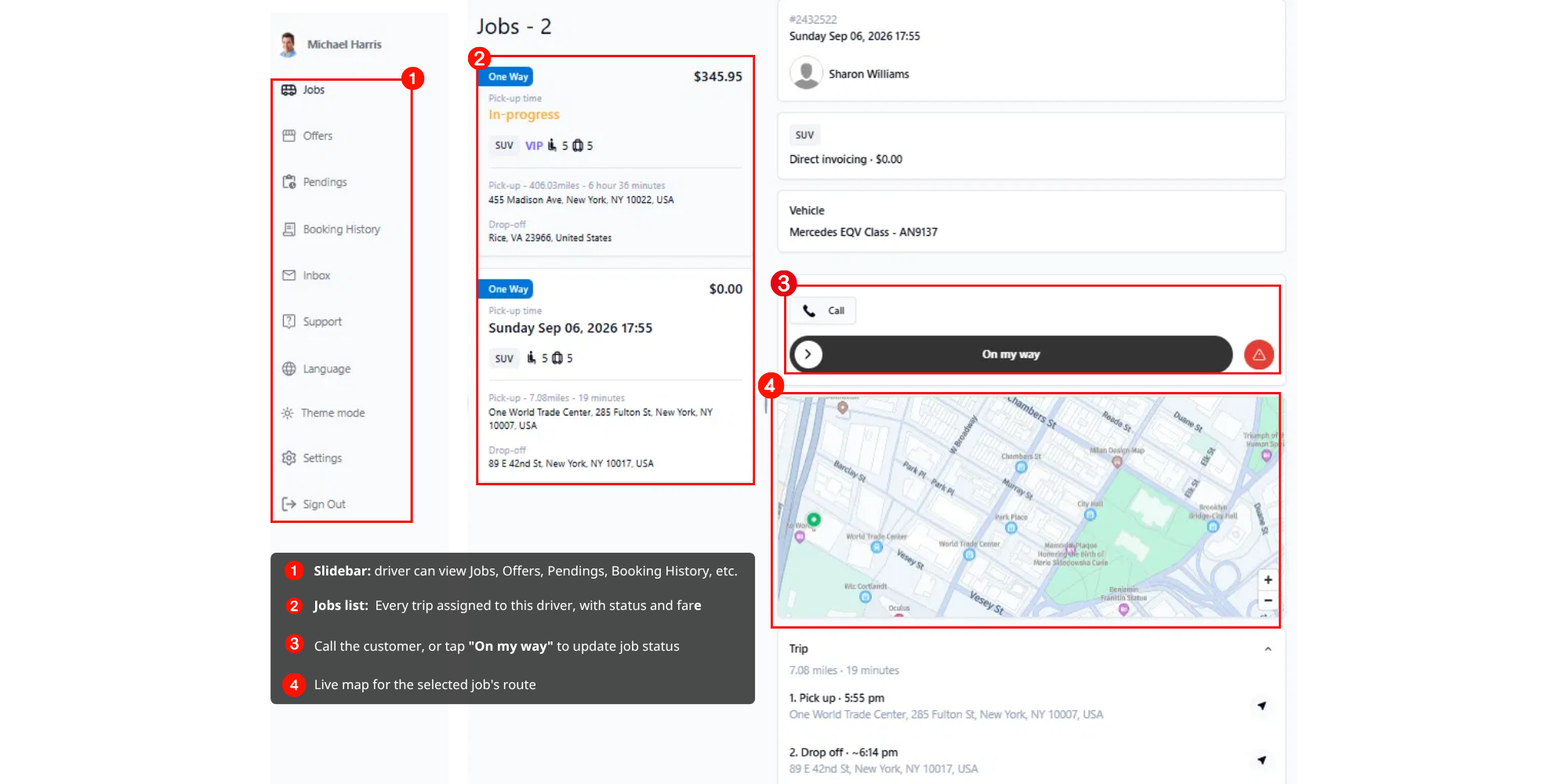
What it does: Lets you send a job to a driver — including subcontractors or third-party drivers — without requiring them to log into the system.
What the driver sees when they open it:
The link opens a lightweight Driver Portal (e.g. driver.goodjourney.io) — a mini dashboard scoped to that driver, without requiring a full system login. It includes:
- A sidebar with Jobs, Offers, Pendings, Booking History, Inbox, and Support
- A Jobs list showing all of the driver's assigned trips (status, fare, pickup/drop-off, vehicle type)
- A detail view per job with the customer's name, vehicle assignment, a live map, Call button, and an "On my way" action to update job status
Ways to send it:
- Send Driver Job Link — has the system deliver the link automatically (e.g. auto-text the assigned driver the moment they're assigned, such as "Job assigned for tomorrow at 10 pm, click link to start job").
- Copy Driver Job Link — copy it yourself and paste into any messaging channel (Telegram, WhatsApp, Messenger, iMessage, etc.).
This is the fastest way to get a job in front of a driver who isn't fully set up in your system — they just tap the link and land in their portal.
Private / Broadcast to Marketplace
In the Actions menu, the Private toggle controls whether the job is visible on the driver marketplace:
- When broadcast, the job is posted to the public marketplace, where any registered, logged-in driver can view and accept it
- Mainly used for driver acquisition and recruitment, or when you need extra coverage beyond your regular driver pool
- Drivers must be registered and logged in to accept a marketplace job — this is different from the Driver Job Link, which works without login
Was this article helpful?
That’s Great!
Thank you for your feedback
Sorry! We couldn't be helpful
Thank you for your feedback
Feedback sent
We appreciate your effort and will try to fix the article