| Booking Status | Description |
|---|---|
| Status Before Trip Start | |
| Waiting for Process | System could not find a driver; operator intervention required. |
| Pending | Job accepted, no driver assigned yet. |
| Confirmed | Driver assigned; booking is confirmed. |
| Status After Trip Start | |
| Driver On The Way | Driver is heading to pick-up. |
| Arrived & Waiting | Driver has arrived at pickup. |
| P.O.B (Passenger On Board) | Customer is in the car, trip is in progress. |
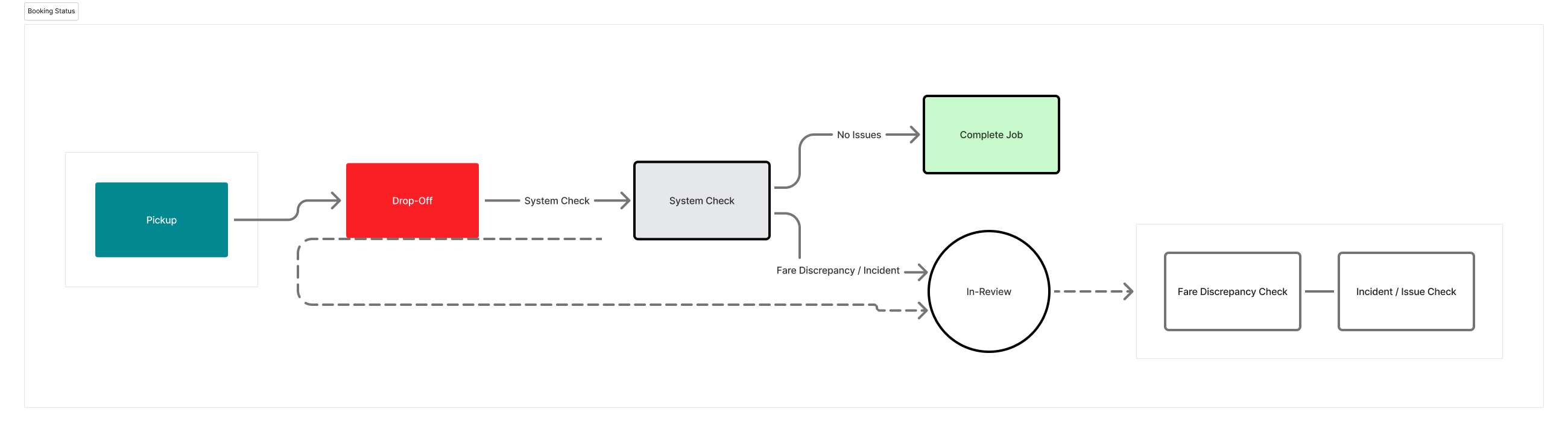
| Dropped Off | Passenger dropped off |
| In-Review | Trip flagged for review due to fare discrepancy or a driver-reported issue. |
| Complete Job | Booking fully processed and closed. |
Example Booking Workflow:
- When a scheduled booking is created, the initial status is Pending—no driver has been assigned yet.
- Once a driver is assigned or accepts the job, the booking becomes Confirmed. Customers may also receive a confirmation email at this stage.
- When the driver starts navigating to the pickup point, the status updates to Driver On The Way.
- When the driver reaches the pickup location, they tap Arrived. This starts the free wait-time countdown. After the timer expires, the driver may continue waiting or mark the trip as a No-Show.
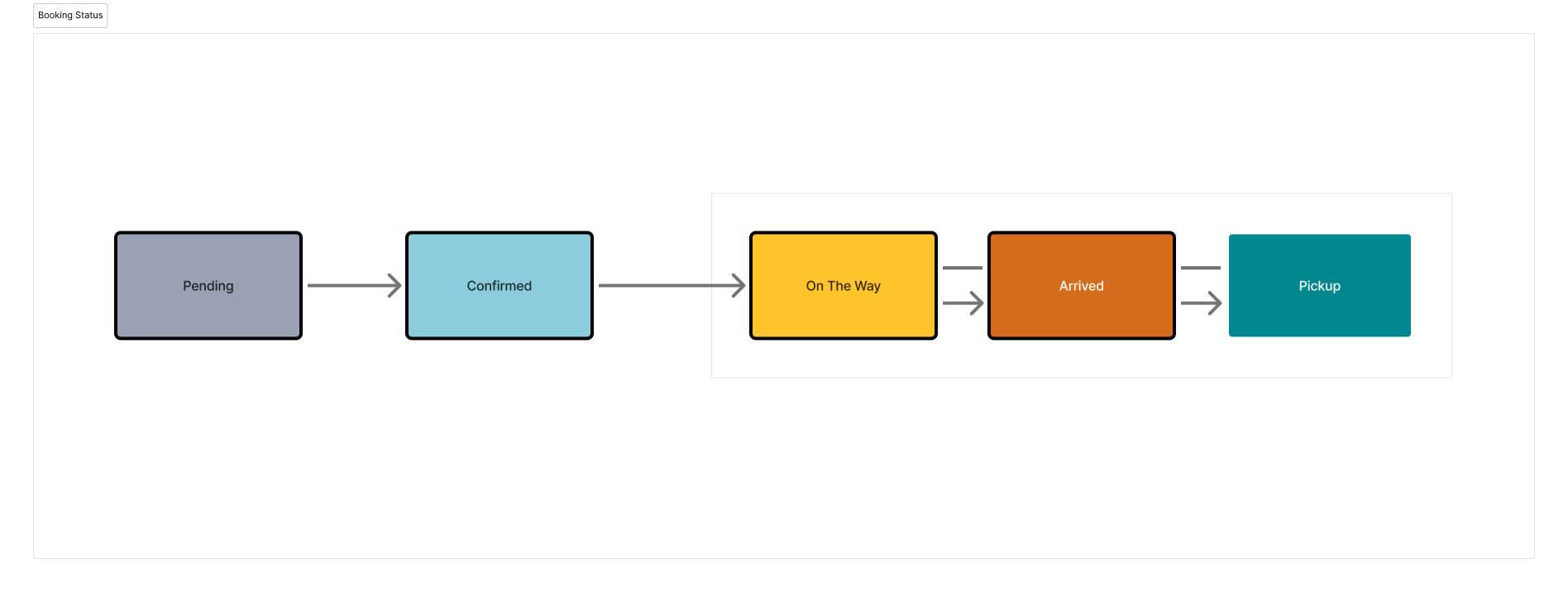
- Once the passenger is in the vehicle, the status changes to Passenger On Board (P.O.B.) and the trip is officially in progress.
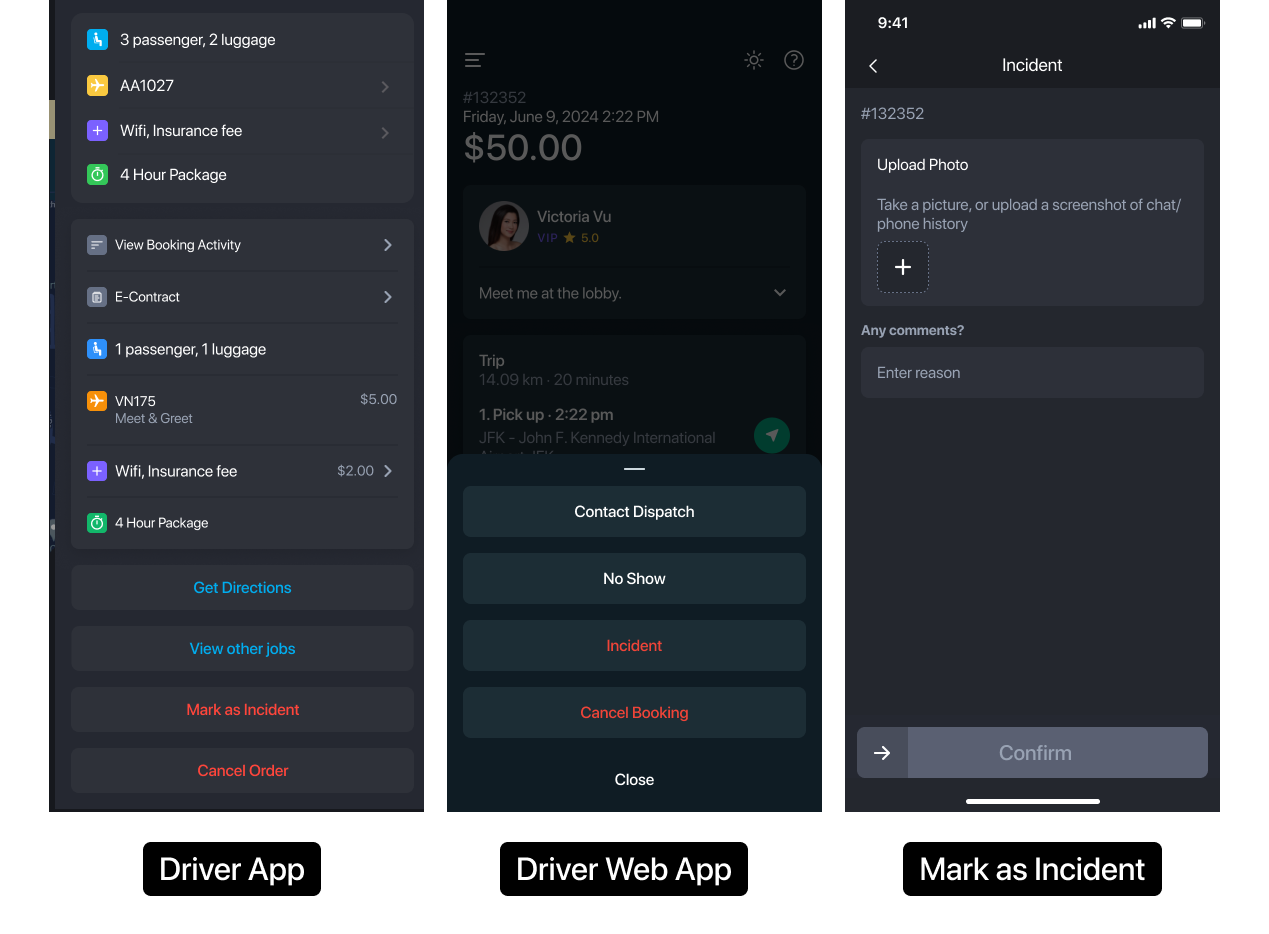
- At any time before drop-off, if an issue occurs (accident, customer dispute, wrong address, etc.), the driver can mark the job as an Incident and add photos or notes. This flags the booking as In-Review so operators can examine and resolve the issue before completing the job.
- When the driver completes the drop-off, the system checks for any fare discrepancies. If the final fare differs significantly from the estimate, the booking is flagged In-Review; otherwise, it moves toward Complete Job.
What can the operator modify?
Before the Trip Starts
During this stage, operators can modify all booking information.
For example you can update:
- Booking Pickup Date/Time
- Pickup or drop-off details
- Passenger information
- Vehicle or driver assignment
- Special requests or booking notes
- Flight Number
- Any other booking details (except the booker information)
- Only field you can't edit is the booker information.
Why can't I change the booker information?
The booker information cannot be edited because it is directly tied to the customer who created the booking. This ensures data consistency for payment, receipts, and account access. The booker can also log in to the passenger app or web portal to manage their upcoming trips.
If you need to change the booker, simply clone the booking with the updated details and cancel the original one.
After the Trip has Starts
Your ability to update booking details becomes limited. At this stage, operators can:
- Un-assign the driver or vehicle if an issue occurs (e.g., car breakdown, accident, or if a replacement driver is needed).
- Add or update notes and booking activity logs.
- Flag the trip as an Incident, No-Show, or Late Cancellation.
- Operators can also complete or close the trip on behalf of the driver if they are unable to do so from their app.
Was this article helpful?
That’s Great!
Thank you for your feedback
Sorry! We couldn't be helpful
Thank you for your feedback
Feedback sent
We appreciate your effort and will try to fix the article