The Flight API Integration automatically retrieves real-time flight information for airport transfer bookings.
By connecting a valid flight number to a booking, the system can:
- Track flight status automatically.
- Display real-time flight information in Command Center.
- Notify operators and drivers when flight details change.
- Automatically adjust the expected pickup time based on your configured rules.
This helps reduce manual flight monitoring while improving coordination between dispatchers and drivers.
Before You Start
Before using Flight API Integration, ensure that:
- The Flight API add-on has been successfully integrated and configured in your system.
- Flight tracking is enabled.
- A valid flight number is available.
- Airport transfer bookings use the correct airport location.
Note: Flight tracking only begins after a valid IATA or ICAO flight number has been applied to the booking.
Supported Flight Numbers
The system supports both:
- IATA Flight Numbers (e.g. QF646)
- ICAO Flight Numbers
Always enter the complete flight number to ensure accurate flight detection.
Add Flight Information to a Booking
Flight information can be added when creating a booking or after the booking has been created.
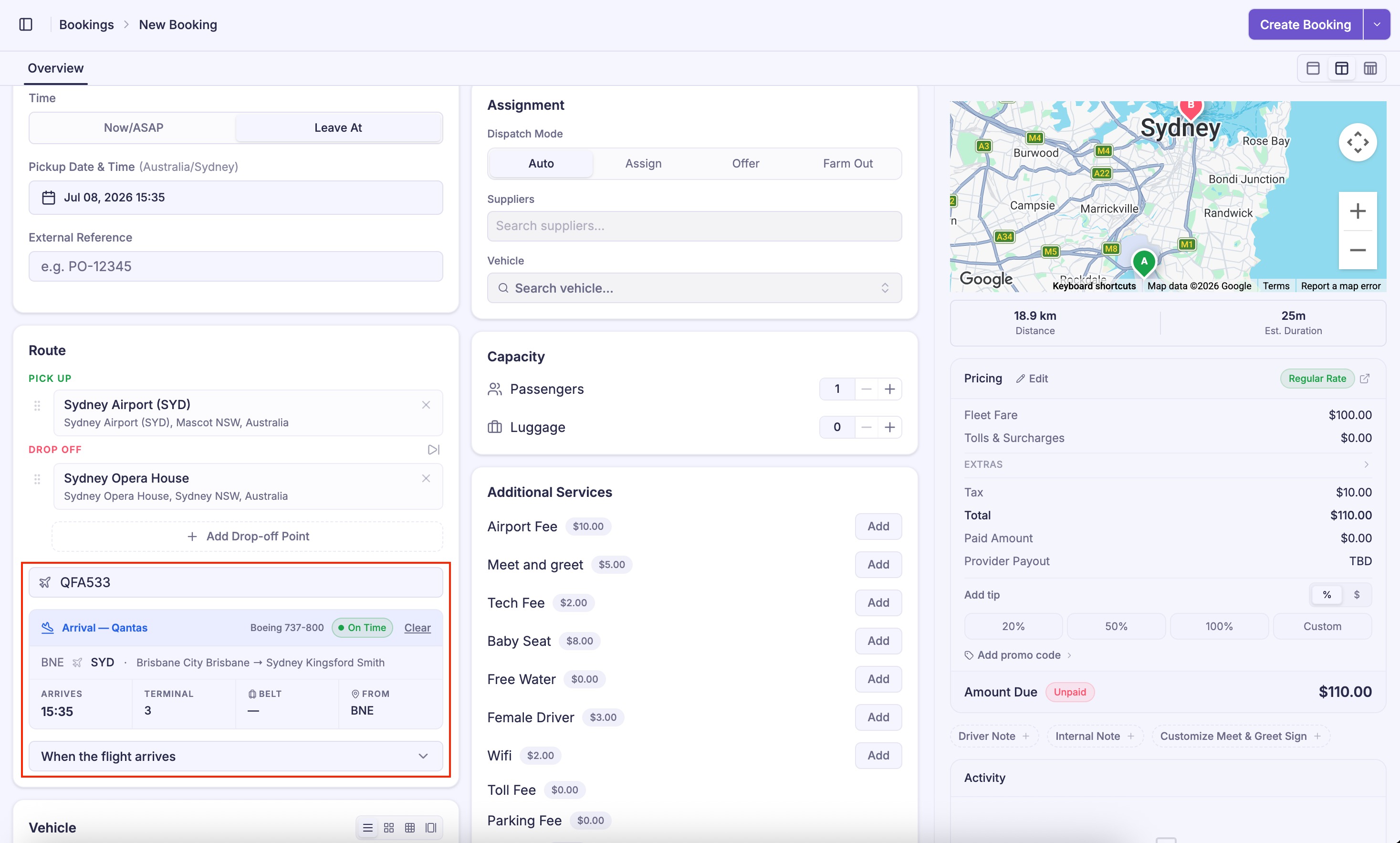
Option 1: During Booking Creation
- Create a new booking.
- Enter an airport as the pickup location.
- The Flight Information section appears automatically.
- Enter a valid flight number.
- Press Tab or click outside the field.
- The system automatically retrieves the flight details.
Option 2: From Booking Details
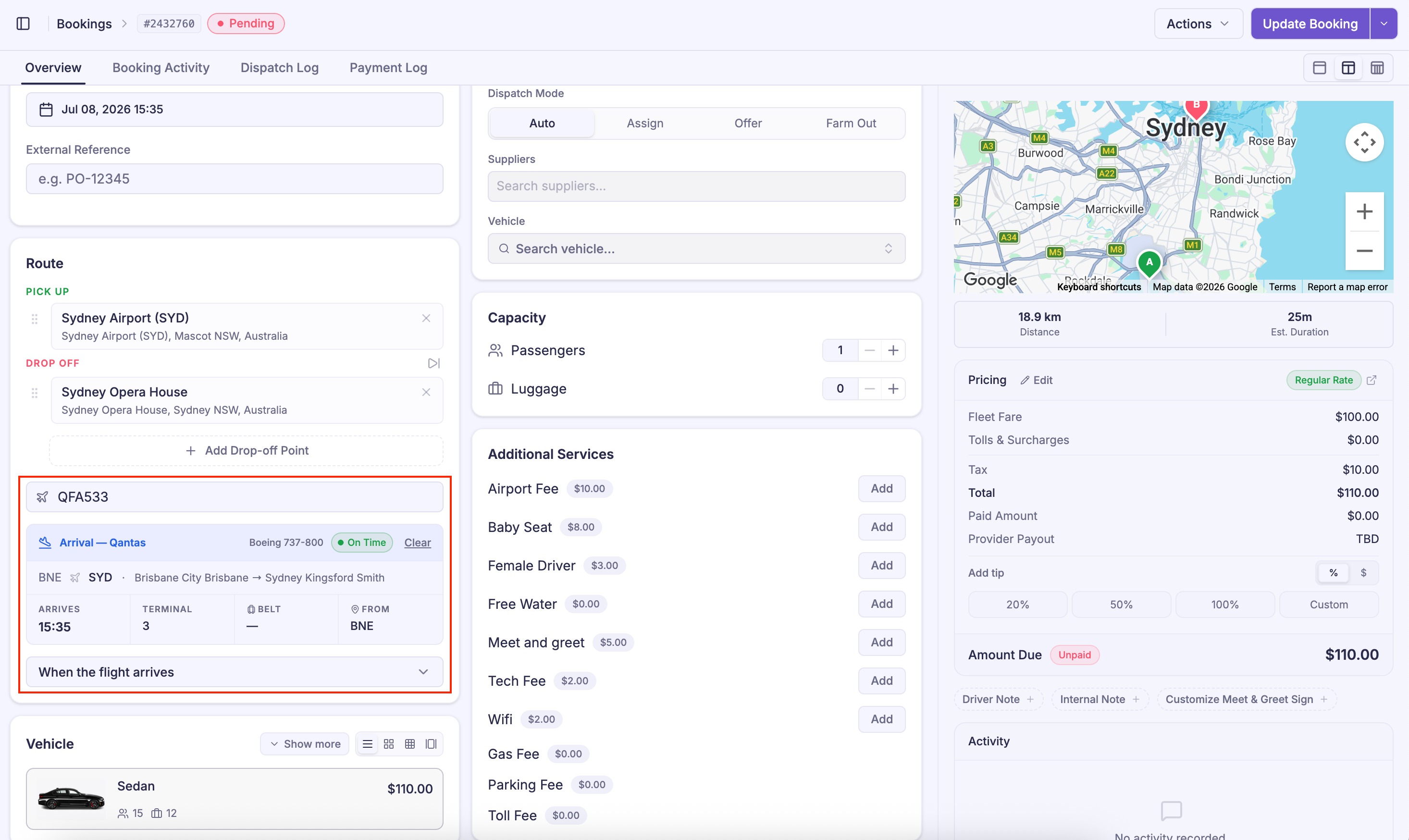
To add or update flight information for an existing booking:
- Open the booking.
- Enter a valid flight number.
- Press Tab or click outside the field.
- Verify the retrieved flight information.
- Click Update Booking.
Important Notes:
- Always enter the correct flight number format (example: QF646).
- Ensure the booking date matches the actual flight date.
- The airport address must match the flight route for accurate detection.
Flight Status Tracking
Once a flight number has been linked to a booking, operators can monitor its status directly from the Command Center.
The system automatically updates the booking as the flight progresses.
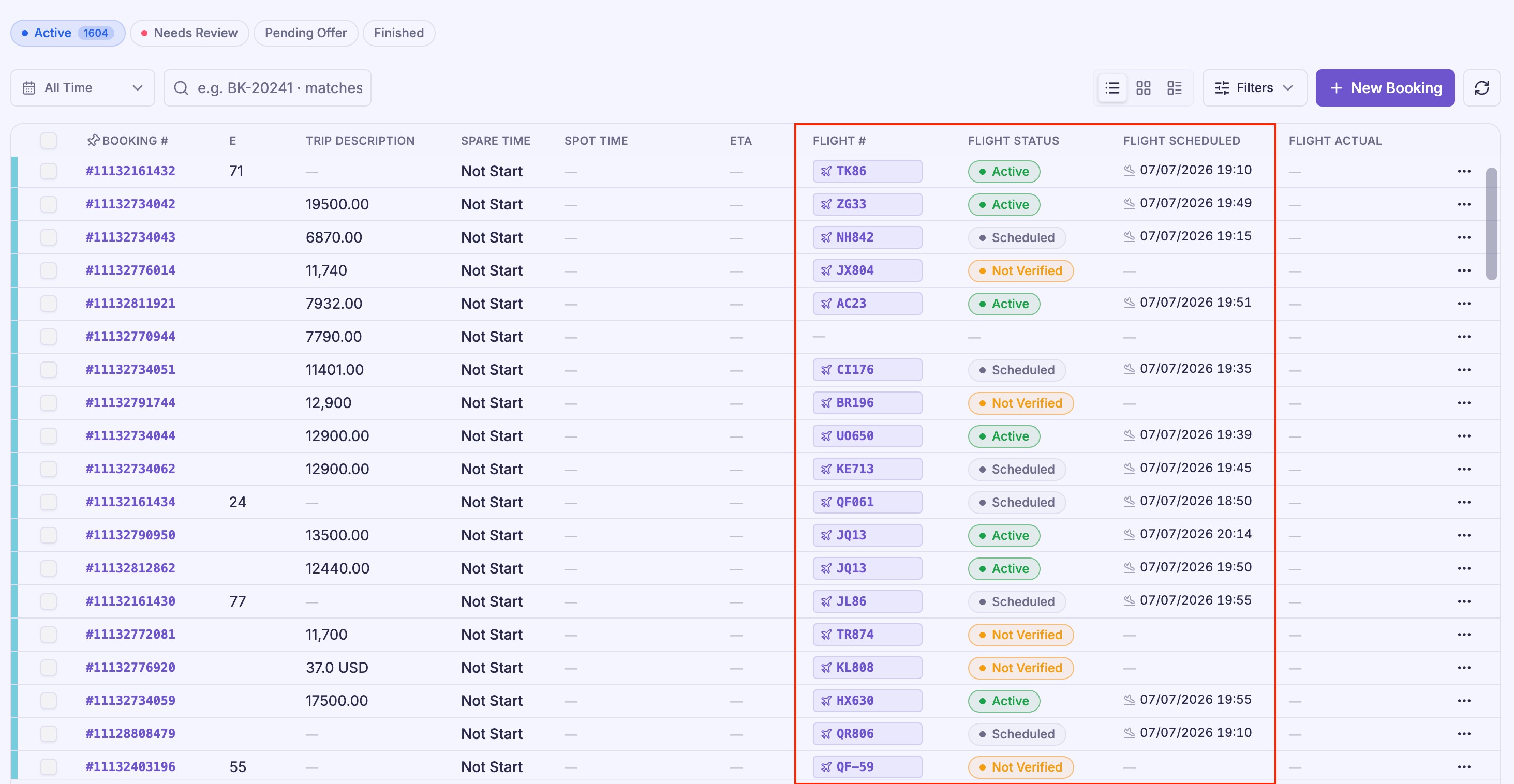
Supported flight statuses include:
| Status | Description |
|---|---|
| Scheduled | The flight is scheduled but has not departed. |
| Active | The flight is currently in the air. |
| Arrived | The aircraft has landed. |
Note: Flight Actual arrival information becomes available only after the flight lands and the status changes to “Arrived”.
Flight Notifications
Flight updates are automatically delivered to both operators and drivers.
Operator Notitications
Operators receive notifications in:
- Command Center Dashboard
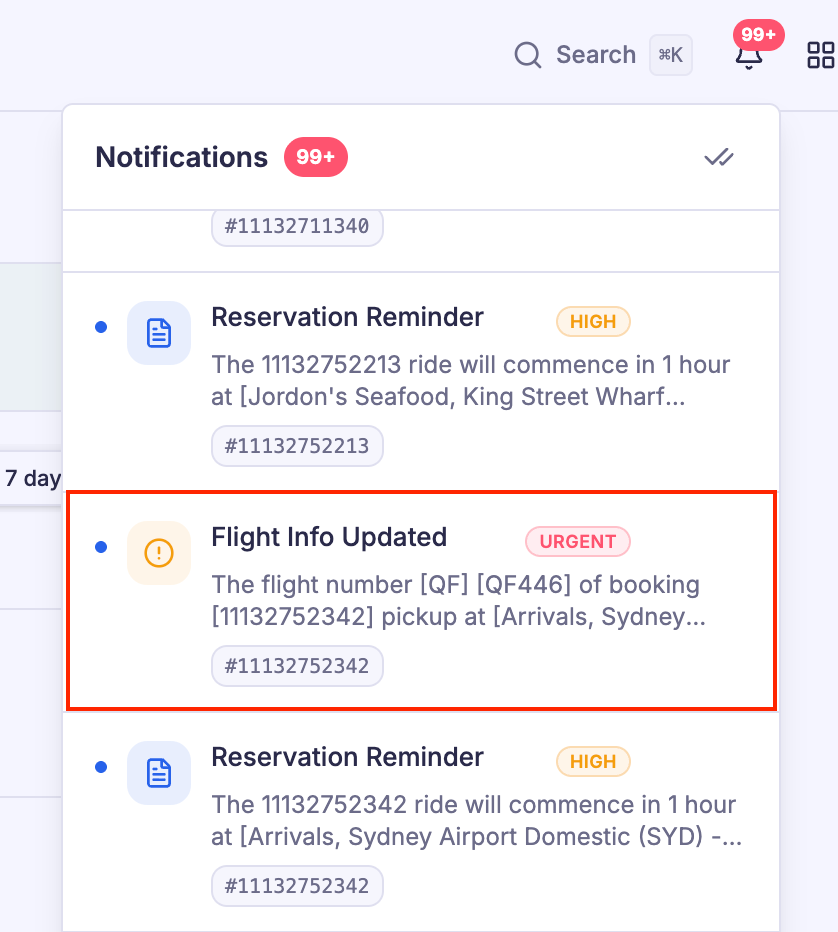
- Notification Center (filter by Flight API)
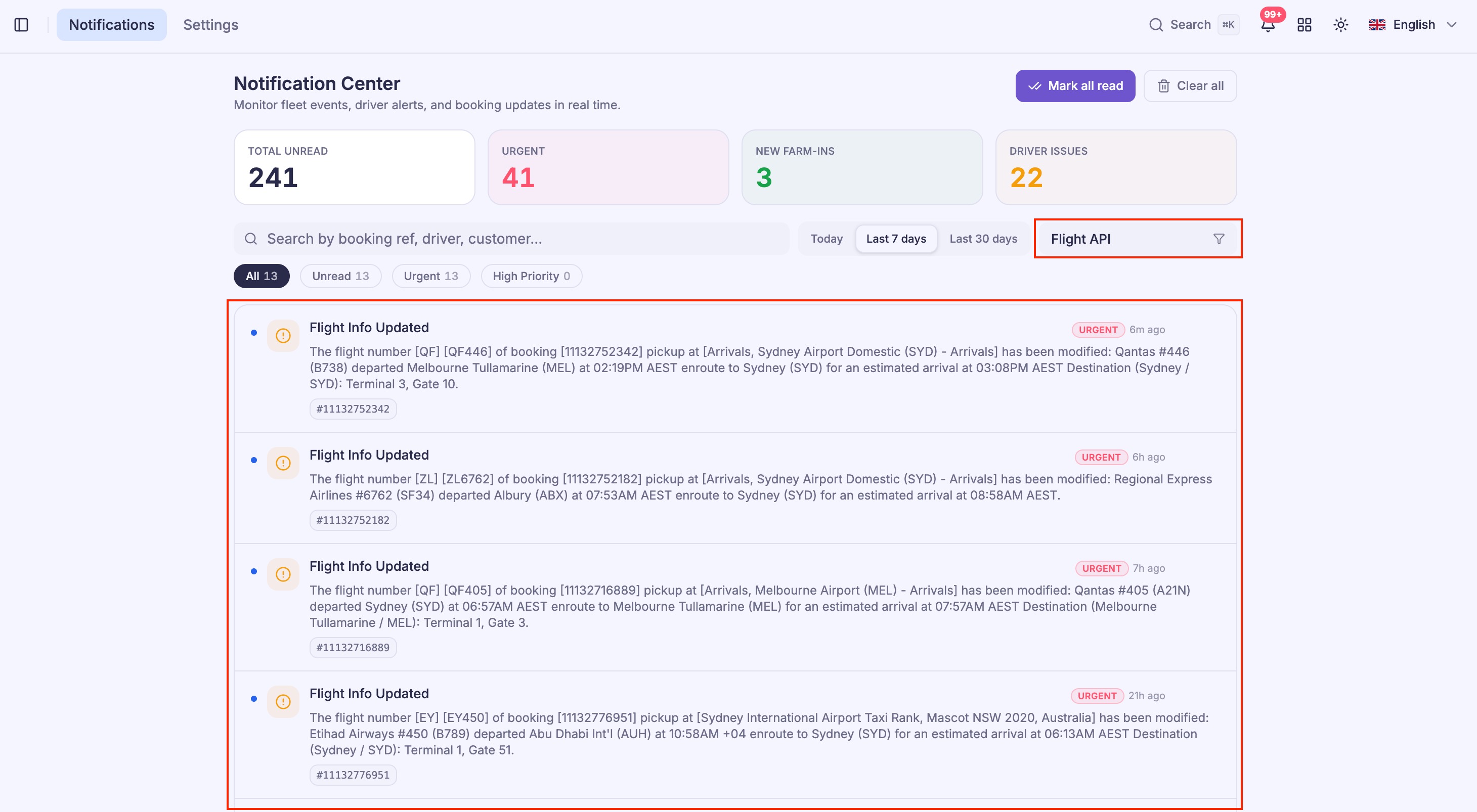
Notifications include important flight events such as delays, arrival updates, and status changes.
Driver Notitications
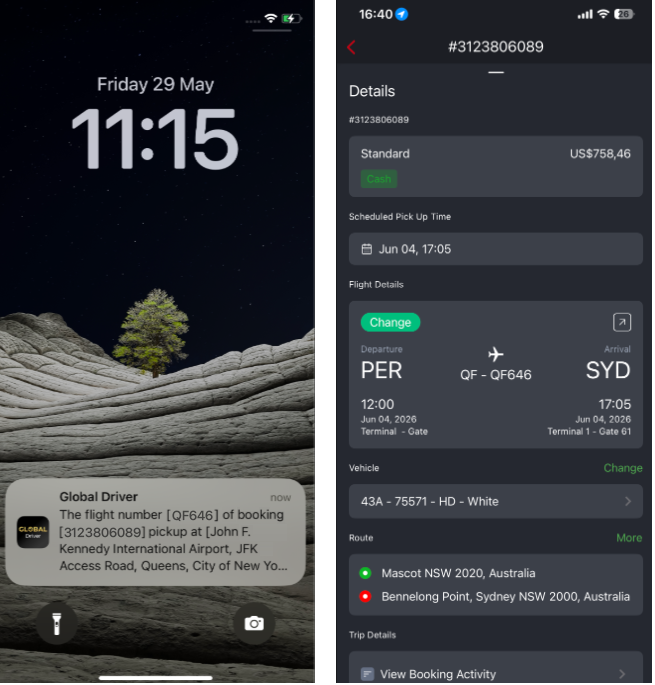
Drivers receive push notifications whenever flight information changes.
This helps drivers prepare for airport pickups using the latest arrival information.
Automatic Pickup Time Adjustment
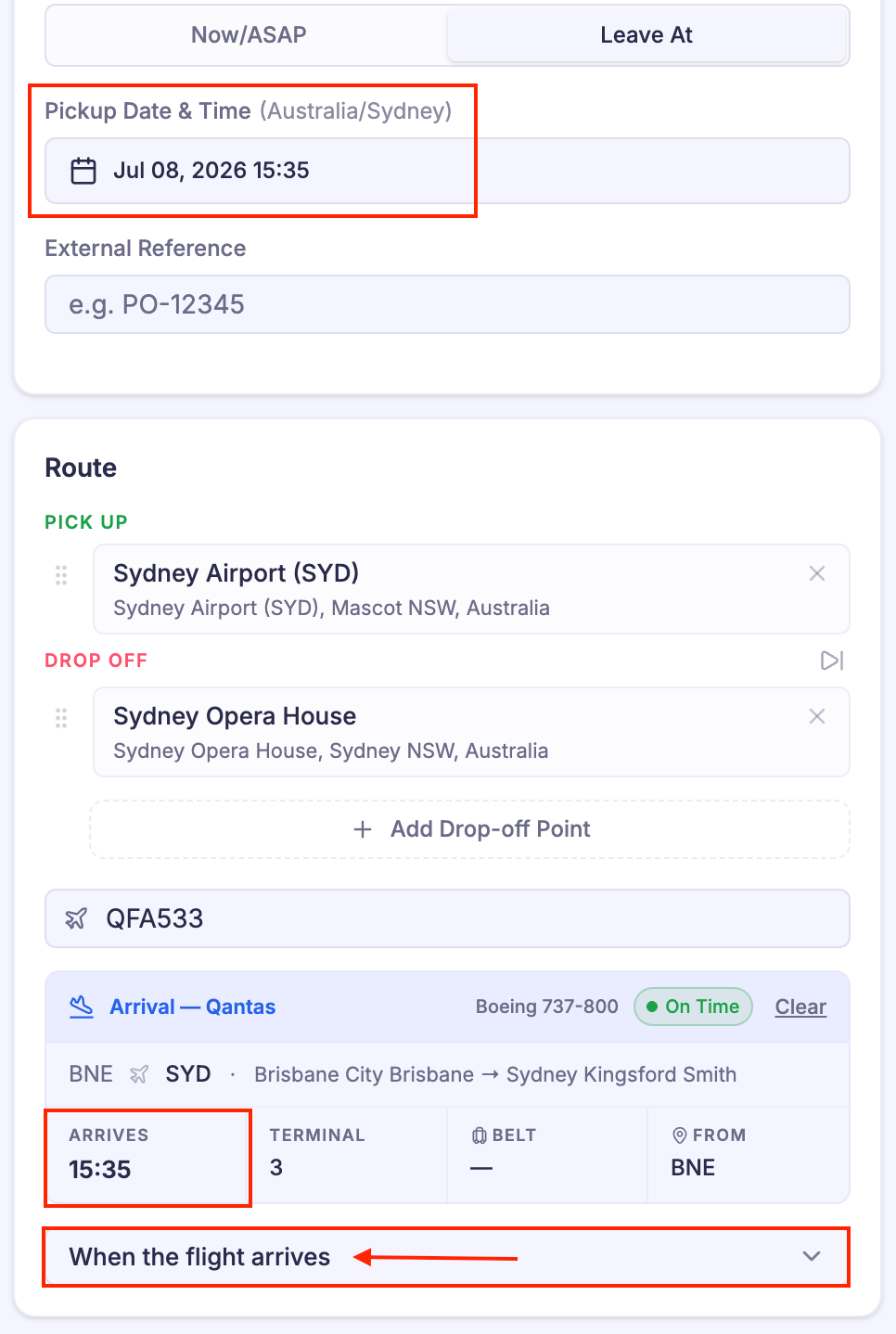
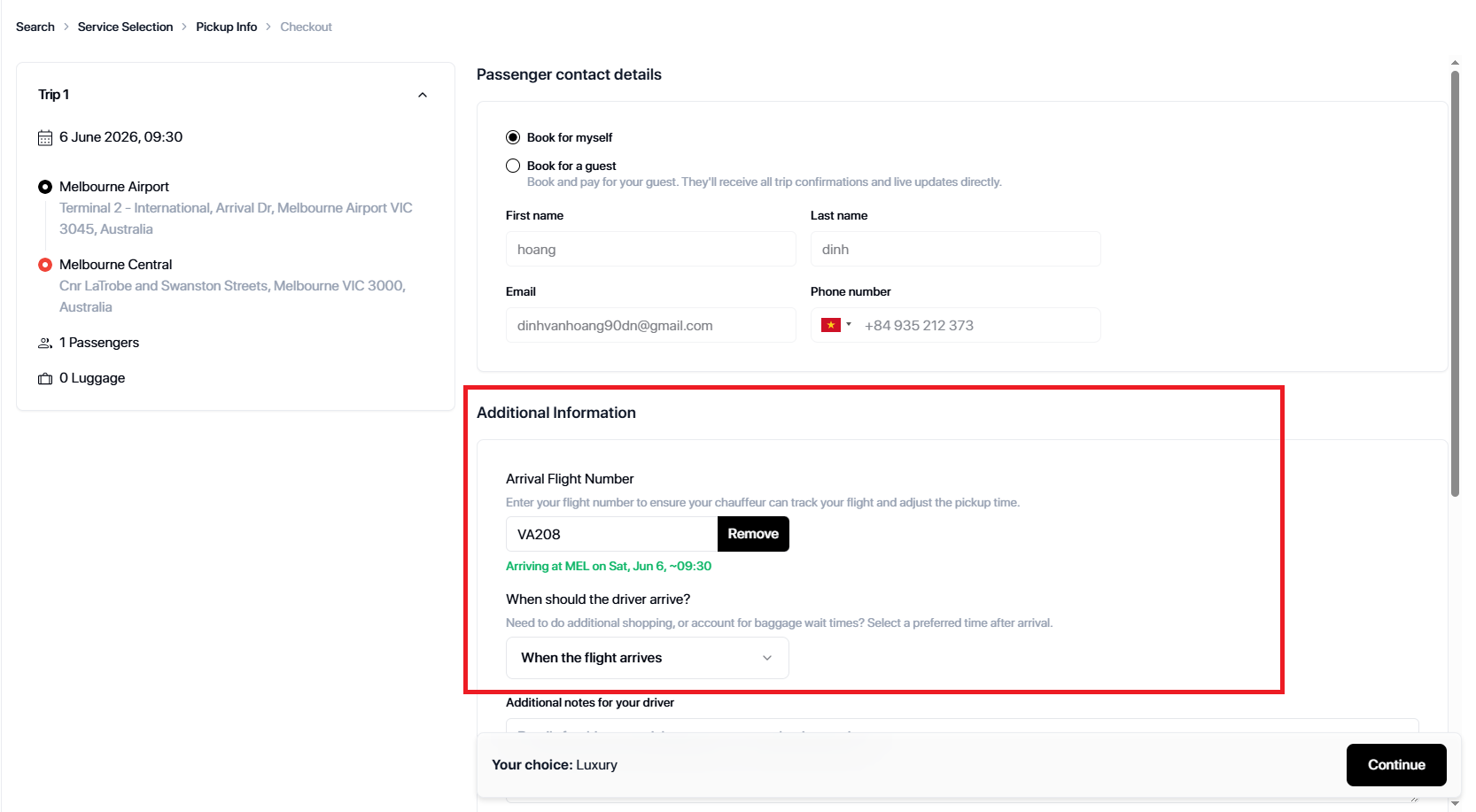
Flight API can automatically update the booking's expected pickup time based on the actual flight arrival.
Configure this feature under:
Settings → General → Booking & Cancellation
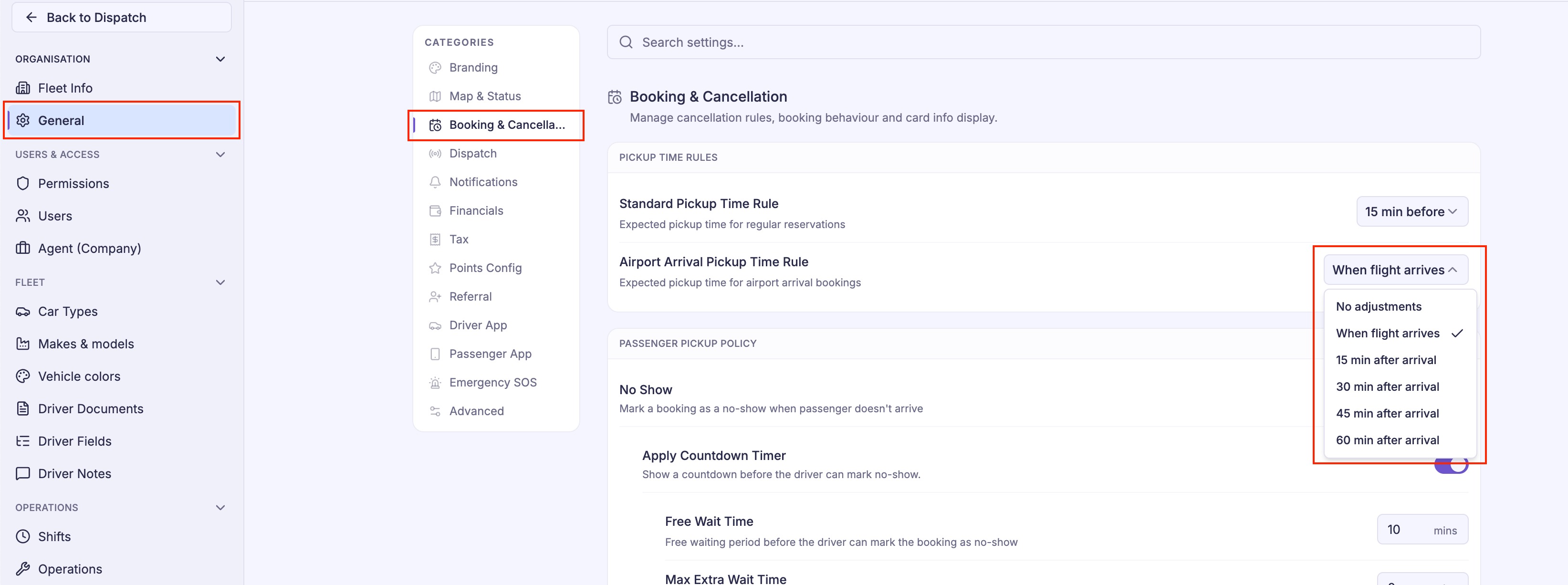
Available options include:
| Option | Description |
|---|---|
| No Adjustment | Keep the original pickup time regardless of flight updates. |
| When Flight Arrives | Update the pickup time to the actual flight arrival time. |
| 15 / 30 / 45 / 60 Minutes After Arrival | Automatically schedule pickup after the selected waiting period. |
The selected rule is applied whenever the flight information changes.

OTA & API Bookings
For bookings received from integrated channels (such as OTA or API partners):
- If a valid flight number is included, Flight API is triggered automatically.
- Flight tracking starts without any manual action.
Manual Bookings
For bookings created manually:
- Enter a valid flight number.
- Apply the flight information to the booking.
- Flight tracking begins once the booking has been updated.
Flight Delay Handling
If a tracked flight is delayed:
- Flight status updates automatically.
- Operators receive notifications.
- Drivers receive push notifications.
- The expected pickup time is recalculated according to the configured pickup rule.
This ensures both dispatchers and drivers always work with the latest flight schedule.
Best Practices
For the most accurate flight tracking:
- Enter the complete flight number.
- Ensure the booking date matches the flight date.
- Use the correct airport pickup location.
- Verify flight information before assigning a driver.
- Configure an appropriate Airport Arrival Pickup Time Rule for your operation.
Was this article helpful?
That’s Great!
Thank you for your feedback
Sorry! We couldn't be helpful
Thank you for your feedback
Feedback sent
We appreciate your effort and will try to fix the article